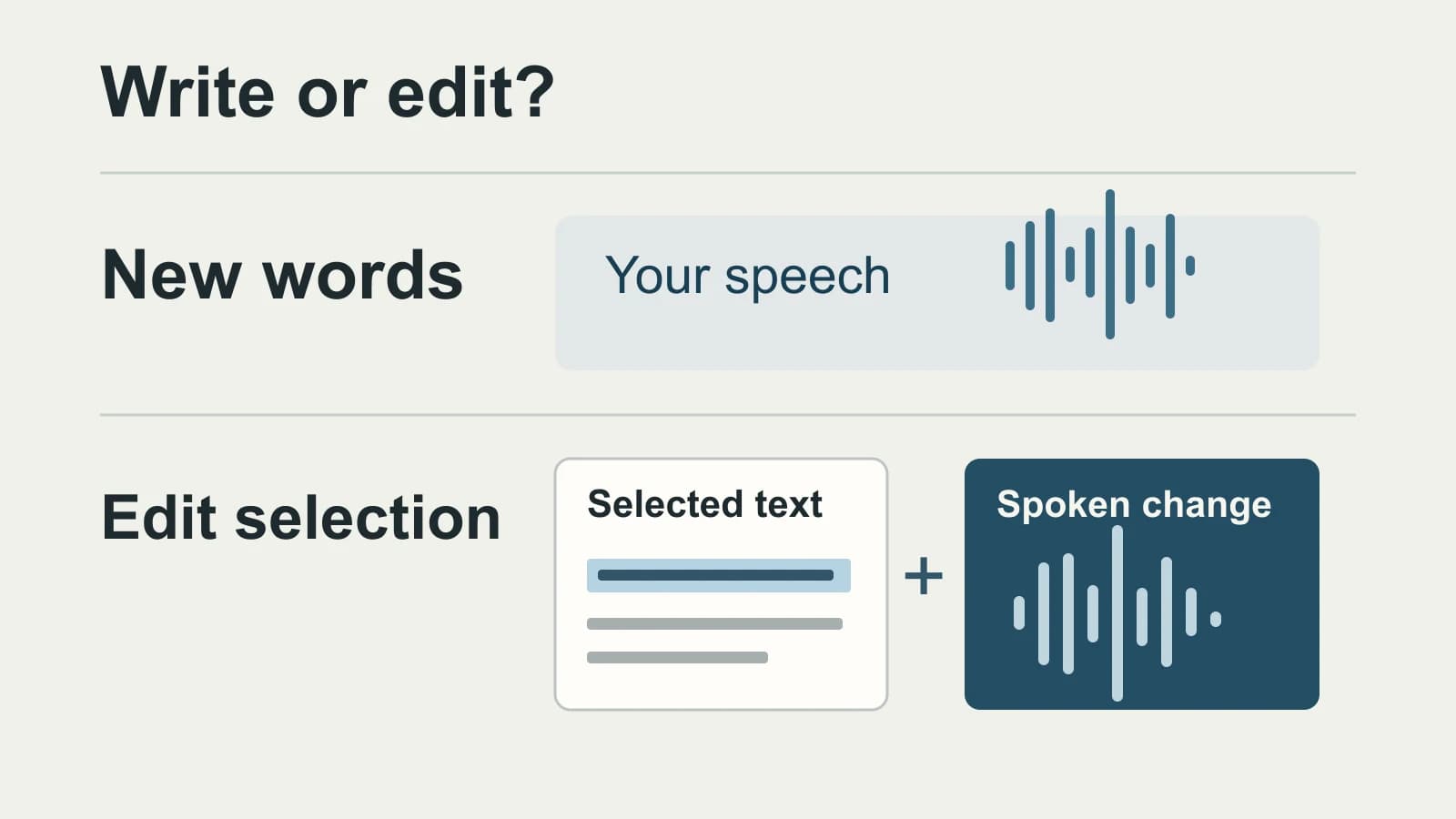
For Aqua Voice vs Wispr Flow on Mac or Windows, start with the edit you need. Try Aqua first for selected-text edits on your usual dictation key, including within its free word budget. Try Flow first if you want separate spoken commands and reusable, shortcut-driven rewrites. Both apps can change existing text.
Aqua’s Edit Mode is included on every desktop plan. Flow’s Command Mode requires eligible subscription or trial access and must be enabled. Its Transforms provide another route for applying saved instructions.
About this comparison: We make and sell the Mac dictation app discussed in the final section. We are not affiliated with or endorsed by Aqua Voice or Wispr Flow. Competitor facts come from the linked official sources.
Last checked: November 3, 2026. This is a documentation-based comparison, with no matched app test or accuracy ranking. The worked reply below is illustrative.
Compare the operation before the app
Dictating a correction during a new recording and changing a sentence already on the page require different inputs. Use this desktop operation map before comparing subscription prices.
| Operation | Aqua Voice | Wispr Flow |
|---|---|---|
| Create new text | Normal dictation with nothing selected. | Cleaned text after stopping. |
| Spoken correction | Realtime spoken changes before finishing. | Self-correction cleanup in ordinary dictation. |
| Selected-text edit | Usual key plus selection. | Separate Command Mode shortcut. |
| Saved instructions | Rules and examples for dictation; Pro includes them. | Saved prompt and Transform shortcut. |
| Live text | Live toolbar preview; destination text after finishing. | Desktop text after stopping. |
The saved-instruction controls act at different points. Aqua’s writing preferences shape dictated text. A Flow Transform can run on text that already exists, without another spoken recording. If the same shortening instruction is part of every revision, a saved Transform is a useful reason to try Flow. If you usually say a different change each time, compare the spoken edit routes.
Aqua selects the mode; Flow gives editing its own controls
Aqua keeps the normal dictation key. The presence of a selection determines whether that key writes new words or edits existing ones. This is a good starting point when you want to select a sentence and say the replacement without configuring another shortcut.
The Edit Mode exclusions matter beside that convenience: search fields and browser address bars always use normal dictation; selections longer than 6,000 characters are dictated over instead of edited. Edits also count toward the word allowance. Select a short passage in an ordinary editable field for this route.
Flow separates ordinary dictation from Command Mode. On a Mac, its documented default command shortcut is Fn + Control; Windows uses Control + Windows + Alt. Enable it in Settings → Experimental and check your actual binding. Flow says Command Mode uses the current text-box contents and selected text with your instruction, so selecting a sentence does not mean that sentence is its only context. Command Mode instructions
For repeated edits, desktop Transforms accept 1–3,000 words and can save custom prompts. They work where Flow can detect the selection; some custom editors are unsupported. The documentation also flags possible changes to Markdown links, HTML anchors and nested Slack lists. A prose-shortening result therefore needs a separate check before it replaces linked or structured text. Transforms limits and formatting
Aqua’s character limit and Flow’s Transform word limit describe different operations in different units. They do not establish a universal long-document winner.
One reply, two different jobs
Here is an authored example, not captured app output. Suppose you want to create this reply:
Thanks for reviewing the proposal. I’ll send the revised budget on Tuesday.
With an empty editable reply field, speak those two sentences using ordinary dictation. Now suppose the reply already exists and only its second sentence needs to change. Select that sentence and give this instruction:
Change Tuesday to Wednesday and keep the rest unchanged.
The intended edit is “I’ll send the revised budget on Wednesday.” In Aqua, the documented route uses the selected sentence and the usual key. In Flow, use the enabled Command Mode shortcut. Speaking that instruction through ordinary dictation is a different operation; cleanup of new speech does not establish that an existing sentence will be revised.
If you repeatedly need shorter replies, save a Flow Transform such as “Shorten the selected reply. Preserve the promised date and any amount.” Then apply it to the reply as a separate text operation. In Aqua, a persistent Custom Instruction can express your preferred reply style, while a one-off Edit Mode instruction changes the selected draft. These are different ways to arrange the work, even when the desired wording is similar.
The example exposes the decision: do you want to say each change, or press a shortcut for a rule you already saved? It also makes the acceptance check concrete: the date changes only when requested, and the first sentence stays intact.
Check language and allowance after the edit route
For language choice, check the actual language rather than the size of the catalog. Aqua’s language guide lists its supported languages. Wispr documents 100+ languages, but some need explicit selection and it detects one language per dictation. If your required language is available only in Flow, that settles the shortlist before editing preferences do.
The current free offers also serve different usage patterns. Aqua lists 1,000 free words, and Edit Mode consumes that budget too. Wispr’s desktop free plan has a weekly 2,000-word allowance and a 5,000-word maximum: dictation slows after the allowance and stops at the maximum until reset or upgrade. A recurring free dictation allowance does not establish free Command Mode access.
For paid desktop use, the vendors’ US dollar website terms checked today are:
| Plan needed | Monthly billing | Annual billing |
|---|---|---|
| Aqua Pro: unlimited dictation and Custom Instructions | $12/month | $120/year, equivalent to $10/month |
| Aqua Max: adds Realtime Mode | $24/month | $228/year, equivalent to $19/month |
| Flow Pro: unlimited dictation | $15/user/month | $144/user/year, equivalent to $12/month |
Annual billing is a year-long purchase; regional and store terms can differ. For Aqua selection editing, Pro is not a prerequisite. For live text in Aqua’s toolbar, compare the Max entitlement rather than assuming Pro includes it. For Flow voice editing, check the Command Mode access described above rather than using the free dictation allowance as the entitlement.
Why the vendor accuracy numbers do not settle this pair
Aqua’s Avalon write-up reports 97.4% key-term accuracy on AISpeak-10: the share of clips in which a highlighted technical term was transcribed correctly. That is a specific vocabulary measure.
Wispr’s Canto research reports word error rates on English Flow dictations, a separate challenge set and public English datasets. Word error rate counts substitutions, deletions and insertions against a reference transcript. The inputs and scoring differ from Aqua’s key-term result.
Those figures cannot be combined into an Aqua-versus-Flow accuracy score. Neither tells you whether the requested date survived an edit or whether a saved instruction preserved a link. Use the operation and entitlement comparison to choose a first app, then judge its output on your own writing.
When a separate Mac dictation route fits
We develop and sell Paraspeech. It is another route when the requirement is new Mac dictation with word replacements, optional rewriting or supported local processing. It is not the basis for deciding between the selected-text controls above.
Paraspeech supports local dictation on eligible Apple Silicon Macs after model download, with speech recognition and rewriting configured separately. Eligible online dictation can use cloud processing when local processing is unavailable. Privacy Mode blocks cloud speech and cleanup for dictation; Meeting Mode has separate storage and cloud-summary behavior. Intel Macs use eligible cloud-backed subscription models. Processing and setup documentation
With the required permissions, text can be inserted into many supported editable fields; other fields may need copy and paste. Keep Aqua or Flow when its documented selection-editing route is the reason you are choosing an app. A separate Mac dictation tool is relevant when creating new text and choosing its processing path are the actual jobs.