An Aqua Voice alternative for Mac fits only if it preserves the operations you depend on. If you select existing text and speak changes, keep Aqua until the replacement documents that editing route. If you only dictate new sentences, a simpler dictation app or macOS Dictation may be enough.
Before switching, separate your dictionary terms, phrase expansions, writing instructions and context settings. A replacement can handle spoken text while leaving one of those jobs unresolved.
Publisher note: This comparison comes from the team that sells the dictation app discussed in the final section. We are not affiliated with or endorsed by Aqua Voice. Competitor facts come from the linked official documentation.
Last checked: October 8, 2026. This is a documentation-based comparison. The diagram and example are original illustrations, not app screenshots or results from a hands-on test.
Separate writing new words from editing existing words
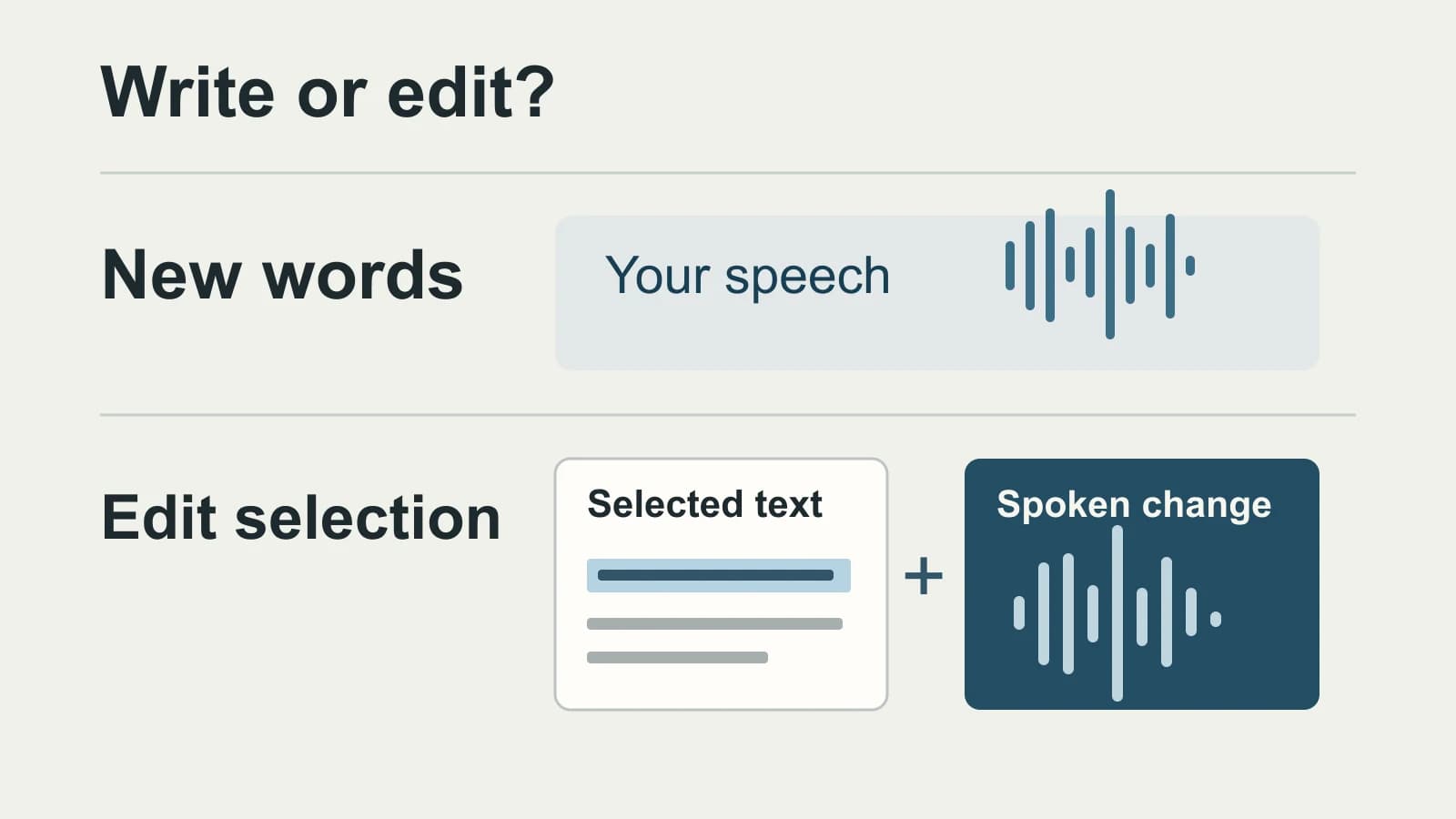
With nothing selected, Aqua uses normal dictation. With text selected, its Edit Mode takes the existing words and your spoken change, then replaces the selection. It also documents follow-up commands to undo an edit or return to the original.
That difference matters when you revise something you wrote earlier. Cleaning punctuation in a new transcript does not establish a route for shortening an existing paragraph, changing its meaning or undoing that change.
Aqua documents desktop Edit Mode for version 0.16.18 and later. Search fields and browser address bars use normal dictation, as do selections over 6,000 characters. These boundaries come from the same Edit Mode guide; they are not findings from testing individual apps.
If selection editing is central to your work, keep Aqua when a candidate documents only new dictation. If you never use selection editing, you can choose on the remaining controls without treating that feature as a requirement.
Preserve the controls you actually use
Use this map to match each required operation to a documented replacement route. A familiar feature name is insufficient: a list of terms, a text substitution and a writing instruction act on different inputs.
| Aqua operation and source | Required replacement route |
|---|---|
| New dictation: app-aware formatting; normal dictation when nothing is selected. Some fields restrict insertion. | Text entry at your destination. Require cleanup or context only when you use it. |
| Selection editing: Edit Mode replaces selected text using speech, with follow-up undo. | Existing text plus an edit instruction. Keep Aqua if that route is undocumented. |
| Vocabulary: Dictionary accepts difficult names, terms and acronyms. | The vocabulary mechanism you need. A post-recognition substitution is a separate control. |
| Phrase expansion: Replacements substitutes specified text for a recognized phrase. | Your trigger, its recognized variants and its intended expansion. |
| Writing preferences: Custom Instructions uses rules and examples, when your plan includes it. | A writing control for your preferences. Identical instructions do not prove identical interpretation. |
| Context and devices: the FAQ describes optional Deep Context and Mac, Windows, iPhone and Android apps. | The context and device functions you rely on. A Mac dictation route cannot settle the other devices. |
| Offline use: the FAQ qualifies availability by platform, version and mode. | Conditions for speech and rewriting, including setup and access, separately. |
Aqua’s Replacements guide specifies version 0.10.8 and later. The trigger phrase must be transcribed correctly; if it arrives in different forms, the guide suggests separate entries for those variants. Preserve those variants alongside the expansion, rather than carrying over only the preferred spelling.
For writing instructions, Aqua recommends examples of desired and undesired output. Those examples express what you want more precisely than a label such as “professional.” Keep them with the instruction when configuring another tool.
The sources used here do not establish automatic transfer of Aqua settings into another app. Keep your terms, trigger/expansion pairs and instruction examples as a reference. Recreate a control only through a route the target documents; leave a required operation with Aqua when that route remains unverified.
Use native Dictation when new text is enough
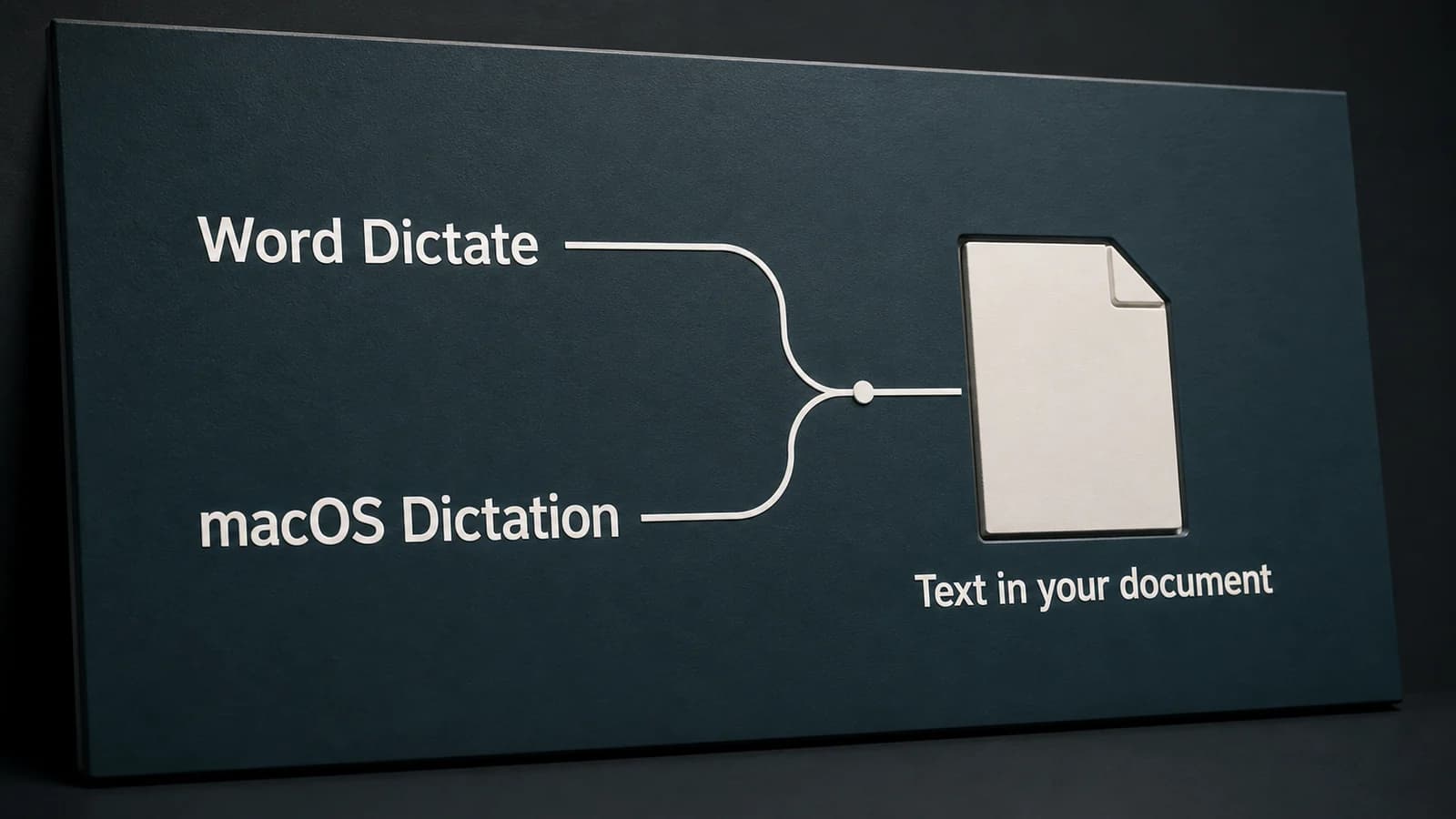
If your required job is speaking new text into a Mac app, macOS Dictation is a useful baseline. Enable Dictation in System Settings → Keyboard, place the insertion point in the destination, then use the Dictation shortcut or Edit → Start Dictation. Apple notes that languages, regions and features vary.
This route can meet a text-entry requirement without preserving the full Aqua workflow. Keep Aqua if your decision depends on its documented semantic selection editing, instruction examples, phrase expansions or screen context. The broader Mac dictation buying guide covers a shortlist when you need more than this operation decision.
Example: one sentence, two different inputs
Suppose a document already contains “I can send the draft on Friday.” You select that sentence and say “Change Friday to Thursday.” The required operation must read the selected sentence, interpret the instruction and produce a revised sentence in its place. A tool that simply inserts the spoken instruction has not performed that operation.
Now clear the selection and dictate “I can send the draft on Thursday.” This route needs to recognize new speech and insert new text. It does not need the earlier sentence as input.
These are invented examples of the input/output requirements, not reported app results. They explain why a replacement that handles the second job may leave the first unresolved. For a broader drafting exercise, use the writer workflow guide.
When Paraspeech fits
Paraspeech is a qualified option when your required job is new Mac dictation with manual text replacements or separately configured rewriting. Its documentation describes Dictionary rules with Original and Replacement fields and optional case-sensitive matching. Those substitutions differ from Aqua’s term list. Broad rules can also change text you intended to keep, so use a rule specific to the recurring error.
For rewriting, Transcription Only keeps recognized text without an AI rewrite. Cloud Cleanup requires internet and eligible cloud access. On This Mac Cleanup requires supported Apple Silicon, a downloaded model, eligible access and the direct-download Mac app. Rewrite settings and App Exceptions control this separately from speech recognition; copying an Aqua instruction does not establish identical interpretation.
Paraspeech requires macOS 14 or later. Supported local speech modes need Apple Silicon, downloaded models and eligible access. Intel Macs use cloud models with a subscription. The current offer separates subscriptions, which include local and cloud models, from Lifetime access for local models. Eligible online dictation can use cloud processing while a local model is unavailable; speech recognition and rewriting must each meet an offline requirement. The processing documentation describes those boundaries.
Text insertion requires Accessibility permission. If automatic insertion misses, the documentation describes copying a result from menu-bar history when history is enabled. Destination-app compatibility still matters.
Use these documented routes for the operations they establish. Arbitrary existing-selection voice editing, automatic Aqua settings import, equivalent screen context and Windows/Android parity remain unverified here. Keep Aqua when one of those operations is essential to your replacement decision.