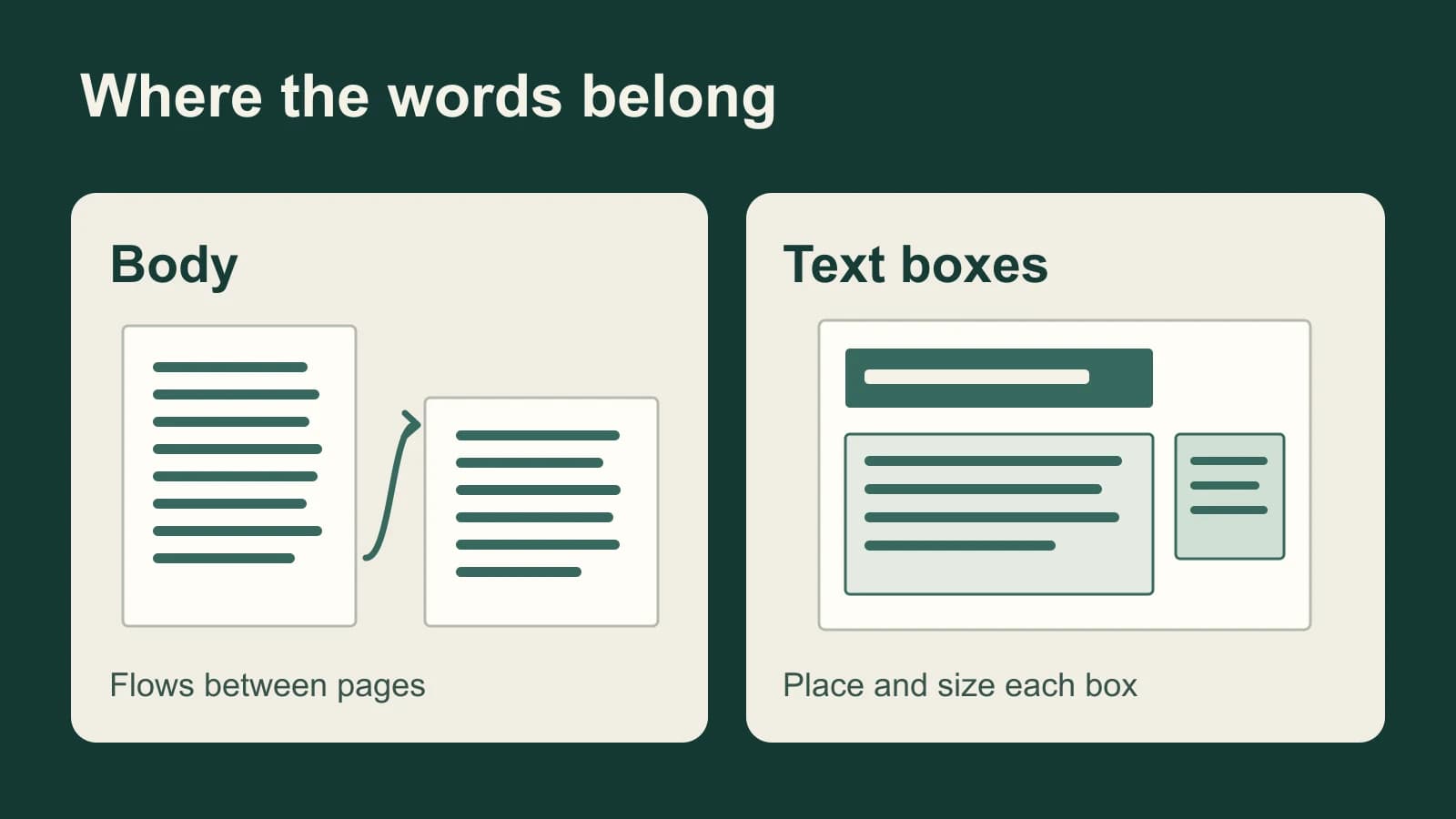
For Dictation in Pages on Mac, put the insertion point where the words belong, then choose Edit > Start Dictation. To replace a template placeholder, click its text before starting. In a page layout document, enter a text box first: the blank page itself has no body text area.
A report can flow onto another page; a flyer’s text box can hide words when it fills. Dictate the text, then use Pages to make it visible and apply paragraph styles.
Publisher note: This guide comes from the team that sells the dictation app discussed in the final section. We are not affiliated with or endorsed by Apple.
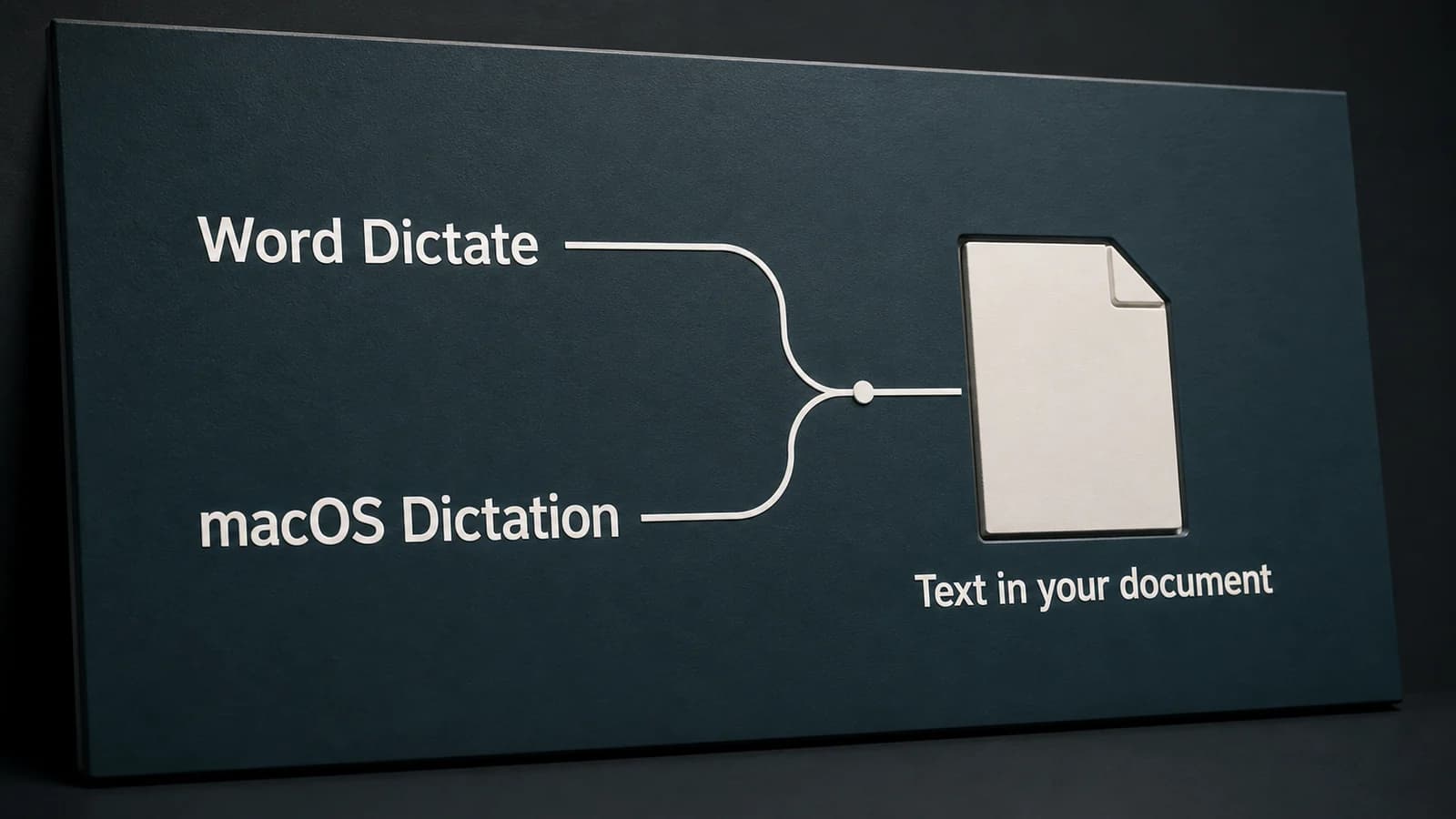
Last checked: October 8, 2026. Instructions follow the linked Apple documentation. The diagram and sample text are illustrations, not app screenshots or results from a hands-on dictation test.
Choose where the words belong
Pages supports two document types. A word-processing document has a body where text flows between pages. A page layout document is a canvas containing text boxes and other objects; you add its pages manually.
To identify your document, click Document in the toolbar and look at Document Body. A selected checkbox means word processing. An unselected checkbox means page layout. You can keep the current document type and choose the appropriate target; you do not need to convert a flyer into a report to dictate into it. Apple explains the distinction in its guide to Pages document types.
| Text target | Before you speak |
|---|---|
| Document body | Click in the paragraph. Select existing words only when replacing them. |
| Template placeholder | Click the placeholder to select the text you intend to replace. |
| Text box or sidebar | Click in the box’s text and confirm an insertion point. Add a box from the toolbar if needed. |
| Shape | Double-click the shape until the insertion point appears inside it. |
For any target, selecting existing text makes that selection the replacement target. If you want to append a sentence, clear the selection and place the insertion point after the existing words. These choices follow Apple’s Pages dictation instructions and guide to adding and replacing text.
Start Dictation at that text target
With the intended text target selected, choose Edit > Start Dictation. Follow the guided setup if this is your first use. Wait for the listening indicator, then speak. You can say punctuation names, such as “comma” or “period.”
Apple’s current Mac guide says “new line” inserts one line break and “new paragraph” inserts two. Finish dictating before deciding whether those breaks match your document. They separate text; paragraph styles and the position of a text box are separate Pages controls.
When you’re done, press Escape, the Microphone key or your configured Dictation shortcut, as described in the current Mac Dictation guide. That guide describes a pulsing cursor while ready. Apple’s Pages guide instead describes a microphone with Done beneath it; if your Mac displays that control, you can use it to finish.
For initial language, microphone and shortcut settings, use our Mac speech-to-text setup guide. If you already have an audio recording, follow the audio-file transcription workflow and paste the resulting text into Pages instead of treating the recording as live dictation.
Keep a text box’s words visible
A text box can contain more text than it displays. When Pages shows a clipping indicator, select the box and enlarge it by dragging that indicator or a selection handle. Make the words visible before dictating the missing passage again; the text may already be there.
If the text needs to continue in another box, Pages also supports linking text boxes to accommodate overflow. That is useful for a layout spread across several boxes. A page layout does not create a new body page automatically when one box fills.
A shape can also show a clipping indicator. Select the shape and drag a selection handle until its text is visible. Apple documents both forms of overflow in Add and replace text in Pages.
Apply a paragraph style after dictating
For a heading or body paragraph, click inside that paragraph. To change several paragraphs together, select them. In the Format sidebar, open Text, then choose a style from the paragraph-style menu near the top.
This lets you turn the first dictated paragraph into a heading while keeping the following paragraphs in the body style. Speaking “new paragraph” does not choose that style for you. Apple’s paragraph-style instructions also note that paragraph styles cannot be applied to text in a table cell.
Example: a briefing with a sidebar
Suppose you want this invented text in a volunteer briefing:
Volunteer briefing
Doors open at nine. Bring the blue folder to the welcome desk.
In a report, enter both paragraphs in the document body. Apply a heading style to “Volunteer briefing” and the appropriate body style to the instructions. The body can flow to another page as the report grows.
For a sidebar saying “Parking: use the north gate,” enter the sidebar’s text box before dictating. The insertion point now belongs to the sidebar. Its size controls visibility separately from the report’s body pages.
In a flyer, put the heading and instructions in the intended text boxes. You might use one box for the heading and another for the instructions. After entry, enlarge a clipped box or link it to another box. The same words require different destination and visibility decisions in the two document types.
If Dictation starts but Pages stays empty
First inspect the intended body, box or shape for an insertion point. If you see only object-selection handles, enter the object’s text. If a box shows a clipping indicator, enlarge it and look for the words there before restarting Dictation.
If the target accepts typed text but receives no speech, try Dictation in Notes to distinguish a Pages destination problem from a Mac input problem. Our Mac Dictation troubleshooting guide covers the system checks. When Voice Control is active, it handles dictation through its own route rather than standard Mac Dictation; see the linked Apple Mac guide.
When Paraspeech fits
Built-in Dictation is the first route to use when you simply want to speak into Pages. If you prefer a separate Mac dictation workflow, Paraspeech can supply editable text that you copy and manually paste into the body, placeholder or text box you selected.
In Pages, use Edit > Paste or Command-V, or choose Edit > Paste and Match Style to use the surrounding text’s style. Those are Pages paste controls; Pages still handles paragraph styles, box size and layout.
Paraspeech’s Mac setup and model guidance explains the requirements: supported local processing needs an Apple Silicon Mac and a downloaded model; Intel Macs use eligible cloud subscription access. Use this route for manual text transfer; keep the Pages destination and formatting decisions above. Paraspeech is our product, and it is not affiliated with or endorsed by Apple.