Google Sheets voice typing starts with choosing where the words should end up: one prose note inside a cell, or separate entries across cells. Google documents Tools → Voice typing for Docs, not Sheets. A source-described route is to dictate a short draft in Docs, stop the microphone, review the text, then place it in the intended Sheets cell. Google’s voice-typing instructions
For two lines in one cell, edit that cell and add the line break there. For two separate records, arrange the text in two cells before copying a range. Speaking “next cell” or dictating a paragraph does not establish a cell layout.
We make the Mac dictation app discussed below and are not affiliated with Google. Documentation checked November 3, 2026.
Draft the note, then edit one cell
Keep the speech step separate from the spreadsheet placement step:
- Open a Google Docs document in a current Chrome, Edge, or Safari browser, with a working microphone. Choose Tools → Voice typing.
- Click the microphone and dictate one short prose note. Click it again to stop before moving to the spreadsheet.
- Review the draft’s names, quantities, and dates. Copy only the note you intend to place in the cell; use
⌘+Con Mac orCtrl+Con Windows. - In Sheets, click an empty cell and start entering text, or double-click an existing text cell to edit it. Put the text caret inside the intended cell’s text before pasting the reviewed note with
⌘+Von Mac orCtrl+Von Windows. A border around a selected cell is a different state. - Add an internal line break with
⌘+Enteron Mac orCtrl+Enteron Windows while editing the cell. Place the next line there, rather than assuming spoken layout commands will do it. - Press Enter when the cell edit is finished. Reopen the cell if needed and check that the note is complete and the neighboring cells remain as intended.
The editing, newline, and completion controls come from Google’s Sheets editing guide. Keyboard copy and paste avoids relying on browser clipboard menus, which Google notes can be restricted. If placement changes more cells than intended, use Undo and rebuild the note one line at a time inside the cell editor. Google’s copy-and-paste guide
Do not use the newline shortcut while merely selecting a range. Google also lists ⌘+Enter on Mac and Ctrl+Enter on Windows as Fill range; the same keys have a different job outside the text-editing context. Sheets keyboard shortcuts
For the full microphone setup and Docs-specific voice controls, see our Google Docs dictation guide.
Compare one cell with a prepared range
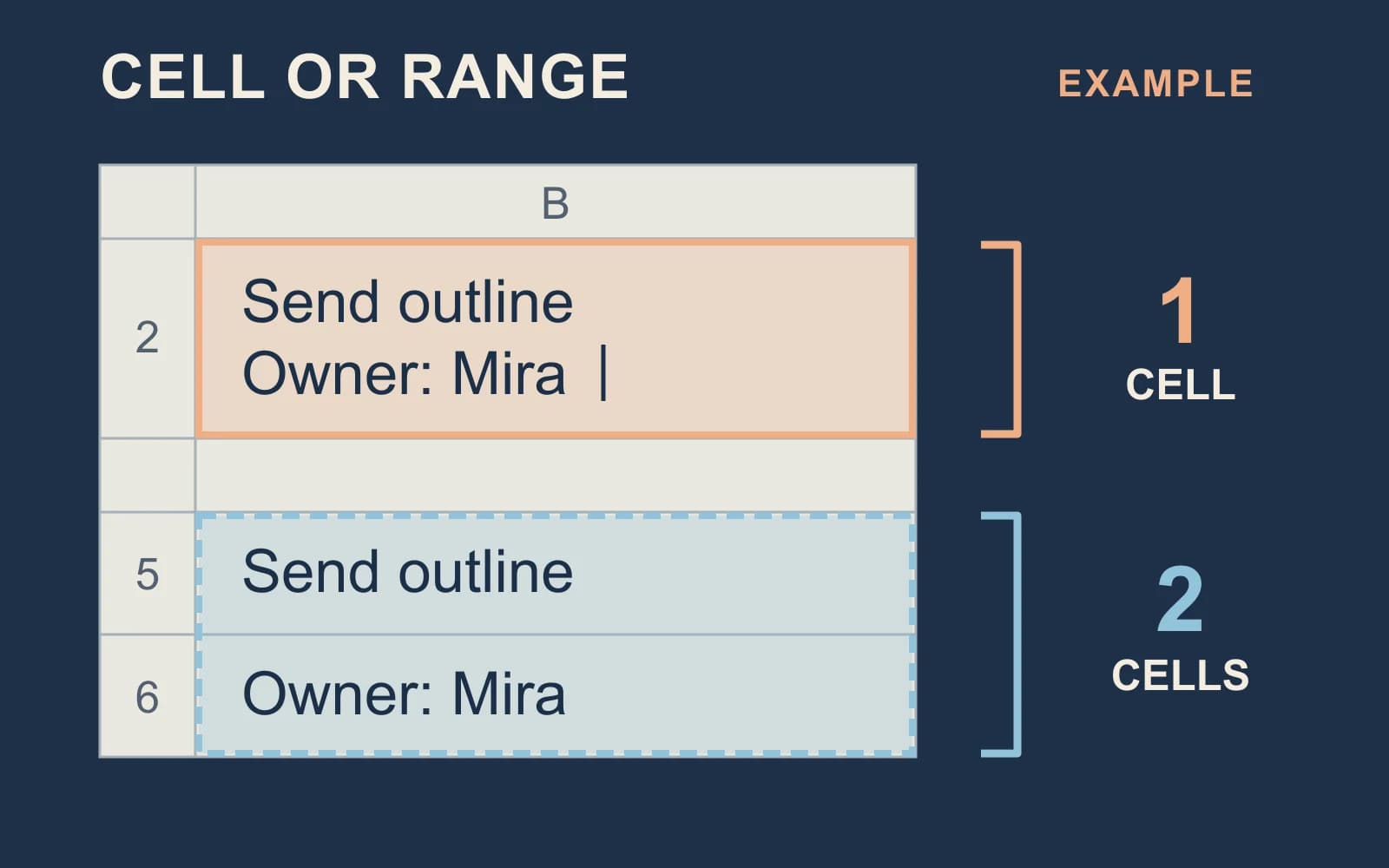
Suppose your note has two lines:
Send outline
Owner: Mira
Choose the structure before entering the text:
| Intended result | Deliberate placement | What to inspect afterward |
|---|---|---|
| One note in B2 | Edit B2; put the line break between the two lines inside that cell. | Both lines belong to B2; adjacent cells are unchanged. |
| Two entries in B5:B6 | Enter “Send outline” in B5 and “Owner: Mira” in B6 as separate cell edits. | B5 and B6 each contain one intended entry. |
The difference is the cell boundary, not the number of lines you said aloud. A multi-line note can still be one cell. Two rows should be prepared as two cells.
If those two entries need to move together, select the already prepared B5:B6 range and copy it. In the same spreadsheet, choose an empty destination starting cell and use Edit → Paste special → Paste values only. Google documents this option for text from the original cell range, with Paste special limited to one spreadsheet. Check both destination cells after the operation. Paste-special instructions
This range example begins with structured cells. It does not ask a voice tool to interpret prose as rows, columns, formulas, or cell addresses. For Excel’s different cell-editing controls, use the separate Excel dictation guide.
Correct placement before formatting
Stop the microphone before making these corrections. Use the keyboard to make exact repairs; do not keep speaking in the hope that the spreadsheet will infer the layout.
| What you notice | Correction | Final check |
|---|---|---|
| A note meant for one cell occupies several cells | Undo the paste. Reopen the intended cell’s text editor and place one line at a time, adding internal newlines there. | The complete note belongs to one cell. |
| Two records remain together in one cell | Enter them deliberately into separate cells before copying a range. | Each destination cell contains its own entry. |
| A name or technical term is wrong | Replace the exact text with the keyboard. | Compare the spelling with the original source. |
| A quantity or date looks plausible but may be wrong | Check the intended value against your source, then inspect the cell’s number/date format separately. | The value and its displayed format both match the task. |
Google’s Format → Number controls change how numbers, dates, and currencies are displayed. A suitable-looking format is not a check that the dictated value was correct. Keep formulas and exact identifiers as deliberate keyboard input; this prose workflow does not demonstrate spoken formula entry. Number-format instructions
Keep speech processing separate from spreadsheet data
Google says the browser controls the speech-to-text service used by Docs voice typing and sends the resulting text to Docs. Do not assume that this drafting route runs recognition locally. Once a note is placed in Sheets, choosing a different speech-input tool does not make Google’s handling of that spreadsheet local. Google’s processing explanation
Use only material appropriate for the document and spreadsheet you are editing. The useful final check is concrete: the right text, in the right cells, with the right values.
When a separate Mac dictation route fits
If you write short notes across Mac apps, Paraspeech can provide a separate speech-input route. On Apple Silicon, a downloaded local speech model can recognize speech locally after setup. Intel Macs use cloud speech with a subscription. Speech recognition, rewriting, and any enabled cloud fallback are separate choices; local recognition does not make the destination service local. Current setup and processing options
Direct placement depends on the editable field, focus, and permissions. When a field does not accept insertion, copy the completed text and place it manually, then use the same cell-edit and value checks above.