For voice typing in PowerPoint on the web, sign in, select Home → Dictate, and speak with the cursor inside a placeholder or slide notes. If the words arrive correctly but become tiny, check PowerPoint's AutoFit behavior before changing your microphone or speech app.
Last checked: October 27, 2026. This guide follows current Microsoft and Apple documentation and released Paraspeech Mac source. The example and illustration are original explanations, not results from a hands-on PowerPoint test.
Publisher note: We sell Paraspeech, the optional Mac dictation app discussed below. We are not affiliated with or endorsed by Microsoft or Apple.
Start with PowerPoint's documented web Dictate route
Microsoft's PowerPoint Dictate guide documents this browser route:
- Open an editable presentation and sign in to PowerPoint for the web using Edge, Firefox or Chrome.
- Choose Home → Dictate in the Voice section and allow microphone access when prompted.
- Wait for the listening state, then click inside the intended placeholder or slide notes and speak.
- Correct text with the keyboard as needed. Microsoft says you can do this without switching the microphone off.
This route requires a microphone and a reliable internet connection. A slide thumbnail or a selected object border is different from the text insertion point: put the cursor where the words belong.
If Dictate is unavailable, check the signed-in browser and editing state first. The same guide identifies a read-only presentation as a reason the control can be disabled. These checks concern Microsoft's feature; changing the Mac's Dictation shortcut starts a separate input route.
Use the right text location on a Mac
Microsoft's general Dictate overview includes PowerPoint for Microsoft 365 for Mac. Its current PowerPoint-specific guide supplies Web and Windows instructions. That documentation difference does not establish that a Mac feature is absent, and Windows shortcuts should not be transferred to the Mac.
For a separate built-in Mac route, enable System Settings → Keyboard → Dictation. In PowerPoint, put the insertion point in editable text, then use the shortcut shown in those settings or Edit → Start Dictation. Press Escape to finish. Apple documents this as system text input, separate from Microsoft's ribbon control. Language and feature availability vary; Voice Control handles dictation instead when it is enabled. Use the Mac setup guide for system-level troubleshooting.
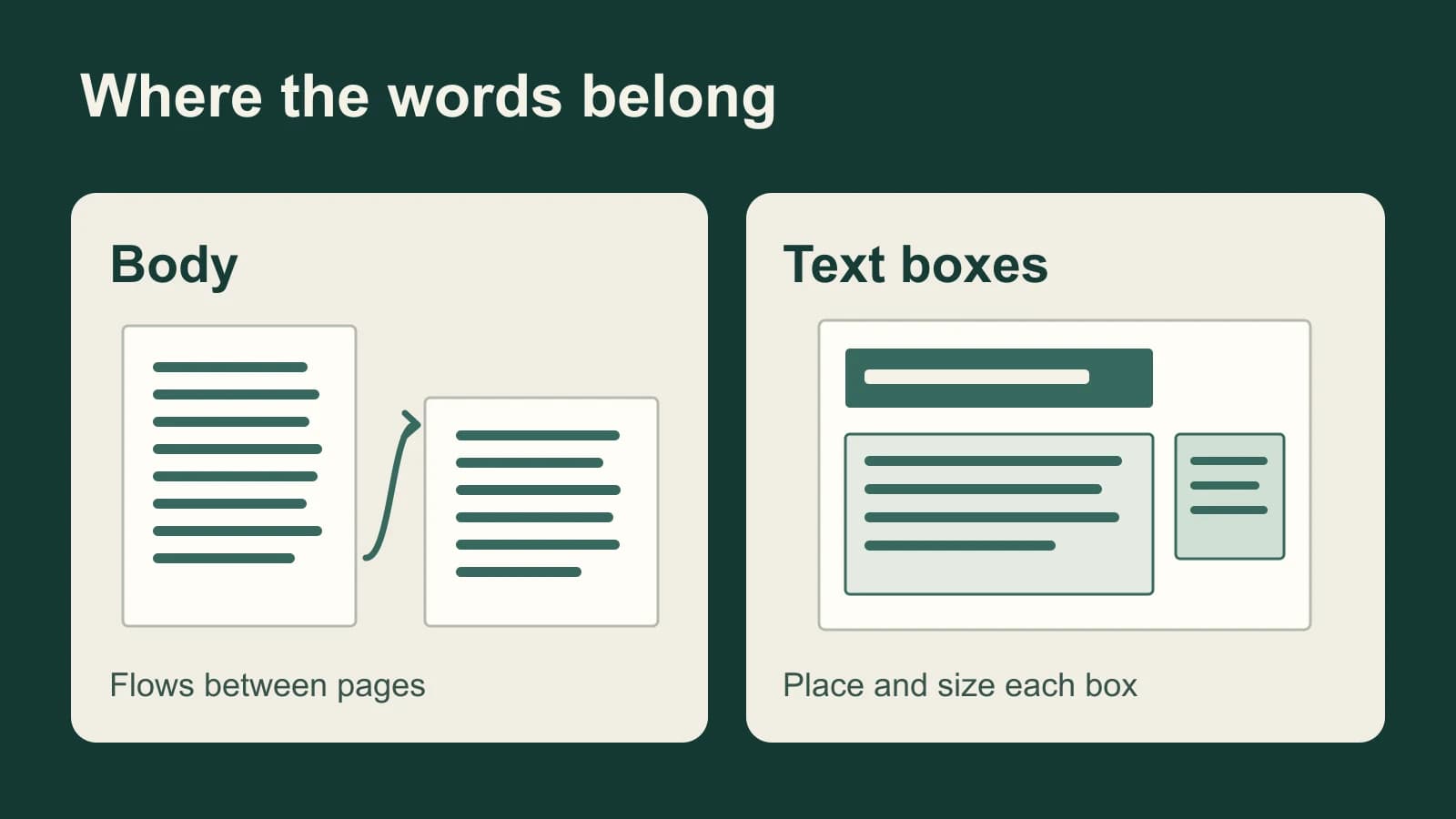
PowerPoint's Mac text instructions distinguish the places you can edit:
- A placeholder: Click inside its border, then enter or paste text.
- A drawn text box: In Normal view, click inside the box to edit. A box on the slide master has a different editing scope.
- Speaker notes: Choose View → Normal, select the slide, then click the notes area beneath it. Microsoft's Mac notes guide documents this location.
Use a visible insertion point rather than assuming that selecting a slide has selected its text. Microsoft documents these editing destinations.
If correct words become too small, check AutoFit
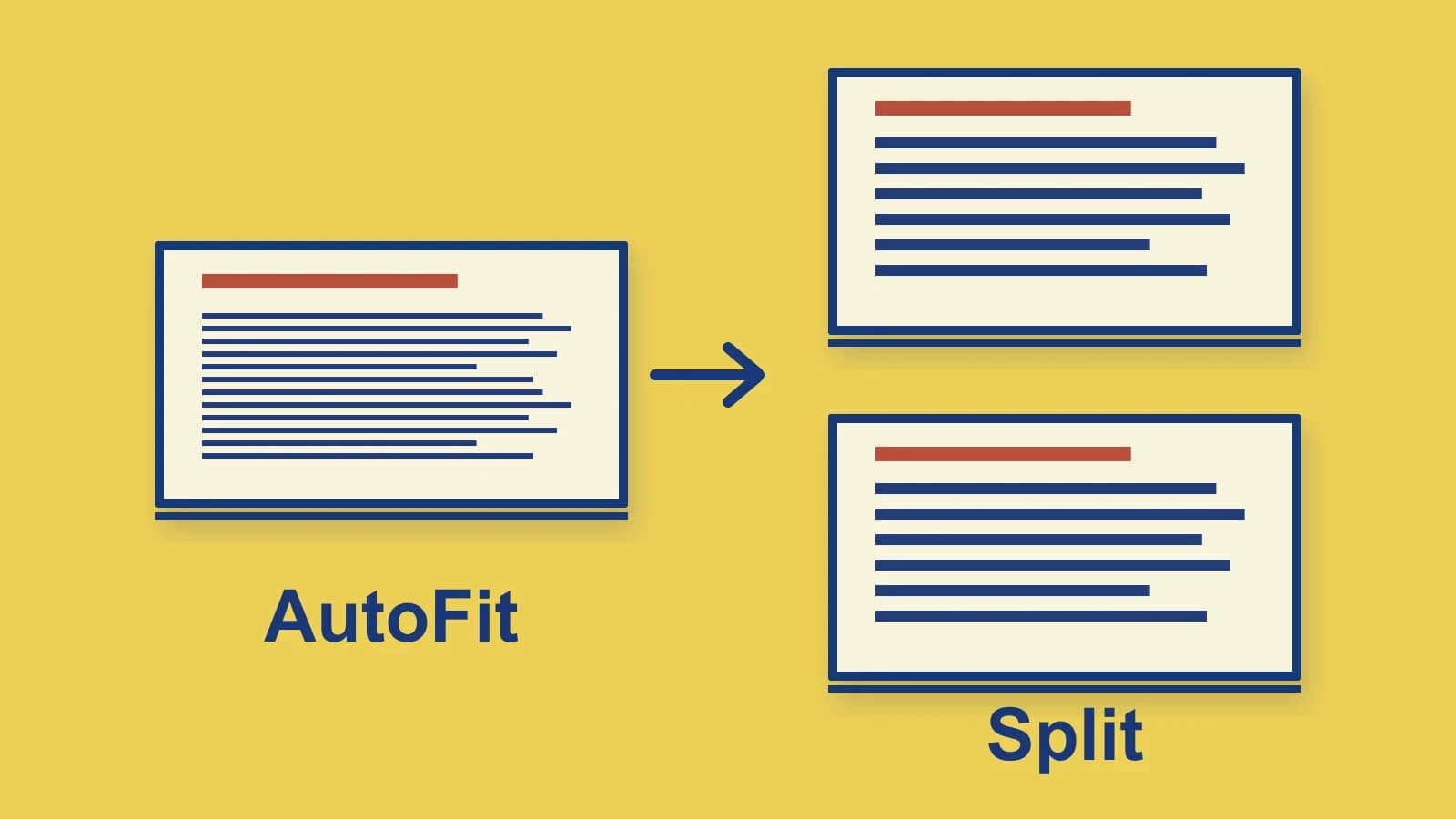
If a correctly transcribed paragraph becomes tiny, PowerPoint may be fitting it to the placeholder. Microsoft's overflow guide describes the cause and these remedies.
On Mac, open AutoFit Options at the lower-left corner of a body placeholder:
| Option | What happens |
|---|---|
| AutoFit Text | Shrinks the text to fit. |
| Stop Fitting Text | Keeps the size; excess text can overflow. |
| Split Text Between Two Slides | Creates a following slide with the same title and moves roughly half the words. |
| Continue on a New Slide | Keeps existing text in place and creates a same-title slide for more. |
These controls apply to body placeholders, not drawn text boxes. PowerPoint web has no automatic split; cut and paste overflow to another slide there. See the Mac and web sections for those separate limits.
Worked example: keep the speaking cue without shrinking the slide
Suppose you want to say:
The museum opens at nine. School groups enter from the east gate. The north gate is reserved for deliveries, and the last group should arrive before three.
This is an illustrative input and editing decision, not a transcript produced by either app. If the full passage exceeds a body placeholder's space, AutoFit can make it smaller even when every word is correct.
If the audience only needs the school-group instructions, deliberately author two short lines for the slide:
School groups: east gate
Last arrival: before three
Keep the full speaking cue in that slide's notes. You have changed what the audience needs to read, rather than trying to improve recognition of an already correct passage. PowerPoint's notes guide explains their use as presenter talking points.
If every sentence must appear on slides, use the appropriate split or manual move instead. Review the break afterward: dividing text approximately in half does not choose the best speaking transition. Use Continue on a New Slide when you want to preserve the current slide and dictate the next portion separately.
For Google Slides, use its separate destination guide. PowerPoint's placeholder controls should not be assumed to exist in another presentation app.
Record captures narration rather than editable words
PowerPoint's Record workflow is a different task. Microsoft's Mac recording instructions describe narration, slide timings and optional video being applied to the slide. Use Dictate or a text-input route when you want editable wording. Recording your voice does not, by itself, put that wording into a placeholder or notes field.
When a separate Mac dictation route helps
Keep Microsoft's or Apple's input if it handles the task. A separate app is useful when you want a dedicated Mac speech workflow, model choices or optional rewriting across your writing apps.
In released Paraspeech Mac 1.7.3, build 372, the documented route can supply new dictated wording for a manual handoff. With history enabled, review the result and use Copy from menu-bar history. Return to PowerPoint's Normal view, click inside the intended editable placeholder or text box, then paste. This combines documented text output with Microsoft's Mac paste destination; it is not a tested PowerPoint integration or a layout control. Privacy Mode clears dictation history and stops saving new entries, so this history-based route requires history to be enabled.
Paraspeech requires macOS 14 or later, microphone and Accessibility access, and eligible access. Supported local speech needs Apple Silicon and a compatible model downloaded beforehand; Intel Macs use cloud-backed subscription models. Speech recognition, rewriting and eligible cloud fallback are separate. Transcription Only skips an AI rewrite, rather than guaranteeing raw or verbatim text. Check the local-processing requirements if processing location determines your choice.
If that separate input workflow meets your need, download Paraspeech for Mac and use the intended editable destination. A different speech app will still leave PowerPoint's placeholder sizing and slide breaks for you to resolve.