Choose an Otter AI alternative around the work you need to keep:
- Keep Otter when colleagues still need the existing shared conversations, comments and workspace access.
- Choose MacWhisper's batch route when you have a queue of exported audio files to transcribe on a Mac.
- Choose an individual Mac workflow when you need to work on one recording or capture future meetings, without recreating the Otter workspace.
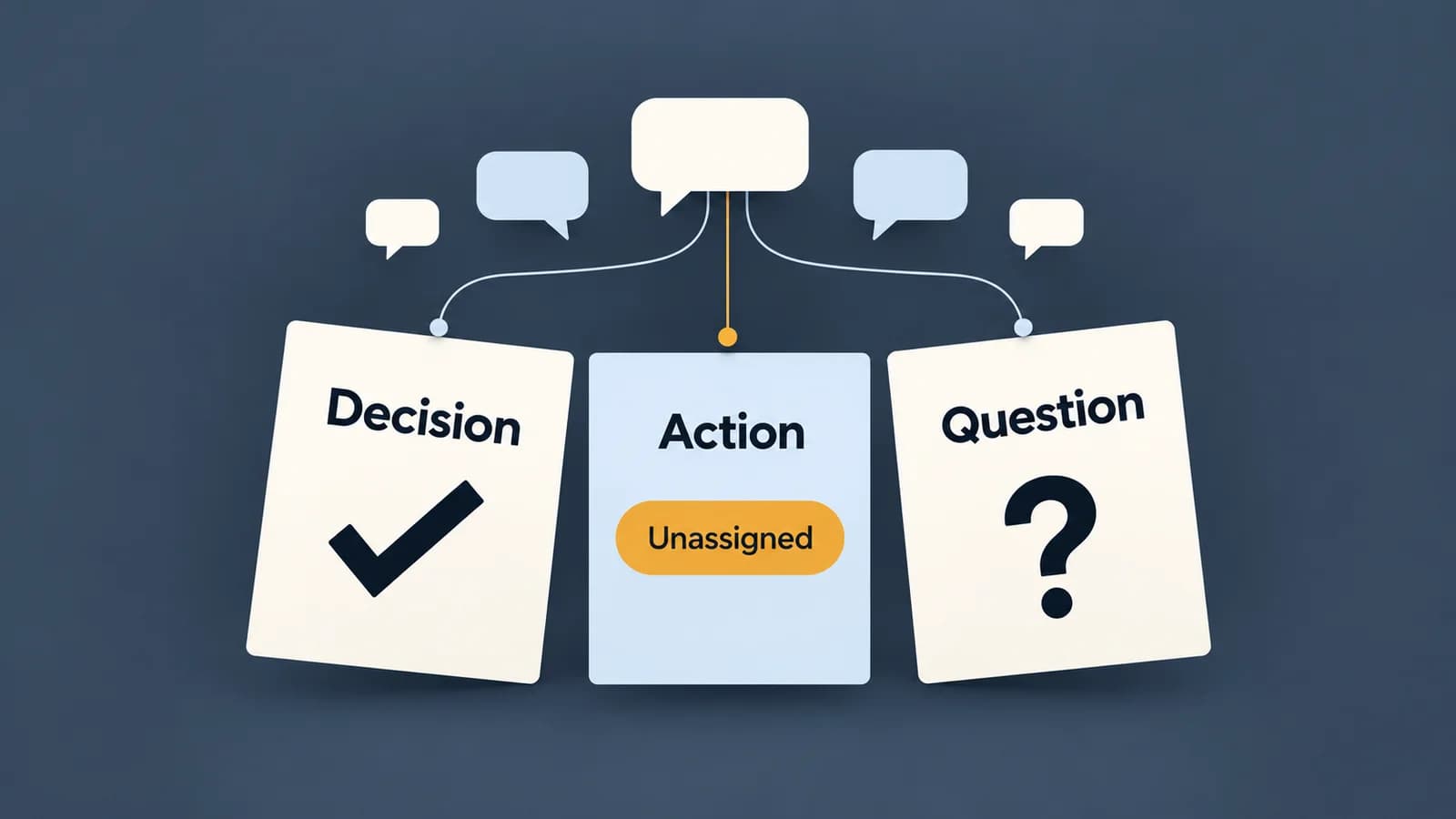
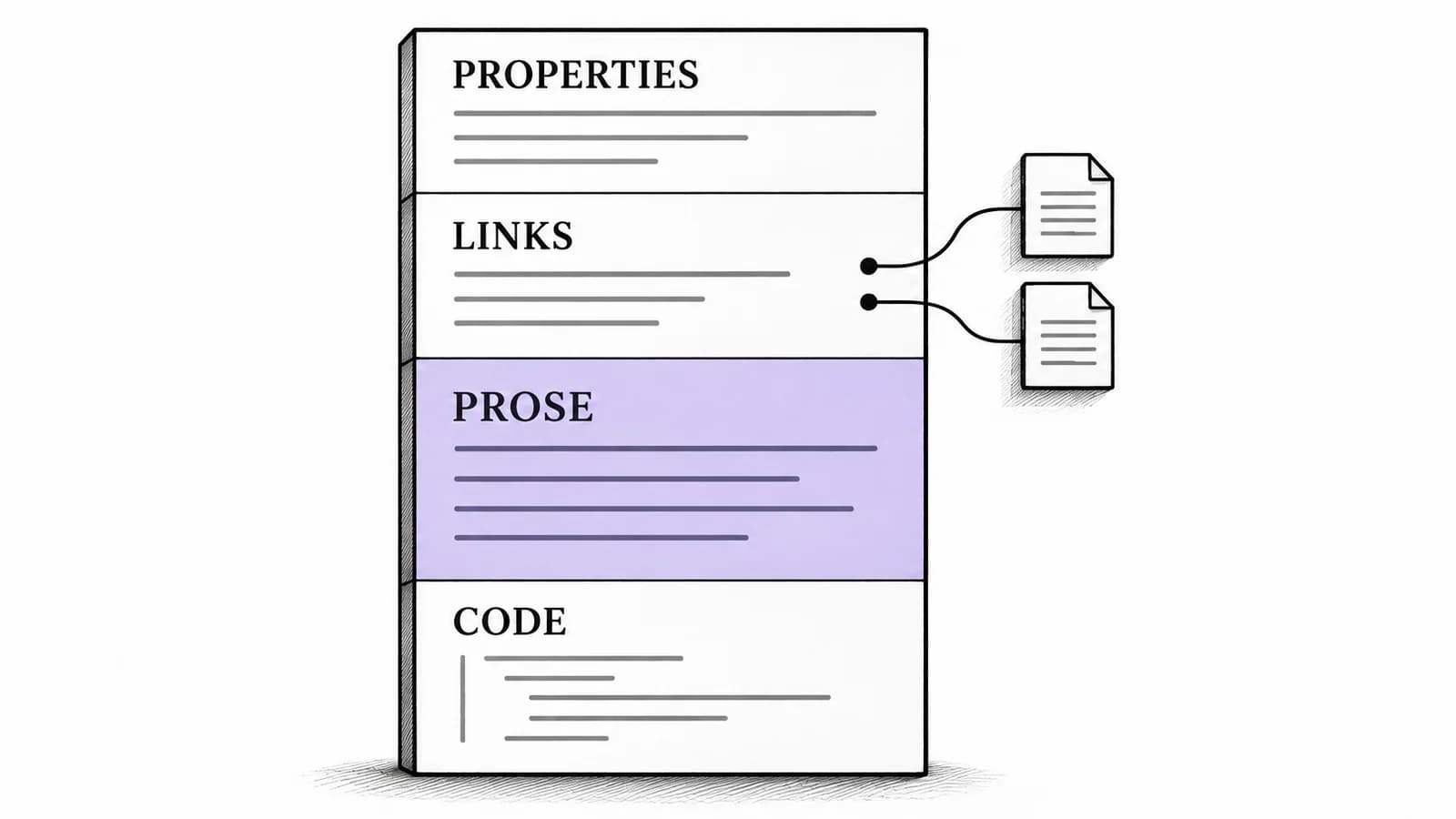
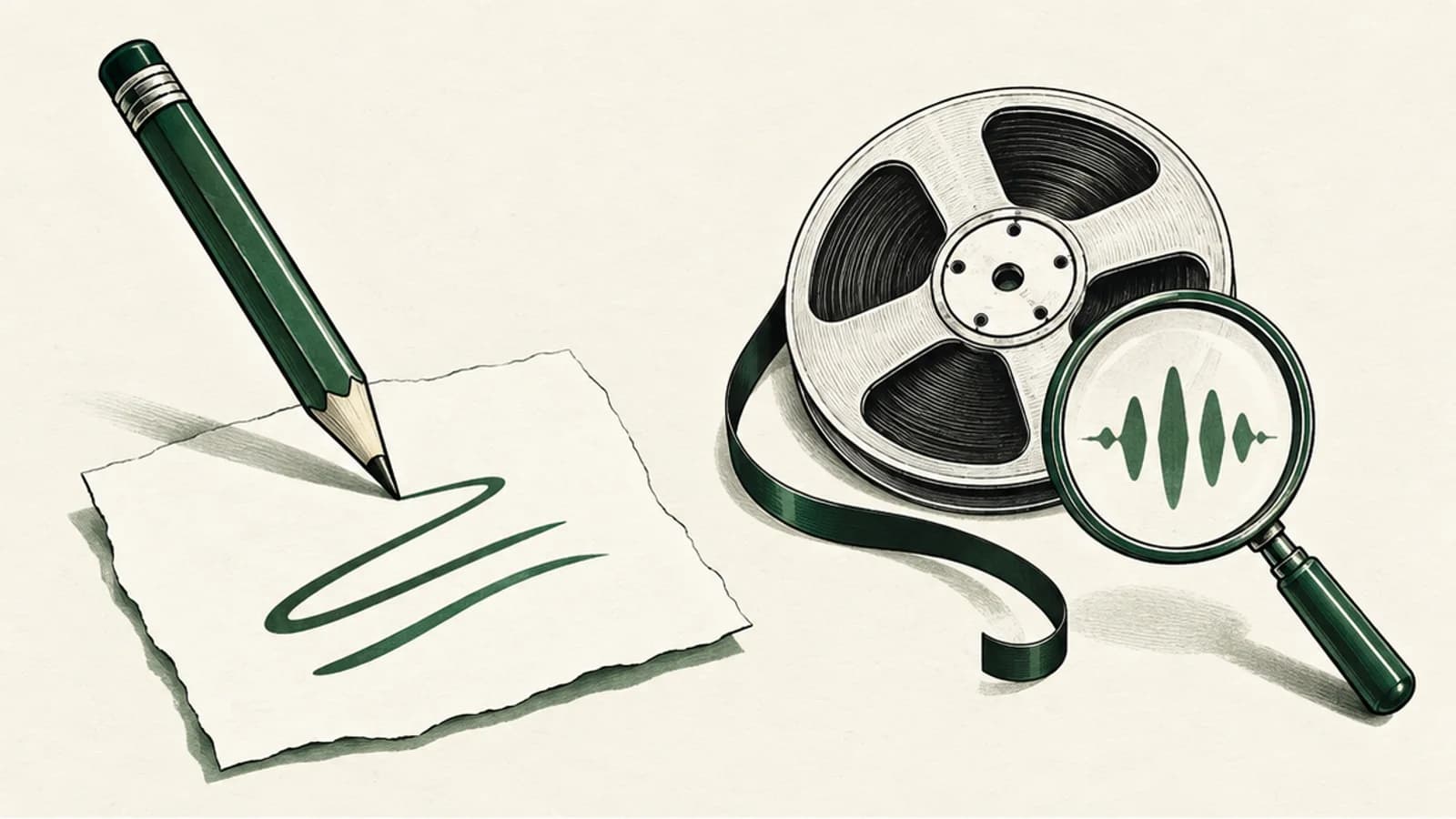
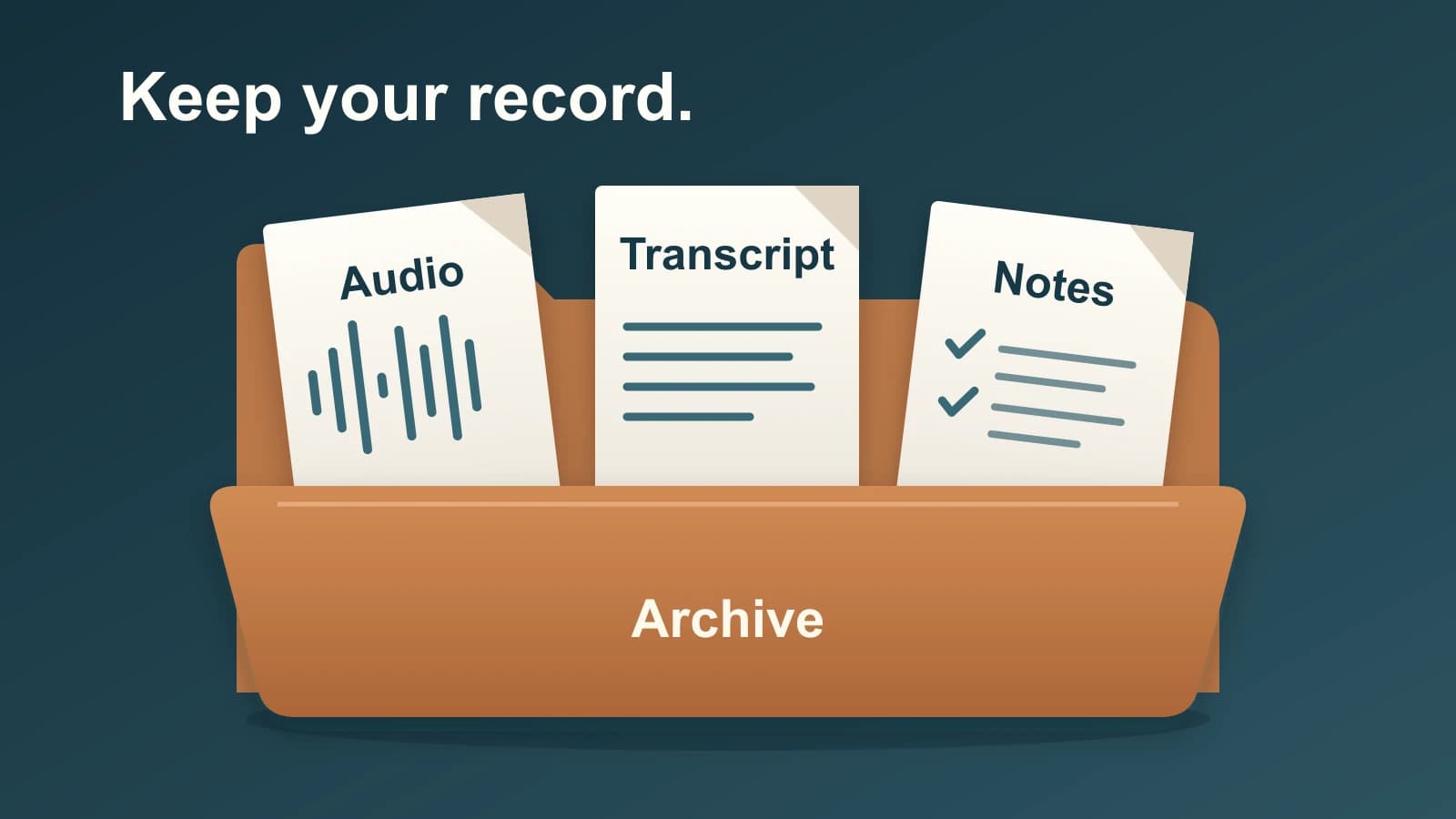
Before trying a replacement, preserve four separate records: audio, transcript, summary, and highlights or comments. Another transcription tool can make new text from audio. That does not recover edits to the old transcript or all the context attached to it.
Publisher note: We make and sell the Mac app discussed in the final section. We are not affiliated with or endorsed by Otter or MacWhisper.
Last checked: October 13, 2026. The capability comparisons below use official documentation and released-product sources. The archive example and illustration are synthetic; this guide does not report a hands-on migration test.
Export four parts of the conversation
Open a conversation you want to retain and choose its three-dot menu > Export. Start with the available controls, rather than assuming one download contains everything. Otter's conversation export guide makes transcript formats and options dependent on your plan and access.
| Record | Documented export route | What the separate file preserves | What a new transcript cannot supply |
|---|---|---|---|
| Audio | Export conversation audio as MP3. | The speech available in that recording. | Corrections, written comments or decisions added afterwards. |
| Transcript | Export the transcript. Basic supports TXT; DOCX, PDF and SRT depend on the plan. Select available speaker-name and timestamp options. | The text and included formatting or timing from the current transcript. | Audio alone does not preserve corrections made to the transcript. |
| Summary | Use Summary export or copy. Export is available on web; copy is also available on mobile. | The sections available in the applied summary template, which may include action items. | A different tool's generated summary will be a new interpretation. |
| Highlights and comments | Use Export Highlights and Comments for a TXT record. The option can be disabled when there are none. | The exported annotations as a separate text file. | The original annotations and their role in the shared conversation. |
Use the newer Summary instructions for action items: their availability follows the applied template. An older FAQ in the general export guide says action items cannot be exported directly; it does not describe the newer Summary route.
For a shared conversation, export also depends on access. Otter documents collaborator access, or viewer access with export enabled. If the control is unavailable, retain the conversation link and resolve access with its owner; changing tools does not grant export permission.
A bulk export covers the conversations you selected
Otter's bulk export guide documents Business and Enterprise access. Its select-all control selects the conversations currently loaded in the list. Scroll to load the records you intend to include, then compare the selection with that set.
Bulk audio export is unavailable from a channel or direct message. The guide points to individual audio export or the All Conversations route instead. It delivers the selected exports through an emailed ZIP; receiving a ZIP does not establish that every conversation and record type is present. If your plan lacks bulk export, use the available individual controls rather than treating a plan upgrade as a prerequisite.
Keep each conversation's files together
Give the exported files a shared identifier so you can reconnect the speech and its written context. This is an illustrative folder, not output from an Otter account:
2026-10-12-planning-01/
  planning-01-audio.mp3
  planning-01-transcript.txt
  planning-01-summary.txt
  planning-01-highlights-comments.txt
These filenames are an organization convention. The summary filename could hold text copied from the Summary panel; it does not imply an Otter export format. Keep the downloaded originals alongside any renamed working copies.
Suppose someone corrected a customer's name in the transcript and added a comment explaining a decision. The MP3 contains the spoken name, but neither the correction nor the later comment. A fresh transcript can help you work with the recording; the retained text files preserve the original editorial record.
Open the files for a conversation you know well before using the replacement. Can you find the corrected wording, the relevant action item and the annotation you need? Compare those files with the original conversation while you still have access. Keep that access until the records needed by you and your colleagues are accounted for.
Choose the replacement for the remaining work
Keep Otter when the shared conversation is the asset
If colleagues work inside the original conversation, keep that workspace available while deciding how future meetings will run. Exported documents give you copies; they do not recreate its access controls or ongoing discussion elsewhere.
Otter also documents transcribing an existing recording, so having audio files is not itself a reason to switch. Choose another route when the next operation needs something different, such as a local batch of files on a Mac. For future meeting capture and handoff choices, the meeting-alternative guide addresses that separate decision.
Choose MacWhisper for a queue of exported audio
MacWhisper's batch transcription instructions describe opening multiple local files from the home screen, Open File, or drag and drop. You can choose multiple export formats. URL files are excluded from that documented batch route.
This fits a folder of MP3 exports when the job is to produce new transcripts from several recordings. Keep the old transcript and annotation files alongside them: batch transcription is an audio-processing operation, not proof of an Otter library import. The official MacWhisper product page describes file transcription and local models; check the requirements for the model and features you choose before processing your archive.
When Paraspeech fits
Paraspeech fits individual Mac work with an exported recording or future meeting. Its released Mac file-transcription route needs supported Apple Silicon, eligible access and a downloaded compatible local model. Use the exported audio to produce a fresh transcript, then follow the audio-file guide for preparation and review. This route does not establish import of Otter comments, speaker profiles, links or summary structure; keep those exports separately.
For future meetings, Meeting Mode captures microphone and system audio on supported Apple Silicon with the required local speech and speaker models. It needs microphone and Screen Recording access and has a four-hour recording limit. The room-recording guide covers the capture decision for an in-person meeting.
Meeting Mode saves a separate meeting archive and automatically attempts a cloud summary after recording stops, sending transcript text and requiring internet. Dictation Privacy Mode does not make that meeting archive or summary local-only. See the current documentation for setup.
Choose this route when you want individual recording and transcription work on a supported Mac. Keep Otter when shared workspace continuity is essential; choose MacWhisper's documented batch route when the immediate job is processing a queue of audio files.