For Obsidian voice to text on Mac, use a speech-to-text tool to create prose, then insert it into a blank body paragraph in Editing view. Keep the cursor outside properties, link syntax, and code blocks. Type the note's structure separately. If you already have a recording, transcribe the file first; Obsidian's Audio recorder saves an audio attachment rather than documenting an automatic text-transcription step.
This walkthrough is based on official Obsidian help and released Mac source, checked September 20, 2026. The worked note is a synthetic example, not recognized speech or a tested Obsidian integration.
Choose editable prose or a saved recording
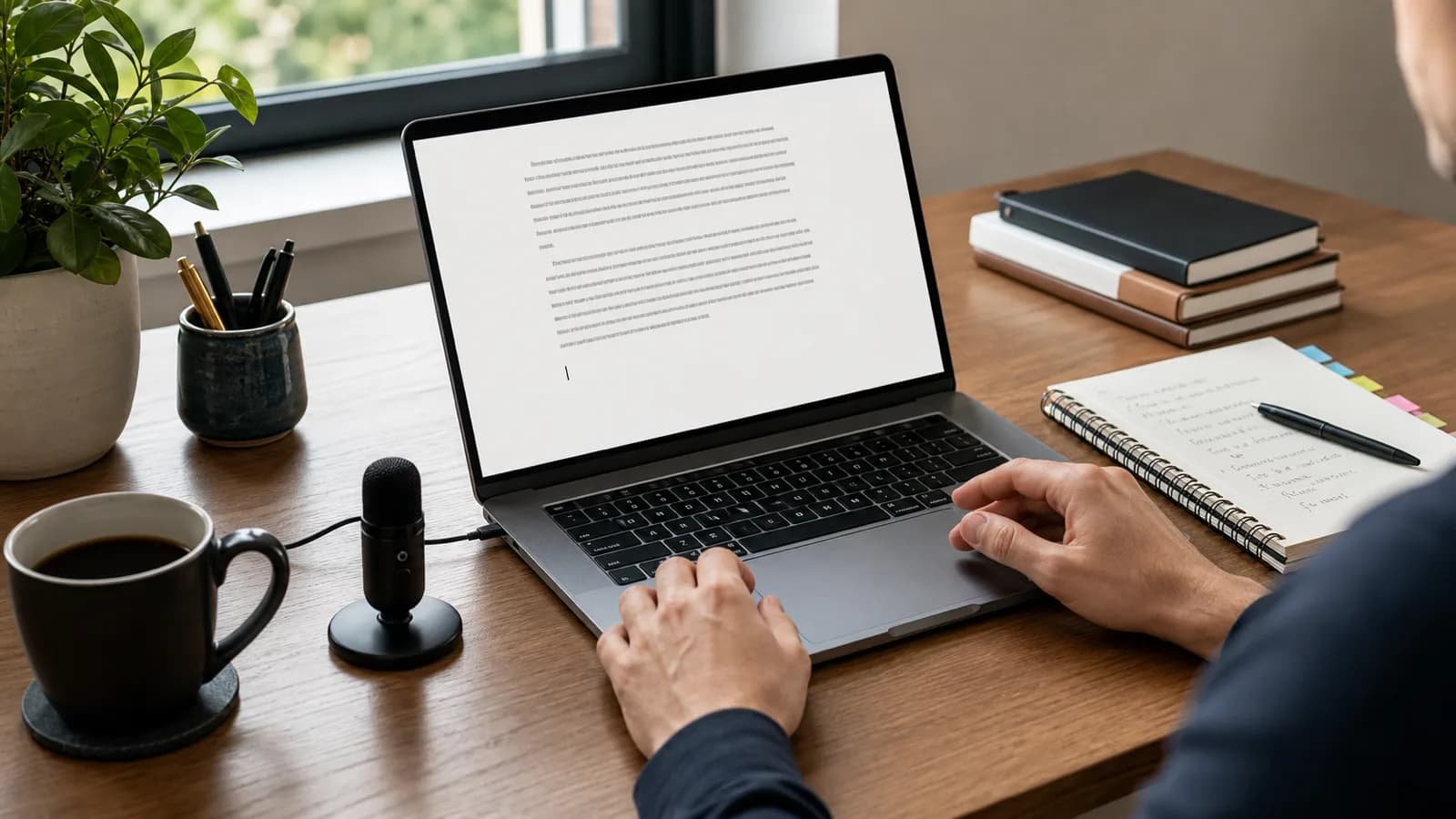
Use live dictation when you are composing a note: an observation, an explanation, or a paragraph connecting existing ideas. Your intended result is text you can edit alongside the rest of the note.
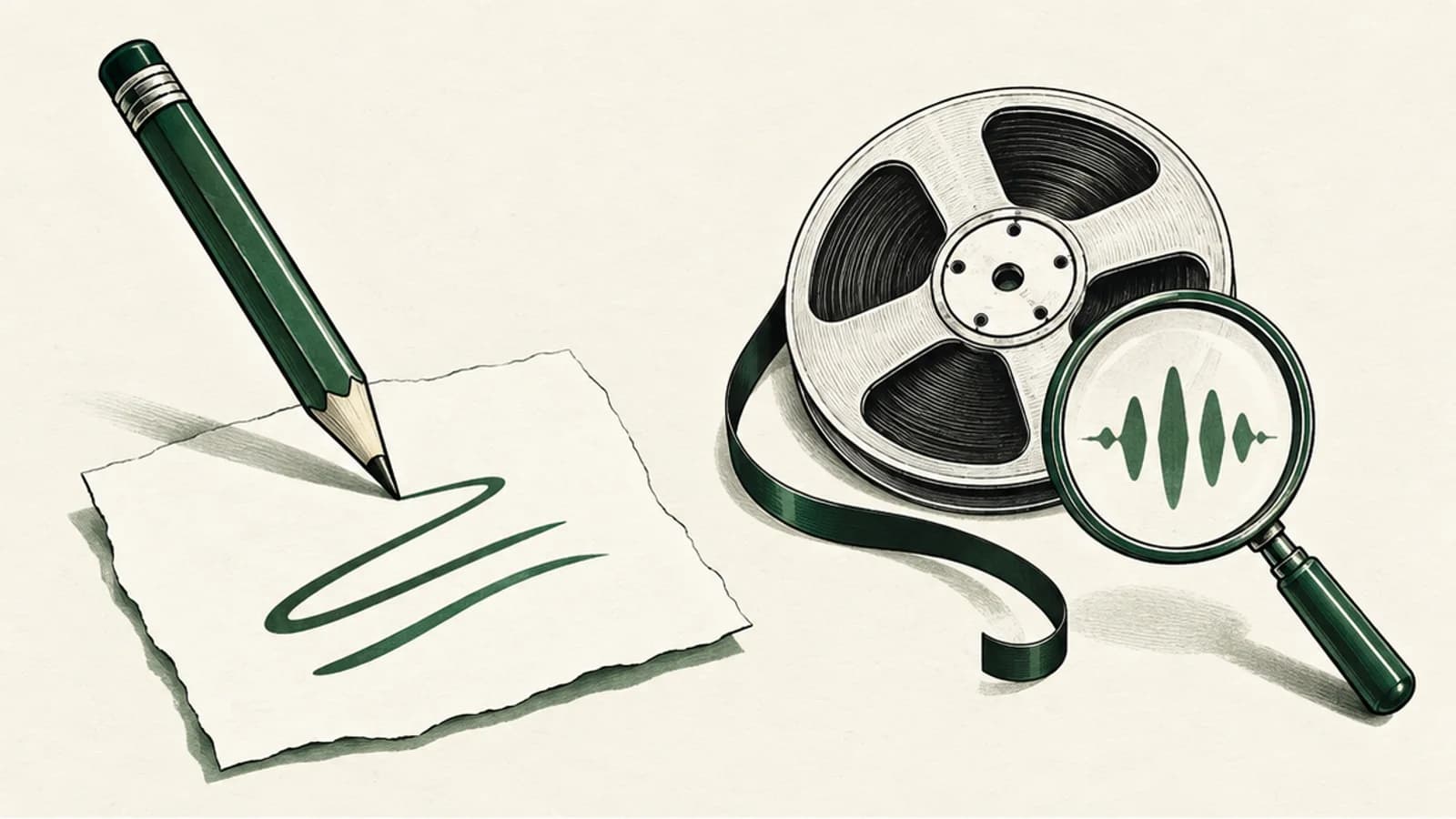
Use Audio recorder when you want to keep the sound itself. Obsidian documents a Start/stop recording control that saves a recording to the vault and embeds it at the end of the active note. That gives you audio to replay, not the editable paragraph this guide is about. Removing the embed from a note also does not remove the underlying recording from the vault. Obsidian Audio recorder.
For existing audio, follow the file-transcription guide, then insert the reviewed text into your note. Keep a link to the original recording if you need to compare a quotation or uncertain detail later. There is no need to replace the attachment just to add prose beside it.
Put the cursor in Editing view, not Reading view
Obsidian separates the view of a note from the way Markdown appears while editing:
| Choice | What you see | When to use it for this workflow |
|---|---|---|
| Editing view, Live Preview | Formatted text with most syntax hidden until the cursor enters formatted content | Write a normal body paragraph when its boundaries are clear. |
| Editing view, Source mode | The Markdown syntax as written | Inspect where properties end, where links begin, and whether a code fence is still open. |
| Reading view | A rendered view of the note | Review the result after inserting text. Switch back to Editing view to make changes. |
Source: Obsidian views and editing modes.
On macOS, Cmd+E toggles between Reading and Editing view. To inspect raw Markdown, choose Source mode through the editing-mode control; Obsidian also offers a Toggle Live Preview/Source mode command that can have its own hotkey. These are different choices: switching out of Reading view does not necessarily mean you are now seeing all the syntax.
Before dictating, click the intended note pane and place a single cursor on a blank line in the body. Clear any selected text. A selected passage would be a replacement target, which is a different operation from adding a paragraph.
Keep properties, links, and code outside the insertion
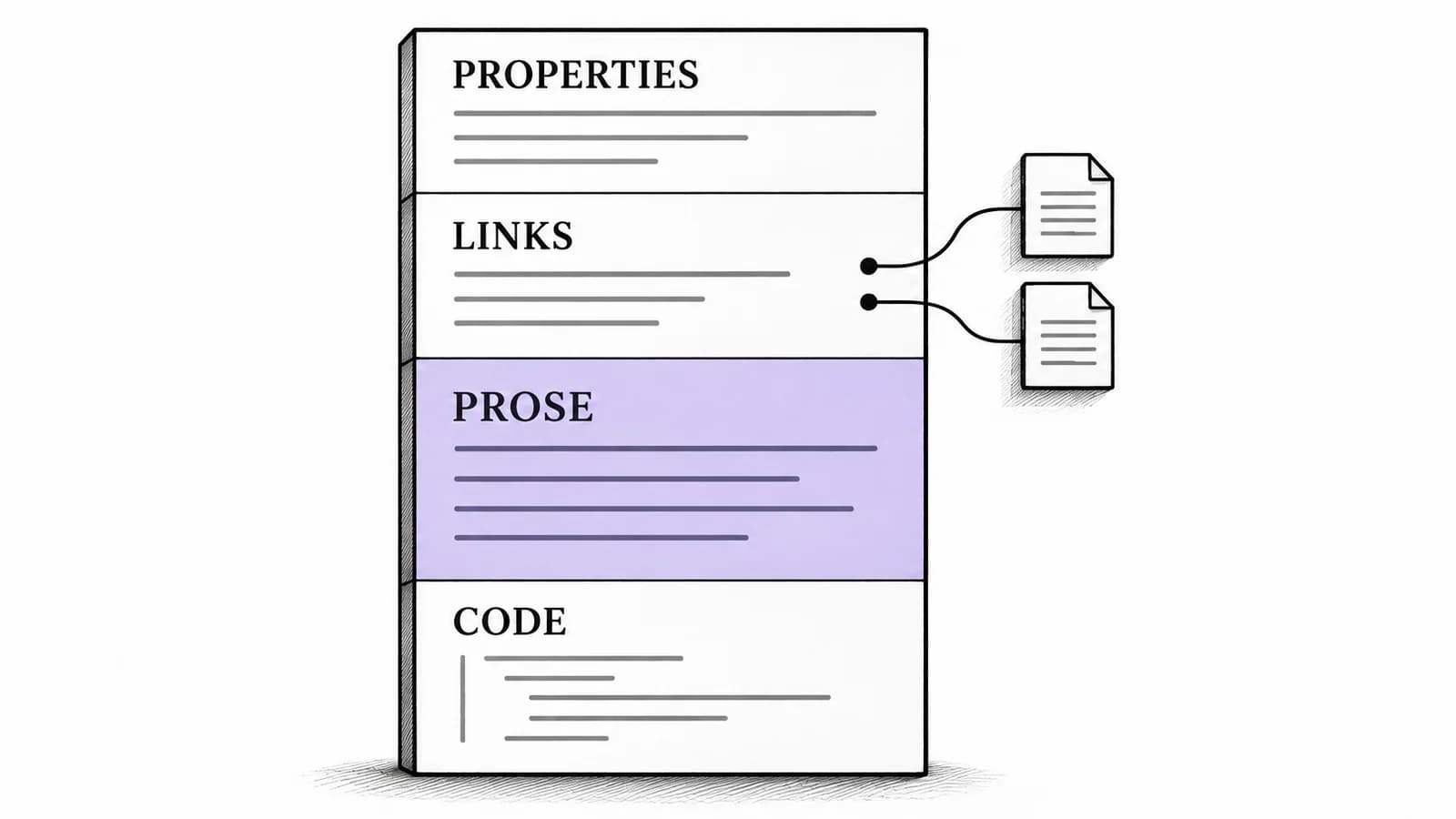
An Obsidian note can look like one document while containing several kinds of content. Treat these areas differently:
- Properties: These are structured values stored as YAML at the top of the file. Put an observation below the closing
---, rather than into a property field. For example,status: draftis metadata, not the beginning of a sentence. Properties. - Links: Type
[[and select the intended note, or enter a Markdown link deliberately. Dictating a note title does not establish that it points to the right file. Keep prose outside the brackets and the link destination. Internal links. - Code: Keep a dictated explanation outside the fenced code block. Type code and its delimiters separately. A missing closing fence can make later prose appear as code. Formatting syntax.
Plain text can still contain Markdown syntax. A leading #, an asterisk, or backticks may affect how the note renders even when no rich formatting came through the clipboard. “Paste without formatting” does not mean “remove all Markdown characters.”
Worked note: one paragraph changes
The following synthetic before-and-after example illustrates an insertion point. Everything except the observation paragraph is already typed. The SQL is context to preserve, not code to dictate or execute.
Before, leave the blank paragraph under ## Observation as the destination:
---
status: draft
project: "[[Harbor redesign]]"
---

## Interview synthesis

Related: [[Harbor redesign]] and [interview plan](Interview%20plan.md).

## Observation

## Exact query

```sql
SELECT status, count(*) FROM feedback GROUP BY status;
```
Speak only the observation: “Two participants could not find the export button. This suggests a navigation problem, but the next session should check whether the label also causes confusion.”
After inserting and reviewing that prose, the intended note is:
---
status: draft
project: "[[Harbor redesign]]"
---

## Interview synthesis

Related: [[Harbor redesign]] and [interview plan](Interview%20plan.md).

## Observation

Two participants could not find the export button. This suggests a navigation problem, but the next session should check whether the label also causes confusion.

## Exact query

```sql
SELECT status, count(*) FROM feedback GROUP BY status;
```
The quoted property link, body wikilink, URL-encoded Markdown link, and SQL block remain unchanged. The observation also retains the difference between what happened and what still needs checking. Rewriting it as “The label caused the problem” would change the evidence, even though the sentence reads smoothly.
This example shows the intended text change. It does not show that a dictation app produced those words or that Obsidian resolved the sample links in a real vault.
Source-bounded Paraspeech workflow for the named reader task
Paraspeech for Mac can produce the text for that paragraph. This procedure is limited to Mac 1.7.2, build 367. In the direct-download distribution, its released source supports attempted automatic insertion with Accessibility permission; it writes a plain-text payload and posts a paste command. That is not an Obsidian-specific plugin or proof that a particular note pane received the text.
Set up the microphone and delivery options using the Paraspeech documentation. Then return to the blank body paragraph in Obsidian before starting the recording. Keep that destination focused. Application focus alone cannot identify which note, pane, or line you meant to edit.
For the initial paragraph, Rewrite > Default Output > Transcription Only avoids optional language-model cleanup, subject to app-specific exceptions. It still applies transcript cleanup and is not a verbatim guarantee. If you choose cleanup later, compare the result against your meaning, particularly uncertainty such as “suggests” and “should check” in the example.
Processing location is separate from insertion. Local speech requires an eligible active local backend; supported local Mac modes work after model setup. Separate cloud speech or cleanup routes, including allowed temporary speech fallback, can send content for processing. On This Mac Cleanup has its own direct-distribution, access, and backend requirements. Choosing where text lands in Obsidian does not determine how it was transcribed or rewritten.
Output review and documented manual handoff
If automatic insertion does not put text in the note, check the destination before trying again. Avoid repeatedly pasting when a paragraph may already have arrived in a different pane.
For copy-only delivery or a missed insertion, explicitly copy the transcript from Paraspeech, return to the intended Obsidian paragraph, and press Cmd+V. Obsidian documents Cmd+Shift+V for pasting without formatting if your clipboard source contains rich text. The Mac App Store distribution does not have the same external-app automation path as the direct download; manual copy and paste is a separate workflow. Obsidian editing shortcuts.
Inspect the note in Source mode before switching to Reading view. In the worked example, the exact review targets are the closing YAML delimiter, both existing links, the closing code fence, and the new observation's uncertainty. Reading view then helps reveal whether the paragraph appeared as prose or accidentally became a heading, list, or code block.
For the broader cursor-and-review habit outside Obsidian, see the voice-input workflow. Here, the successful outcome is specific: a new editable paragraph in the intended note, with its existing structure and meaning preserved.