April 15, 2026voice input workflowvoice typing workflowspeech to text workflowai writing workflowhands free writing workflowvoice input macdictation workflow

Voice Input Workflow: How to Write Faster Without Typing (Complete Guide)

Build a voice input workflow to write faster without typing. Learn how to use speech-to-text on Mac to capture ideas instantly and stay in flow.

Published on
Published April 15, 2026
Reading time
12 min read
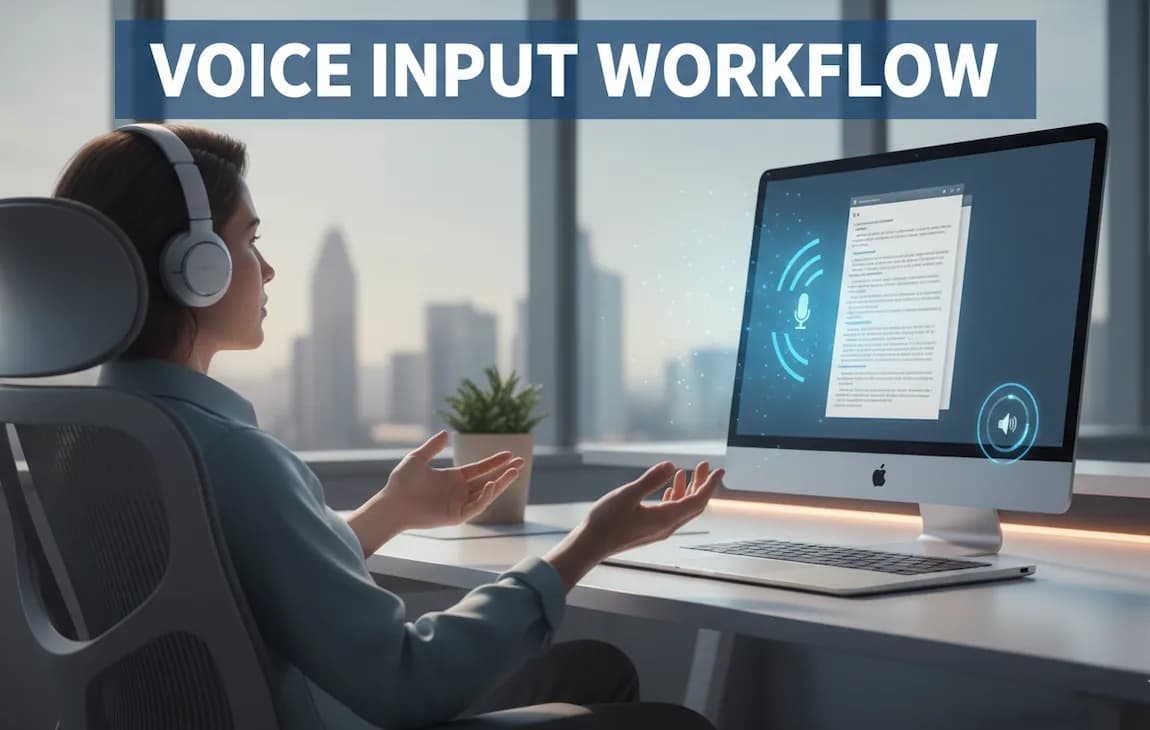
User using a voice input workflow on a Mac to write without typing

Voice Input Workflow: How to Write Faster Without Typing

Typing is often the bottleneck between your thoughts and your output. You think faster than you type, and that gap creates friction, breaks focus, and slows everything down.

A voice input workflow - sometimes called a voice typing workflow or speech-to-text workflow - solves this problem. Instead of relying on a keyboard, you speak your thoughts in real time, capture ideas instantly, and refine them later. This allows you to work at the speed you think, not the speed you type.

In practice, this often means getting a full first draft down in a fraction of the time it would take to type it.

If you’re choosing a tool for this, it helps to understand the differences between available options - here’s a breakdown of the best dictation software for Mac.

What is a voice input workflow and how does it work?

A voice input workflow is a way of using speech-to-text to capture, structure, and refine your ideas without relying on a keyboard. Instead of typing everything out, you speak your thoughts as they come and shape them afterward, which makes it easier to write faster and stay in flow.

Why typing slows down your workflow

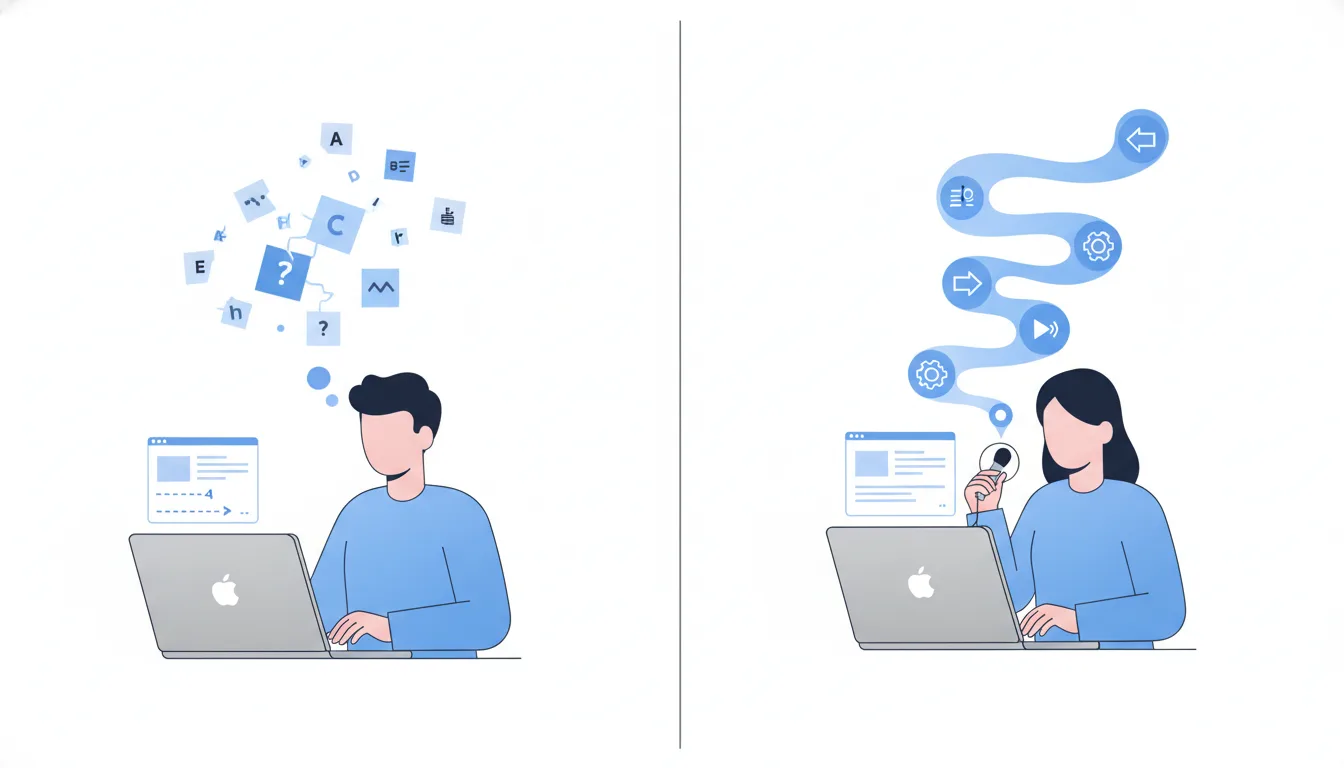
Typing vs voice input workflow showing interrupted vs continuous thinking flow Typing interrupts your thinking process, while voice input allows ideas to flow continuously.

Most people don’t realize how inefficient typing actually is.

When you type, you constantly interrupt your own thinking. You pause to figure out what you want to say, translate that thought into a structured sentence, type it out, and then often edit it immediately. This back-and-forth between thinking, writing, and editing breaks your natural flow and slows everything down.

A big part of this comes down to how speech recognition actually processes your voice in real time compared to typing.

With a voice input workflow, the process feels very different. Instead of stopping to structure every sentence, you think out loud, capture ideas as they come, and refine them afterward. This allows your thoughts to flow more naturally without constant interruptions.

That shift alone can dramatically increase your output and reduce mental friction. In practice, many people find that speaking feels much closer to thinking than typing ever does.

Voice input workflow vs traditional typing

To understand the difference more clearly, it helps to compare both approaches side by side.

WorkflowTypingVoice Input
SpeedLimited by typing speedMatches thinking speed
FlowFrequently interruptedContinuous
EffortHighLow
EditingHappens during writingHappens after writing

This is why many people find voice input workflows more natural once they get used to them.

How to build an effective voice input workflow

Follow these steps to create a simple and effective voice input workflow:

  1. Choose a fast speech-to-text tool
  2. Start with a rough spoken outline
  3. Dictate your full draft without stopping
  4. Separate writing and editing phases
  5. Refine the text after dictation

This process helps you move from thinking to writing with minimal friction.

Example of a simple voice input workflow

Voice typing workflow steps from dictation to editing and final draft Example of a simple voice input workflow from speaking ideas to refining the final text.

Here’s what a basic voice input workflow can look like in practice:

  1. Open your writing app (e.g. Notes, Google Docs, or your editor)
  2. Dictate a rough outline out loud
  3. Speak your full draft without stopping
  4. Read through once and clean up wording
  5. Do a final pass for structure and formatting

This entire process can often be done in a fraction of the time compared to typing from scratch.

Behind this simple workflow are a few key principles that make it effective.

The core components of a voice input workflow

A strong voice input workflow isn’t just about using speech-to-text - it’s about how you structure the process around it. Most effective workflows follow a simple pattern: capture ideas quickly, shape them loosely, and refine them afterward.

Core components of a voice input workflow: capture, structure, and refine

It starts with capturing your thoughts. Instead of relying on a keyboard, you use voice input to dictate ideas, notes, drafts, or messages as they come to you. The key here is low friction. Dictation should feel instant and effortless, without switching tools or breaking your flow. Tools like Paraspeech are designed for exactly this, allowing you to dictate system-wide on your Mac while processing everything on-device. That means you can speak in any app without delays or interruptions. If you're setting this up for the first time, you can read our guide on how to do speech-to-text on Mac.

Once ideas are captured, the next step is to structure them - but not in a rigid way. When speaking, you don’t need perfectly formed sentences. It’s often more effective to think in rough ideas, speak freely, and let your thoughts unfold naturally. You might outline something loosely as you go, jumping between points or leaving gaps to fill in later. This keeps you in a creative, idea-focused mindset instead of slowing down to edit every sentence in real time.

The final step is refining what you’ve captured. This is where many workflows break down, because people try to dictate and edit at the same time. A more effective approach is to separate these phases completely. First, focus on getting everything out - then go back and clean it up. Once you shift editing to a later step, the entire process becomes faster, smoother, and much less mentally demanding.

Where a voice input workflow works best (use cases)

A voice input workflow can be applied in many different situations, but it tends to work best when speed, idea generation, and low friction matter more than precision. Any task that involves turning thoughts into words quickly is a good fit for voice input.

In practice, it’s especially useful when you want to capture ideas without interrupting your flow or slowing down to type.

A voice input workflow is particularly effective for:

  • writing blog posts
  • capturing ideas quickly
  • journaling
  • drafting emails
  • brainstorming
  • note-taking

If you're working with recorded content, you might also want to read our guide on how to transcribe an audio file efficiently.

When a voice input workflow is not ideal

While voice input is powerful, it’s not the best fit for every task. It works best when you’re focused on capturing ideas quickly, but becomes less effective when precision and control are more important.

For example, tasks that require exact formatting, structured input, or technical accuracy are still easier to handle with a keyboard. If you’re working with detailed layouts, structured data, or editing code, typing usually remains the more efficient option.

The goal isn’t to replace typing entirely, but to use voice input where it gives you the biggest advantage - and switch back to typing when it doesn’t.

Who should use a voice input workflow?

A voice input workflow is especially useful for people who write regularly, whether that’s blog posts, content, or emails. It’s also a great fit if you tend to struggle with writer’s block, since speaking often makes it easier to get ideas out without overthinking every sentence.

If you prefer thinking out loud or want a faster way to capture ideas as they come, voice input can feel much more natural than typing. Instead of slowing down to structure everything perfectly, you can focus on getting your thoughts out first and refining them later.

If writing is part of your daily work, switching to a voice input workflow can significantly improve both your speed and your overall output.

Common mistakes to avoid

A voice input workflow is simple in theory, but it can take some time to feel natural in practice. In many cases, the problem isn’t the technology - it’s how the workflow is used.

Small habits, like switching between typing and speaking or editing too early, can quietly break your flow and cancel out most of the benefits. Once you understand what to avoid, the whole process becomes much smoother and more effective.

Using voice only occasionally

A voice input workflow only works if it becomes part of your default behavior. If you only use voice input once in a while - for example when you feel like it - you never build the habit. As a result, typing remains your primary input method, and you lose most of the benefits.

Consistency is what turns voice input from a novelty into a real productivity system. The goal is to reach a point where speaking feels as natural as typing.

Switching constantly between typing and speaking

One of the biggest hidden inefficiencies is switching back and forth between keyboard and voice. You might start dictating, then stop to type a few corrections, and then switch back to speaking again. This constant context switching breaks your flow and often slows you down more than sticking to a single method.

A more effective approach is to commit to one mode at a time. Use voice input while you’re drafting to keep your ideas flowing, and switch to typing later when you’re editing and refining the text. Keeping these phases separate allows your thinking process to stay uninterrupted and makes the overall workflow much smoother.

Editing while dictating

This is one of the most common mistakes - and one that quickly cancels out many of the benefits of voice input.

When you try to dictate and edit at the same time, you interrupt your own thought process. Instead of letting ideas flow freely, you start adjusting and refining sentences mid-stream, which slows everything down.

A more effective approach is to separate these phases completely. Focus on capturing everything first while you’re speaking, and leave editing for later. This way, you can stay in “thinking mode” while dictating and switch to “editing mode” once your ideas are already on the page.

Using slow or unreliable tools

A voice input workflow depends heavily on how well your tools actually perform in practice. If your speech-to-text tool is slow, inaccurate, or constantly needs corrections, the experience quickly becomes frustrating. Even small delays can interrupt your flow and make speaking feel less natural than typing.

That’s why speed and reliability matter so much. When dictation works instantly and keeps up with your thoughts, it becomes much easier to stay in flow and use voice input consistently. If you’ve run into issues where speech-to-text doesn’t behave as expected, it’s often a limitation of the tool rather than the workflow itself.

Expecting perfect output immediately

Many people expect voice input to produce perfectly structured, polished text right away. In reality, voice input is best used for drafting, not finishing. The goal is to capture ideas quickly and refine them afterward. Once you accept that rough drafts are part of the process, voice input becomes significantly more effective.

Avoiding these mistakes is what turns a basic speech-to-text setup into a powerful and reliable voice input workflow.

Why on-device dictation matters

A smooth voice input workflow depends heavily on speed and reliability.

Cloud-based tools can introduce small delays, occasional interruptions, and privacy concerns, all of which make the experience feel less seamless. Even minor lag can break your flow and make dictation feel frustrating.

On-device solutions take a different approach by processing everything locally. This makes dictation faster and more responsive, removes the need for an internet connection, and keeps your data private - all of which contribute to a much smoother and more consistent workflow.

Cloud vs on-device speech recognition processing for voice input workflow

Building a voice input workflow that actually sticks

The biggest mistake is overcomplicating things.

It’s much easier to start simple. Pick one use case - for example writing - and begin using voice input consistently there. As you get more comfortable, you can gradually refine your process and figure out what works best for you.

Once it starts to feel natural, you can expand it to other areas like notes, emails, or everyday tasks. Over time, voice input can become your default way of interacting with your computer, rather than something you only use occasionally.

Frequently asked questions about voice input workflows

Is voice input faster than typing?

For most people, speaking is significantly faster than typing. A voice input workflow allows you to capture ideas in real time without slowing down to type.

Can you use a voice input workflow on Mac?

Yes, you can build a complete voice input workflow on Mac. Modern speech-to-text tools support system-wide dictation, so you can use voice input in almost any app. If you're getting started, here's how to set up speech-to-text on Mac.

Do you need internet for voice input?

Not necessarily. On-device tools can process speech locally, making voice input faster and more private.

Is voice input accurate enough for writing?

Yes, especially with modern AI-based tools. However, most workflows still include a refinement step after dictation.

Get started with voice input

The easiest way to build an effective voice input workflow is to start using it consistently. Pick one task - whether it’s writing, note-taking, or brainstorming - and replace typing with voice input.

As it starts to feel more natural, you can gradually expand it to other parts of your work. Over time, voice input can become a seamless part of your daily workflow rather than something you use occasionally.

If you’re looking for a fast and reliable way to do this on Mac, tools like Paraspeech make it easy to get started.

Write faster with your voice

AI powered voice to text in every app. Fully offline. 100% private.

BuyRead docsFollow updates

Keep exploring