March 13, 2026speech-to-textmac dictationtranscriptionproductivityvoice-typing

How to Do Speech to Text on Mac: A Practical Guide

Learn how to enable speech to text on Mac using built-in dictation. This guide explains setup, voice commands, accuracy tips, and when to use transcription apps.

Published on
Published March 13, 2026
Reading time
15 min read
How to Do Speech to Text on Mac: A Practical Guide

How to Do Speech to Text on Mac (Step-by-Step Guide)

Tired of typing everything manually? Speech to text on Mac makes it easy to convert your voice into written text using Apple’s built-in Dictation feature. Once enabled, you can start voice typing on Mac in apps like Pages, Notes, Mail, or your browser and dramatically speed up your writing workflow.

Many users search for how to do speech to text on Mac, but the built-in Dictation tool already makes voice typing possible in just a few seconds.

Speech to Text on Mac: What to Expect

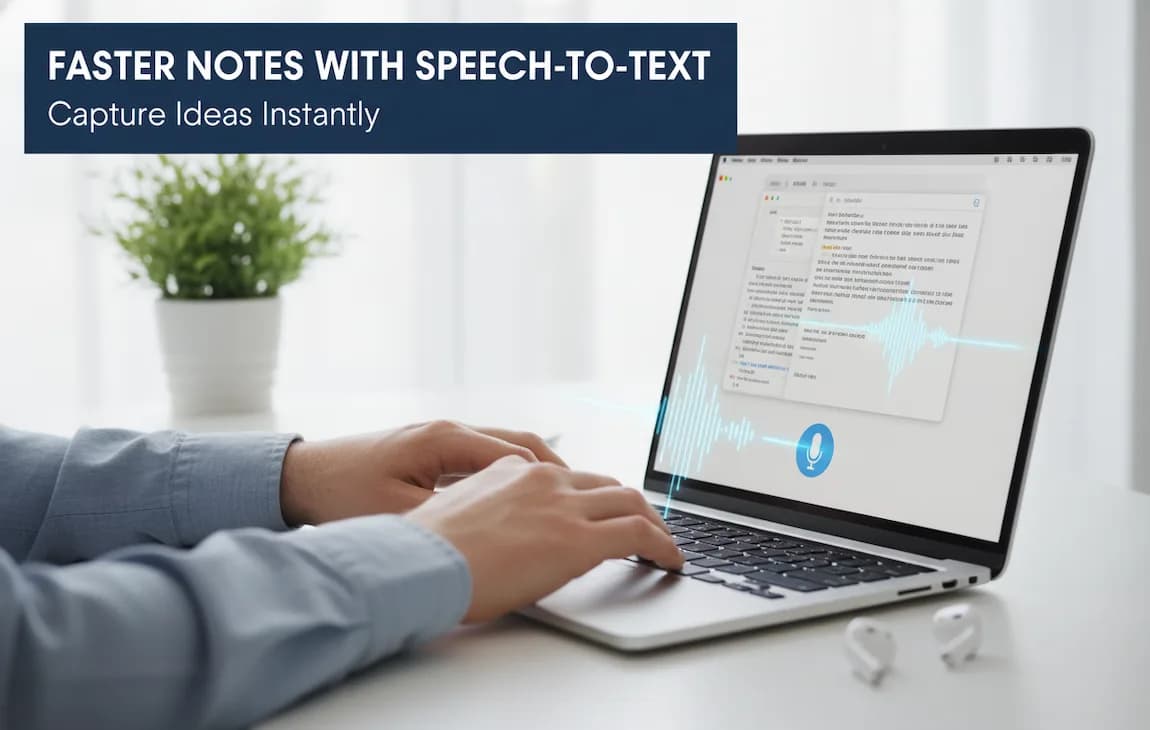
Speech to text on Mac using built-in Dictation in macOS

Ever find yourself staring at a blank page, your thoughts moving way faster than your fingers can keep up? It’s a common frustration. What many people don't realize is that their Mac already has a powerful tool to bridge that gap. Let's walk through how to use Mac's native speech-to-text and make it work for you.

How to Enable Speech to Text on Mac

Enabling Mac speech to text only takes a minute because Apple includes a built-in dictation tool directly in macOS. Once activated, you can dictate text in almost any application, including Pages, Notes, Mail, and even web browsers.

To enable Mac dictation:

  1. Open System Settings
  2. Click Keyboard
  3. Scroll to Dictation
  4. Toggle Dictation ON
  5. Choose your language and microphone

Once enabled, you can start voice typing on Mac by pressing the dictation shortcut (usually the Fn key twice) and speaking naturally.

What to Expect from Mac Dictation

For everyday use, Apple’s free, integrated solution is fantastic. It’s perfect for firing off a quick email, jotting down notes while on a call, or sending a message in Slack without touching the keyboard. Because it's built right in, there's nothing to install. For a lot of people, this is all the hands-free typing they’ll ever need.

However, it’s good to know its limitations. The built-in Dictation tool works best for shorter bursts of text and can sometimes get tripped up by jargon or background noise. If you're tackling more intensive work—like transcribing a long interview or a podcast—you’ll probably want a more robust, dedicated tool. For more specific workflows, our guide on how to dictate in Google Docs has some great tips.

Mac Dictation vs Third-Party Apps A Quick Comparison

Deciding between the free, built-in tool and a paid app can be tricky. Here’s a quick breakdown to help you figure out what's right for your needs.

FeatureBuilt-in Mac DictationDedicated Transcription Apps
CostFreeTypically requires a subscription or one-time purchase.
AccuracyGood for general use, but can struggle with niche terms.Higher accuracy, especially with complex vocabulary.
SetupInstant. It's already part of macOS.Requires installation and sometimes configuration.
Custom VocabularyLimited to none.Often allows you to add custom words and industry-specific jargon.
Speaker IdentificationNo.Yes, can often distinguish between different speakers.
Offline UseWorks offline on many modern Macs with on-device dictation, but some features may still use internet processing.Many offer offline functionality for privacy and convenience.
Best ForQuick notes, emails, and casual dictation.Professional transcription, interviews, and long-form content.

Ultimately, Mac’s built-in Dictation is an excellent starting point and a powerful tool for daily tasks. If your work demands higher accuracy or advanced features, exploring a dedicated app is a logical next step.

Fine-Tuning Your Dictation Settings

Once you're in the Dictation menu, the first thing to do is toggle it on. But the real power comes from what's next. You’ll want to dial in a few key settings to match your personal workflow.

  • Language Selection: Make sure you've picked the right language and dialect. This has a massive impact on accuracy, as the system needs to know if you're speaking with an American, British, or another regional accent.
  • Keyboard Shortcut: The default is usually tapping the Fn (Function) key twice, but feel free to change it to whatever feels natural. I’ve found a simple combo like Control + D is less prone to accidental triggers.
  • Microphone Source: You can also choose your input device here. The built-in mic on your Mac is decent, but for cleaner, more accurate transcription, an external microphone or even your AirPods will give you a noticeable boost in quality.

Pro Tip: If your Mac has Apple silicon, look for an option to enable on-device dictation. This processes your voice directly on your machine instead of sending it to Apple's servers. It’s a huge plus for privacy, especially when you're dictating sensitive information, and it works offline.

Of course, dictating text is only half the battle—you still want your notes and documents to stay organized and easy to read. Learning a few simple note-taking strategies can make a big difference when capturing ideas quickly. If you’re looking to improve your workflow, check out our guide on how to take notes faster without missing a thing. With the right habits and tools in place, Mac Dictation can quickly go from a handy feature to an indispensable part of your writing process.

Take Control with Voice Commands for a Faster Workflow

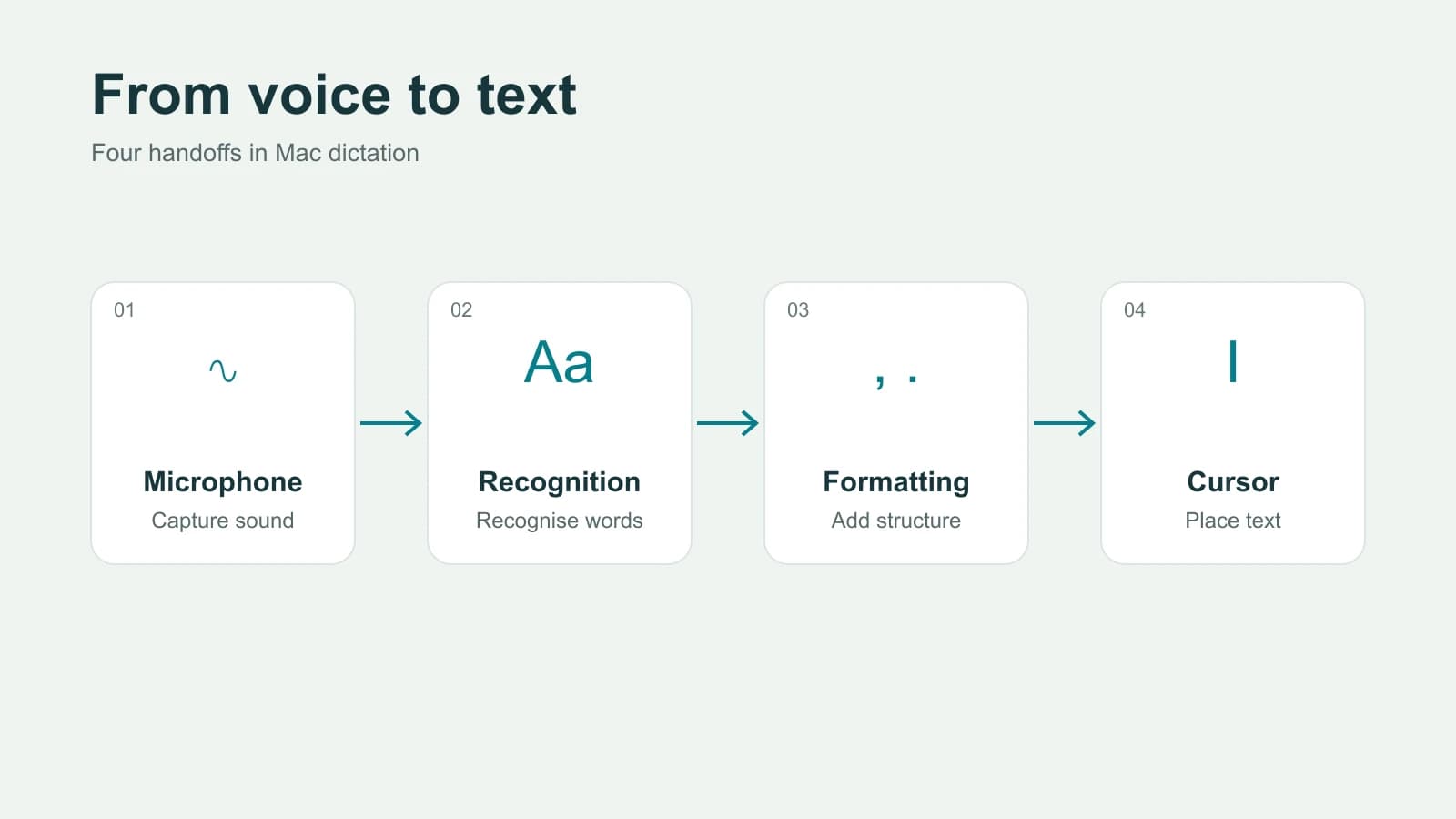
Simply turning your speech into text is just the beginning. The real magic happens when you can format, edit, and navigate documents without ever touching the keyboard or mouse. This is where you go from just talking at your Mac to truly commanding it.

Mastering voice commands is what turns dictation from a fun party trick into a serious productivity tool. Instead of breaking your flow to manually add a period or start a new paragraph, you can weave these actions right into your speech.

For instance, saying "The project is on track period What's the next step question mark" feels far more natural than speaking, stopping, and then hunting for the right key. This keeps your train of thought moving, which is a massive advantage when you're drafting emails, reports, or just trying to get your ideas down.

Your Go-To Formatting and Punctuation Commands

You don't need to learn a hundred commands to get started. Just a few essentials will make a huge difference in creating well-structured documents entirely with your voice.

  • Punctuation: Just say the name of the mark you need, like "period," "comma," "exclamation point," or "question mark."
  • Line Breaks: Use "new line" to drop down one line, or say "new paragraph" to get that full, double-spaced break.
  • Capitalization: Saying "caps on" will make everything you say next appear in uppercase until you say "caps off." If you just need to capitalize the last thing you said, "capitalize that" does the trick.

Modern macOS Dictation is surprisingly capable, allowing users to convert speech into text quickly and accurately. For everyday tasks like emails, notes, and short documents, it can dramatically speed up writing compared to typing. Voice recognition technology has improved enormously over the past decade, making speech-to-text a practical tool for many Mac users.

Move Beyond Typing: Advanced Editing and Navigation

Once you’ve got the basics down, you can start using commands that help you edit text more quickly without constantly reaching for the keyboard or mouse. These commands let you select words, replace text, and make corrections while dictating.

If you enable Voice Control in macOS accessibility settings, you can also turn on a small confirmation sound when the system recognizes a command. This audio cue can be helpful because it lets you know the command was understood without needing to constantly glance at the screen.

Here’s how it works in the real world: Let's say you're dictating an email and you say, "Let's meet on Thursday." You immediately realize Wednesday is better. Instead of grabbing the mouse, you just say, "Select Thursday," and then "Wednesday." It's a much faster and more fluid way to make corrections.

When to Upgrade to a Dedicated Transcription App

Apple’s built-in Dictation is a fantastic tool for firing off quick notes, responding to emails, or drafting a simple message. It’s convenient and gets the job done for everyday tasks. But there comes a point where you might feel like you’re hitting a wall. Knowing when you’ve outgrown the native feature is the first step toward reclaiming your productivity and getting much more accurate results.

If you find yourself dealing with long-form dictation—think transcribing interviews, lectures, or lengthy meetings—a dedicated app is practically a necessity. These tools are engineered to handle extended audio without the frustrating timeouts common with basic dictation. Many also come with crucial features like speaker identification, which automatically tags different speakers in a conversation. For anyone creating interview transcripts, that feature alone is a game-changer. If you regularly work with recordings, interviews, or long-form dictation, dedicated speech-to-text software for Mac like Paraspeech can offer a smoother and more reliable workflow.

How to Transcribe Audio Files on Mac

Mac Dictation works well for live speech, but it cannot transcribe existing audio recordings. If you need to convert interviews, meetings, or podcasts into text, you’ll need dedicated transcription software for Mac.

Specialized tools allow you to:

  • Upload audio or video files
  • Automatically transcribe recordings
  • Identify multiple speakers
  • Export clean transcripts

For professionals who regularly transcribe audio on Mac, dedicated transcription apps offer higher accuracy and more control than the built-in dictation tool.

Signals You Need More Power

Are you starting to feel the limits of the built-in tool? If any of these situations sound familiar, it’s probably time to look for a more specialized solution.

  • You Use Industry-Specific Lingo: Working in medicine, law, or academia means you're using a vocabulary that most general tools just don't understand. Dedicated apps often let you build a custom dictionary, teaching the software your specific jargon. This dramatically boosts accuracy right out of the gate.
  • Your Environment Isn't a Library: Let's be real, most of us aren't dictating in a soundproof booth. A busy office, a humming coffee shop, or kids playing in the next room can wreak havoc on transcription quality. Pro-level apps use advanced noise-cancellation to zero in on your voice and ignore the background chatter.
  • You Need to Transcribe Existing Files: Mac Dictation works for live speech, but what about that recorded Zoom call or lecture? This is where dedicated apps shine. They allow you to simply import audio or video files and create a transcript from any audio file, a capability far beyond what the built-in feature offers.

This decision tree can help you figure out if the standard Mac tool is enough for your needs or if you’d be better served by a more powerful app.

Decision tree comparing Mac Dictation and speech-to-text transcription apps

At the end of the day, Mac's tool is perfectly fine for simple, quick dictation. But professional or complex transcription work almost always benefits from the horsepower of a specialized application.

A dedicated app offers a level of precision and control that built-in tools can't match. It’s the difference between a handy utility and a professional-grade instrument designed for specific, demanding jobs.

Ultimately, it’s all about creating a smooth, efficient workflow. If you're constantly fighting with the software, correcting endless errors, or feeling constrained by its limitations, that's your cue. Investing in a dedicated app will save you a ton of time and frustration in the long run. For a closer look at that process, check out our guide on how to transcribe an audio file.

Solving Common Mac Dictation Problems

Mac Dictation not working: speech-to-text problem

Even the most reliable tech has its off days. When Mac Dictation suddenly stops working, it can really disrupt your flow. But don't worry—the fix is usually simple and you can often get it running again in just a few minutes without a call to support.

The first place I always check is the microphone input. It's the most common culprit. If Dictation isn’t hearing you, your Mac might be listening to the wrong device—or no device at all.

Just pop over to System Settings > Sound > Input. Make sure your preferred microphone is selected and that the input level is active. If you're using an external mic, sometimes just unplugging it and plugging it back in does the trick.

Quick Fixes for Dictation Glitches

If your mic settings are all good but you're still getting weird transcription errors or the feature just cuts out, it's likely a small software glitch. A quick toggle or check can usually set things right.

Here are a few things to try:

  • Give Dictation a Quick Reboot: Go back to System Settings > Keyboard > Dictation and just turn the feature off. Give it a few seconds, then flip it back on. This simple action forces the service to restart and often clears up any temporary bugs.
  • Check Your Wi-Fi: Unless you've enabled on-device processing, standard Dictation needs a solid internet connection to reach Apple's servers. A shaky connection will cause it to lag or fail completely.
  • Update Your Mac: It's always a good idea to make sure your macOS is up to date. Apple regularly pushes out updates that include bug fixes, some of which might be causing your Dictation issues.

I've also found that frequent errors aren't always a technical problem. It's often about the environment. If you're speaking too fast, too quietly, or in a room with a lot of background noise, the accuracy will tank. Try speaking at a clear, steady pace in a quiet spot and see if that makes a difference.

If you’ve tried these steps and Dictation still isn’t working properly, the issue may be related to a deeper software or configuration problem. In that case, using a dedicated speech-to-text tool for Mac can sometimes provide more reliable results. Specialized apps are designed specifically for accurate transcription on Mac, longer recordings, and more demanding workflows. Tools like Paraspeech, for example, focus on fast, privacy-friendly speech-to-text processing and can help users avoid some of the limitations that occasionally appear with built-in dictation features.

Is Speech to Text on Mac Accurate?

Apple's built-in Mac dictation is surprisingly accurate for everyday tasks like emails, notes, and quick documents. In quiet environments it can reach very high accuracy rates, especially when paired with a good microphone.

However, accuracy can drop when:

  • background noise is present
  • technical vocabulary is used
  • multiple speakers are talking

For professional transcription tasks, dedicated speech-to-text software often performs better because it can handle longer recordings, custom vocabulary, and speaker detection.

Common Questions About Mac Speech to Text

When you first start using dictation on your Mac, a few questions tend to pop up right away. I hear them all the time. Getting a handle on things like data privacy and offline access will help you figure out the best way to fit this tool into your daily routine.

Let's dive into some of the most common queries.

Is My Voice Data Sent to Apple?

This is probably the biggest concern for most people, and it's a fair question. The short answer is: it depends entirely on your settings.

If your Mac has Apple silicon, you have the option for on-device dictation. This is the key. When this is active, everything is processed right there on your machine, and nothing ever gets sent to Apple's servers. For anyone concerned about privacy, this is the way to go. Standard dictation, on the other hand, does send your voice data to Apple to be processed, which helps them improve the service over time.

Can I Use It Offline?

What happens if you're on a plane or your Wi-Fi is acting up? Can you still dictate?

Absolutely. This ties back to that on-device dictation feature I just mentioned. On modern Macs, particularly those with Apple silicon, you can set everything up to work without an internet connection. It's a lifesaver for working on the go, and it also tends to be a bit faster since you're not waiting for a round trip to a server. You'll find the toggle for it in System Settings > Keyboard > Dictation.

How Do I Make It More Accurate?

Okay, so maybe the out-of-the-box accuracy isn't quite what you'd hoped for. Don't worry, you can usually get much cleaner results with a few simple adjustments. It really comes down to improving the quality of the audio it has to work with.

Here are a few things I've found that make a huge difference:

  • Get a better mic. Your Mac’s built-in microphone is okay, but an external USB mic or even a decent headset like AirPods will give the system a much clearer signal to analyze.
  • Find your natural pace. Don't try to speak like a robot, but don't rush your words either. Just talk clearly and at a consistent, conversational speed.
  • Cut down on background noise. Trying to dictate in a noisy coffee shop is asking for trouble. A quieter space will drastically improve how well the software understands you.

The more you use it, the better it seems to get at understanding your particular voice and quirks of speech, so a little patience pays off.

For those who need professional-grade accuracy and want to keep all their data on their own machine, the built-in tool might not be enough. Paraspeech offers an incredibly fast, completely offline speech-to-text engine designed specifically for Mac users who demand more.

See how Paraspeech can help you write at the speed of thought.

Write 3x faster with your voice

AI powered voice to text in every app. Fully offline. 100% private.

BuyFollow updates

Keep exploring