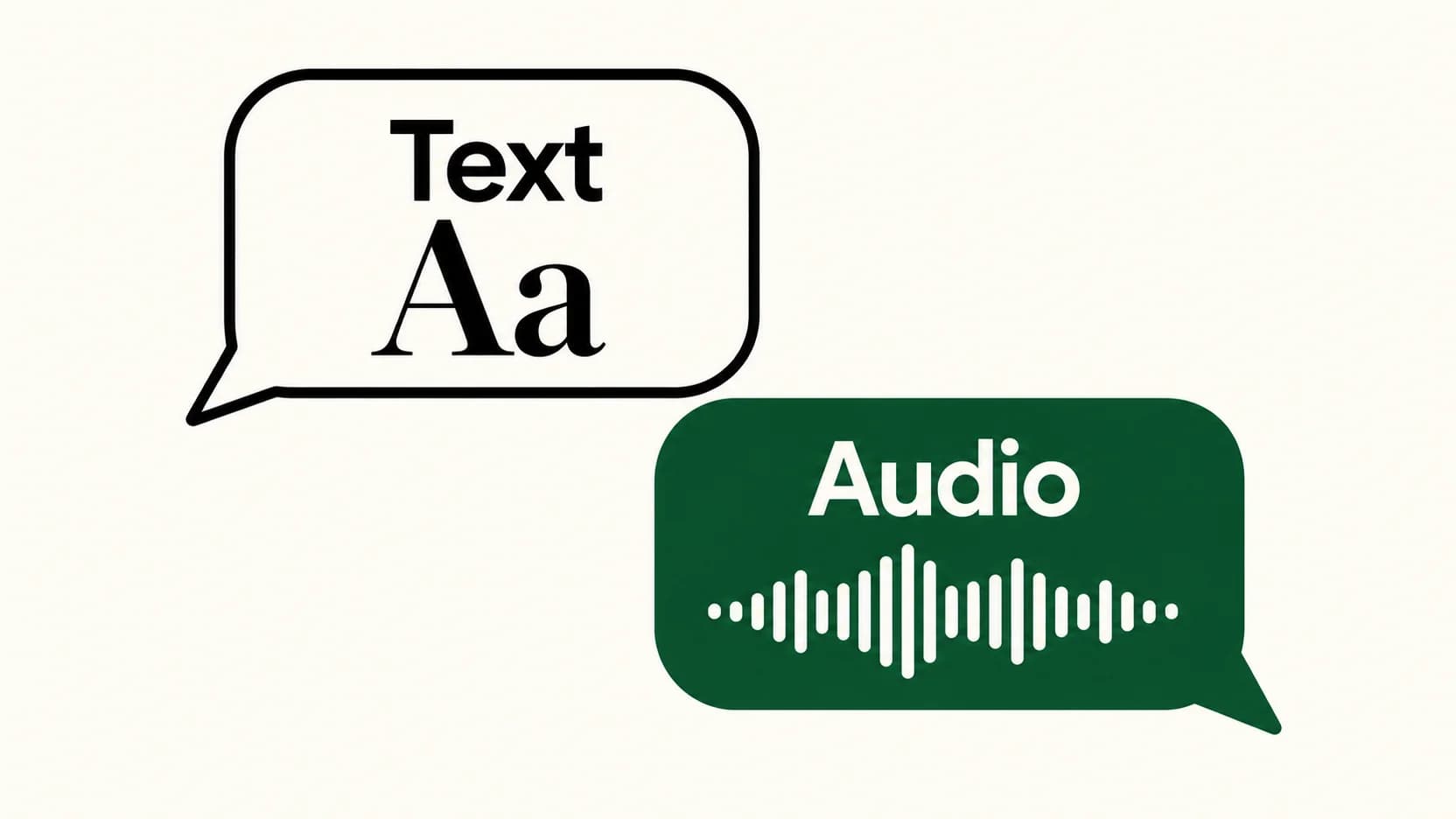
For voice typing in WhatsApp, tap the message field, then use your phone keyboard's dictation microphone. Speak, stop dictating, and review the words before sending. WhatsApp's own voice-message recording control captures an audio message instead.
The difference is the result you want. This control/result table is an explanatory example, not an app screenshot or compatibility test:
| Your goal | Control to use | Result |
|---|---|---|
| Speak an outgoing text message | The keyboard's dictation microphone | Editable text in the message field, ready for review |
| Send a recording of your voice | WhatsApp's voice-message recording control | An audio voice message |
| Read an incoming voice message | Transcribe, where supported | A transcript of an existing audio message |
Apple and Google document keyboard dictation as text entry. WhatsApp documents voice-message transcripts as a separate feature with device-dependent availability. Enabling transcripts does not switch on outgoing voice typing.
Last checked: September 21, 2026. Instructions are based on official documentation and released-product source inspection. No hands-on WhatsApp compatibility test is claimed; message examples are synthetic.
Voice typing on iPhone
Open the intended WhatsApp conversation and tap the message field so the onscreen keyboard appears. Tap the Dictation microphone on that keyboard, then speak your message. Tap the Dictation control again to stop, correct the text with the keyboard, and send only when it says what you mean.
If the keyboard microphone is missing, open Settings → General → Keyboard and turn on Enable Dictation. Return to WhatsApp and tap the text field again. These are Apple's iPhone Dictation instructions; availability and features vary by language and region.
Look at the message field while you speak. Words appearing there are the sign you are composing text. If you have opened an audio-recording interface, you chose a different control. Leave that recording without sending it, then return to the text field and keyboard.
Voice typing on Android with Gboard
These steps apply to Gboard. Other Android keyboards can put voice input elsewhere or offer different controls.
With Gboard active, open your WhatsApp conversation and tap the message field. Tap the microphone at the top of the keyboard. When Speak now appears, say the text you want written. Finish voice input, then edit the unsent words before using WhatsApp's send control. This follows Google's Gboard talk-to-text guide.
If the control is missing, first identify which keyboard is actually open. A phone running Android does not necessarily use Gboard. Google's guide applies to its keyboard, and talk-to-text is not available in every language. Changing WhatsApp's incoming transcript settings will not repair a missing keyboard dictation control.
For a short message, typing a difficult name after dictation is often simpler than repeatedly speaking it. The recipient gets the final text you send, so use whichever mix of voice and touch gives you the intended wording.
Check meaning before pressing Send
Consider this synthetic message, invented to illustrate review rather than transcription accuracy:
Nina, let's meet at 6:30, not 6. Please don't book the table yet.
Three small details carry most of its meaning. “Nina” identifies the person, “6:30, not 6” changes the time, and “don't” withholds permission to book. A readable sentence with the wrong time or a missing negation would still be the wrong message.
Read the unsent text against that intent. Fix the name, keep the revised time, and confirm the instruction still says not to book. If the wording is cluttered, make the correction explicit:
Nina, the new meeting time is 6:30. Please wait before booking the table.
Both examples are deliberate compositions, not outputs produced by an app. Before sending your own version, also check the open conversation: correct text in the wrong chat is still a mistake. Dictation finishes when you stop speaking into the input tool; sending is a separate decision.
Voice typing on a Mac
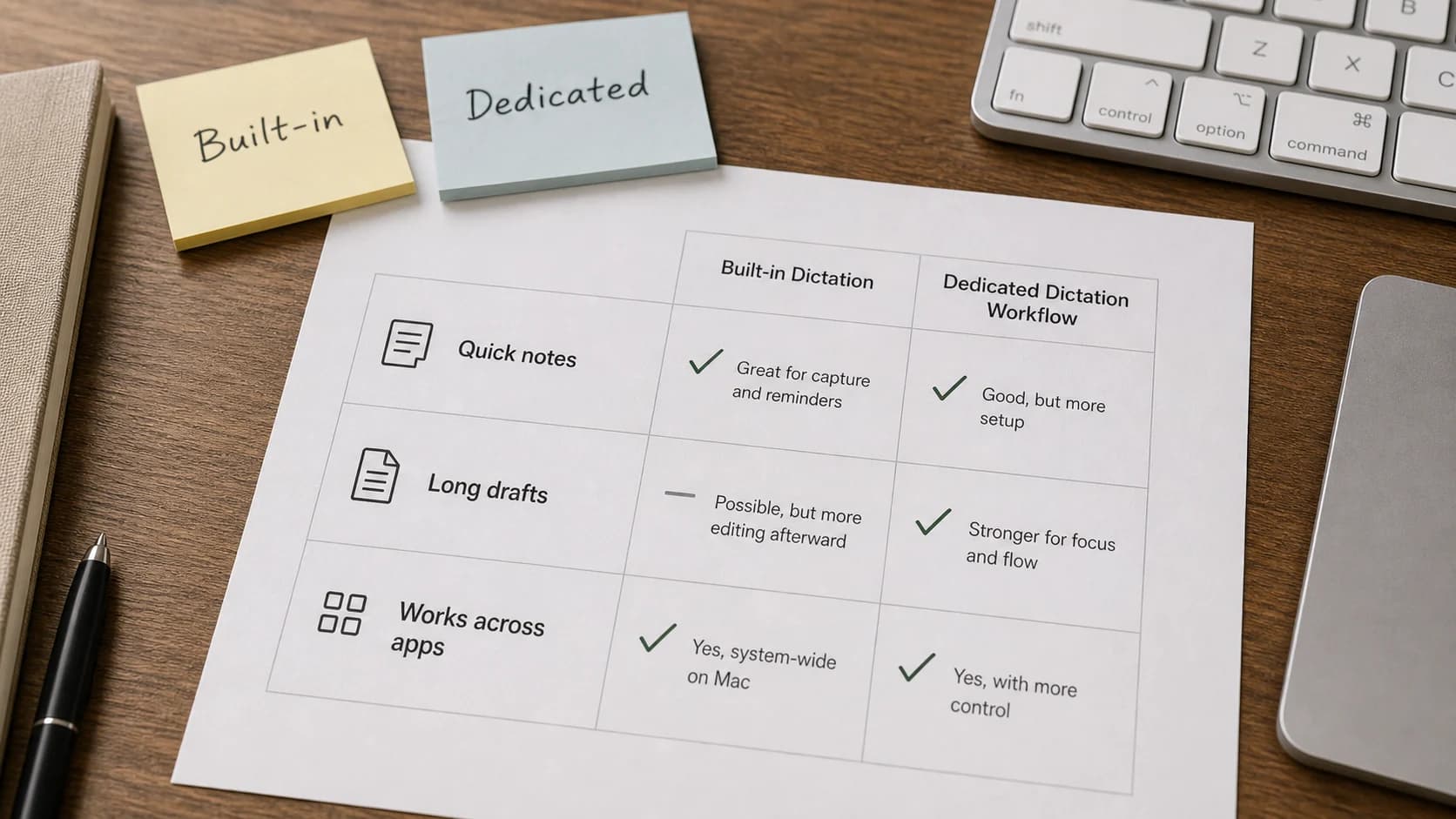
Start with the Mac's built-in Dictation. In System Settings → Keyboard → Dictation, enable it and check the configured shortcut. In WhatsApp, place the cursor in the message field and use that shortcut. Stop Dictation with Escape, then review the message. Apple documents these controls in its Mac Dictation guide; the Mac speech-to-text setup guide covers setup in more detail.
Paraspeech is an optional route if you want a separate Mac dictation tool. Before dictating into WhatsApp or allowing direct insertion, turn off Auto-Send for that destination in Paraspeech’s app rules, including any matching window-specific override. An enabled rule can press Return after pasting; changing a general or default setting is not a substitute for checking an existing destination rule.
Then use the hold or toggle recording control to turn your words into text. With Accessibility permission, Paraspeech can attempt insertion into editable fields, but this guide does not establish automatic insertion in WhatsApp. If the text does not appear, manually copy the result and paste it into the intended conversation. Review the recipient and message, then deliberately select Send. The Paraspeech documentation explains its recording controls and permissions.
This is an independent guide. Paraspeech is not affiliated with, sponsored by, or endorsed by WhatsApp, and this workflow is not an official WhatsApp integration.
To try that Mac route, download Paraspeech, disable Auto-Send for the destination, and dictate a short message to review before sending.
Reading an incoming voice message is a different task
If someone has already sent audio, you need a transcript of that recording rather than keyboard dictation.
WhatsApp's November 2024 announcement describes Settings → Chats → Voice message transcripts, where users can enable transcripts and select a language. It then describes pressing and holding a voice message and choosing Transcribe.
Use that path where the feature is available on your device. The current WhatsApp help page says voice-message transcripts are available only on certain devices and may not yet be available to you. The announcement is not proof that every phone, language, or desktop app now has the same option.
A missing Transcribe option therefore belongs to the incoming-audio feature. To write a new outgoing text message by speaking, return to the message field and use keyboard Dictation on your phone, or your chosen Mac text-input tool.