Raycast dictation has separate choices for where text goes and how it is formatted. Set Output Action for paste or copy, assign the intended style, and keep Auto Submit disabled when you want to review before sending. Start with the native Dictation manual.
Native Dictation is currently a paid Pro feature. The pricing table lists it in Pro, Teams Pro, and Enterprise, rather than the Free plans. Individual Pro is listed at $10 monthly or $96 billed annually. Older free-beta descriptions are out of date. Raycast’s v2.10 release, dated October 28, 2026, includes Dictation improvements.
Disclosure: We sell the Mac dictation app discussed in the final section and are not affiliated with Raycast. Documentation and pricing were checked on November 3, 2026.
Set up the native trigger and destination
Open native Dictation and complete microphone selection, permissions, and hotkey setup. On Mac, direct paste needs Microphone and Accessibility permission; macOS 27 names the latter Device Control and Data Access. App Context has an additional permission discussed below.
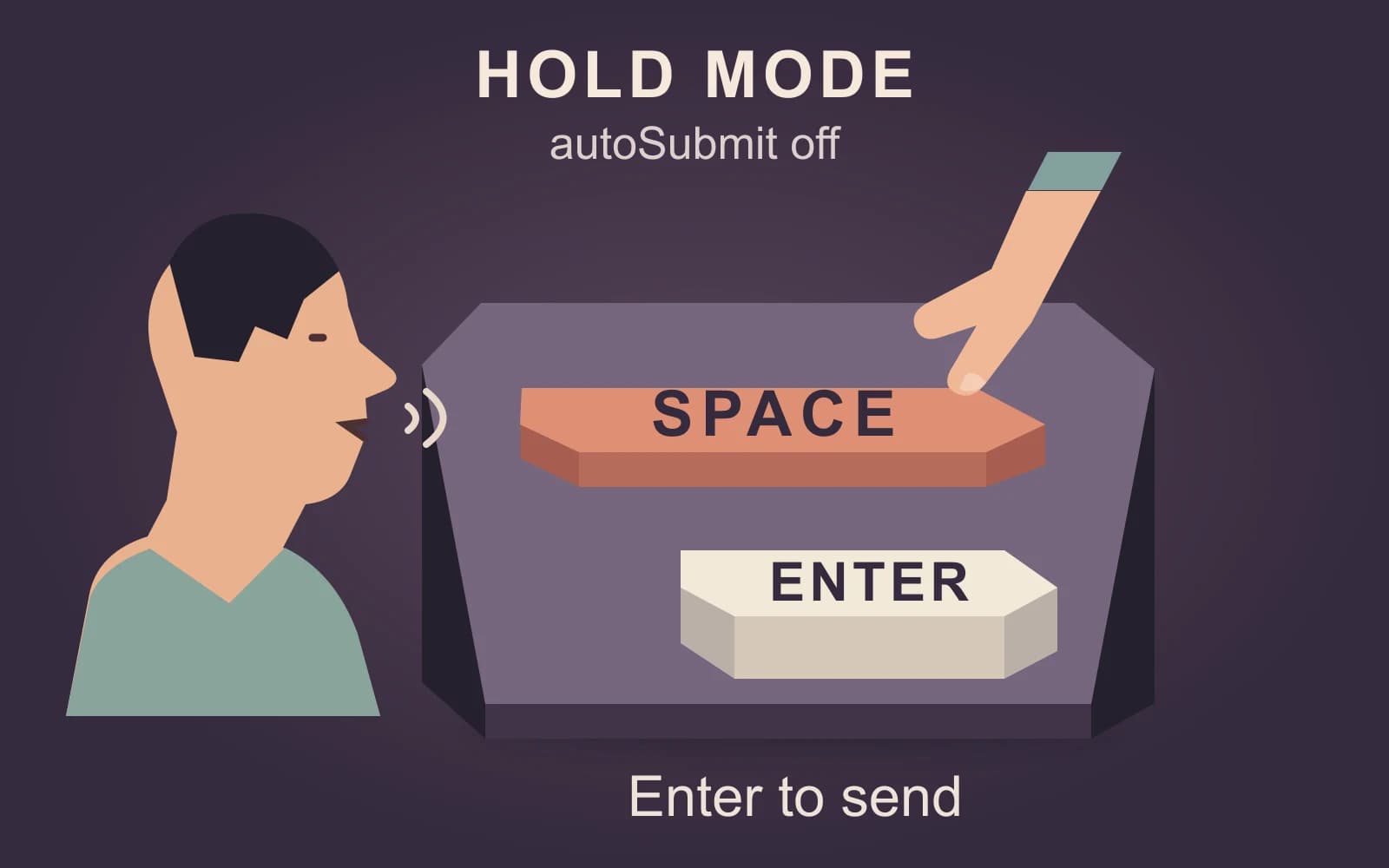
The native hotkey instructions support tapping to start and tapping again to accept, or holding the hotkey and releasing to finish. Esc cancels. Choose a trigger that does not conflict with another command; if you use fn, Raycast documents setting the macOS action for that key to Do Nothing.
Then choose the output in Settings → Dictation:
- Paste to Active App: put the result in the focused destination.
- Copy to Clipboard: keep placement manual.
- Paste to Active App & Copy: use both paths.
Click an editable field before dictating. If paste misses that field, use Copy to Clipboard and place the text yourself. For the native Apple setup and field checks, see our Mac speech-to-text guide.
Example: an email draft and a chat reply
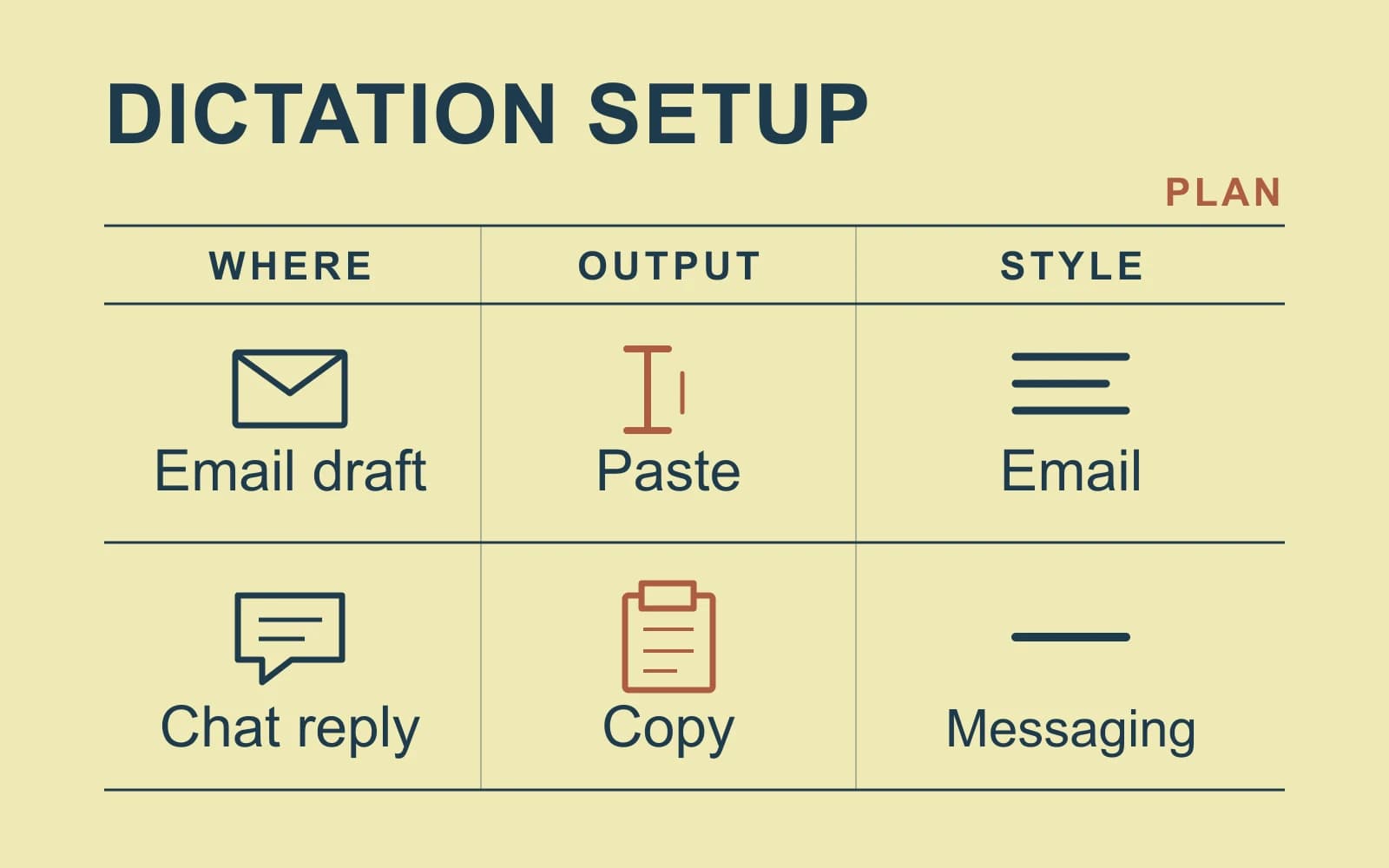
For an email, you may want the paragraph pasted directly into the draft. For a chat reply, copying first gives you a separate review step. Here are two example setups; change Output Action when switching between them.
| Setting | Email draft | Chat reply |
|---|---|---|
| Destination | Editable email draft | Reply for manual placement |
| Output Action | Paste to Active App | Copy to Clipboard |
| Style | Email, assigned to the chosen app or site | Messaging, assigned to the chosen app or site |
| Required format | Greeting, paragraphs, punctuation, sign-off | One brief paragraph; light punctuation |
| Review | Check recipients, names, dates, and the draft | Inspect copied text, paste into the reply, then send |
For both plans, keep Auto Styling on with the intended app or site active, and Auto Submit disabled. Enable App Context only when nearby visible material is appropriate to share.
Keep the same dictation hotkey across these jobs. Change Output Action when switching between direct placement and manual copy. The manual documents app and website style assignments; use those assignments to choose the formatting for each destination.
Make style and vocabulary choices explicit
Built-in Email and Messaging styles serve different formatting needs. Auto Styling selects by the assigned app or site. With it off, baseline cleanup remains, but app-aware styling does not.
In Settings → Dictation → Personalization, keep global Custom Instructions for rules you want everywhere. For example, use “Capitalize Northstar this way” for a recurring project name. Reserve destination-specific formatting for the style. Raycast says global instructions apply above per-style settings.
For a custom style, describe the text you want: “Keep a short status update in one paragraph; preserve names and numbers.” Treat that as an instruction to review, not a guarantee of exact output. Add the intended apps or websites to the style.
Use Vocabulary for recurring names and jargon. It supplies recognition hints, rather than establishing that a term will always be transcribed correctly. Review important names and exact values even after adding them. The manual’s personalization and style sections describe these controls.
Separate context access from paste behavior
App Context can include the frontmost app, focused field, and nearby visible text in the transcription request. It needs Screen Recording permission. Raycast says this context is used for that request and discarded afterward. Its Dictation privacy explanation also states that audio goes to a speech-to-text partner; local history does not mean recognition happened locally.
Context-Aware Paste, marked experimental, is a different control. It adjusts spacing and capitalization at the cursor and is available only with paste output actions. Auto Submit, also experimental, can press the configured submit key after pasting. The current settings reference describes Disabled, Always, and On Keyword options. Leave it disabled when you want to review before sending.
Recover text and manage its history
Open Dictation History to find previous transcriptions and use its paste, copy, or deletion actions. Get Last Transcription provides quick access to the latest text. These recovery controls are documented in the native history section.
Raycast says transcriptions live in the local app database, audio is sent to its transcription partner, and audio/transcriptions are not stored on Raycast’s servers. Its partners are prohibited from using that audio for training. Dictation statistics are computed locally. See the operation-specific privacy policy.
Deleting local history does not remove text you already copied or submitted elsewhere. The destination service’s processing and storage rules still apply.
When a separate Mac dictation route fits
A separate app can fit when speech-model selection or a downloaded local speech workflow is a requirement of your Mac writing setup.
Paraspeech supports eligible downloaded local speech models on Apple Silicon after setup. Speech recognition, rewriting, and cloud fallback are separate choices. With the required permissions, it can attempt insertion into many supported editable fields; clipboard and manual paste provide a fallback. See the Mac setup documentation.
Choose this for its model options rather than assuming it reproduces every Raycast control. Local recognition does not make the app or service receiving the text local.