About this article: Prepared by the Paraspeech team, which sells a dictation app discussed here. Product and model information comes from the linked sources; any hands-on findings are identified separately.
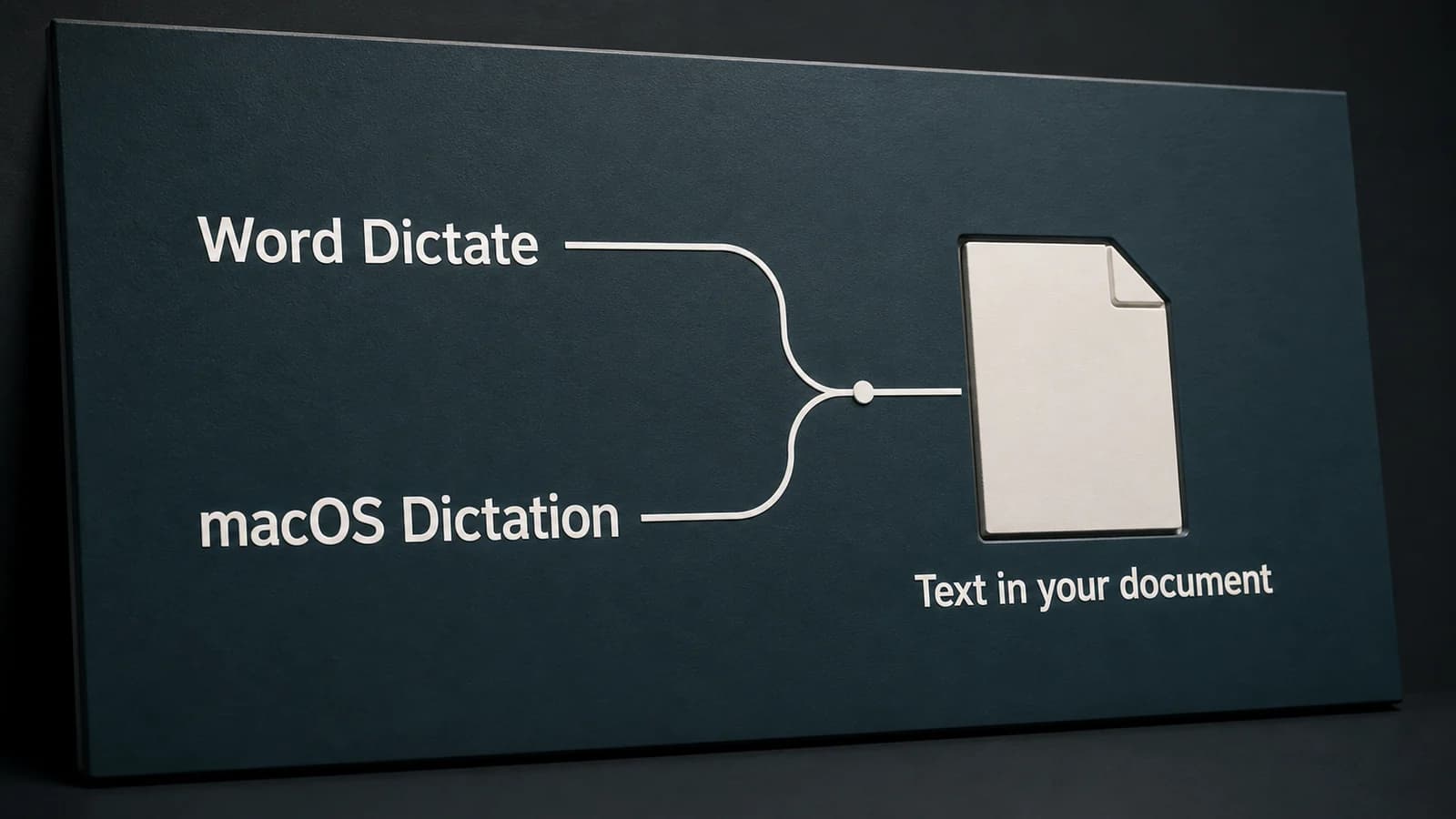
For Microsoft Word dictation on Mac, there are two starting points: Home > Dictate inside Word, or macOS Dictation while your cursor is in the document. Microsoft's route needs an eligible Microsoft 365 subscription and an internet connection. Apple's route is a separate Mac feature; you do not need to make Word's Dictate button appear to use it.
If the button is missing, start with the account and feature checks below. If a microphone control starts but no text arrives, investigate the microphone and editing location instead. Those are different problems, even when both end with an empty page.
Last checked: August 27, 2026. These instructions follow the linked Microsoft and Apple documentation; they are not a hands-on performance comparison.
Choose Which Dictation Control to Use
Pick one route for your first attempt. Switching between shortcuts without identifying the feature makes a failed attempt difficult to explain.
| Starting point | What it starts | First choice when |
|---|---|---|
| Word's Home > Dictate | Microsoft's dictation feature inside Word | Your signed-in account has access and you want to work from Word's ribbon. |
| The Mac's Edit > Start Dictation or configured Dictation shortcut | Apple's system text input | You want built-in Mac dictation, including when Word's own control is unavailable. |
The two routes are documented separately in Microsoft's Word guide and Apple's Mac guide. Opening a Word document does not tell you which one is listening; the control you use does.
Start Word Dictate in a Document
For the Mac desktop app, Microsoft documents Home > Dictate, or Option + F1, while signed into Microsoft 365. Keep a reliable internet connection available.
- Open a blank document and click in its body. Type a few words first to establish that this location accepts edits.
- Start Dictate and wait for its listening state before speaking.
- Try a short, invented sentence: “The delivery is scheduled for Thursday.” Leave names, customer information, and confidential text out of this first attempt.
- Stop dictation before inspecting the result. Microsoft's English command list includes “stop dictation.”
The typed words establish the destination; the spoken sentence tests the input route. If typing fails too, the immediate problem is editing access or focus, not recognition. Use a new document you can edit rather than testing inside a protected file.
Microsoft's Mac instructions and command reference also describe spoken punctuation. Keep the first sentence simple; formatting commands can wait until speech is reaching the page.
If Word's Dictate Button Is Missing or Unavailable
A missing control, a disabled control, and an active control that produces nothing call for different next steps.
There Is No Dictate Button
Check the account signed into Word, not just the account open in a browser. Microsoft identifies Dictate as a subscriber feature. Confirm that this is the account with the eligible Microsoft 365 access; having Word installed alone does not resolve that question. See the subscriber note in Microsoft's instructions.
On a work or school Mac, tell the administrator which account and desktop app you are using and that Home > Dictate is absent. This directs the question to feature access rather than audio hardware. Meanwhile, try the Apple route below if your organization permits it. Turning Apple's Dictation on is an alternate way to enter text, not a repair to Microsoft's ribbon.
The Control Is Visible, but the Document Will Not Accept Text
Click in the document body and try typing. A title field, search box, comment box, or read-only view is not the same destination as the main page. If the blank-document test works, return to the original file and resolve its editing restriction or choose the intended insertion point.
Do not remove protection from a document you are not authorized to change. Ask its owner for an editable copy or the right editing access. Changing microphone settings cannot grant document permission.
Word Reports a Microphone-Access Problem
On your Mac, open System Settings > Privacy & Security > Microphone and check Word's access if it appears in the list. This is the Mac's application permission, separate from the account that gives you access to a Word feature. Apple explains this control in its microphone-permission guide.
If you opened Word in a browser, use the Word for the web instructions linked from Microsoft's guide and review the browser's microphone prompt. A permission granted to the desktop app does not establish what a browser page may use.
A Listening Control Appears, but No Words Arrive
Check System Settings > Sound > Input. Select the microphone you intend to use, particularly after connecting a headset, and inspect the input level while speaking. Apple documents input-device selection and volume adjustment in its sound-input guide.
If the Mac shows no input, resolve the device selection, mute, or connection first. If it detects your voice, that establishes audio capture at the Mac level—not that Word has received, recognized, and inserted it. Return to the same blank document, check the connection needed by Word Dictate, and retry that route alone.
Use Apple Dictation Inside Word
Apple's feature is a useful first test when you only need spoken text in an editable document. Enable System Settings > Keyboard > Dictation, select your language, then return to Word and place the cursor in the body. Start with the configured Dictation shortcut, the Microphone key if present, or Edit > Start Dictation.
Wait for Apple's ready indicator or tone, speak your sample sentence, then press Escape to finish. These are Apple's controls, not Word's Option + F1 command. If the shortcut behaves differently, look at Keyboard > Dictation > Shortcut rather than guessing a universal Fn-key combination. Apple documents the start, stop, and shortcut settings here.
When Voice Control is active, it handles dictation instead of standard macOS Dictation. Do not disable an accessibility setup you depend on just to follow this route. Apple's guide explains the distinction; the broader Mac speech-to-text setup guide covers system-level choices.
Use the Test Result to Choose Your Next Step
Keep the document and sample sentence the same when comparing the two routes, and stop one before starting the other. Use the result to locate the failure. One sentence is not an accuracy benchmark.
- Apple Dictation enters text in Word, but Word Dictate does not: the document can accept spoken input through at least one route. Concentrate on Word's account, connection, and application permission rather than rebuilding the whole Mac setup.
- Apple Dictation works in Notes but not in this Word document: return to the document's cursor and editing state. Try another editable Word document before changing the microphone that already worked in Notes.
- Apple Dictation also fails in Notes: continue with the Mac Dictation troubleshooting guide. You now have a system-input question, not just a missing Word button.
- Words arrive, but an address, name, or technical term is wrong: input is working. Correct the exact text with the keyboard and assess a representative paragraph before deciding whether this route fits your writing.
For example, suppose the sentence appears in a blank Word document through Apple's route while Home > Dictate remains absent. You can continue drafting through Apple Dictation while separately resolving Microsoft account access. Installing another microphone would not answer why the ribbon control is missing.
When a Mac-Wide Dictation App Helps
If either built-in route handles your Word writing, keep it. A separate app is worth considering when the task extends across Word, email, and other editable fields and you want one dedicated input workflow.
Paraspeech's documentation describes shortcut-driven dictation and attempted text insertion. With Accessibility permission, Paraspeech can insert into many editable Mac fields; unsupported fields may require a clipboard fallback. That is a separate input path, not a Microsoft add-in or a way to unlock Word's own Dictate feature. Try it in the fields you actually use before deciding that it fits your workflow.
Microsoft and Apple are named only to identify their products. Paraspeech is not affiliated with, sponsored by, or endorsed by Microsoft or Apple. Product details can change; verify the linked official instructions before relying on them for a work deployment.
For the Word document in front of you, use the route whose control you can identify and whose result reaches the intended paragraph. Keep account access, microphone access, and document access as separate questions when something fails.