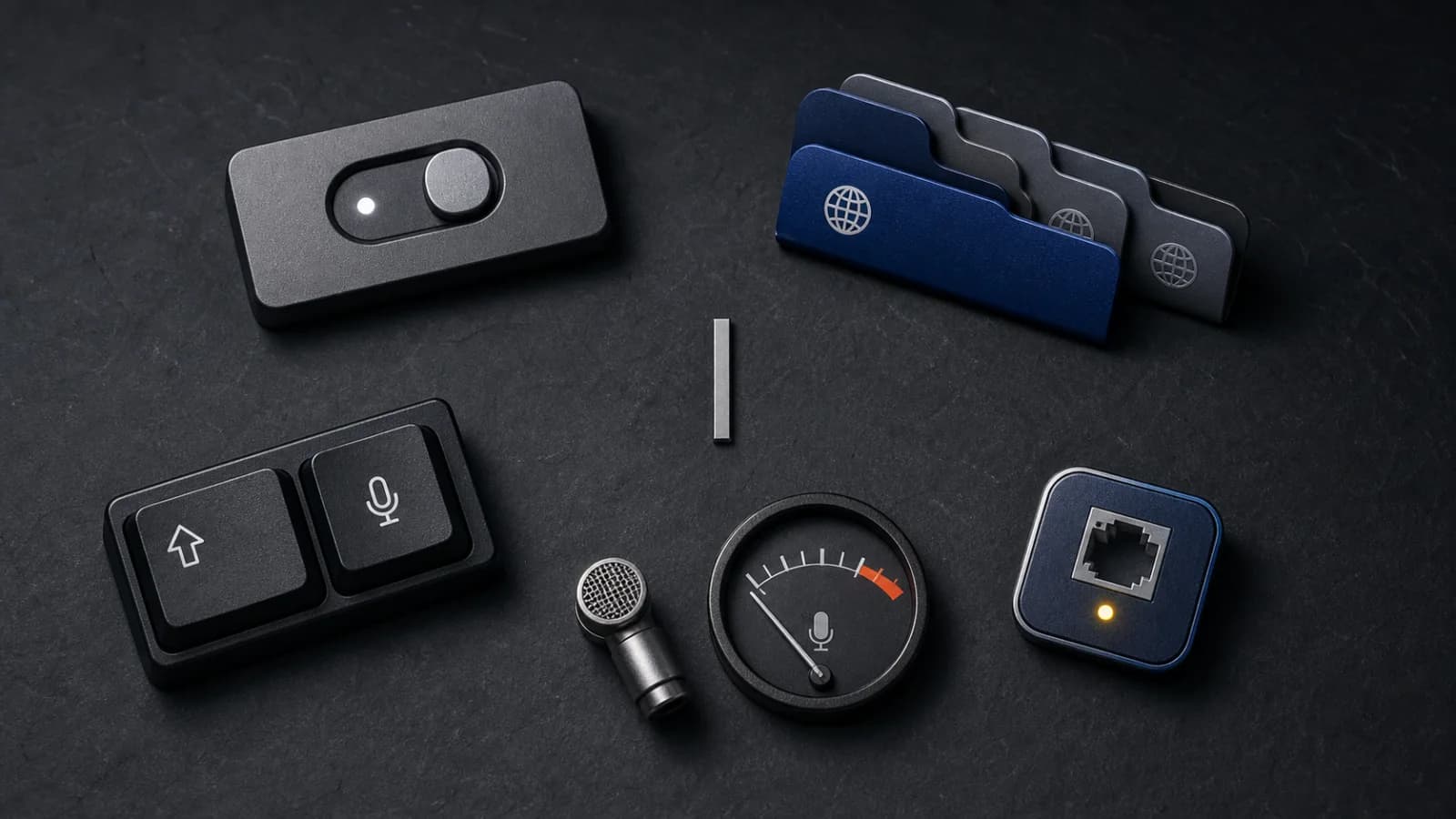
When Apple Dictation is not working on your Mac, check the feature itself before changing anything outside macOS. Confirm that Dictation is on, the language and shortcut match what you are using, the selected microphone receives a clear signal, and your current setup has the connection it needs. Change one condition at a time so the next test tells you something.
If you have not enabled speech to text yet, start with the Mac speech-to-text setup guide. The steps below assume Apple Dictation should already be available but is not responding or is producing unusable text.
Reproduce the problem in a blank Notes field
Open Notes, create a blank note, click in the note body, and type a few characters. Leave the insertion point there, then start Dictation using the Microphone key when available, the shortcut configured on your Mac, or Edit > Start Dictation.
Apple says the cursor highlights and pulses, or the Mac plays a tone, when it is ready for speech. Dictate one short sentence such as:
The blue folder is beside the window.
This small test separates a general Apple Dictation failure from a problem limited to the original app or field. If the sentence appears in Notes, repeat the same test in the original field. If it fails in both places, continue through the checks below.
1. Confirm that Dictation is turned on
Open Apple menu > System Settings > Keyboard, scroll to Dictation, and make sure it is enabled. Apple lists this as the first check when Dictation does not behave as expected.
After enabling it, return to the blank note and repeat the same sentence. If the cursor never enters the ready state, move to the language and shortcut settings rather than changing several unrelated controls.
2. Choose the language and region you are speaking
In System Settings > Keyboard > Dictation, check the languages selected for Dictation. Click Edit next to Languages if you need to add or remove one.
When several languages are configured, confirm that the active language beside the Dictation cursor matches the sentence you are speaking. Apple notes that Dictation is not available in every language or region and that features can vary. A correct microphone signal cannot compensate for an unintended language setting.
Use the same plain sentence after selecting the right language and region. Keep names, acronyms, and technical terms out of this diagnostic phrase; they make it harder to tell whether the basic feature works.
3. Use the shortcut shown in Keyboard settings
Still in System Settings > Keyboard > Dictation, read the Shortcut setting. Use that exact key combination for the test.
On a Mac with a Microphone key, press and release it to start Dictation. Apple distinguishes that action from holding the key, which can activate Siri when Siri is enabled. You can also start from Edit > Start Dictation in an app that exposes the command.
Watch for the highlighted, pulsing cursor or the ready tone. If Edit > Start Dictation works but the keyboard trigger does not, the Dictation feature and text field are available; the configured shortcut is the useful next boundary.
4. Check the selected microphone and its input level
Apple Dictation can listen through the built-in microphone or another connected input. Check both the device and the signal:
- Open System Settings > Keyboard > Dictation and inspect Microphone source.
- Choose the microphone you intend to use, or choose Automatic if that is your preferred setup.
- Open System Settings > Sound > Input, select the same device, and speak at your normal volume.
- Watch the input level and increase the input volume if the signal is too low.
If you use an external microphone, confirm that it is connected before selecting it. If your Mac does not show a useful input signal, stay at this check. Dictation cannot recognise speech that macOS is not receiving clearly.
If the input level responds normally, return to Notes and repeat the test sentence without changing the shortcut or language.
5. Remove obstruction, noise, and excessive echo
Apple recommends checking that the microphone is not covered by clothing, your body, a case, or another object. Position yourself as you normally use the Mac and speak clearly at a moderate volume.
The room matters too. Move away from strong background noise or a space with pronounced echo. If you cannot change the environment, Apple suggests trying a headset microphone.
Use the same sentence before and after the change. A quieter test that suddenly works points to the input conditions, while a silent room with a healthy input meter moves the diagnosis to the connection boundary.
6. Check whether this setup needs internet
Open System Settings > Keyboard and read the text below Dictation while the feature is enabled. Apple says this text indicates whether general text Dictation is processed on the device or whether the current setup may need an internet connection.
If the setting says a connection is needed, verify the Mac is online in System Settings > Network, then repeat the Notes test. If it says general text Dictation is processed on the device, do not use connectivity as the explanation for every failure. Return to the first check whose result was uncertain.
Apple distinguishes general text Dictation, such as composing a note or message, from dictating into a search box. Use Notes for the baseline rather than treating a search field as the decisive test.
Use the result to choose one next action
| Result | What it isolates | Next action |
|---|---|---|
| Dictation was off | The feature was unavailable | Enable it and repeat the Notes sentence. |
| The wrong language was active | Speech was being interpreted against another language or region | Select the intended language and test the same plain sentence. |
| The menu command works but the shortcut does not | Dictation and the field work, but the trigger does not match the setting | Use or change the shortcut shown in Keyboard settings. |
| The input level is absent or very low | macOS is not receiving a usable microphone signal | Select the intended input, reconnect it if external, and adjust input volume. |
| The test improves in a quieter position | Obstruction, noise, echo, or speaking level affected the signal | Keep the clearer position or use a suitable headset microphone. |
| The test works online only when Keyboard settings say internet is needed | Connectivity is part of the current Dictation boundary | Restore the connection before continuing. |
| Notes works but the original field does not | Apple Dictation works in a plain editable field | Confirm the original field accepts text and use that app’s support path if it remains isolated there. |
Stop once you have a repeatable result. Changing the language, shortcut, microphone, and network at the same time may make the symptom disappear, but it will not show which condition mattered.
Frequently asked questions
Why does Apple Dictation start but produce the wrong words?
First confirm the active language and region. Then test a plain sentence in a quieter environment while watching the selected microphone’s input level. Leave names and specialist vocabulary out of the diagnostic phrase until ordinary words are recognised consistently.
Why does Apple Dictation work in Notes but not another app?
Notes proves that Dictation can start and enter text in a plain editable field. In the other app, click where you can type and enter one character before starting Dictation. If the same sentence still fails only there, the remaining issue belongs to that field or app rather than the general Mac input path.
Does Apple Dictation on Mac need internet?
It depends on the current setup. Apple directs users to the text below System Settings > Keyboard > Dictation, which states whether general text Dictation is processed on the device or may need an internet connection.
Why is there no response when I speak?
Check that Dictation is on, then verify the selected microphone and its input volume. Remove anything covering the microphone, speak at a moderate level, and reduce background noise or echo before repeating the same Notes test.
How do I know Apple Dictation is ready?
Apple says the cursor highlights and pulses, or the Mac plays a ready tone. If neither happens, verify the configured shortcut and start once from Edit > Start Dictation to separate the feature from the keyboard trigger.