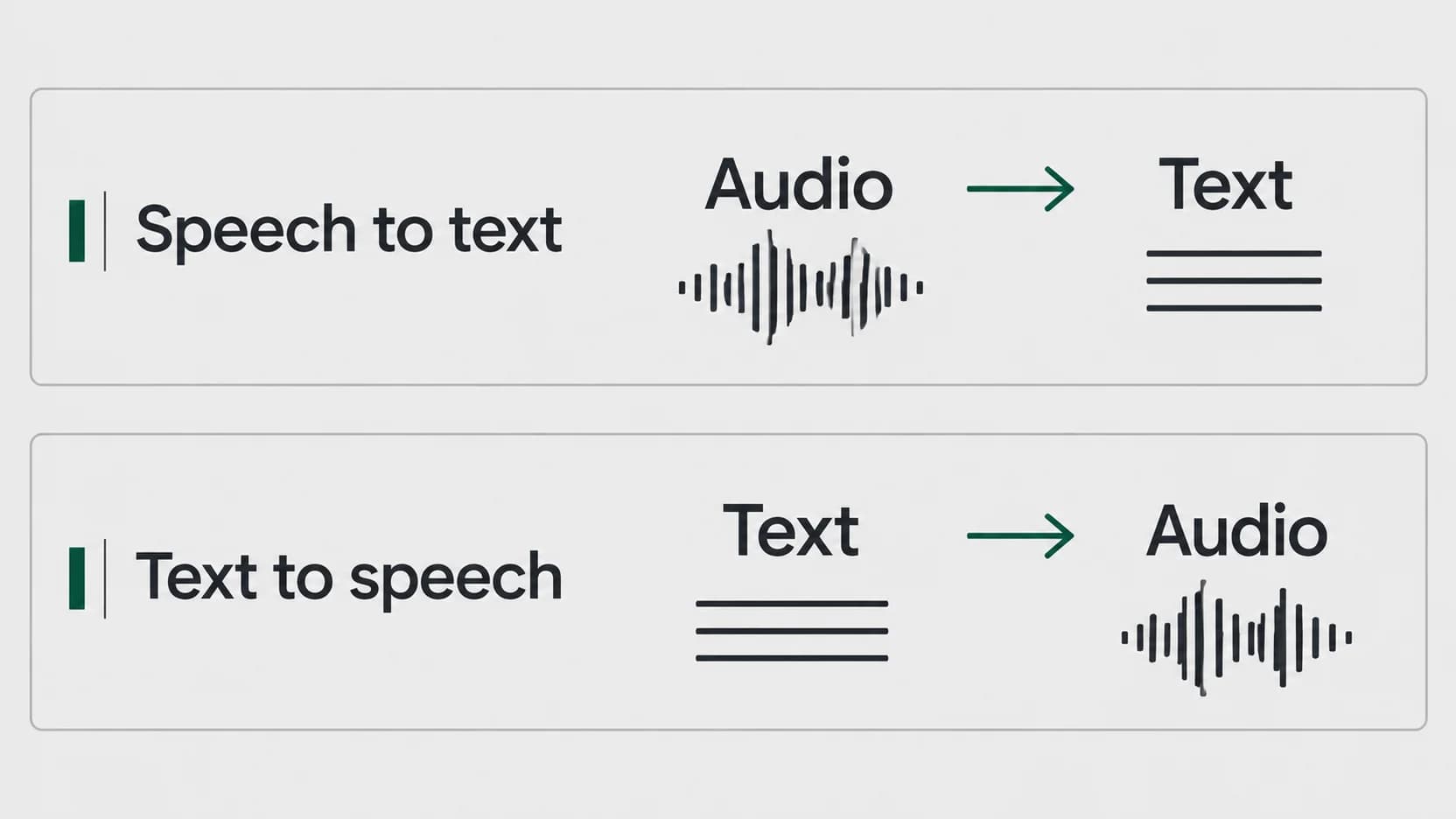
Speech-to-text recognition and text-to-speech synthesis run in opposite directions. Speech to text (STT) starts with spoken audio and produces written words. Text to speech (TTS) starts with writing and produces spoken audio. If you want a recording turned into a document, choose STT. If you want a document read aloud, choose TTS. The words “voice” or “AI” in a product name do not tell you which direction it supports. Speech recognition definition · Speech synthesis definition
Last checked: September 21, 2026. Examples below are illustrative, not output from a product test.
Choose from your starting material and desired result
| You have | You want | Choose |
|---|---|---|
| Words you are about to say | Text in an email or document | Speech to text with microphone input |
| A saved spoken recording | A transcript you can read and edit | Speech to text with file input |
| A written article | Audio you can listen to | Text to speech with read-aloud support |
| A finished script | Generated narration you can save | Text to speech with audio export |
The last column identifies the category. The result you need determines which feature to check. A microphone dictation app does not necessarily accept a saved recording. A reader that plays a document aloud does not necessarily export an audio file. Check that exact input and output before choosing a tool.
For example, suppose you have an audio memo about next week’s schedule. A TTS reader cannot extract the memo’s words: it expects text to begin with. You need STT first. Conversely, if your schedule is already written and you want to listen to it, transcribing it again serves no purpose; choose a read-aloud function.
Speech to text recognizes words in audio
STT works from a microphone or supported recording and estimates which words were spoken. Its useful result is text you can work with: a draft, transcript or other written output. Recognition can make mistakes, so names, dates and numbers still need attention. How speech recognition works and its limitations
Illustrative example: you say, “The review is on Tuesday at ten.” The desired text is: “The review is on Tuesday at ten.” Before sending the result, check Tuesday and ten: a fluent sentence can still contain the wrong appointment details.
Some applications also rewrite the recognized text. That is a separate operation. Turning a rough sentence into a polished email changes its wording; producing a summary selects and compresses information. Neither is required by the basic audio-to-text direction, and a polished result should not automatically be treated as an exact record of the recording.
If your starting point is an existing recording, the audio-file transcription guide covers that next step. Choose a workflow that accepts your file rather than assuming every dictation control can import it.
Text to speech generates audio from writing
TTS takes text and synthesizes speech. For example, Amazon Polly’s documentation describes supplying text and receiving an audio stream. That illustrates the conversion direction; it is not a claim that every read-aloud app offers the same controls or output formats. How text-to-speech synthesis works
Illustrative example: your written script says, “Welcome to the weekly update.” TTS produces spoken audio of that line. There is no original speaker’s recording to transcribe in this example: the written script is the input.
For listening, check that your chosen tool can read the document or text selection you have. For narration, check that it can save the resulting audio. Then listen to names, abbreviations and punctuation-dependent pauses before using the result. A voice that sounds natural does not establish that every term was pronounced as you intended.
TTS also does not establish whether the text is true. If a script contains the wrong date, reading it aloud preserves the problem unless you edit the script. Listening can help you notice an awkward sentence; it does not replace checking the underlying information.
A workflow can use both without making them interchangeable
Suppose you want to turn a spoken update into a short narrated announcement. An illustrative sequence is:
Spoken update → STT transcript → edited script → TTS audio
The editing step matters. You might remove a false start, check a date or shorten a long explanation before generating narration. The resulting audio is a reading of the edited script, not evidence of exactly how the original speaker delivered the update.
A product offering one step does not automatically supply the others. Decide which conversion you need now, then verify the specific input, output and processing settings. If you only need a readable transcript, stop at text. If you already have a finished script, start at the TTS step.
Where Paraspeech fits the speech-to-text direction
Paraspeech fits the spoken-audio-to-written-text branch. On Mac, it can turn dictation into text and attempt insertion into many editable fields with Accessibility permission; some fields may require manual copying. It also supports imported-file speech recognition with a downloaded local model. Those are STT uses, not a recommendation for generating narration. Paraspeech documentation
Processing depends on the active mode. Supported local speech modes can run offline after setup on supported Apple Silicon Macs. Cloud-backed features need internet, Intel Macs use eligible cloud-backed subscription models, and separate rewriting may use a different processing route. Check the active speech and rewrite backends, including any allowed temporary cloud speech fallback, rather than inferring the whole workflow from one mode label.
If your next task is to speak a short email draft into your Mac, try Paraspeech for that speech-to-text task. If you already have the text and want to hear it, choose a TTS or read-aloud tool instead. This guide is published by Paraspeech; the linked AWS documentation supplies category definitions and does not imply an affiliation or endorsement.
