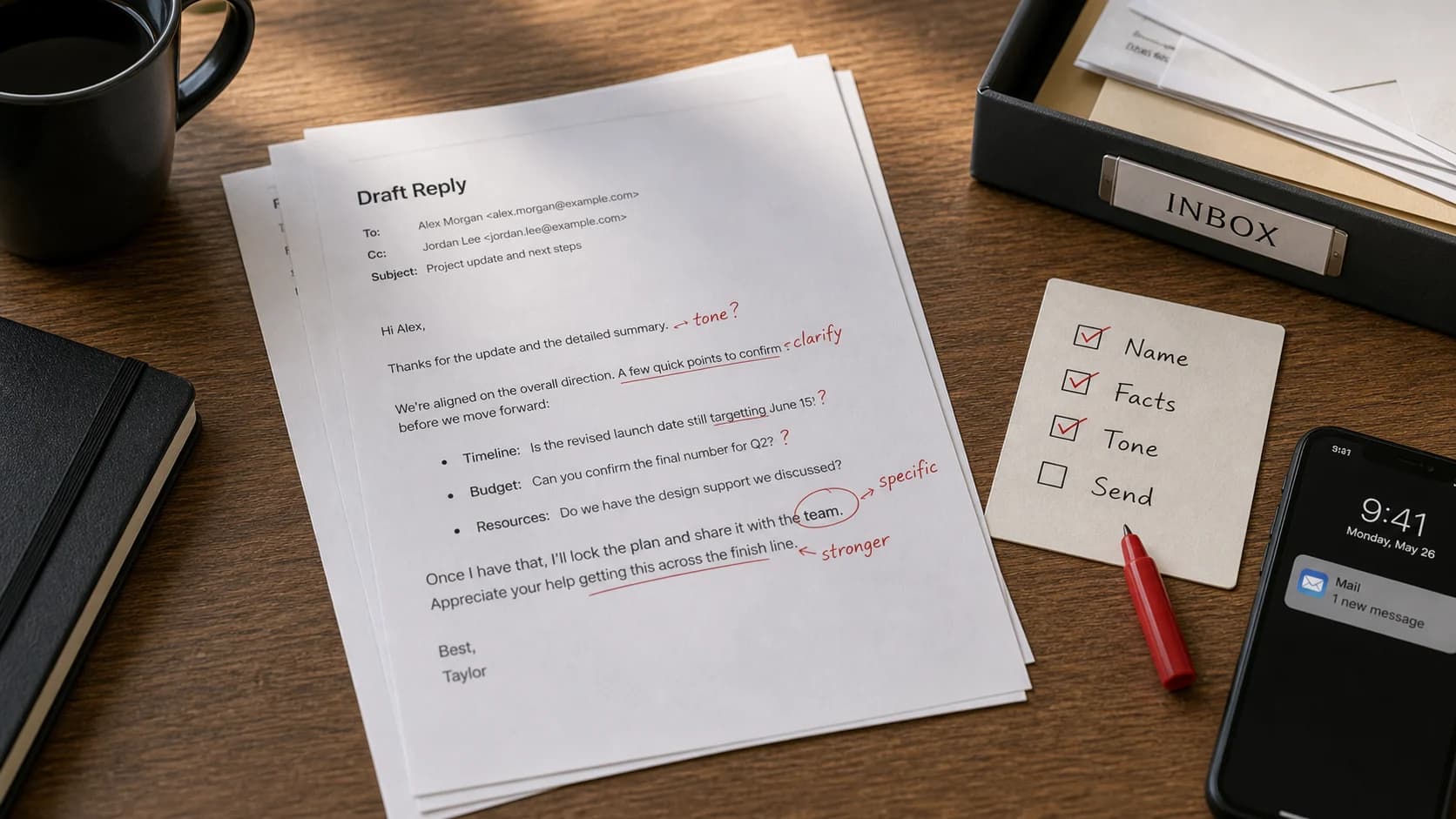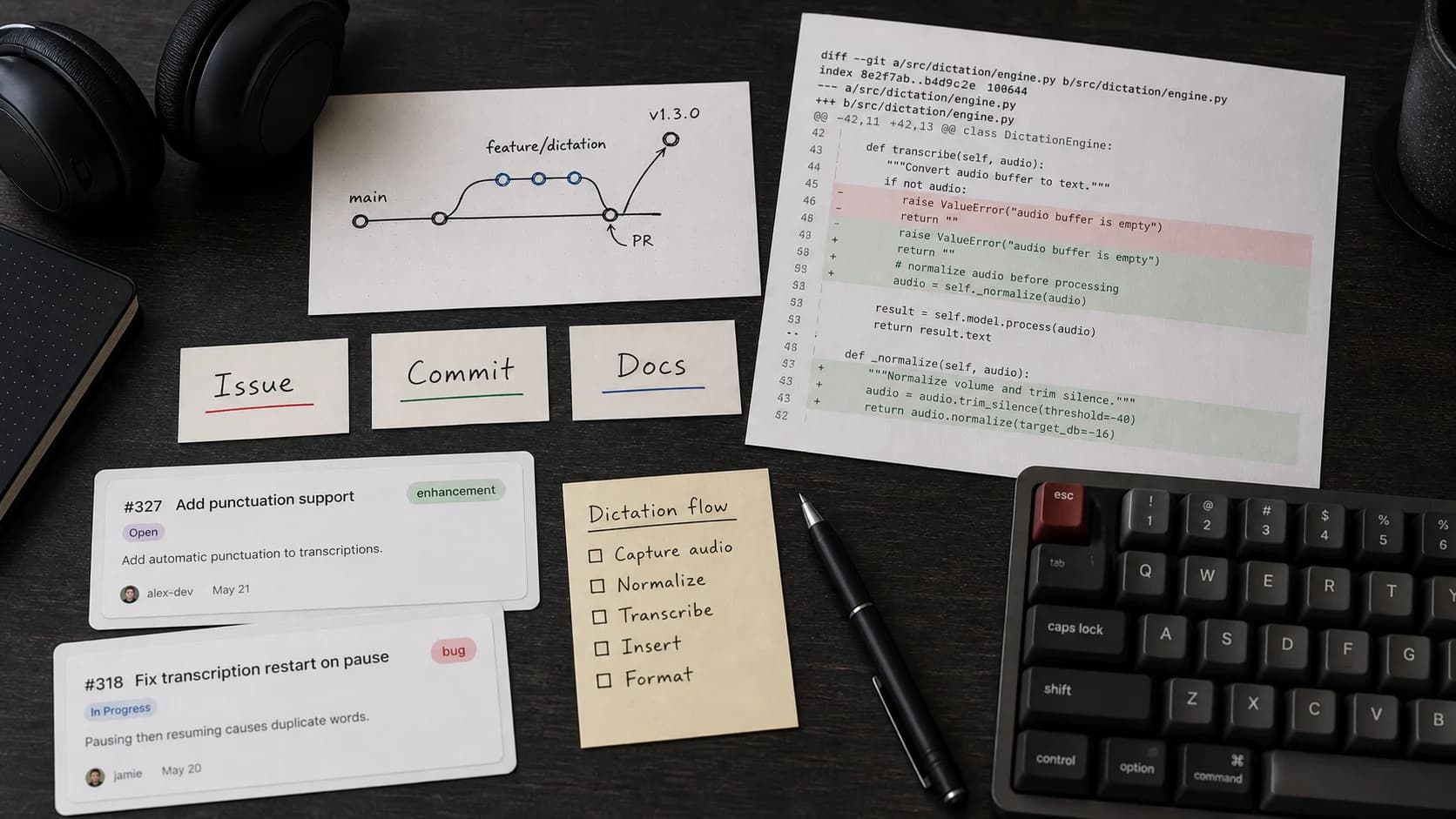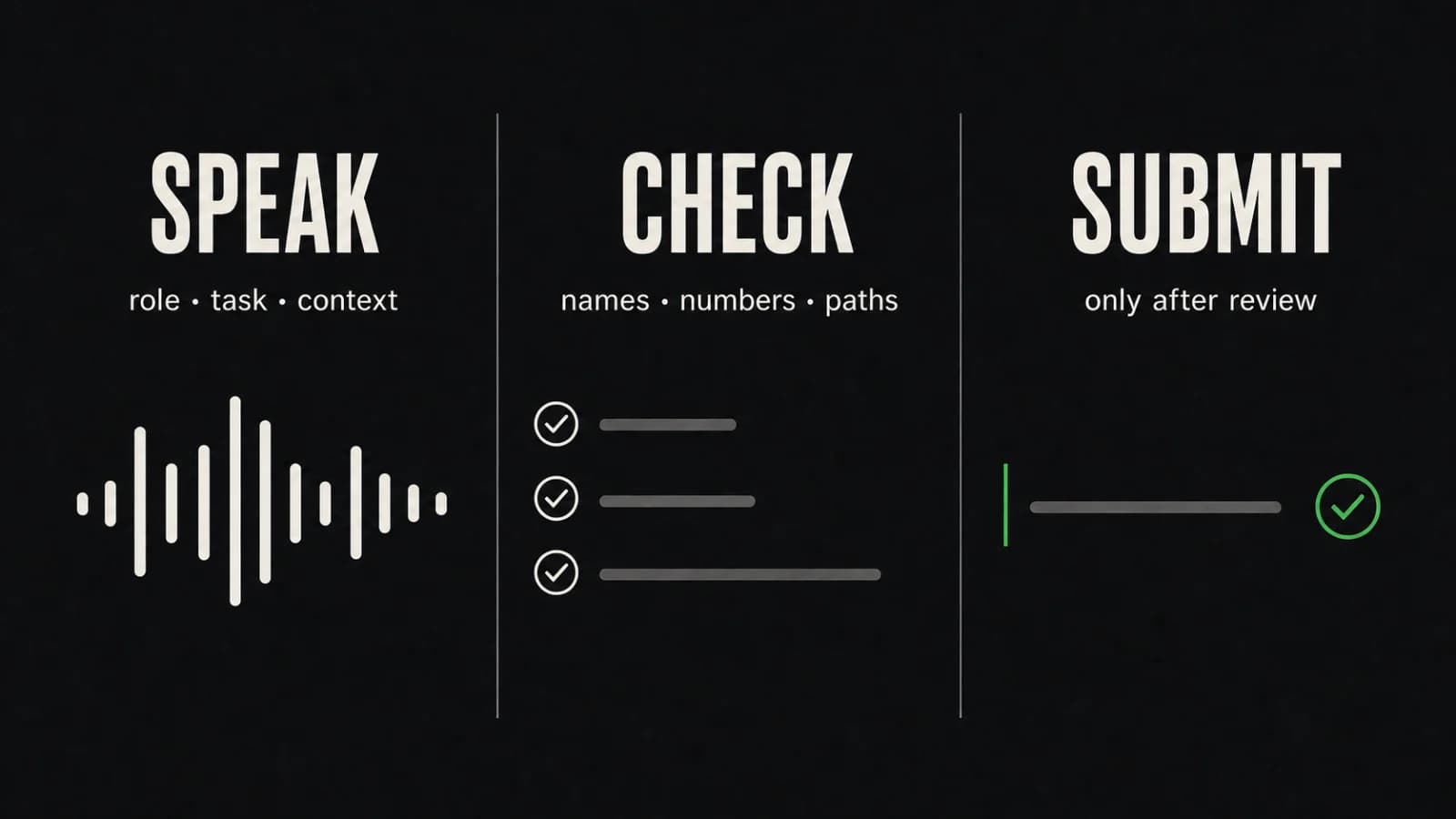
Dictating Slack messages on Mac works best as a compose-review-send routine: draft the ordinary prose by voice in a composer that you have tested, stop before sending, and verify every detail that must be exact. You still choose the workspace, conversation, recipient, channel, thread, mentions, links, dates, numbers, and code.
Paraspeech can insert dictated text at the cursor in supported editable fields on Mac. That is not a promise that every Slack surface accepts insertion, and it is not a Slack API, bot, plugin, or partnership. Test the intended composer with a harmless fictional sentence before using it for a real message. You remain responsible for the message and for pressing Send.
Slack's own message guide treats writing and sending as separate actions. This workflow keeps that separation intact.
Test the Composer Before the Message Matters
Open the exact Slack destination you plan to use, place the cursor in its message composer, and dictate a low-risk line such as:
Draft test: the fictional project update is ready for review.
Release the shortcut and inspect the field. Continue only if the complete sentence appeared in the intended composer and ordinary keyboard editing still works. Delete the test. If the text lands elsewhere, only part of it appears, or the surface is not editable, stop and use typing there instead.
This small test proves only that the current field accepts the insertion. It does not verify the recipient, create a mention, check a link, choose a thread, or send anything.
Use a Compose-Review-Send Loop
Give each pass one job:
- Open the intended conversation and confirm the workspace, recipient, channel, and thread.
- Click in the tested composer and dictate one complete thought.
- Release the shortcut before adding exact tokens.
- Read the inserted text from the beginning and repair meaning first.
- Type or paste exact details, make one last destination check, and press Send yourself.
Keep capture and sending as separate decisions. If a word comes out wrong while you speak, finish the current sentence, stop, and edit it in context. A complete thought is easier to judge than a series of restarted fragments.
Give Each Message One Job
Four patterns give the spoken draft a clear job:
| Message | Shape the spoken draft around | Decide with the keyboard |
|---|---|---|
| Update | What changed, current state, next checkpoint | Correct project, owner, date, and destination |
| Request | What you need, why it matters, when you need it | Exact person, deliverable, deadline, and link |
| Handoff | Context, current state, next action, owner | Correct recipient, file, ticket, and responsibility |
| Reply | Answer first, then one useful detail | Correct thread and whether the reply answers the actual question |
If a chat draft contains several decisions, move it into a document or a longer note. For longer correspondence, use the fuller email dictation workflow.
Four Fictional Drafts and Their Review Decisions
Status update
Spoken draft:
Quick update: the onboarding draft is ready for review. I addressed yesterday's comments and will do the final link check Thursday morning.
Review decision: confirm the onboarding thread, replace “Thursday” with a date when ambiguity matters, and open any link you add before sending.
Request
Spoken draft:
Could you review the export before noon tomorrow? I need a second check on the captions and closing frame.
Review decision: type or verify the reviewer's name, replace “tomorrow” with the intended date, and paste the correct file link from its source.
Handoff
Spoken draft:
Handoff for the support guide: the screenshots are updated, the copy is still in review, and the next step is the accessibility pass.
Review decision: confirm the destination channel, paste the ticket reference, and state who owns the next step if the context does not already make that clear.
Reply
Spoken draft:
Yes, the new draft covers that case. I would keep the note because it explains what happens when the field is empty.
Review decision: reread the message above the composer, confirm which draft “new draft” means, and make sure the response is in the intended thread.
These are fictional examples. Use similarly low-risk text for a field test; do not expose private workspace content merely to test dictation.
Treat Exact Tokens as Keyboard Work
Dictate the sentence around an exact token, then verify the token separately:
| Token | What can go wrong | Verification action |
|---|---|---|
| Workspace, recipient, channel, or thread | A sound message reaches the wrong audience | Read the visible destination before dictating and again before Send |
| Person or company name | The message addresses the wrong person or looks careless | Type the name or compare it with the visible profile or source |
@mention or channel reference | Plain text may not become the intended Slack entity | Choose the intended suggestion in Slack and inspect the result |
| Link | A plausible-looking URL points to the wrong resource | Paste it from the source, open it once, and inspect the destination |
| Date, time, or number | One wrong value changes a commitment | Compare it with the calendar, ticket, or source document |
| Code, command, ID, or path | One character changes the instruction | Paste from the authoritative source and inspect it before sending |
When exact source text is available, paste it rather than redictating it. Voice is for the surrounding explanation; the source is for exact text.
What Paraspeech Does and Does Not Do Here
In a supported editable Slack composer, the practical Paraspeech flow is to place the cursor, hold the chosen shortcut, speak, release, and inspect the inserted text. The workflow stays at the text-field layer.
Paraspeech does not choose the workspace, recipient, channel, or thread. It does not create or validate Slack mentions, verify links, manage permissions, or send the message. Slack owns its composer behavior and message delivery. You own the content and the final Send action.
When Typing Is the Better Choice
Type the whole message when it is mainly a link, command, file path, exact quote, approval token, or sensitive identifier. Type when the target field failed the harmless insertion test. Typing is also the better choice when speaking aloud would expose information to people nearby.
Use voice for ordinary prose: a concise explanation, a polite request, a handoff with context, or a reply that needs a complete sentence. Dictate prose; type tokens.
Frequently Asked Questions
Can I use voice typing in every Slack field on a Mac?
Do not assume so. Test the exact composer with a harmless fictional sentence first. Continue only if text appears in the intended editable field and can be reviewed normally.
Does Paraspeech integrate directly with Slack?
No direct Slack integration is claimed here. The workflow uses cursor insertion in a supported editable field, not a Slack API, bot, plugin, or partnership.
Should I dictate links, mentions, or code?
Dictate the surrounding sentence. Paste links and code from their sources, and choose mentions through Slack's own composer suggestions. Inspect each result before Send.
What must I review before sending?
Start with the workspace, recipient, channel, and thread. Then inspect meaning, names, mentions, links, dates, numbers, code, and whether the message answers the right conversation.
Try One Low-Risk Message
Use a fictional update to test the exact composer and the full stop-before-send routine. Keep the workflow only if the text lands in the intended field and the resulting draft is straightforward to review.
Download Paraspeech to test cursor-based dictation on your Mac, or compare processing and plan boundaries before choosing a setup.
Sources
- Slack Help: Send and read messages
- Paraspeech review kit: first-party product boundaries and the cursor-insertion test
- Dictation for emails on Mac: the existing owner for longer correspondence