To transcribe a lecture, start with a course-provided transcript if one is available. Otherwise, convert an authorized recording into editable text. Then replay uncertain passages with the matching slides or board visible, correct recognition errors, and add visual context in separately labelled notes. Keep those additions distinct from the lecturer’s words.
That last step matters when the lecturer says “use the second equation here.” Speech recognition can capture every word of that sentence and still leave you without the equation. A useful lecture transcript lets you recover both what was said and which visual material it referred to.
The procedure is:
- Find the course transcript or an allowed recording.
- Make an editable copy, retaining the original source.
- Check technical terms and ambiguous passages against the audio and course materials.
- Add labelled context for slides, diagrams, code or board work.
- Write study summaries separately, after resolving or marking the gaps.
Start with the transcript your course already provides
Open the lecture in its course player and look for Transcript, Captions or an equivalent control. A transcript displayed beside the video can already be enough for review; an available download gives you a working copy to annotate.
For example, the University of Reading’s YuJa student guide, updated August 28, 2026, describes a transcript that follows playback and can be downloaded. Those are instructions for Reading’s YuJa setup, rather than a promise that every course player offers the same controls. If your course does not supply an accessible transcript or an allowed recording file, ask its teaching staff for one. Playback access alone does not establish permission to export a recording.
Before editing, note the lecture title, date and source recording or course link. Retain the downloaded transcript unchanged and annotate a copy. If you already have usable text, skip the transcription step and move straight to review.
Check that the transcript belongs to the version of the lecture you are watching. Oxford Mathematics’ Panopto guidance distinguishes caption downloads for edited and unedited sessions. A mismatch can explain why the text mentions a passage you cannot find in the video. Its editing controls are for teaching staff; a student encountering that mismatch should ask for the corresponding version.
Create an editable transcript from a supported lecture file on Mac
If you have an authorized local recording and need its text, Paraspeech’s released Mac file workflow is one option. This description is based on direct-download version 1.7.2, build 367, and released-source inspection, not a classroom or app test.
On a supported Apple Silicon Mac, use an available downloaded local model that supports file transcription, with eligible paid access. Open Transcribe File, choose Add Files, and select the lecture recording. Once processing finishes, copy the transcript into your editor for the review below. The picker accepts audio and movie files, including common audio types such as M4A, MP3, WAV and AAC; that does not establish that every codec inside a container will decode successfully.
Check the selected output mode before processing. Transcription Only skips the LLM rewrite, which is useful when you want to review the spoken material yourself, although text normalization can still occur. Imported-file speech recognition uses a local model; a separately configured cleanup step can use cloud processing. Do not infer that the entire workflow is offline from the speech model alone. Intel cloud dictation support does not establish support for this local-model file route.
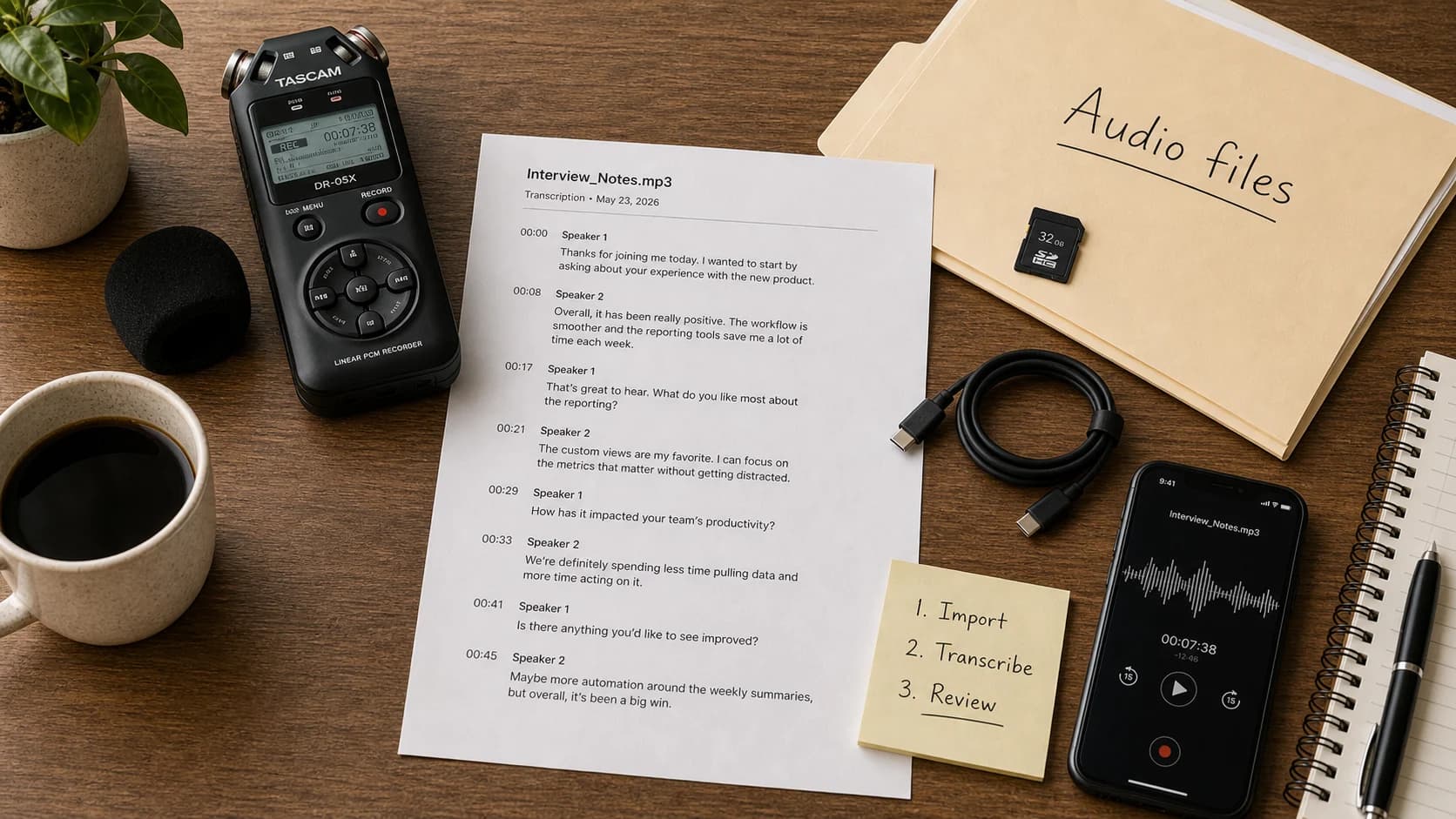
The Mac documentation explains model and output choices. For the broader choice between native recording transcripts, a file app and cloud upload, use the audio-to-text guide. Here, the next job is checking what the lecture text actually means.
Review the parts that depend on course context
Work through one teaching segment at a time with its transcript and visual material together. Keep the audio as the reference for the words spoken. Use slides, assigned readings or a subject glossary to check spelling and identify possible errors, then replay the passage before changing its meaning.
Reading’s 2021 student guidance, Annex 3, recommends checking captions against course materials and a subject-specific dictionary. That review advice is useful here; the document’s older platform instructions are not the procedure this guide follows.
| What you find in the transcript | What to check | What to put in your reviewed copy |
|---|---|---|
| An unfamiliar name or technical term | Replay the word and compare its spelling with the slide, glossary or reading list. | Correct a confirmed recognition error. If the audio remains unclear, mark the term uncertain and note the candidate spelling separately. |
| A number, sign or unit | Listen for the value and inspect the matching equation, axis or worked example. | Preserve what was spoken. If speech and visual disagree, record both and flag the difference instead of silently choosing one. |
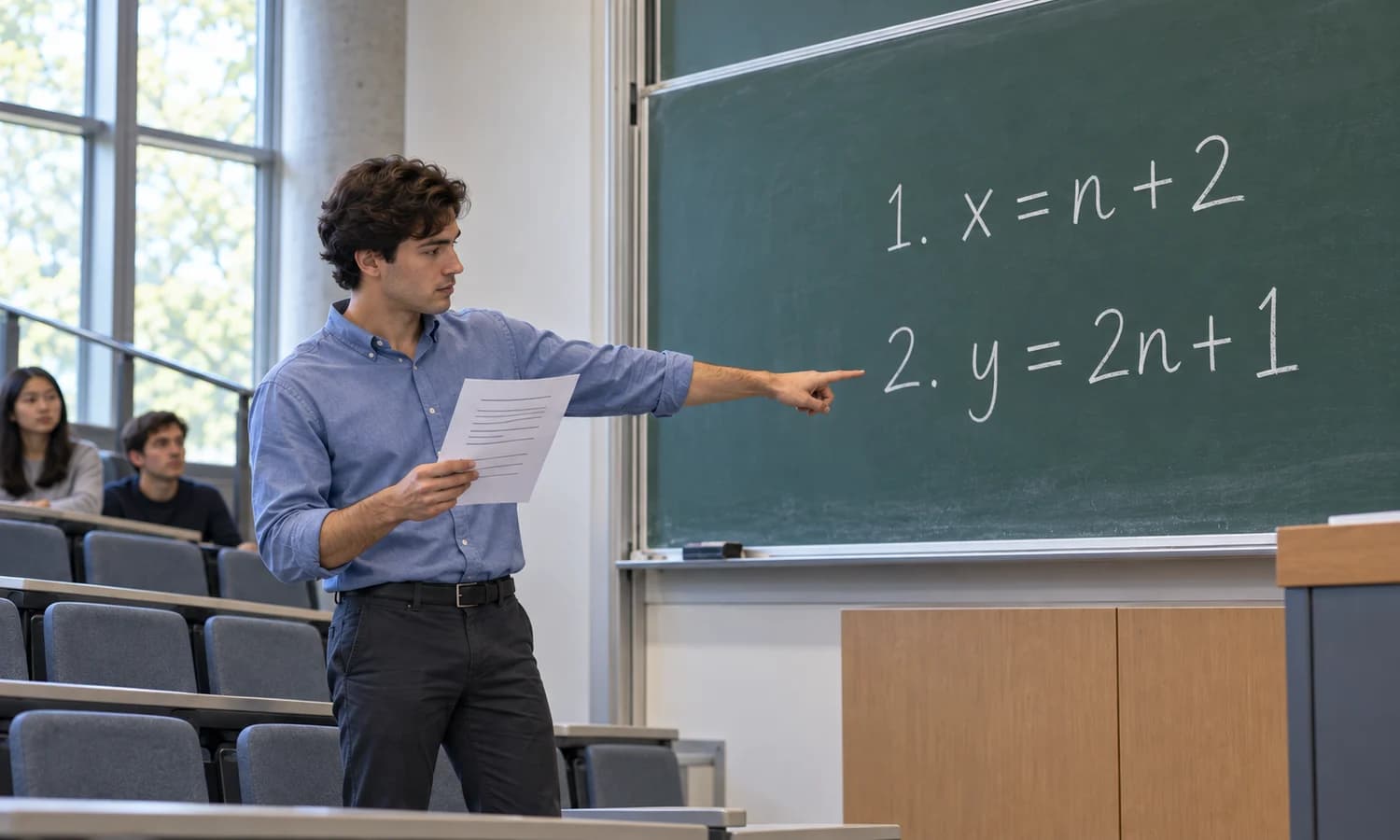
| “This,” “here,” “the next line” or “the second equation” | Locate the slide, code line or board region being indicated at that moment. | Add a labelled visual note with a slide or section reference. Leave the spoken sentence intact. |
| A lecturer’s answer after an inaudible audience question | Replay the exchange and check whether the question can actually be heard. | Mark the question unclear. Keep the audible answer without inventing a question or a speaker’s identity. |
A clear-looking sentence can still hide a consequential error. Pay particular attention to negation and conditions: “does not converge” and “converges” make different claims. If the lecturer corrects a value, retain enough of that correction to show which value replaced which. Turning “five—sorry, ten” into “five” would create a tidy but misleading record.
When a disputed term affects the explanation, save its position in the recording and ask the lecturer or course staff. Reading’s current YuJa guide specifically directs students to report unclear technical terms or key concepts. A plausible guess should remain a guess until you can resolve it.
Worked example: one instruction, two equations
This miniature lecture and slide are invented examples. They are not app output or a report of a real class.
The supplied visual is slide 4:
1. x = n + 2
2. y = 2n + 1
The lecturer’s scripted words are:
Use the second equation here, with n equal to ten.
An accurate speech transcript can contain exactly that sentence. It cannot, from those words alone, tell you what the second equation says. You need the matching visual to make the reference useful.
Keep three kinds of text distinct:
Spoken transcript
Use the second equation here, with n equal to ten.
Human visual annotation
[Context note: “second equation” refers to y = 2n + 1 on slide 4. The spoken value of n is ten.]
Study note written afterwards
Using slide 4’s second equation with n = 10 gives y = 21. This calculation is my added working, not a quoted statement from the lecture.
The separation prevents a subtle misquotation. Replacing the spoken sentence with “Use y = 2n + 1, which gives twenty-one” would put the formula and a calculated result into the lecturer’s mouth. Neither appears in the supplied speech.
Now remove slide 4. The safe annotation becomes [visual reference unresolved: second equation]. You can still transcribe the instruction and the value ten, but you cannot recover the missing equation by making the sentence more fluent.
If the slide instead shows n = 12 while the audio clearly says ten, retain the spoken ten and add [audio/slide discrepancy: slide shows n = 12]. That flags a question for review. It does not decide whether the lecturer misspoke, changed the example or used a different slide version.
The same method applies to “change this line” during a coding lecture. Copy the relevant code only into a labelled context note after locating it visually. Case, indentation and operators need inspection; a spoken reference does not supply their exact form.
Finish with a transcript you can trace back to the lecture
Before using a passage as a quotation, replay it and check its wording against the audio. Keep the recording reference with your reviewed copy, plus slide or board references wherever the explanation depends on them. Mark any remaining unclear speech or missing visual context at the point where it occurs, so the gap stays visible when you return later.
For the invented example above, a finished review would preserve the sentence about the second equation, attach the slide 4 context note and keep the calculation of 21 in separate study notes. Without the slide, the transcript can still be saved, but its visual reference remains unresolved.
Once you have that traceable record, choose what to summarize in your study notes. Keep the reviewed transcript alongside them: it is where you return when you need to distinguish the lecturer’s words from your explanation.