To add subtitles in iMovie on Mac, use a Titles object for each short spoken passage. Replace its placeholder text with reviewed words, move the title to the spoken start, and set its duration from the spoken end. Export the finished movie, then watch that saved file to check the text and timing.
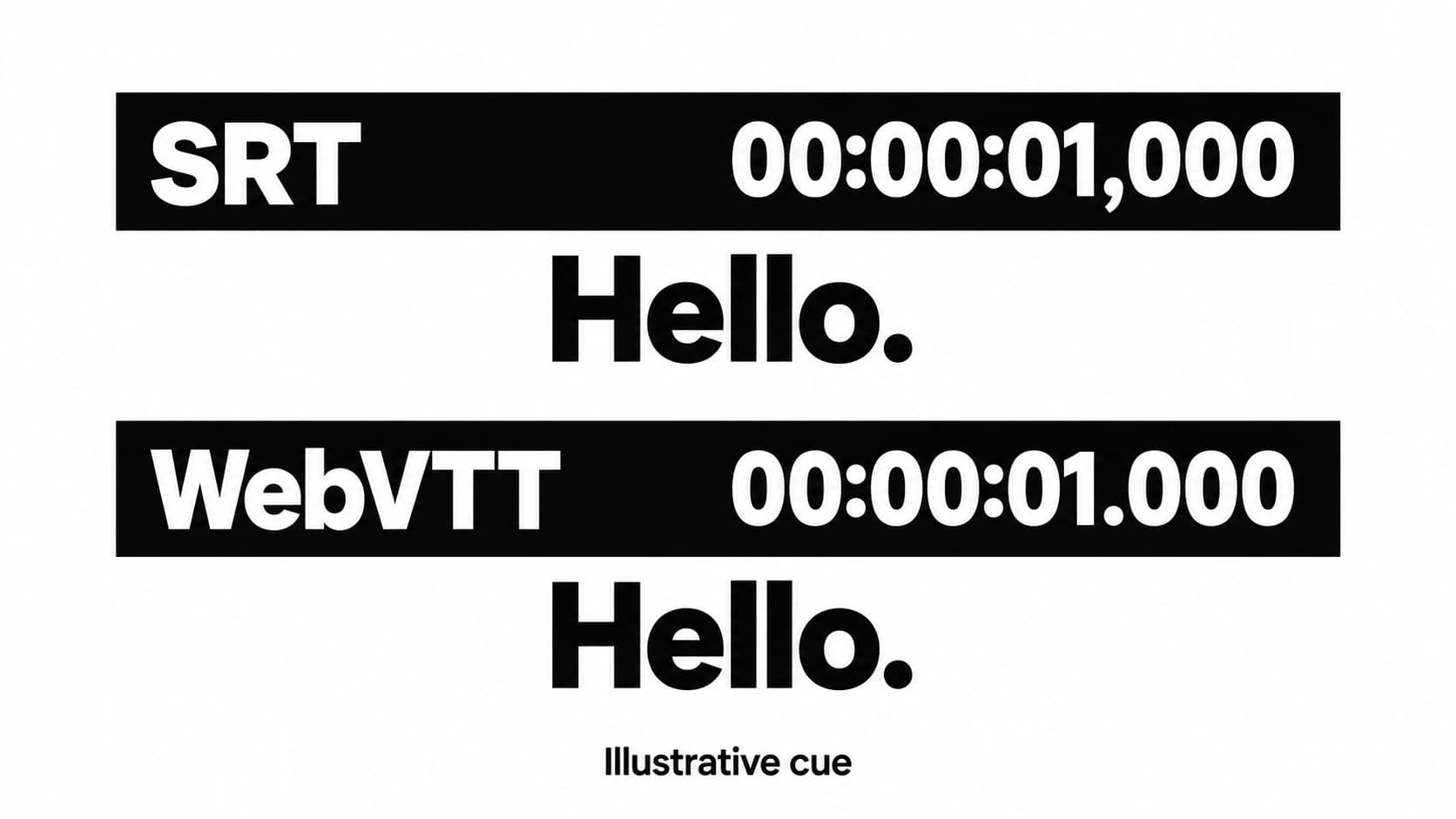
This guide uses Apple's documented Mac Titles controls. The text becomes visible in the video picture; it is a different deliverable from a switchable subtitle file. If your player needs a separate timed file, first check its SRT or VTT requirements.
A subtitle that stays on screen too long may have inherited its duration from where you dropped the title. Correct wording does not fix that interval. Finish the video edit first, then treat each subtitle as two decisions: what the speaker said, and when those words should appear.
We develop and sell Paraspeech. Paraspeech is not affiliated with or endorsed by Apple. Documentation checked October 13, 2026; the timing example below is authored arithmetic, not a performed iMovie test.
Get reviewed words from the finished edit
Work from the sequence you will deliver. Cutting a pause or moving a shot changes the relationship between the original recording and the edited timeline. A transcript of the original audio can supply words, but its old intervals may no longer identify the right points in the finished movie.
For a source-audio copy, Apple's Mac export instructions provide an audio-only option through File → Share → File. Save that output separately from the final video. Check that your chosen transcription route accepts the exported file; the export menu does not guarantee compatibility with every model or codec.
Paraspeech's released direct-Mac file workflow can produce source words on supported Apple Silicon with a compatible downloaded offline model and eligible access. Import a compatible file, wait for processing, then copy the per-item transcript. Listen through the copied words against the finished edit before turning them into titles. The copy control supplies text to review, not proof that every word is verbatim.
Download Paraspeech if that local file-transcription stage fits your edit. Our audio-file guide explains the route. Title placement remains a manual iMovie step; this workflow does not automatically create title objects or transfer a timeline between the apps.
Keep a simple subtitle working document with the reviewed words and their intended start and end points in the final edit. For a short video, that gives you a correction list you can follow without repeatedly deciding what each sentence should say.
Place each subtitle at its spoken start
Open the Titles browser and choose a style whose text remains readable over your footage. Apple's Add titles guide documents adding a title at the playhead by double-clicking, or dragging a title onto the timeline. Replace the placeholder text and apply the change.
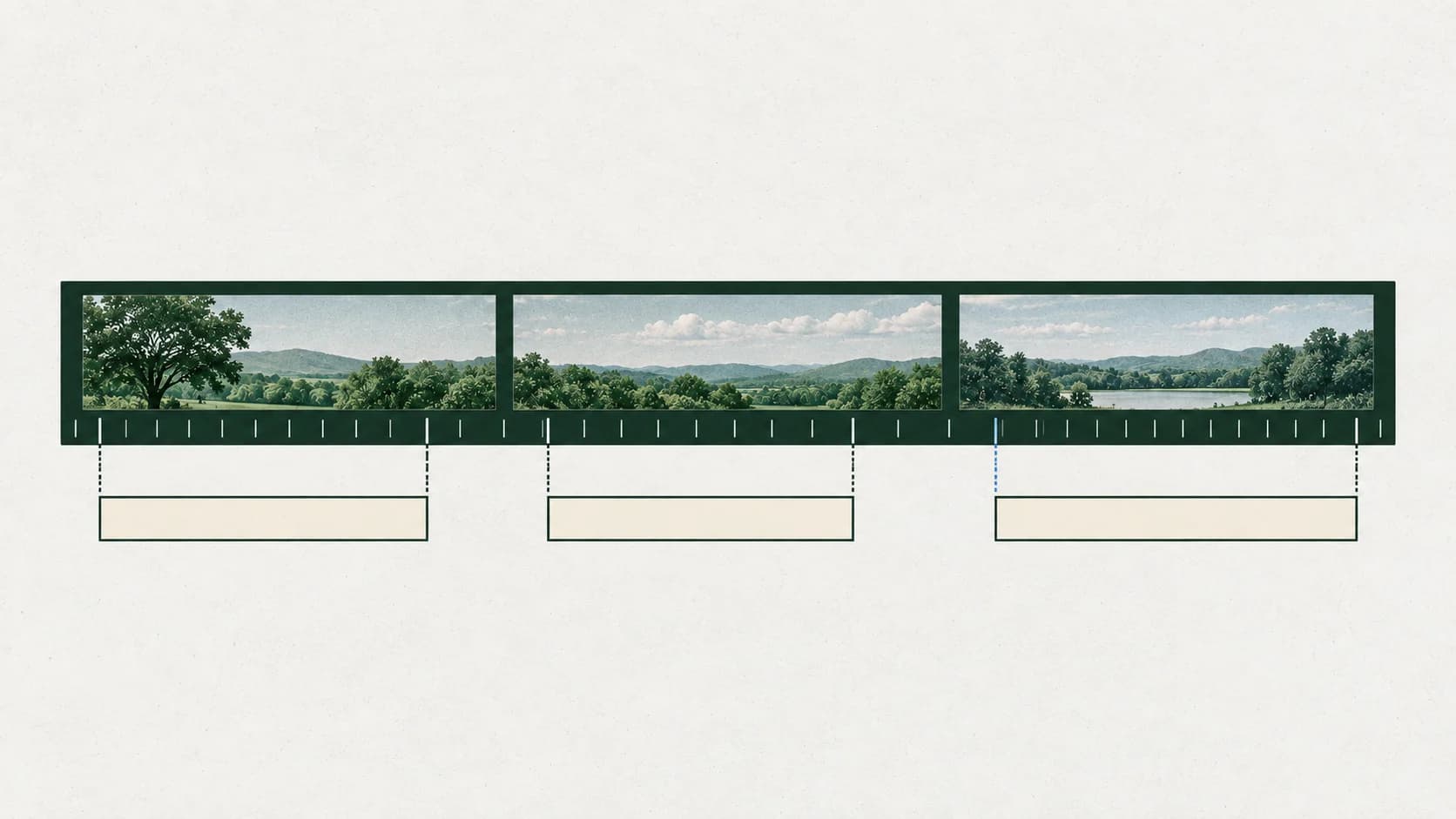
Start with one short passage. Put the playhead where the words begin, add the title, and enter the reviewed text. Play the surrounding footage to check that the text does not reveal a later sentence early or remain over the next speaker's words. A title bar is an editable timeline object, not a sentence that becomes correctly timed merely because you pasted it.
Where you drop a title also affects its initial length. Apple documents a full-clip duration when you drop in the center of a clip, and the corresponding third when you drop in the first or last third. Those defaults describe placement regions. They do not measure how long the speaker took to say your subtitle.
Move the title bar when its start is wrong. Edit the wording separately when the words are wrong. Keeping those corrections separate makes the next playback useful: you can see whether you fixed the interval, the sentence, or both.
Set duration from the words, not the clip length
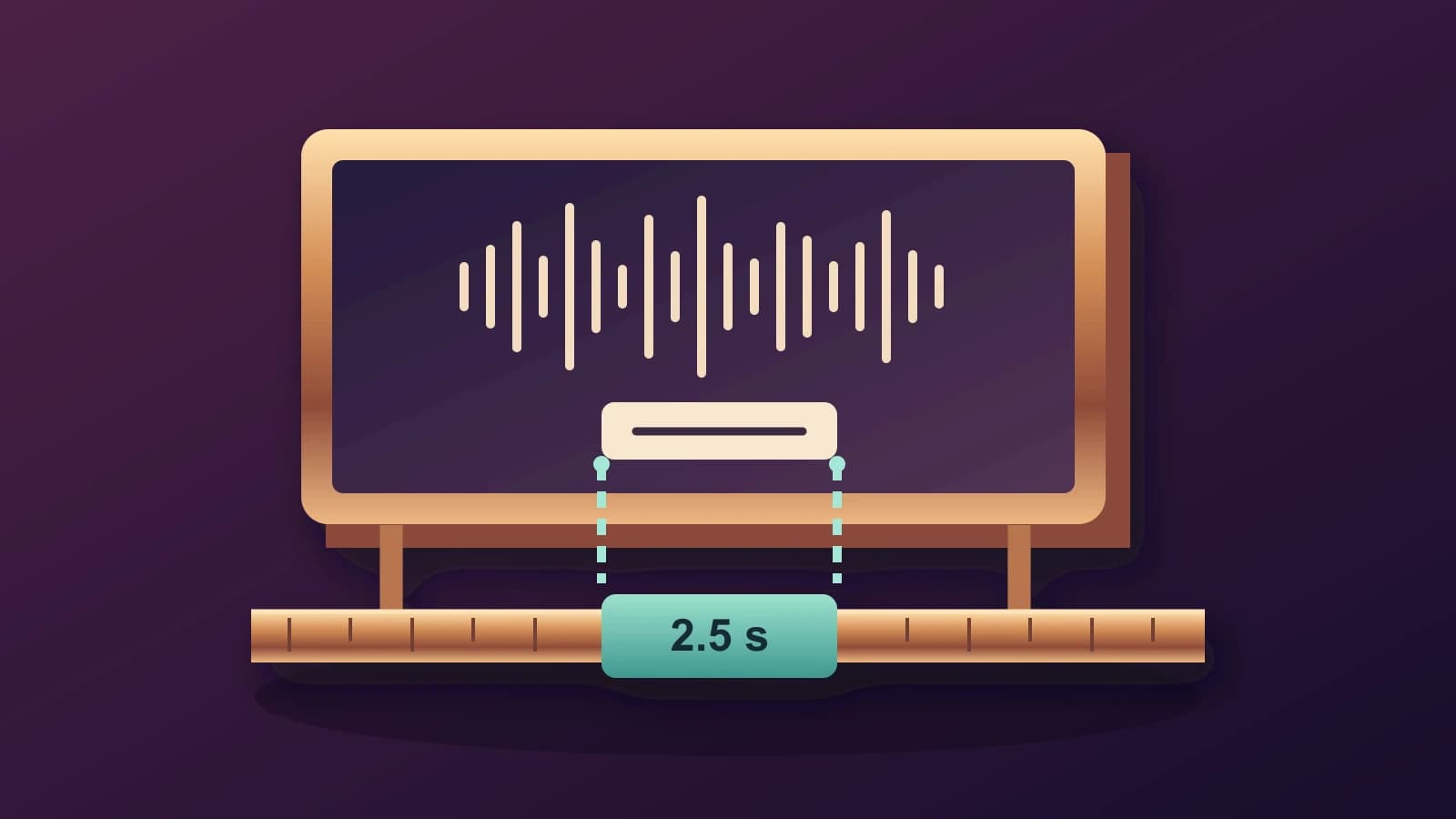
The required duration is the intended end minus the intended start. Apple's Modify titles guide documents dragging a title's edges or setting Duration in Clip Information. Use those controls to replace a placement default with the interval you chose from the speech.
Consider this authored example, not a native app result. An 18-second clip contains one passage from 6.2 to 8.7 seconds. The passage lasts 2.5 seconds: 8.7 − 6.2 = 2.5. A full-clip title would span 18 seconds; one third of that clip is 6 seconds. Neither default matches the intended passage.
| Decision | Example value | What to change |
|---|---|---|
| Spoken start | 6.2 seconds | Move the title to the chosen start. |
| Spoken end | 8.7 seconds | Check where this passage finishes. |
| Title duration | 2.5 seconds | Set the length to end minus start. |
Use the values from your own edited sequence. The example explains the calculation; it does not promise those decimal entries behave identically across every frame rate or title style. Check the visible start and end during playback after adjusting the title.
If the subtitle is difficult to read in its spoken interval, divide the passage at a sensible phrase boundary and give each part its own interval. Do not extend one long block across unrelated speech simply to fit more words on screen. Recheck the preceding and following title so a local adjustment does not create an unintended overlap.
Export and inspect the video you will deliver
When the sequence is ready, use File → Share → File to save the video-and-audio output. Follow the export progress to completion. Then open the saved movie and inspect that file, rather than relying only on the editor preview.
Watch once for timing and again for words. Check whether each title starts with its passage, disappears at the intended point, and remains readable over both bright and dark footage. Look for placeholder text, a missing passage, an incorrect name, and titles that continued into a later shot after an edit.
Visible spoken words are only part of a caption decision. The W3C caption guidance distinguishes text included in the picture from closed captions a player can switch. Captions may also need speaker identification and meaningful non-speech sounds. A sequence of speech-only Titles does not establish complete caption coverage or accessibility certification.
Keep the working document and editable project after export. If you find a wrong word or interval in the saved movie, correct the corresponding title, export again, and check the revised file. The deliverable is the video your viewer receives, with words and timing that you have inspected together.