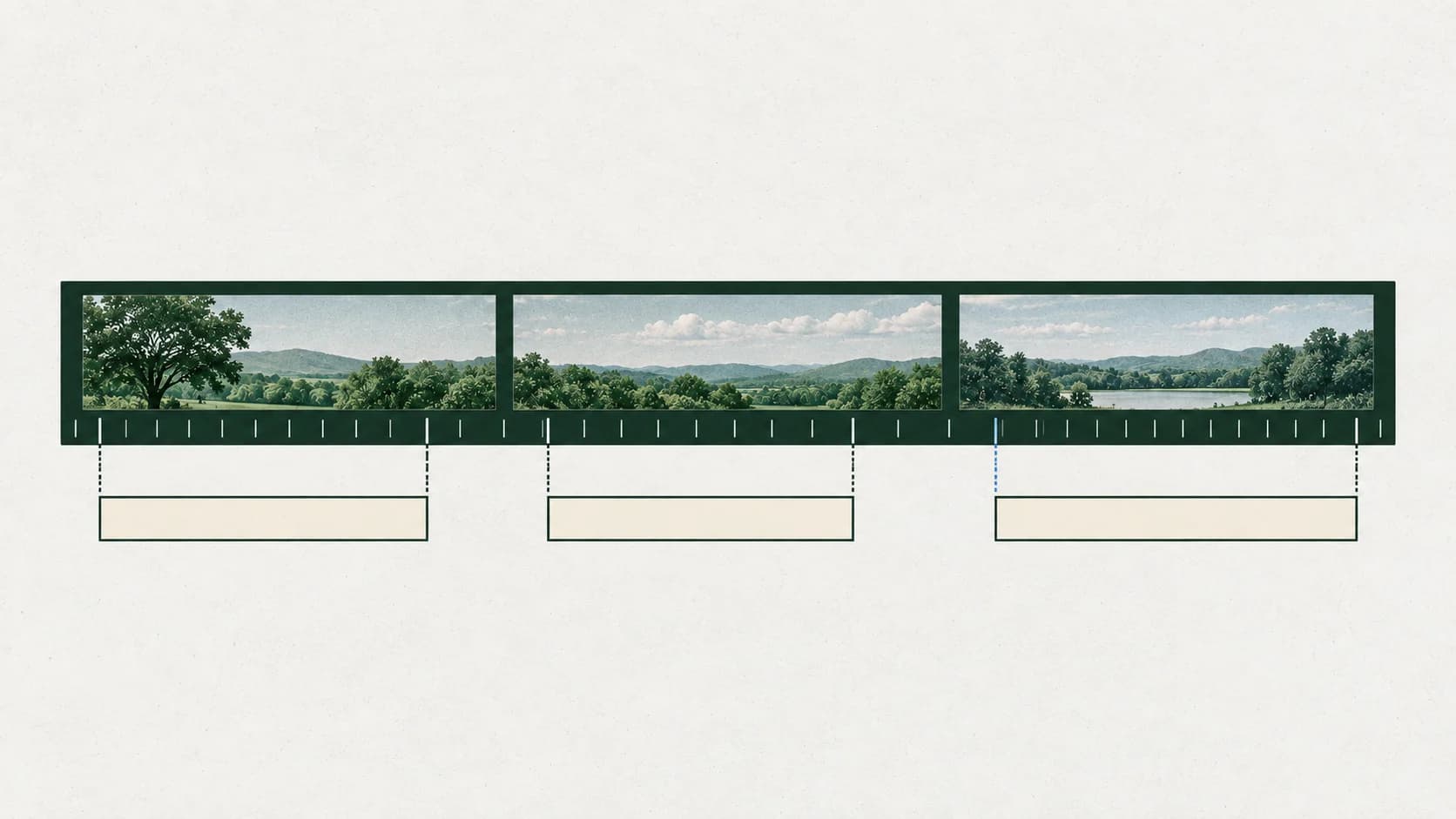
To create a VTT file, save UTF-8 plain text with a WEBVTT header, then add caption text beneath its start and end times. Separate the cues with blank lines, use the .vtt extension, and play the file with the matching video to correct the timing. A renamed document is not a timed caption file.
You need the recording as well as the words. An untimed transcript helps you write the captions, but it cannot tell you when someone starts speaking, pauses, or finishes. If your destination requests a different format, use the SRT and VTT format guide before authoring the delivery copy.
Last checked: September 28, 2026.
Write your first three cues
Start with this original synthetic example. It describes a short seed-planting demonstration; its times belong to that example, not to your recording.
WEBVTT

00:00:01.000 --> 00:00:03.800
Place the seeds in the tray.

00:00:05.000 --> 00:00:07.800
Cover them with a little soil.

00:00:09.000 --> 00:00:11.800
Water gently, then label the row.
Each block after the header is a cue: a time interval followed by the words displayed during it. In the first cue, the text appears at one second and ends at 3.8 seconds. The gap before the next cue leaves the screen without captions for 1.2 seconds.
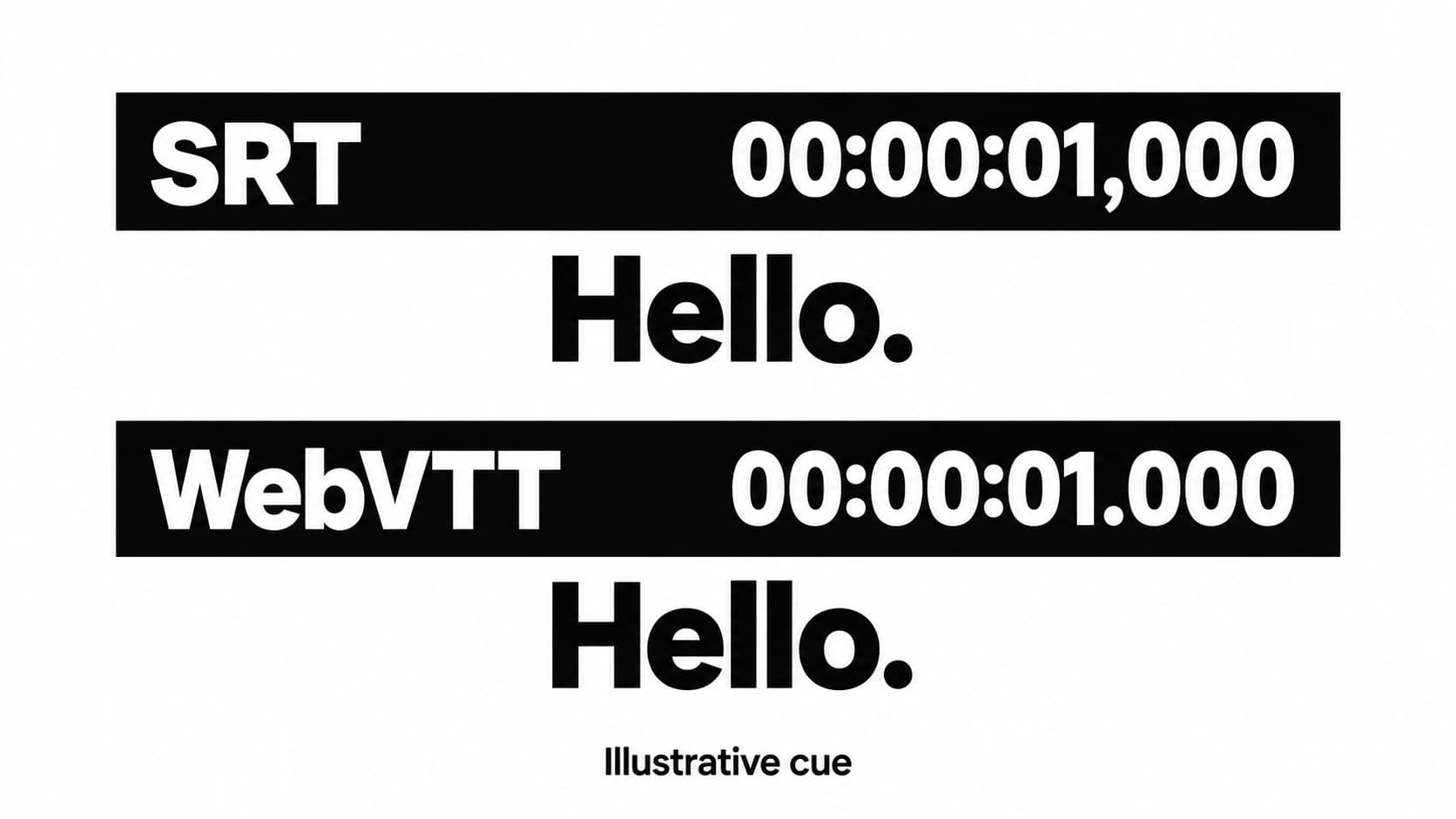
Use hours:minutes:seconds.milliseconds, with a period before the milliseconds and spaces around -->. Every end time must be later than its own start time. Keep cue start times in chronological order. The example uses no cue numbers because identifiers are optional. These rules come from the WebVTT format reference.
Keep the blank line after WEBVTT and between cues. Do not insert a blank line between a timestamp and its text: that would end the cue before its caption. A normal line break within a caption is different and can split a long sentence across two lines.
Set the times from your recording
Use the exact video edit you will deliver. Preserve the original media and transcript, and work on a caption copy so later edits do not erase your starting point.
Open the recording in a player or subtitle editor that lets you pause, seek, and read the playback time. Listen to one short utterance. Mark its start when the speech begins, then its end after the words finish. Replay that interval and enter the times in your VTT file. A waveform can help locate a boundary, but listening tells you whether the boundary belongs to the words you wrote.
Split a long sentence where the viewer can read a coherent phrase. For example, “Water gently, then label the row” fits one short cue in our demonstration. In a slower recording with a long pause after “gently,” two cues may follow the speech better. Do not spread all transcript words evenly across the video's duration: silence, hesitations, and different speaking speeds will make those estimates drift.
Replay each revised cue in context. If it disappears before you can read it, first try a shorter, faithful phrase or a better split. Extending it across the next speaker's words can create a new problem. After individual corrections, watch the whole track to catch gradual drift or a section shifted by a video cut.
If your source already has cue timestamps, preserve them as a starting point and verify that they match this edit. A transcript with only occasional paragraph timestamps still needs cue-level timing.
Save plain UTF-8 text with the .vtt extension
Paste the header and cues into a plain-text editor. Use its encoding control to save as UTF-8, and name the file captions.vtt. Do not save a rich-text document, a word-processing file, or a PDF with that extension. WebVTT requires UTF-8 text.
Reopen the saved file in the text editor. You should see WEBVTT and your cues, with accents and punctuation intact. Inspect the full filename, including any hidden extension: captions.vtt.txt needs its final .txt removed. That filename correction works only because the contents are already valid WebVTT; renaming an SRT or document does not convert its contents.
Save the caption copy beside the matching video. Give later revisions clear names, such as seed-demo-final.vtt, while retaining your original transcript separately.
Preview the captions against the video
For a browser preview, put your video, captions.vtt, and a plain-text file named preview.html in one folder. Save the following HTML in preview.html, replacing seed-demo.mp4 with your video's exact filename:
<!doctype html>
<html lang="en">
  <meta charset="utf-8" />
  <title>Caption preview</title>
  <video controls width="960">
    <source src="seed-demo.mp4" type="video/mp4" />
    <track
      src="captions.vtt"
      kind="captions"
      srclang="en"
      label="English"
      default
    />
  </video>
</html>
This example assumes an MP4 your browser can play and an English caption track. Change the source type and language fields when your files differ. The HTML <track> element connects the external WebVTT file to its media, as described in the WebVTT reference.
Serve the folder locally rather than double-clicking the HTML file: local-file restrictions can prevent an external caption track from loading. If Python 3 is already installed, open a terminal in that folder and run:
python3 -m http.server 8000 --bind 127.0.0.1Open http://127.0.0.1:8000/preview.html in your browser. Press Play and select the English captions if they are not showing. Leave the terminal running during the preview; press Control-C there when finished. If you already use a subtitle editor with media preview, loading both files there is another way to review your timing.
We created a 12-second synthetic clip with generated speech and the three cues above, then played it continuously in headless Chrome. A separate local transcription of the finished clip recovered all three sentences, and measured sound fell inside their caption windows. The Chrome playback check recorded each expected caption during its interval and no caption in the intervening gaps; screenshots showed the rendered text. This verifies that small authored fixture. It does not test your video's timing, a transcription app's output, or an upload destination.
For your own file, check both what you hear and what appears. A cue that parses successfully can still describe the wrong moment. Reload the preview after edits so you are reviewing the saved version.
Fix problems in the authored example
If none of the three captions appears, reopen captions.vtt: its first line should be WEBVTT, followed by a blank line. Confirm that the HTML points to that exact filename and that you opened the locally served preview.
If only one cue is missing, compare its timestamp punctuation and blank lines with the working cues. Its end must exceed its start. In this example, the starts should be 1, 5, and 9 seconds; a misplaced minute field can push a caption far beyond a 12-second clip.
If all captions appear but arrive at the wrong moments, confirm that the video is the same edit you timed. Then correct the affected times against playback. If characters look corrupted, reopen the file with the correct source encoding and save a UTF-8 copy; a .vtt suffix cannot repair incorrectly encoded text.
Review meaning before delivery
A speech transcript is only the spoken-word part of a caption track. Add a speaker label when the viewer needs it to follow a change of speaker, and describe relevant non-speech sound when it carries meaning that would otherwise be missed. Verify both against the recording. Do not invent speaker names or add a sound label merely to make a transcript look like captions.
The seed example has one generated voice and no meaningful background sounds, so it needs neither extra speaker labels nor sound descriptions. Your material may differ. Valid VTT syntax alone does not establish caption completeness or accessibility compliance.
Finally, check that the named destination accepts WebVTT and any features you used. Deliver the tested .vtt copy with its matching media version. A browser preview is useful timing evidence, but the destination's own preview is the final place to check what viewers will see.
Start with a transcript export on Mac
If you have a recording but no text, Paraspeech can provide a first-draft VTT file after file transcription. In the Mac file-transcription workspace, wait until the item is Ready, choose Save VTT, then choose the destination in the save panel. The audio-file transcription guide covers getting from a saved recording to a transcript.
This path is verified in the source associated with Mac 1.7.3, build 372, identified by the public release manifest. The exporter writes UTF-8 WebVTT. It can use available token timings, but it also has an estimated-timing path when usable timing cues cannot be built or matched to the transcript. Review and retime the exported copy against the recording using the steps above. This is a released-source finding, not a runtime test of the downloaded Mac app.
If you already have accurate text and need only to time it, you can continue with the plain-text workflow. For a recording that still needs transcription, download Paraspeech for Mac to create the first draft, then finish the caption review before delivery.