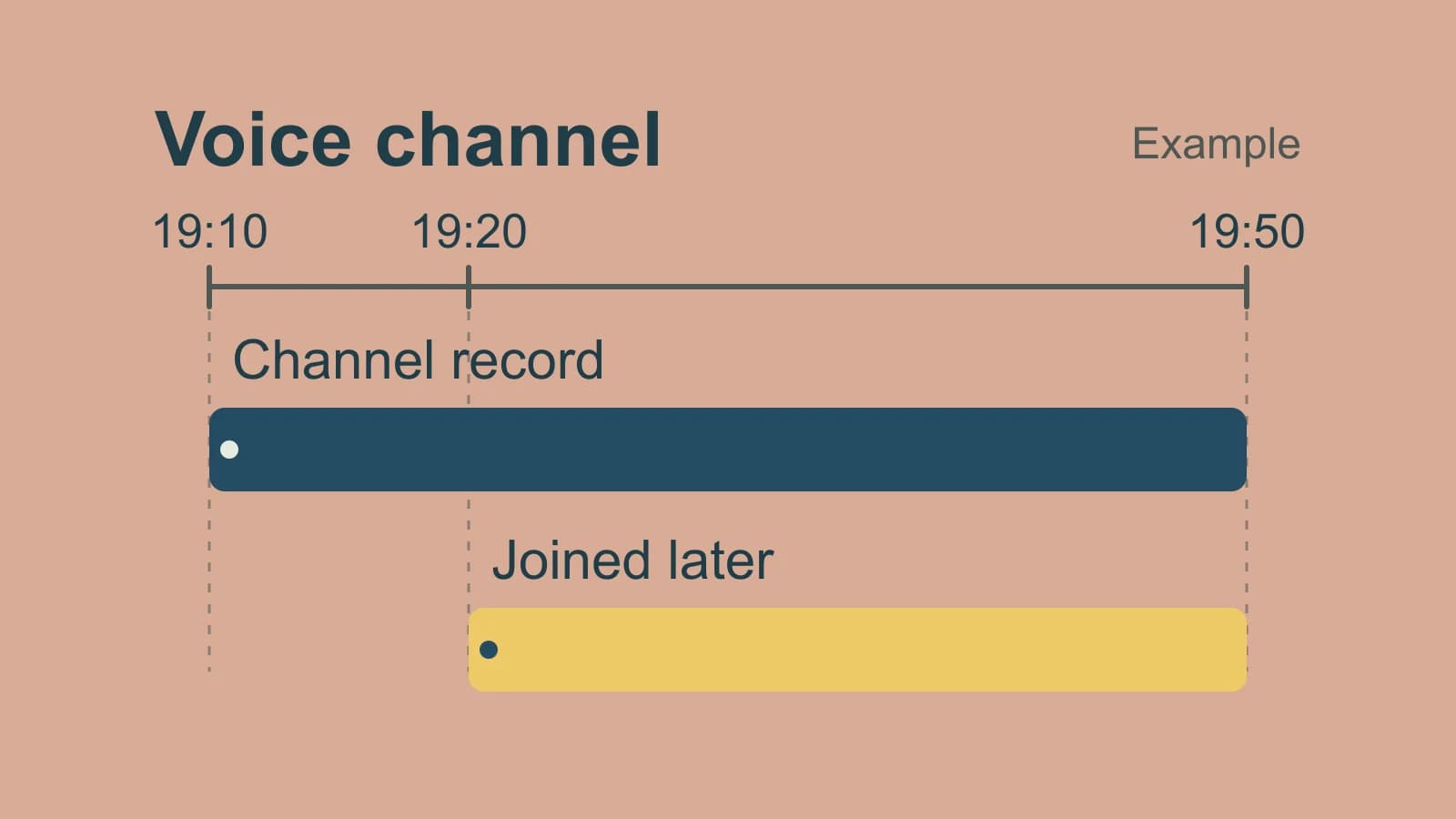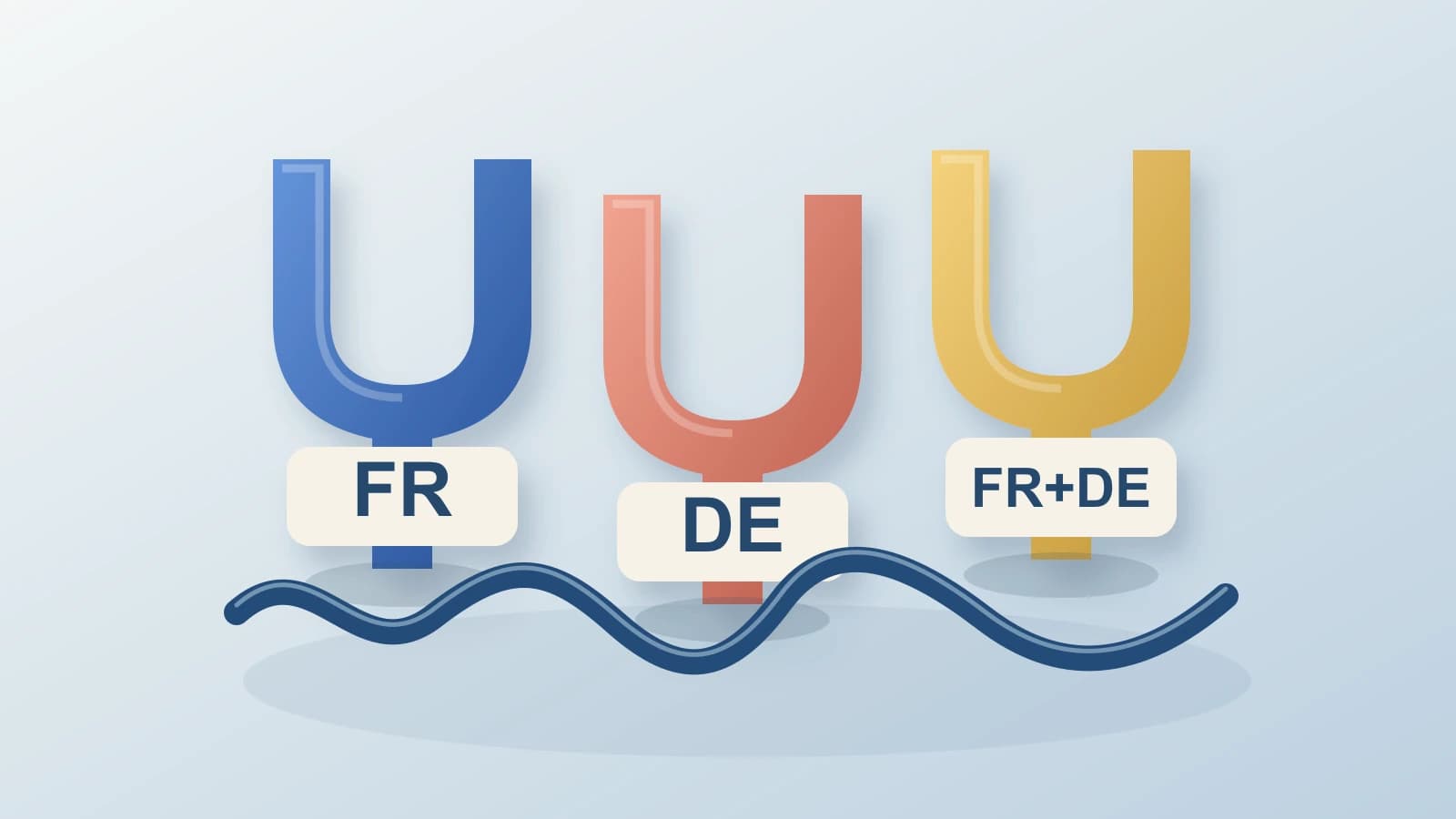
To transcribe YouTube video audio, start with the text YouTube already provides. For a video with captions, open its description and select Show transcript. Select a transcript line to jump to that moment. If the text represents the speech you need, you can use that native route without installing a transcription tool. YouTube's transcript instructions apply to videos that have captions.
A video can also offer original and dubbed audio. Before treating its text as a record of what you heard, identify which speech the text represents.
Prepared by Paraspeech, which sells Mac speech-to-text software. Paraspeech is not affiliated with YouTube. Last checked: October 20, 2026. This guide uses published documentation and released product source.
Check which audio the text represents
On desktop, an available alternate soundtrack is selected through the player's Settings → Audio track menu. That choice changes the speech you hear. YouTube's audio-language guide describes this control; multiple tracks are conditional on the video.
Caption text has its own source. YouTube's multi-language audio documentation says automatic captions use the original audio's language. Its automatic-caption guide describes the default language when a video has several audio tracks. Neither instruction establishes that the public transcript changes to transcribe whichever dub you select.
Treat a caption's language as one clue. English text could be a translation of Spanish speech or words associated with English audio. The language label alone cannot establish that it matches an English dub word for word. For a quotation from the dub, listen to that selected track and compare the relevant passage before using the text as its wording.
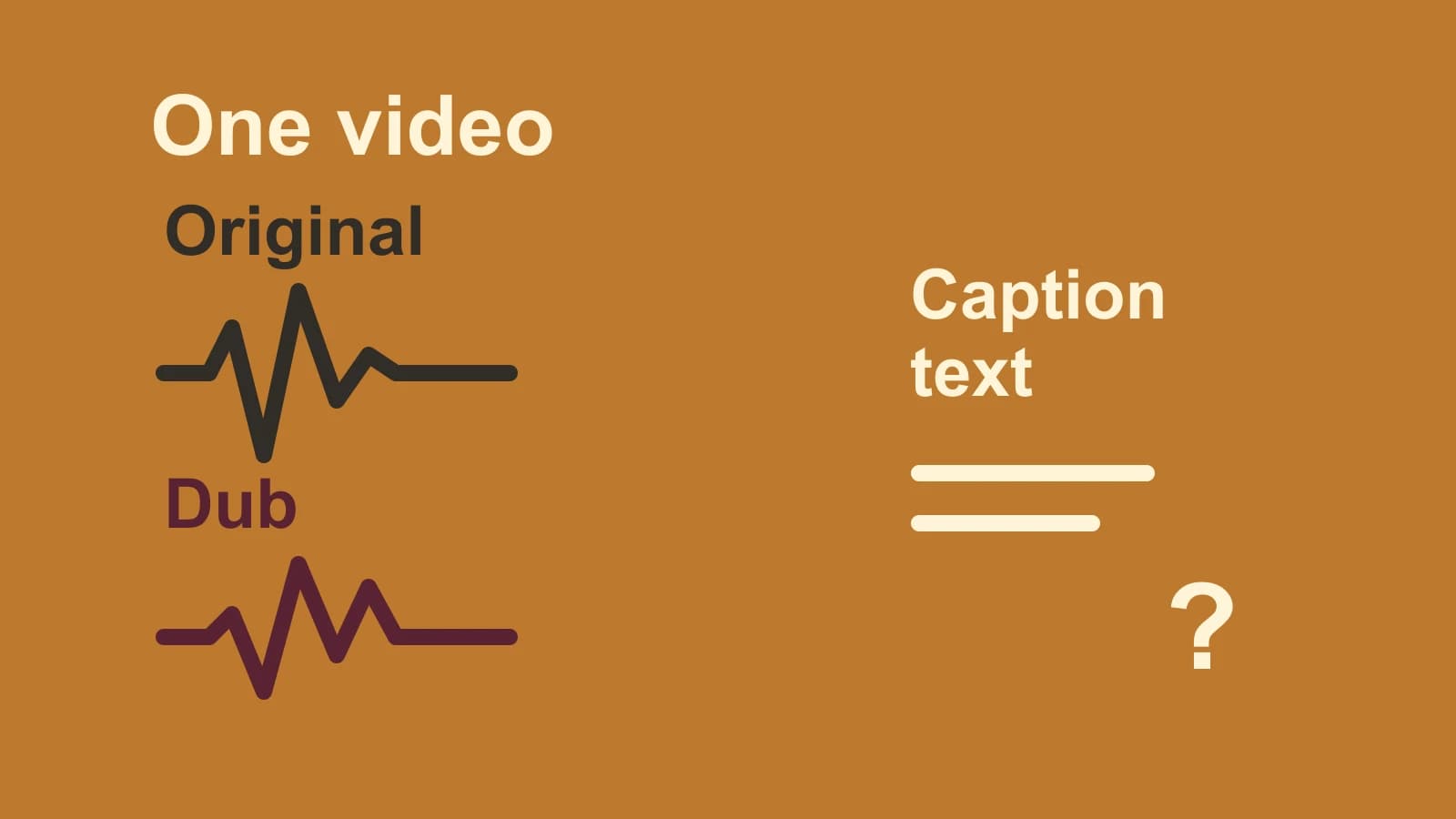
One video, three different requests
Consider an invented planning example: one video has Spanish original speech, an English dub and English caption text. These are hypothetical artifacts, not a tested video or generated transcript. The right source changes with the request.
“I need the original speaker's Spanish words”
Choose the Spanish original audio. If a Spanish caption transcript is available, compare the needed passage with that speech. English captions answer a different language request; feeding an English dub to a transcriber would likewise produce words from the dub.
If you need a fresh transcript, use the creator's matching Spanish source file, with permission. A file containing the English dub cannot recover the Spanish wording by being labelled with the same video title.
“I need the exact English sentence heard in the dub”
Choose the English audio track. A translation of the Spanish captions may express the same idea with different wording, so it cannot establish the dub's exact sentence.
For a creator reviewing an available automatic dub, YouTube provides a more direct native artifact: a dub transcript. In Studio, open the video's Languages page, select the language, and use the audio options' Review action. YouTube's desktop dubbing guide documents this view. It requires the creator's access and an available dub; it is separate from a viewer's public transcript panel. Check its relevant line against the dub you intend to quote.
For a fresh transcription instead, obtain a permitted file containing that English audio. The original Spanish upload is a different input.
“I need an English translation of the original speech”
Start with the Spanish original and establish its words before translating them. That preserves the original speaker's wording as the source for the translation. Our audio-to-text translation guide covers that sequence.
This request does not require the translation to reproduce the English dub's script. If the deliverable changes to a quotation from the dub, return to the second request and its English audio source.
Match a local file to the speech you need
When native text supplies the needed words, stay with it. If text is unavailable or you need a fresh transcription, ask the creator for the matching original or an authorized local audio/video file. Identify the spoken track in that file before transcribing it. A shared video URL or filename cannot establish its contents.
For your own uploads, YouTube documents downloading an MP4 from Studio, subject to its restrictions. That guide does not establish which soundtrack a downloaded MP4 contains. Listen to the file rather than assuming it includes the dub currently selected in the player.
The same guide distinguishes Premium's in-app offline viewing. An offline viewing copy is not the documented local-file route described here. For another creator's video, use available native text or request an authorized source; this guide supplies no other-user download or cache-extraction procedure.
For ordinary file preparation, use the existing audio-file transcription guide. If your real task concerns a podcast's published edition or a corrected creator export, the podcast transcription workflow covers those source-version checks.
Transcribe your matching source file on Mac
Paraspeech can support the fresh-file branch once you have a compatible local file containing the speech you chose. This route requires macOS 14 or later, supported Apple Silicon, a downloaded compatible model that is ready, and an eligible plan or trial. Check the current plans before ordinary post-onboarding use. The local-file requirement is separate from Intel's cloud-backed dictation options.
In the released Mac file-transcription flow, open Transcribe and choose the local file, or drop it into that view. Container, codec, model and spoken-language compatibility still determine whether the file can be processed. The input here is your matching file; this flow does not take a YouTube link.
Choose a supported recognition task that retains the file's spoken language. Keep any later translation or rewriting separate from that source transcript. Transcription Only skips AI rewriting; it does not by itself reset a translation task or promise untouched, verbatim wording. The multilingual transcription guide explains the language and task choices. The local-processing guide and documentation cover setup boundaries.
Review the result against the chosen audio, especially the passage you plan to use. Each completed file has controls to copy its transcript or save WebVTT. A timed export still needs review against its intended media; the WebVTT guide covers that separate delivery job.
If the matching-file branch fits your task and access, download Paraspeech for Mac to transcribe that source file. If YouTube's native caption or creator dub transcript already supplies the artifact you need, use it first.