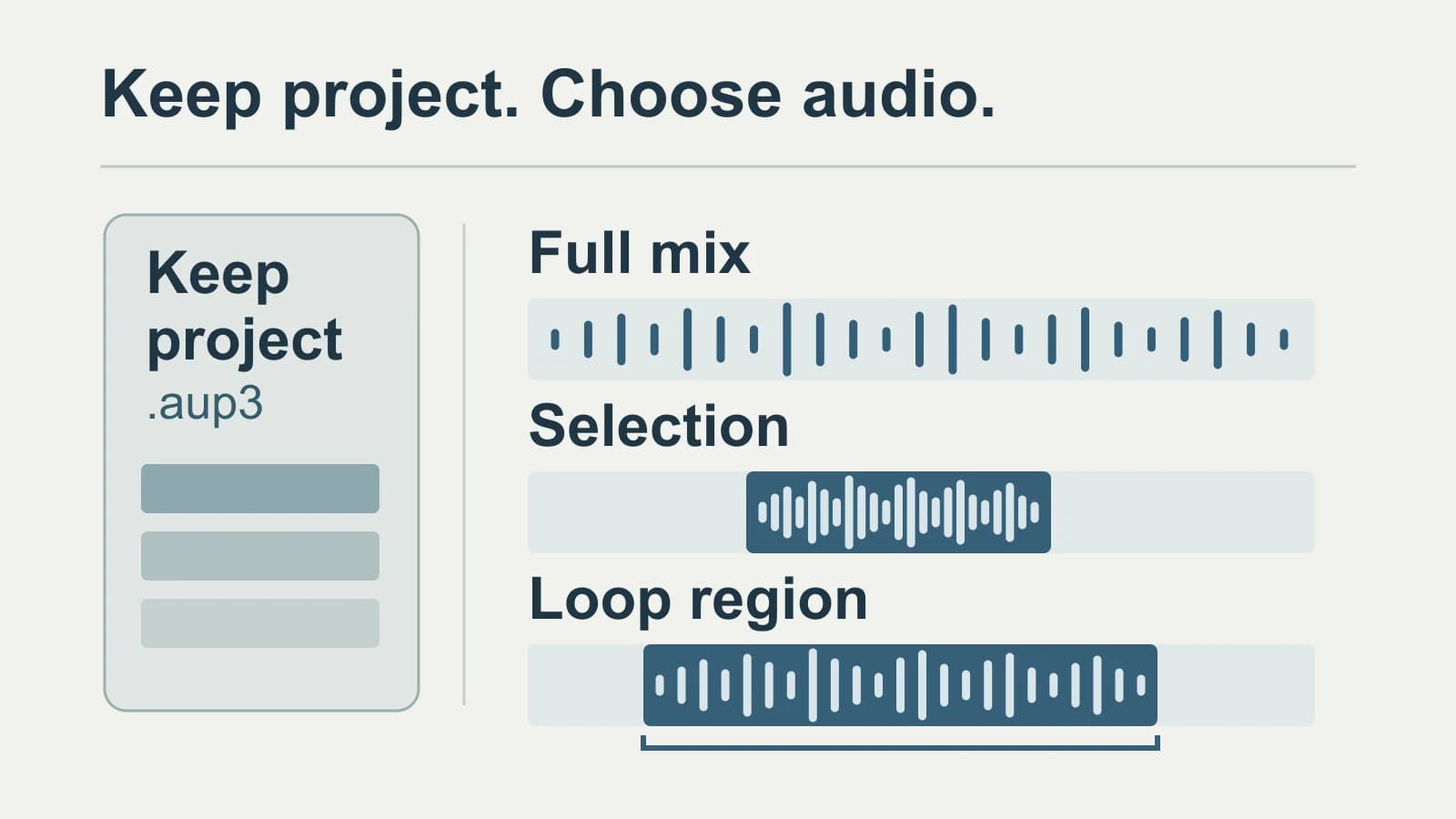
Audacity documents audio transcription through its OpenVINO Whisper plugin route, but its plugin download page currently warns that the plugins are not yet compatible with the latest Audacity. A separate transcript can also start from exported audio: keep the editable project, choose the full mix or the region you need, then transcribe and review that exact exported file.
The choice comes before picking a transcription tool. A transcript of one answer, a loop region, and the complete edited conversation represent different source audio.
About this guide: We make and sell the Mac transcription app described in the final section. We are not affiliated with or endorsed by Audacity. This guide uses linked documentation and released-source inspection; no installed-plugin or native transcription test was performed.
Last checked: October 8, 2026.
Decide whether the transcript belongs inside Audacity
If you need editable, timed labels within the project, Audacity's documented plugin route is the relevant option. Its transcription page describes writing recognized phrases into a label track that can be edited and exported. Stay with that project-based route when those labels are the deliverable, provided you can establish a compatible setup.
The official plugin page offers both Windows and macOS download links alongside its compatibility warning. Those links do not establish a working combination of your Audacity version, plugin version, and operating system. We have not verified that combination, so this guide does not supply a current installation recipe.
If you need a separate document or timed-text file, exporting the intended audio lets you choose a file-transcription tool without depending on that plugin setup. The result remains a separate transcript. It does not become an Audacity label track or restore project timing automatically.
Keep the editable project, then choose the export
Save the project before handing audio to another tool. Audacity's saving and exporting guide distinguishes a local .aup3 project, which retains editing information, from an exported audio file. Keep the project for later edits and export a separate file for transcription.
The current export manual describes File → Export Audio and a Type choice:
| Choose | When it matches your job |
|---|---|
| Export full project audio | You need the complete intended edit mixed into one audio file, such as the finished conversation. |
| Export selected audio | You need the current selection, such as one answer. Include enough context to interpret that answer. |
| Export audio in loop region | You need the interval marked by the timeline's loop region. Confirm that this region is the one you intend to transcribe. |
These labels follow the current manual. If your installed version shows a different dialog, use its matching documentation. A highlighted selection and a loop region can represent different intervals; decide which one defines the transcript before exporting.
Name the export so its scope is visible, for example interview-07-answer-03.wav. That filename is a teaching example, not a file produced in a test. Use a different name for a later export if you change the edit or source interval.
WAV and MP3 are examples in Audacity's audio-export documentation. Choose a format accepted by the receiving tool, including the actual container and codec. The export manual notes that some formats, including M4A, need FFmpeg before they appear. Follow the destination's requirements rather than applying one bitrate or sample rate to every recording.
Open and listen to the exported file before transcribing it. Confirm that it contains the intended speech, starts and ends where you expected, and includes the voices you need. This catches the consequential mistake: a transcript can look complete while accurately describing the wrong selection or mix.
Keep the transcript tied to the exported audio
Choose a tool that accepts the exported file and gives you the output you need. Plain text suits a separate reading document. Timed text needs timestamps that you can check during playback. If the tool processes uploads, confirm that the recording may be processed there. The Mac audio-file guide covers that tool-choice step; the decision here is which Audacity audio you send.
Keep the exported audio with the transcript. For a selected region, treat the exported file's beginning as its own playback time origin and record its relationship to the project separately. A timestamp in that file does not by itself identify the same time on the original project timeline.
For example, suppose an unchanged, continuous project interval begins at 02:00 and becomes a separate clip. A phrase at 00:15 in that clip corresponds to 02:15 in the project. This is synthetic arithmetic, not a verified export. If the exported file joins multiple passages or contains further cuts, one offset may not describe the mapping. Record the actual relationship, or leave it UNKNOWN until you establish it.
Copy this handoff record into the transcript folder and fill it from your own files. It records what the transcript represents and what you actually reviewed:
Project/version: [saved project]
Export: [full / selection / loop]
Audio file: [exact filename]
Speech scope: [what is included]
Original interval/mapping: UNKNOWN
Transcript file/type: [name, format]
Reviewed passages: [intervals or none]
Open questions: [unresolved details]
Do not mark the whole transcript reviewed after checking only one passage. If you reviewed one answer, record that interval; leave the rest as unreviewed. Check quotations, names, and numbers against the matching exported audio. The interview transcription guide covers preserving wording and marking uncertainty without turning a transcript into a summary.
For captions, verify timing against the exact media you will deliver. Keep a known project offset in the handoff record, but do not assume another app will add it or put labels back into Audacity. The VTT authoring guide covers cue timing and playback review after the source has been chosen.
When Paraspeech fits
Paraspeech is one option for a separate transcript on an eligible Apple Silicon Mac. Its file-transcription route requires a compatible downloaded local speech model and eligible access; initial model downloads need internet. Use supported exported audio rather than the .aup3 project. Container and codec support still matter.
The released Mac file workspace offers Copy and Save VTT when an item is Ready. These details are supported by source inspection for Mac 1.7.3, build 372, identified in the public appcast; the setup documentation covers preparing the app. This is released-source evidence, not a performed transcription of an Audacity export.
A VTT export can contain estimated cue timing when usable timing is unavailable. Review and retime the saved file against the matching exported audio. Keep Audacity when you need to edit the project or work with its labels: this separate file route does not provide project import, label round-trip, or automatic restoration of the original timeline offset.
