March 18, 2026mac dictation softwarechoose Mac dictation softwaredictation software for macMac dictation toolapple dictation alternative

Mac Dictation Software: How to Choose the Right Tool

Discover how to choose the right Mac dictation software. Compare Apple Dictation with advanced voice typing tools for productivity and accuracy.

Published on
Published March 18, 2026
Reading time
17 min read
Mac Dictation Software: How to Choose the Right Tool

Mac Dictation Software: How to Choose the Right Tool

Ever have an idea that vanishes before you can get it down? What if you could capture your thoughts as quickly as you speak them, without ever having to hunt and peck at the keyboard? Modern Mac dictation software is designed to capture spoken words instantly. It works as a type of speech-to-text software that converts your voice into written text on your Mac. It allows you to dictate emails, documents, notes, and even long articles without typing.

This guide will walk you through finding the right tool for the job.

Why Mac Dictation Software Is Faster Than Typing

Typing vs speech-to-text comparison

Let's be honest, for most of us, typing just can't keep up with our brains. The average person types around 40 words per minute, but we can speak closer to 150. That’s a huge gap. Good Mac dictation software closes that gap, making your voice the most efficient tool you have.

Think of it as having a personal assistant who’s always ready to take notes. Instead of getting bogged down by the mechanics of typing, you can just speak your mind and let the words flow. It’s not just about getting things done faster; it's about creating a more natural and less restrictive way to work.

The Evolution of Voice on Mac

Speech-to-text on macOS didn't just appear overnight; it's the result of years of refinement. Apple’s first attempts at speech recognition in Mac OS were pretty basic, and for a long time, third-party software was the only serious option.

Everything changed in 2012 with OS X Mountain Lion, which introduced the modern dictation feature we know today. At first, it relied on sending your voice to Apple's servers for processing. As privacy became a bigger concern for everyone, Apple wisely added offline dictation, giving users more control over their data.

Dictation software is more than a convenience; it's a tool for accessibility and efficiency. It empowers users with physical limitations and helps professionals reclaim hours lost to manual typing.

Today's dictation tools are incredibly sophisticated and offer some serious advantages:

  • Increased Productivity: You can draft emails, write entire reports, or capture meeting minutes in a fraction of the time it would take to type.
  • Enhanced Accessibility: For anyone with carpal tunnel, arthritis, or other conditions that make typing a pain, dictation is a game-changer.
  • Improved Multitasking: Imagine being able to take notes while you're looking over a document or on a video call, all without skipping a beat.

From Apple's surprisingly capable built-in tool to specialized solutions like Paraspeech dictation software, the right Mac dictation software is out there, ready to fit right into your workflow.

The Evolution of Mac Dictation Software

It's easy to take today's seamless dictation tools for granted, but getting here wasn't simple. The road to accurate, instant voice-to-text on Apple computers was a long one, filled with technical roadblocks and a market that often looked the other way. For a long time, a truly powerful Mac dictation tool felt more like science fiction than a practical tool.

Early adopters know the struggle well. Powerful dictation software existed, but almost all of it was built for Windows. This forced Mac users into clunky workarounds, like running virtualization software just to access the best tools - a process that was slow, drained system resources, and felt like a compromise.

The Pioneers of Mac Dictation

This gap in the market created a real opportunity. One of the early players was IBM’s ViaVoice, which supported Mac systems in the late 1990s and early 2000s. However, support for Mac versions was eventually discontinued as IBM exited the consumer speech recognition market.

This opened the door for companies focused specifically on Mac users. MacSpeech, founded in 1996, became one of the most important players in this space. Their product, iListen, was one of the few native dictation tools available for macOS at the time, helping professionals use voice-to-text on their preferred platform. These early efforts laid the groundwork for the modern Mac dictation software we use today.

The evolution from resource-hungry, niche applications to lightweight, AI-driven tools shows just how far Mac dictation has come. What once required a ton of patience and technical gymnastics is now a powerful, integrated part of the modern Mac experience.

From Clunky Software to AI Power

The engine behind this incredible leap is complex, turning the messy, analog waves of human speech into clean, structured text. Getting a handle on technologies like Natural Language Processing helps explain how today's software can grasp context, grammar, and intent in a way its predecessors never could.

This journey from then to now is what makes today's features so impressive:

  • Offline Processing: Early tools often had to send your voice to a server for processing. Modern apps like Paraspeech do it all on your device, which is a huge win for privacy.
  • High Accuracy: The jump in AI capabilities has slashed error rates, making dictation a genuinely reliable alternative to typing, not just a novelty.
  • Custom Vocabularies: Teaching the software specific jargon, names, or acronyms used to be a high-end, finicky feature. Now, it’s a must-have for any serious professional use.

Understanding this evolution gives you a much deeper appreciation for the speed, privacy, and precision that modern Mac dictation software brings to the table.

Built-In vs Third-Party Mac Dictation Software: Which Should You Choose?

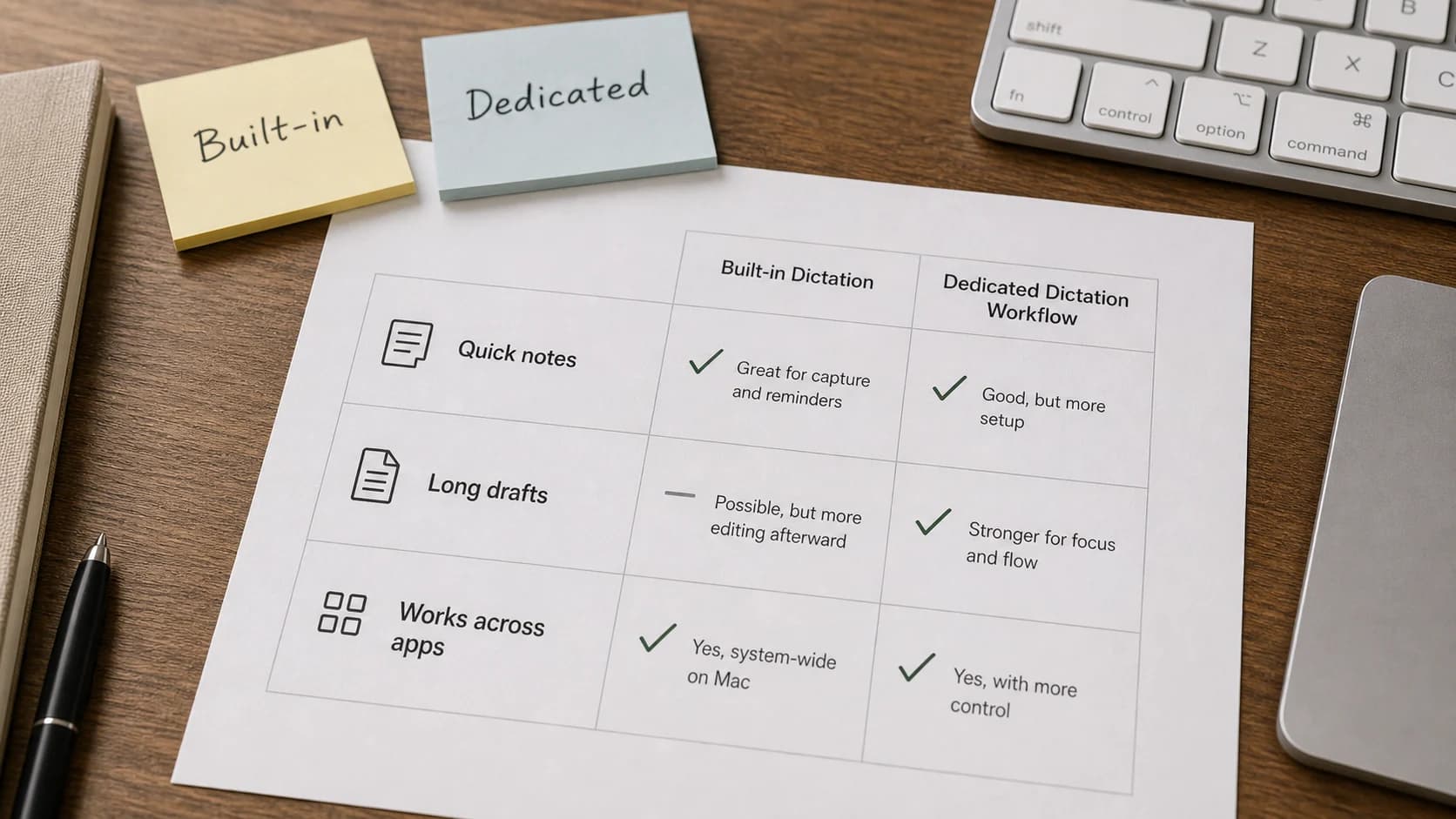
When it comes to picking Mac dictation software, you’re really facing one big question: stick with the free tool Apple bakes into macOS, or invest in a specialized, third-party application? There’s no single right answer. It all boils down to what you actually need to get done with your voice.

For casual use, Apple's built-in Dictation is fantastic. It’s right there, costs nothing, and works seamlessly across the system. If you just want to fire off a quick email, set a reminder, or text a friend without reaching for the keyboard, it gets the job done. Think of it as a digital scratchpad - perfect for simple, on-the-fly notes.

But that convenience has its limits. The standard version needs an internet connection to work, which can sometimes mean a noticeable delay. More importantly, its vocabulary is pretty generic. It’s not going to have a good time with medical jargon, legal case names, or the specific lingo you use in your field.

When Is It Time to Upgrade?

This is exactly where dedicated programs like Paraspeech come into the picture. These tools are built for a different purpose altogether. They aren't just for jotting down notes; they're designed for professionals who rely on their voice to be productive.

Instead of a scratchpad, a specialized tool is more like a highly trained assistant who already knows your industry inside and out. They solve the biggest frustrations of basic dictation with a few key features:

  • Offline Processing: Everything happens right on your Mac. This means your voice data stays private, which is a must-have for anyone dealing with confidential information. Plus, it’s lightning-fast.
  • Custom Vocabularies: You can teach the software your unique vocabulary. A developer can add custom function names, a doctor can add medical terms, and a researcher can add academic citations. This single feature massively boosts accuracy for specialized work.
  • Advanced Voice Commands: This goes way beyond saying "period" or "new paragraph." You can create custom commands to launch apps, run complex macros, and control your entire computer, all hands-free.

This simple decision tree can help you figure out which option makes the most sense for your day-to-day tasks.

Decision tree comparing Apple Dictation for simple tasks and third-party Mac dictation software for advanced workflows

While Apple's tool is great for everyday convenience, professionals who need top-tier privacy, accuracy, and control will find that a dedicated solution is the only way to go.

Best Mac Dictation Software Options

Today, several Mac dictation software options are available, ranging from built-in tools to specialized professional applications. The right choice depends on whether you prioritize simplicity, privacy, or advanced customization features. Some of the most common options include:

  • Apple Dictation – built directly into macOS and ideal for quick voice typing.
  • Paraspeech – a privacy-focused offline dictation tool designed for professional workflows.
  • Dragon Professional – a long-standing dictation solution used in legal and medical industries.

Each option offers different strengths depending on whether you prioritize simplicity, customization, or offline privacy.

Feature Comparison of Mac Dictation Software

To see the differences laid out side-by-side, it helps to compare the core features directly. Here’s a quick breakdown of how Apple’s built-in Dictation stacks up against a professional-grade tool like Paraspeech.

FeaturemacOS Built-in DictationParaspeech (Third-Party)
Processing LocationPrimarily cloud-based (requires internet)100% on-device (offline and private)
AccuracyGood for general useExcellent, especially with specialized terms
Custom VocabularyNoYes, add your own industry-specific words and names
Voice CommandsBasic (punctuation, formatting)Advanced and fully customizable (app control, macros)
SpeedCan have slight latency due to server processingInstantaneous, real-time transcription
CostFreePaid (one-time or subscription)
Best ForQuick notes, emails, casual tasksProfessionals, developers, medical/legal fields, privacy

This table makes the distinction clear: one is built for convenience, the other is built for performance.

Making the Final Call

So, how do you choose? If you only dictate once in a while and stick to everyday language, the built-in tool is more than enough. You can turn it on and start talking in seconds without spending a dime.

For professionals, however, productivity and privacy are non-negotiable. For them, a specialized tool isn't just an app - it's a strategic upgrade that turns dictation from a novelty into a serious workflow booster.

If your work involves sensitive client data, relies on highly technical language, or you could genuinely benefit from hands-free control of your Mac, a third-party Mac dictation tool is the obvious choice. It's an investment that pays for itself over and over in time saved and frustration avoided.

How to Set Up Mac Dictation Software

Apple Dictation on macOS

Ready to give your fingers a break? Turning on Apple's built-in Mac dictation software is incredibly simple and takes just a minute. It's the best way to dip your toes into voice-to-text and see how it feels without spending a dime.

If you're new to voice typing, you can also read our guide on how to do speech to text on Mac for a full walkthrough.

Everything you need is already waiting for you inside your Mac's System Settings. Let's walk through the exact steps to get you talking, not typing, right away.

Your Step-by-Step Setup Guide

Apple made this about as easy as flipping a light switch. Here’s all you have to do:

  1. Open System Settings: Click the Apple menu in the top-left corner of your screen and choose System Settings.
  2. Go to Keyboard: Find and click on the Keyboard section in the sidebar.
  3. Find the Dictation Settings: Inside the Keyboard menu, you'll see an option for Dictation.
  4. Turn It On: Just click the toggle next to Dictation to switch it to "On." A prompt will ask you to confirm your choice.

Once you flip that switch, you can also pick your language, select a microphone, and even set a custom keyboard shortcut to make starting a dictation session even quicker.

Essential Tips for Everyday Use

Once it's on, using dictation is a breeze. The default shortcut is often the microphone key (usually F5), but whatever you choose, just press it and you'll see a small microphone icon pop up. That's your cue - start talking, and your words will appear wherever your cursor is.

The trick to getting clean, organized text is to speak your punctuation. It feels a little strange at first, but you'll get the hang of it fast.

Think of it like this: instead of typing, you're narrating the entire document, punctuation and all. You'd say, "Dictation helps me capture my thoughts more naturally comma especially when I'm brainstorming period new paragraph It’s a real time-saver period"

Here are a few of the most common commands you'll use:

  • "Comma": Inserts a ,
  • "Period": Inserts a .
  • "New line": Moves down one line.
  • "New paragraph": Adds a full paragraph break.
  • "Quote" and "end quote": Wraps your words in "quotation marks."

Apple's built-in tool is a fantastic starting point. But as you use it more, you might hit its limits, especially if you need more robust features or total privacy for sensitive work. When you're ready for a tool that runs completely offline and offers more control, you can explore the features offered by Paraspeech to see what a dedicated, professional-grade system can do for your workflow.

Key Features to Look for in Mac Dictation Software

When choosing Mac dictation software, several key features determine how accurate, fast, and flexible the tool will be.

While Apple's built-in tool is a great starting point, professional Mac dictation software offers a different level of control and customization.

If you need to convert existing recordings instead of dictating live, you can also explore our guide on how to transcribe an audio file on a Mac, which explains the full workflow.

Think of it like the difference between a simple point-and-shoot camera and a professional DSLR. Sure, both take pictures, but the DSLR gives you the manual controls, specialized lenses, and raw processing a professional needs for precision. Advanced dictation software offers that same level of deep, granular control over your workflow.

Offline Processing: Keep It Fast, Keep It Private

For many professionals, the single most important feature is offline processing. This is a game-changer. It means all the speech-to-text conversion happens right there on your Mac, so your voice data never gets sent over the internet. If you're handling sensitive client information, medical records, or confidential company secrets, this isn't just a nice-to-have; it's a must.

But privacy isn't the only win. Offline processing is also blazingly fast. There’s no lag from sending audio to a server and waiting for it to come back. You get near-instant transcription, which creates a much more natural and fluid experience that keeps you in the zone.

Custom Vocabulary for Pinpoint Accuracy

Any general-purpose dictation tool will trip over industry jargon, uncommon names, or unique acronyms. That’s where a custom vocabulary feature becomes your best friend. It lets you "teach" the software the specific words and phrases you rely on every single day.

  • For a physician: Add medical terms like "systolic," "diastolic," and specific drug names to make sure clinical notes are captured perfectly.
  • For a developer: Teach it your function names, library titles, and coding-specific syntax to avoid constant manual fixes.
  • For a legal professional: Getting case law, client names, and legal terminology right is critical for document integrity.

This feature radically boosts accuracy and saves you from the tedium of fixing the same mistakes over and over. A well-trained custom vocabulary makes the software feel like it was built just for you. For those who also need to work with audio recordings, our guide on how to use speech-to-text on a Mac offers some great related strategies.

Advanced Voice Commands for Total Control

Finally, advanced voice commands transform a dictation tool into a full hands-free operating system for your Mac. This goes way beyond just saying "period" or "new paragraph." With a powerful program, you can build your own custom macros to trigger complex, multi-step actions with a single voice command.

Modern dictation software builds on decades of innovation. One early milestone came in 1990, when Dragon Systems released DragonDictate, one of the first widely used speech recognition tools for personal computers. While it required users to pause between words, later breakthroughs - such as Dragon NaturallySpeaking in the late 1990s - introduced continuous speech recognition and much larger vocabularies. These advances paved the way for the fast, accurate dictation software we use today.

Why Paraspeech is the Go-To for Power Users

When your work hinges on getting things done quickly and accurately, a standard, built-in dictation tool often falls short. This is where a professional-grade Mac dictation software like Paraspeech really shows its worth. It’s built for people who simply can't compromise on accuracy, privacy, or speed. Think of it less as a simple transcriber and more as a core part of your productivity toolkit.

What sets it apart is its advanced AI engine. While other tools get tripped up by a bit of background noise or industry-specific language, Paraspeech is engineered to deliver top-tier accuracy from the moment you install it. For any professional, that translates directly into less time spent editing and more time spent on what actually matters.

Where Privacy Meets Performance

A huge advantage with Paraspeech is its powerful offline functionality. Everything you say is processed right on your Mac - your sensitive voice data never gets uploaded to a server in the cloud. This is a game-changer for anyone in the legal, medical, or corporate worlds who deals with confidential information daily.

For serious professionals, on-device processing is the only way to go. It guarantees your data stays yours, all while providing the instant, no-lag response you need to stay in the zone.

This local-first design also makes the software incredibly quick. Because there's no delay waiting for a server to respond, your words pop up on the screen almost as you say them. It creates a natural, fluid experience that doesn't break your train of thought.

Customization and Control That Actually Works for You

Paraspeech really shines in how it molds to your workflow. The customization tools are straightforward and let you create a dictation setup that feels like it was made just for you.

You can quickly add specialized words to its vocabulary, making sure it understands the specific jargon of your field. Whether you're rattling off legal citations, medical terms, or coding functions, Paraspeech keeps up.

This isn't just a minor feature; it’s what turns dictation from a neat trick into a vital tool. You're investing in a system where precision, privacy, and productivity are the default, making it the clear choice for any Mac user who takes their work seriously.

Mac Dictation Software FAQ

What is the best dictation software for Mac?

The best Mac dictation software depends on your needs. Apple's built-in Dictation works well for quick voice typing, while advanced tools like Paraspeech offer offline processing and custom vocabulary support.

Does macOS include built-in dictation software?

Yes. macOS includes Apple Dictation, which allows users to convert speech into text using a keyboard shortcut or microphone.

Is Mac dictation software secure?

With on-device dictation, everything you say is processed directly on your Mac. Your private conversations, business ideas, and sensitive client information never need to be sent to external servers.

Can Mac dictation software be used for coding or technical work?

Basic dictation tools can struggle with technical language. Advanced dictation software allows you to add custom vocabulary, making it easier to dictate programming functions, technical terminology, and specialized commands.

If you're looking for Mac dictation software that runs completely offline, Paraspeech offers a fast and private alternative to cloud-based voice typing tools.

Download Paraspeech and see how modern Mac dictation software can transform the way you write, take notes, and capture ideas on your Mac.

Write 3x faster with your voice

AI powered voice to text in every app. Fully offline. 100% private.

BuyFollow updates

Keep exploring