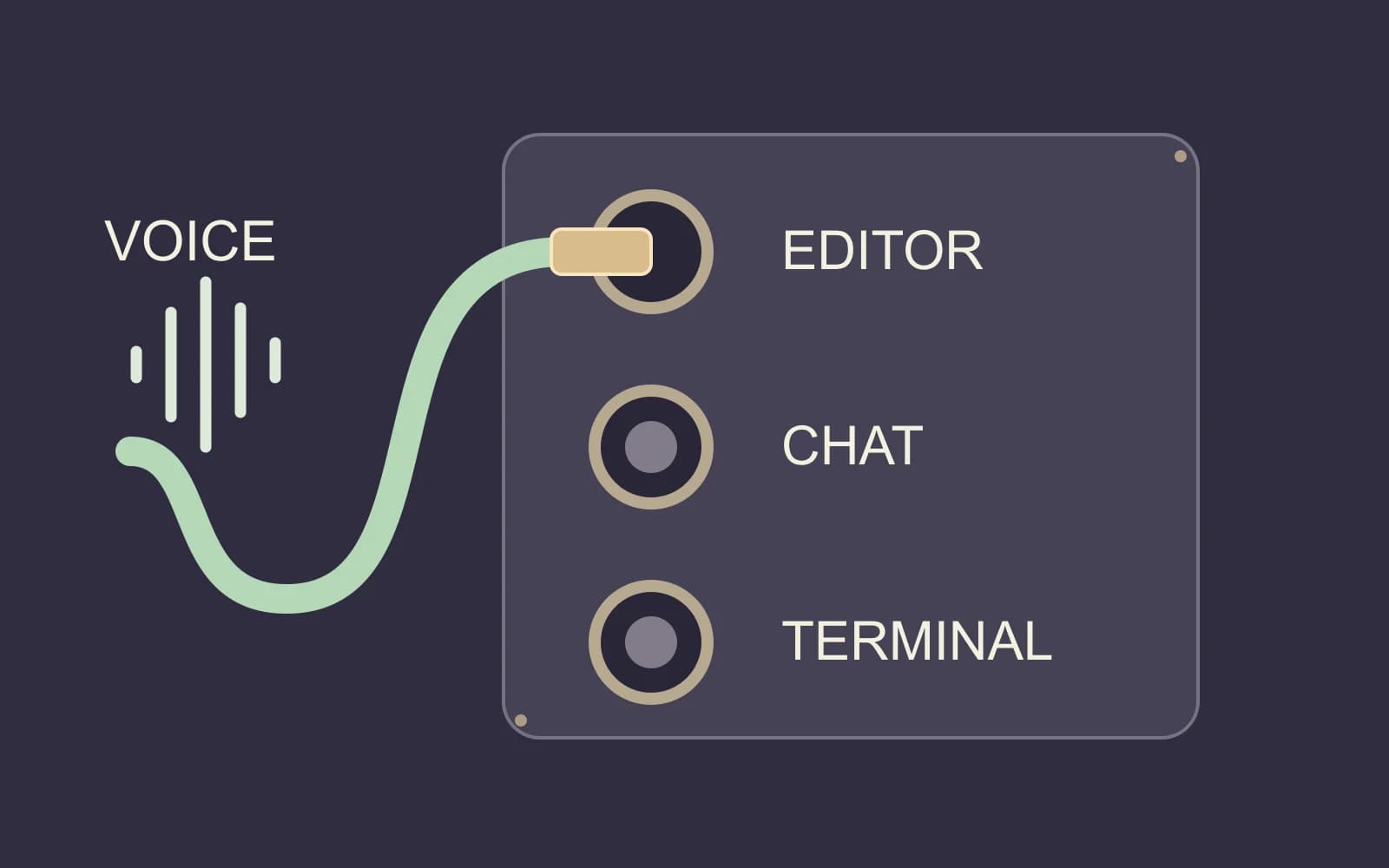
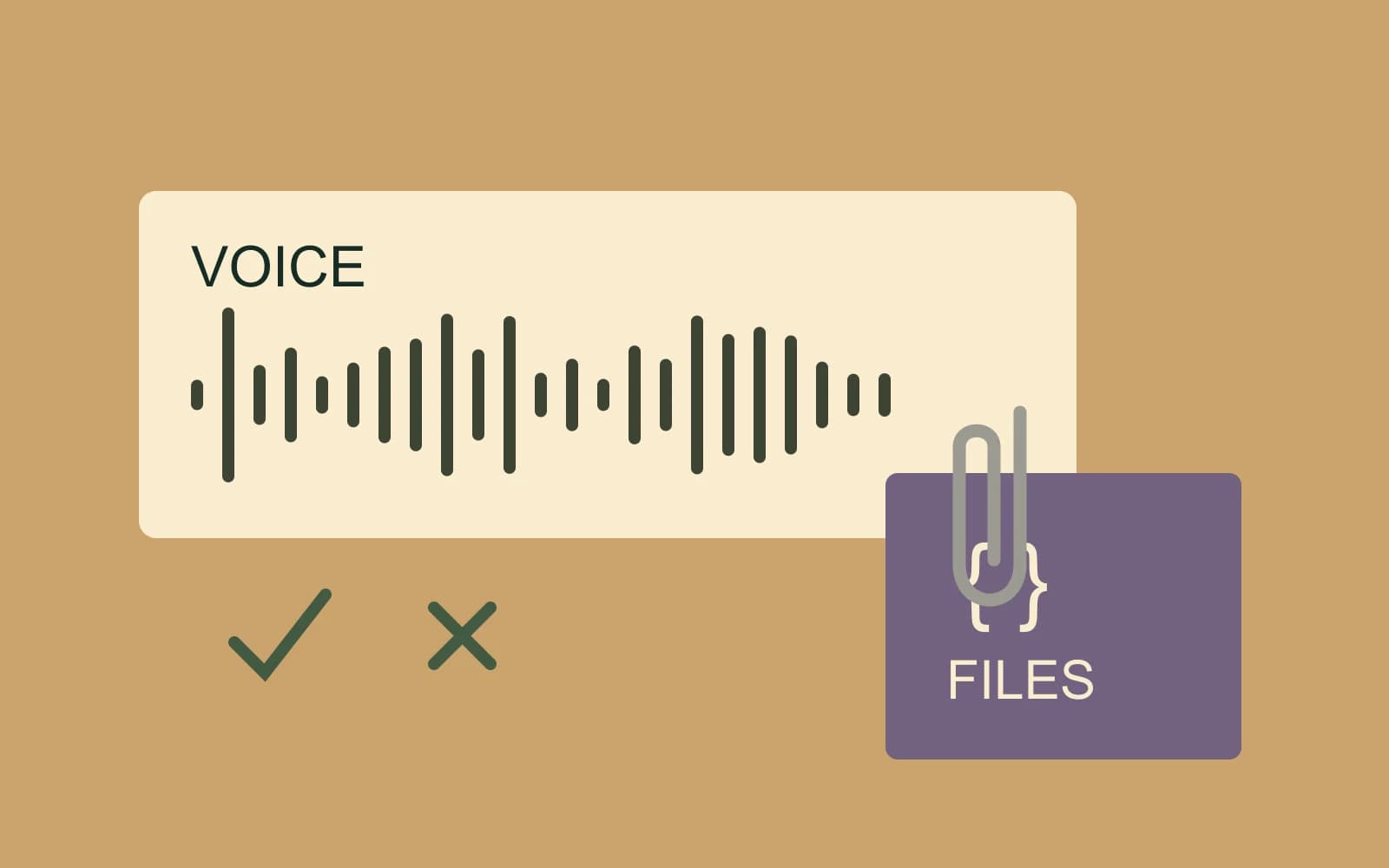
Cursor voice input lets you draft a prompt by speaking, then review the transcription before sending it. Use the recording controls to keep or cancel the clip, and use Cursor's @ picker to attach the actual files the request depends on.
Those are two separate inputs: speech explains what you want; attached source gives the agent the implementation context you selected. Saying a filename in the recording is not evidence that its contents became an attachment.
About this guide: We make and sell the Mac dictation app discussed in the final section. We are not affiliated with or endorsed by Cursor. Last checked: November 11, 2026. The worked request is an authored example, not a performed coding or dictation test.
Record a clip, then review the prompt
Cursor's prompting guide documents the microphone icon in the chat input. In the Agents Window, hold Ctrl+M while speaking. The guide also lists an IDE shortcut; use the control for the interface where you are working rather than transferring the Agents Window shortcut to every surface.
The Cursor 3.1 release note, dated April 13, 2026, describes full-clip recording with batch speech-to-text and recording controls for confirmation and cancellation. Use those controls to finish or discard the recording. Then review the text before the separate send action, as the current prompting guide instructs.
Check the requested behavior first. A missing “keep,” “only” or “unless” can change the task more than an awkward sentence does. Add exact symbols, filenames and errors from your project after dictation when they matter to the request.
Voice input transcribes a request. Cursor's separate voice-chat feature supports a spoken conversation with an agent; choose that feature when conversation is the job, rather than treating the dictation clip as the same interaction.
Attach the source that defines the change
Type @ in the input and choose the relevant file or folder from the suggestions. Cursor's context instructions also describe terminal output, earlier chats and Git diffs. Choose context because it helps the specific request, rather than attaching every available source.
If you know the file, select it through the picker and check the resulting context selection. If you do not know which file owns the behavior, say that in the request; Cursor documents that Agent can search for relevant files. A plausible spoken path should not masquerade as a verified file selection.
The useful review has two questions: does the text ask for the intended change, and does the selected context show the code that governs it? A clear paragraph can still point the agent at the wrong component.
Build a request around a sorting-state bug
Suppose a project resets the selected sort order when the reader changes folders. The following request and filenames are illustrative; use the real behavior and source files from your own project.
A spoken first draft could be:
Keep the selected sort order when I switch folders in the search results. The current view returns to the default order. Preserve the existing folder selection and pagination behavior. Find where the sort value is reset before changing how results are rendered.
Now supply the source separately:
| Input | Example material | Why it belongs there |
|---|---|---|
| Spoken intent | The paragraph above | Defines the behavior to preserve and the reset to investigate. |
| Selected source file | A real matching results component, illustrated here as SearchResults.tsx | Shows where the current order is read and applied. Select the actual file with @. |
| Selected state owner | A real matching state module, illustrated here as sort-state.ts | Helps distinguish a reset in shared state from a rendering issue. Attach it when relevant. |
| Exact reproduction | The actual folder transition and sort choice that reproduce the reset | Makes the request inspectable. This example does not supply a real reproduction or claim the bug was observed. |
You can then refine the request while it is still a draft:
Investigate the sort reset using the attached results and state files. Keep the selected order across folder changes. Preserve the existing folder and pagination behavior. Explain the cause and the checks used for the change.
This revision tells the agent why the attached files matter. It does not claim those files contain the cause or that a fix has been run. If the state owner turns out to be elsewhere, the request still leaves room to follow that dependency.
Before sending, compare the component names in the text with the context you actually selected. Remove an accidental mention of an unrelated file, and correct any dictated wording that changes the intended preservation rules. Keep the actual error text or relevant source excerpt exact when adding it.
For broader bug-report and review writing, use the developer dictation guide. The Cursor-specific step here is binding the spoken request to selected source, not merely producing a fluent paragraph.
When a separate Mac dictation route fits
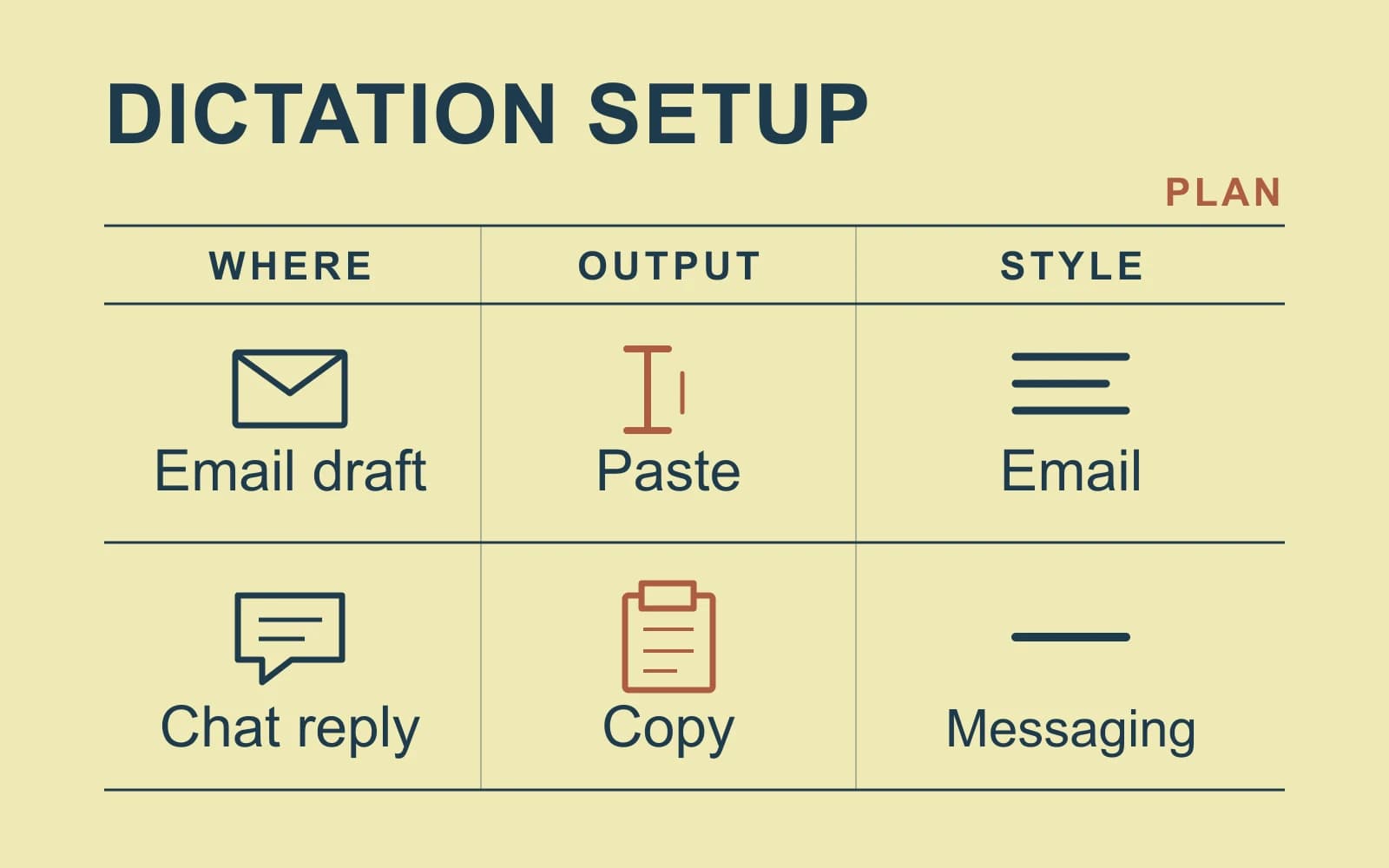
If the same prose drafting extends beyond Cursor, Paraspeech can prepare text through a separate Mac dictation workflow. Supported local speech requires eligible Apple Silicon hardware, access and a downloaded, ready model. Optional rewriting has its own processing choice; the setup documentation explains the available modes.
Paste reviewed text into the chosen prompt field when direct insertion is unsupported, then attach context through Cursor's own controls. Local text creation does not establish where Cursor processes a submitted prompt or its attachments. Keep native Cursor input when its recording controls already fit; use a separate route when it serves your wider Mac writing workflow.