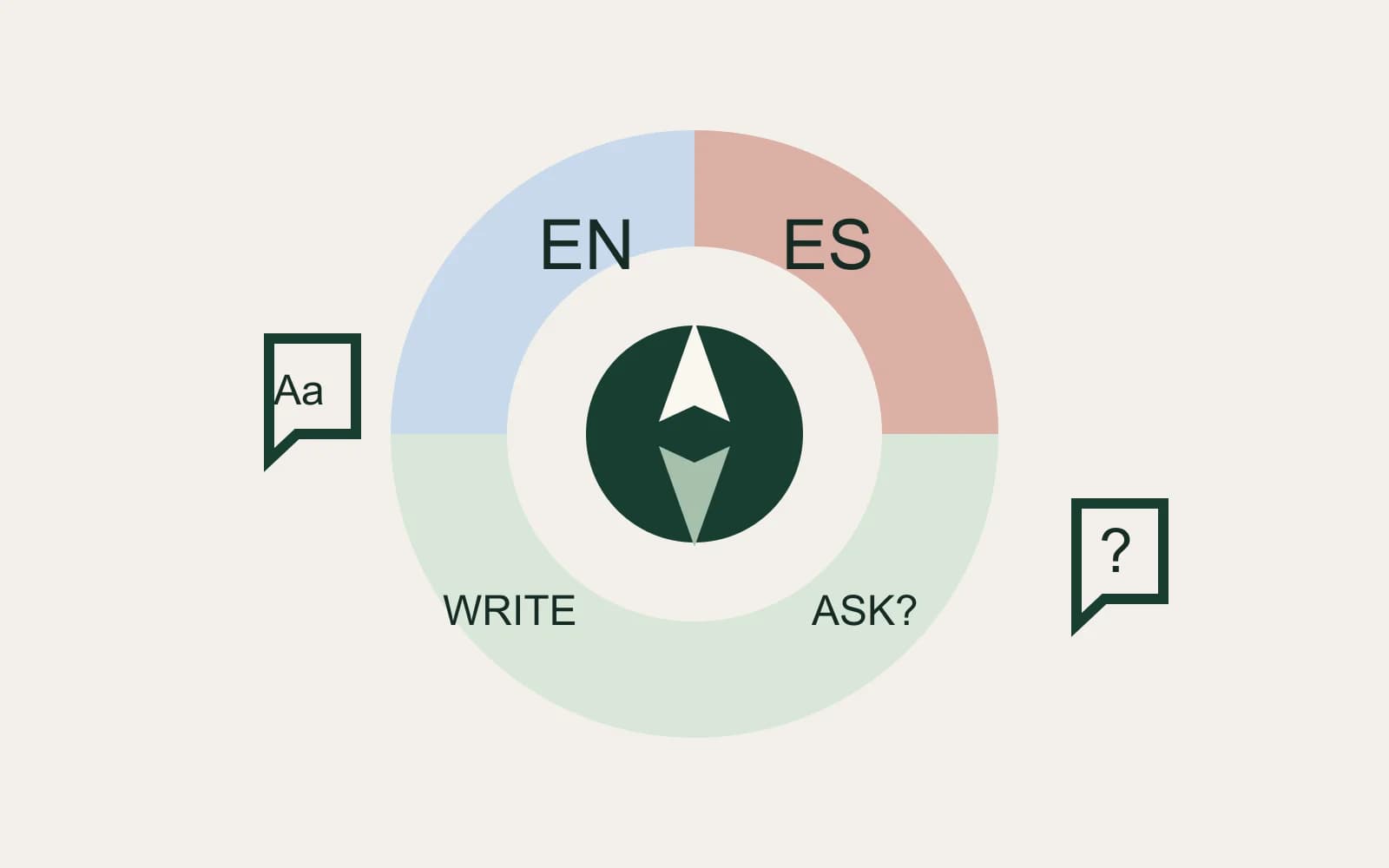
For Typeless vs Wispr Flow, start with the bilingual task you repeat. Typeless is a clearer starting point if you want to select a translation target for each message. Wispr Flow is worth keeping if its dictation and custom instructions already produce the language you need. Both can write new text and offer ways to change existing text.
Typeless documents a dedicated Translate control. Wispr says its ordinary cleanup preserves mixed-language speech and translation happens when requested through a custom instruction.
About this comparison: We make and sell the Mac dictation app discussed in the final section. We are not affiliated with or endorsed by Typeless or Wispr Flow. Competitor facts come from their linked official sources.
Last checked: November 11, 2026. This is a documentation-based comparison. The reply worksheet below is illustrative, with no hands-on result or accuracy ranking.
Choose between writing, translating and asking
A translated reply and an explanation of a received message have different destinations. One belongs in your draft; the other should leave the original message intact.
| Your task | Typeless | Wispr Flow |
|---|---|---|
| Write a new message | Dictate: focus the text field and use the desktop shortcut or mobile keyboard. | Dictation: desktop shortcut, iPhone keyboard or Android Flow Bubble. |
| Speak in one language and write in another | Translate has preset target languages and a selector each time you use it. | The documented translation route is a custom instruction. Selecting dictation languages alone does not request translation. |
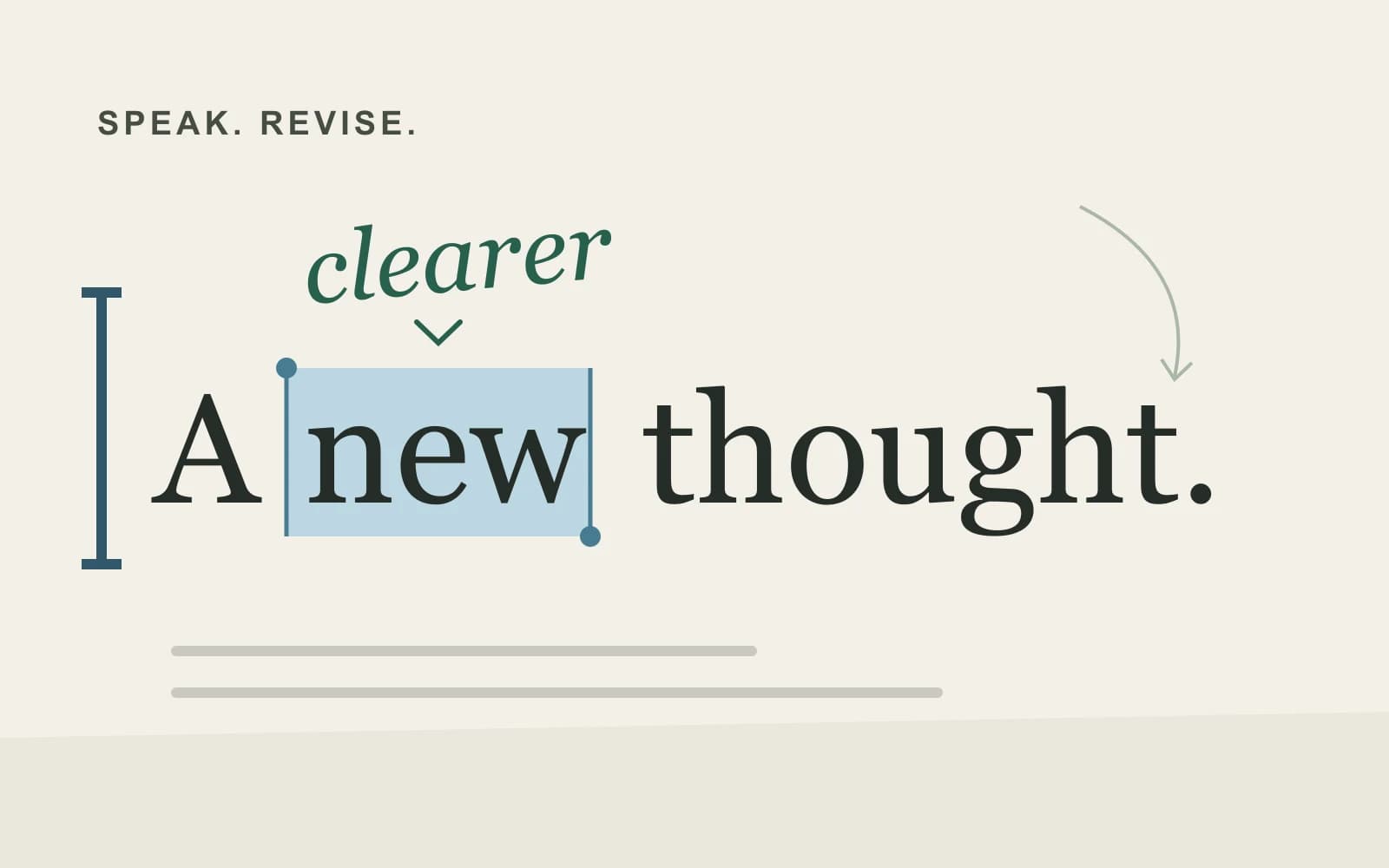
| Change words already selected | Desktop Ask anything can replace the selection with the requested edit. | Desktop Command Mode can edit selected text; it has separate activation and eligible plan or trial access. |
| Ask about selected text while preserving it | Ask anything documents an answer that keeps the original selection unchanged. | The cited Command Mode guide documents drafted or edited text and web searches. It does not establish the same answer-card interaction. |
That last row is a reason to check the exact interaction, rather than infer that a feature is absent. Flow has command capabilities; this source check does not prove a direct equivalent for every Ask operation.
Typeless's Ask guide is desktop-specific. A pricing-page feature name does not establish that all its desktop interactions work on a phone. Likewise, desktop Flow Command Mode instructions do not establish the same controls on iPhone or Android.
Keep translation separate from your normal language settings
On Typeless desktop, add your usual output languages under Settings → Language → Translation targets. Start Translate with Fn + Left Shift on Mac by default, choose the target in the Voice bar, then finish with the main Typeless shortcut. On mobile, hold the keyboard's Speak button and swipe up to select the language. These are documented controls, which you can change or encounter differently in an updated app.
When you return to ordinary writing, use Dictate rather than starting another translation. Regional variants under the Dictate language settings change choices such as spelling; they serve a different purpose from choosing an output language.
For Flow, its language behavior guide says cleanup keeps your language mix unless a custom instruction requests translation. The guide does not give a complete translation-instruction setup path. Before relying on a continuing instruction, locate that instruction in your current app and establish how you will disable or change it. No particular settings screen or automatic reset is assumed here.
Typeless's documented selector makes the target choice explicit for each use. Flow documents translation on request through a custom instruction; this source does not establish how long that instruction remains active. If you use a continuing translation instruction, check how to change or disable it before returning to ordinary dictation. Flow can remain the simpler choice when your existing setup already gives you the output language you need.
Work through one supplier reply
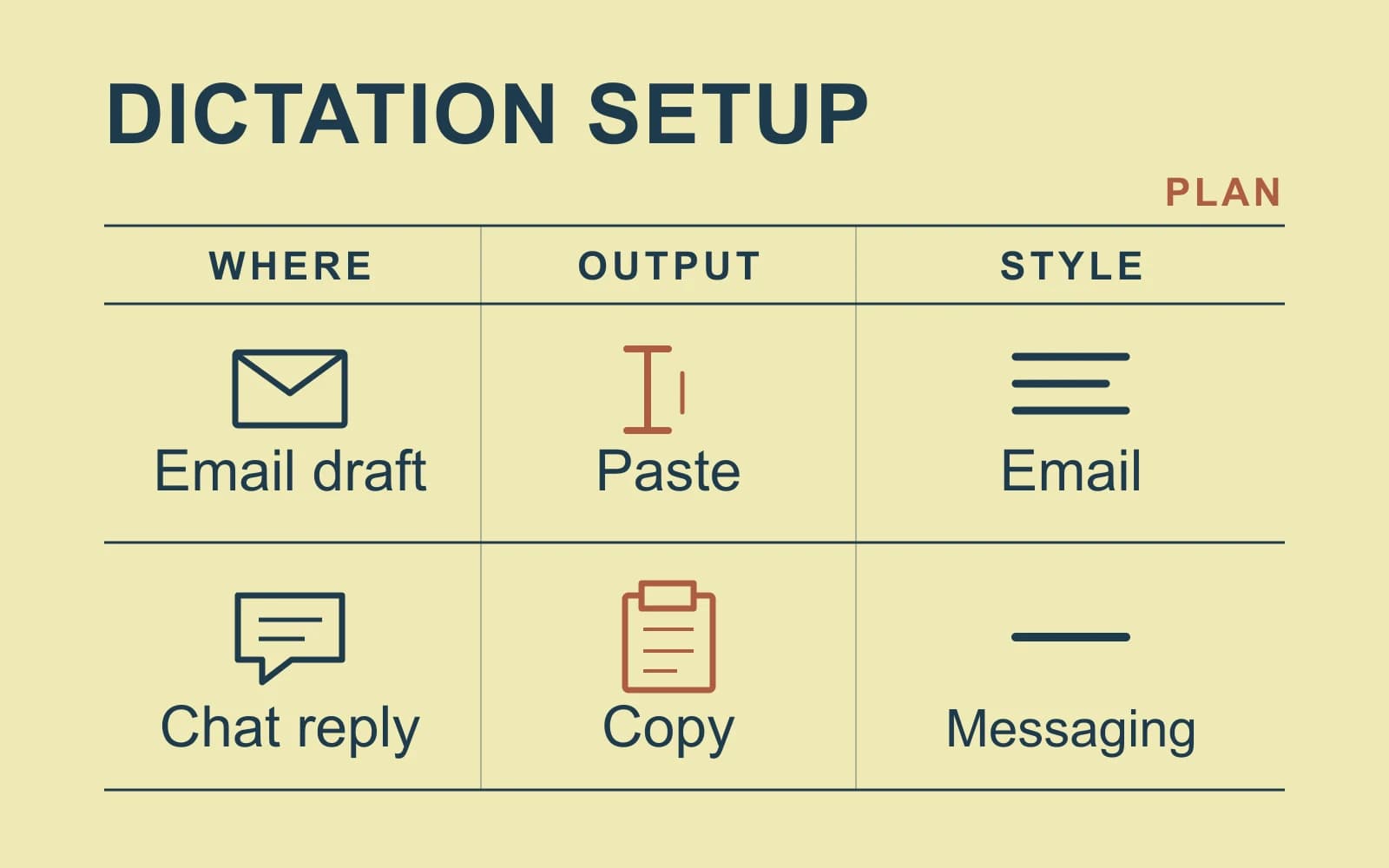
Suppose you need to confirm a delivery date in Spanish, keep an English copy and ask what a sentence in the supplier's reply means. The following worksheet uses authored example text, not output from either app.
| Step | Intended artifact | Decision before speaking |
|---|---|---|
| Reply to the supplier | “Please deliver the revised samples by Friday.” in Spanish | Choose Spanish output using Typeless Translate, or verify the Flow instruction used for this dictation. |
| Keep an English copy | The same meaning in an English draft | Start a separate pass with English as the target, or change any translation instruction you are using. Check the output language before the next pass. |
| Clarify the received sentence | An explanation kept apart from the outgoing reply | In Typeless desktop, use the documented question-about-selection operation. For Flow, verify the output destination before applying a command to the selected sentence. |
| Shorten your outgoing draft | A replacement for the selected draft | Choose an edit operation, with the outgoing draft selected rather than the supplier's original message. |
This makes an important distinction visible before any subscription decision: the question you ask should not accidentally become the reply you send. Choose the operation and selected text deliberately. Keep a confirmed delivery date, product name or quoted term unchanged unless the request explicitly calls for a change.
For recurrent bilingual work, save a short instruction beside your own workflow notes: “Spanish reply, English archive copy, explanation separate.” That is a reminder of the intended artifacts, not a command syntax or promised app result.
Match the phone workflow and the paid plan
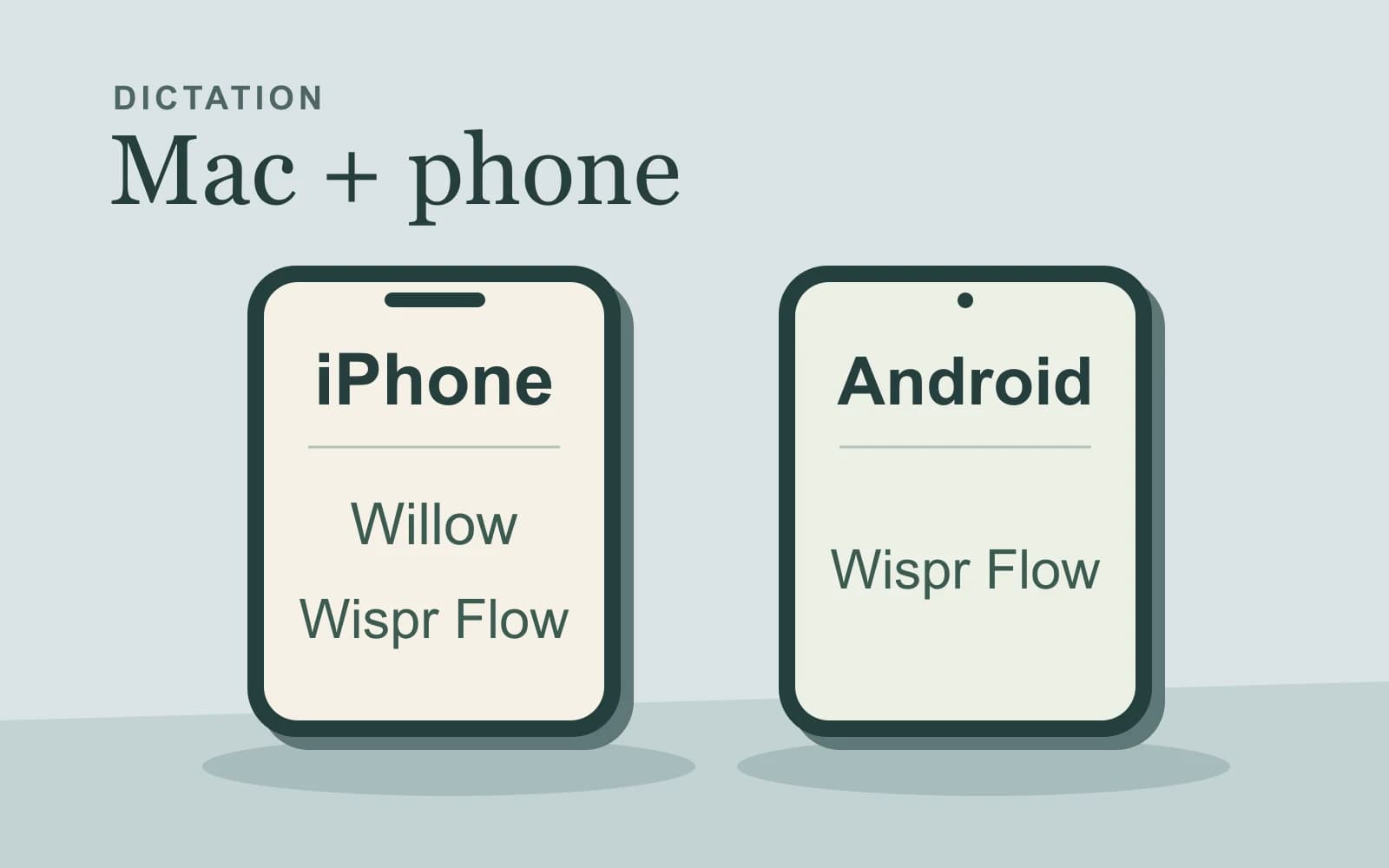
Both vendors document desktop and mobile dictation, but the way you start a recording differs. Typeless uses its keyboard on mobile. Flow uses a keyboard on iPhone and a floating Bubble on Android. Choose around the phone you actually use, then check whether the required translation or editing control exists there.
These are individual US-dollar list prices checked on the date above. Annual totals below assume one paid member and the displayed annual rate; they are not regional checkout quotes.
| Plan question | Typeless | Wispr Flow |
|---|---|---|
| What does Free cover? | Pricing lists limited weekly words, Translate and Ask anything; no universal numeric word cap is shown. Platform restrictions still apply. | Plans list limited dictation. Mac/Windows have a weekly 2,000-word allowance and a weekly 5,000-word maximum; mobile limits can vary by account. |
| What does unlimited dictation cost? | Pro is US$30 per member monthly, or US$12 per month billed yearly: US$144 for a year. | Pro is US$15 per user monthly or US$144 yearly. |
| Does the plan prove editing access everywhere? | No. Ask anything's operation guide describes desktop, even though its name appears on the plan page. | No. Command Mode has its own platform and entitlement conditions; unlimited dictation does not prove mobile editing parity. |
Flow's plans guide says subscriptions sync across devices and that regional prices can differ. Its desktop allowance slows dictation before the hard maximum blocks it. A Free-plan comparison therefore needs both the current account's allowance and the specific paid operation, rather than a single “free versus paid” label.
The annual unlimited-word prices shown here are equal. The monthly prices differ. Choose an annual commitment only after the required operation works for your actual task; price arithmetic cannot establish translation quality.
Check processing and history separately
Typeless's privacy policy describes cloud processing of voice and limited context. Its optional cross-device history sync is a separate choice from real-time processing. A local history setting does not make recognition local.
Flow's data settings separate model improvement, dictation cloud storage and local history. Turning off model improvement does not turn off cloud transcription, and changing that switch does not change cloud storage. Check both controls for the account you use.
Neither vendor's history controls, by themselves, answer a requirement for local speech processing. They do matter if your concern is retaining a reply across devices or allowing content to be used for model improvement.
When a separate Mac dictation route fits
If the real requirement is creating new text with local Mac speech processing, the Typeless alternative guide covers that different decision. Paraspeech supports eligible local dictation on supported Apple Silicon Macs after model setup. Speech recognition and optional rewriting have separate processing choices; Privacy Mode blocks cloud speech and cleanup for dictation. Destination apps still handle the text under their own terms.
That is a conditional alternative for new dictation, not a claim of matching Translate or Ask anything. For the broader processing and device comparison, use the Wispr Flow comparison. If you need the named pair's translation or selected-text question controls, finish that evaluation first.