Apple Dictation punctuation on Mac becomes easier to control when you learn a small set of spoken commands, use them in short passages, and then review the text with the keyboard. Apple can insert common marks automatically in supported languages, but names, missing words, sentence structure, and paragraph breaks still deserve a deliberate second pass.
If Dictation is not enabled yet, use the speech-to-text setup guide for Mac. This guide starts with the insertion point already placed in an editable field and Apple Dictation ready to accept speech.
Learn these Apple Dictation punctuation commands first
Apple’s current Mac documentation lists the commands below. This is a starter set rather than an exhaustive command reference.
| Say in Apple Dictation | Expected result | Use it when |
|---|---|---|
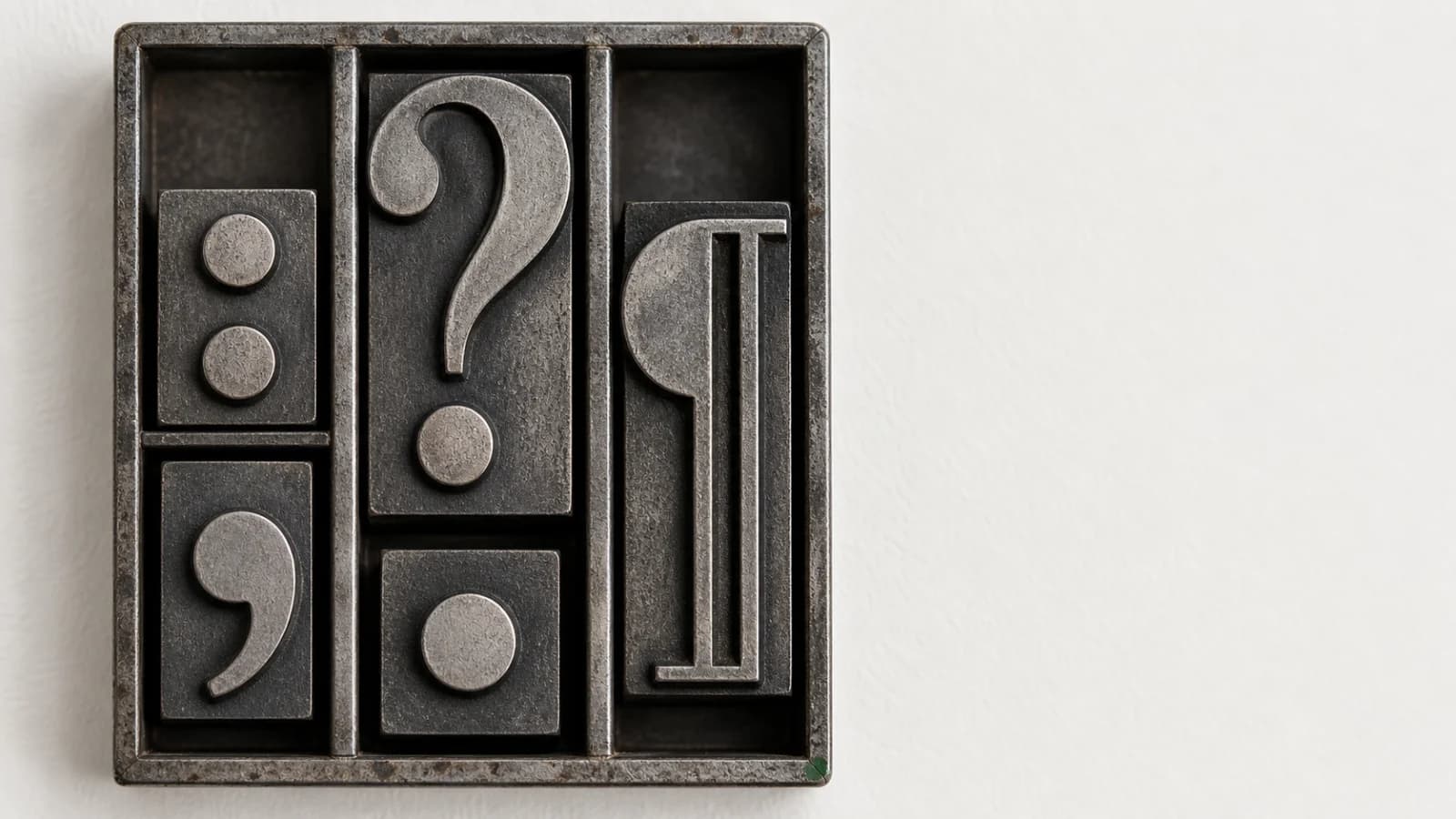
| “comma” | , | A sentence needs a brief grammatical separation. |
| “period” or “full stop” | . | The thought is complete. |
| “question mark” | ? | The sentence is a direct question. |
| “colon” | : | The next words explain or list what came before. |
| “new line” | One line break | The next text belongs on a separate line. |
| “new paragraph” | A paragraph break | You are moving to a new point. |
Apple also says you can speak the name of a punctuation mark, such as “exclamation mark.” Start with the smaller set above because it covers ordinary sentences and gives you fewer commands to remember while composing.
The command names come from Apple’s commands for dictating text on Mac and its Mac Dictation guide, checked July 13, 2026.
Decide how to handle Auto-punctuation
In supported languages, Apple Dictation can insert commas, periods, and question marks automatically. The setting is under System Settings > Keyboard > Dictation > Auto-punctuation. Dictation features vary by language.
Choose one approach for a practice session:
| If you want to test | Auto-punctuation setting | What to observe |
|---|---|---|
| Apple’s automatic sentence marks | On | Dictate naturally, then check where commas, periods, and question marks appeared. |
| Your spoken punctuation commands | Off | Say each intended mark and confirm that the result matches the command. |
Changing the setting halfway through a test makes the result harder to interpret. Keep it fixed for three short sentences, inspect the output, and then decide whether automatic marks or spoken commands demand less correction for that language and writing style.
Practise one sentence at a time
Use a fabricated sentence so a mistake has no consequence. Speak the words “comma” and “period” as commands:
Send the revised outline comma confirm the final heading comma and add the source link period
The intended text is:
Send the revised outline, confirm the final heading, and add the source link.
Plan the sentence, start Dictation, speak the sentence with the chosen commands, and stop Dictation at the sentence boundary. Apple says you can stop with the Escape key, the Microphone key when available, or the configured Dictation shortcut.
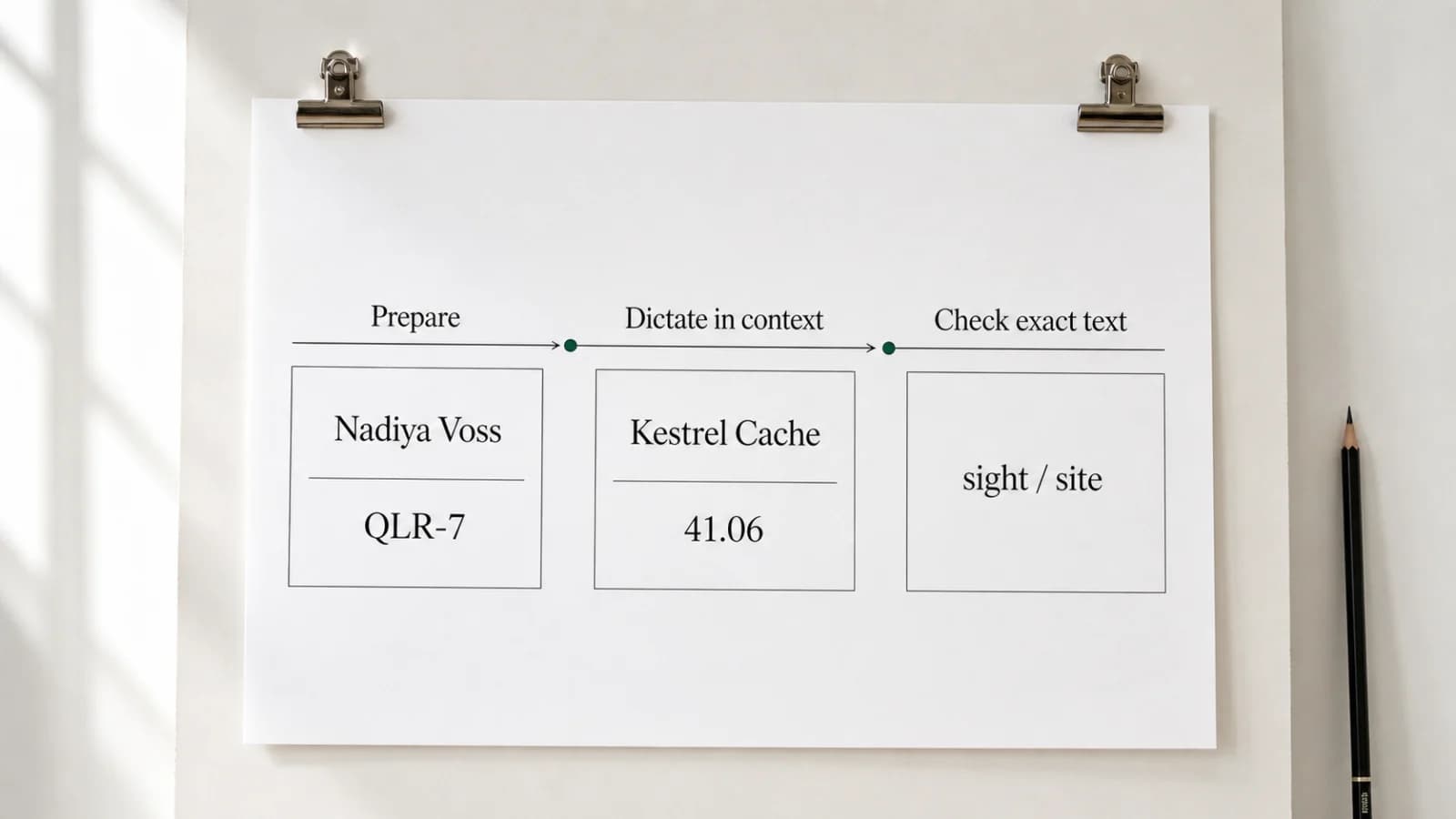
Plan one sentence → Start Apple Dictation → Speak words and tested commands → Stop at the sentence boundary → Review meaning, exact terms, punctuation, and spacing.
Stopping creates a clear review boundary. Do not depend on a long silence to format the sentence. Apple says Dictation stops automatically after 30 seconds without detected speech; that timeout is not a punctuation command.
Speak common marks and type awkward ones
Spoken punctuation should help you hold the sentence, not compete with it. Use a command when it is familiar and the intended structure is simple. Type the mark during review when saying it makes you lose the wording.
For example:
- Speak “comma” in a short list you have already planned.
- Type quotation marks when the sentence contains a quote within a quote.
- Type brackets when you need to check exactly where they open and close.
- Use “new paragraph” when the point changes, not merely because the sentence is long.
This is a writing decision, not a test of how many commands you can memorise. Apple’s full reference includes many more punctuation, typography, formatting, capitalisation, mathematical, and currency commands. A small reliable vocabulary is more useful than an extensive one you have not tested in the active language.
Review dictated text in a deliberate order
Read the entire sentence once before moving individual punctuation marks. Correcting a comma first can distract from a missing word that changed the instruction.
| Review pass | Question | Action |
|---|---|---|
| Meaning | Did every intended word appear, and did any recognition change the instruction? | Compare the sentence with what you meant before editing its marks. |
| Exact terms | Are names, dates, amounts, links, and specialist terms correct? | Check them against the source or type them manually. |
| Sentence marks | Does each sentence end correctly, and do commas match the intended structure? | Add, remove, or replace marks with the keyboard. |
| Paragraphs | Does each paragraph contain one point? | Insert or remove line breaks after reading the surrounding text. |
| Spelling | Are any remaining words flagged or visibly wrong? | Use the app’s spelling tools or a supported keyboard shortcut. |
Apple lists Command-Semicolon for finding misspelled words and Option-Delete for deleting the word to the left of the insertion point. Apple also warns that text-editing shortcut behavior can vary by app. If a shortcut does not apply, use the app’s Edit > Spelling and Grammar menu.
Work through a before-and-after example
Suppose the dictated text appears as:
Maya send the July brief, check section four and ask is the quote final.
Do not begin by shifting commas. First identify the intended meaning: Maya is being addressed directly, the sentence contains three instructions, and the final instruction includes a quoted question.
One corrected version is:
Maya, send the July brief, check section four, and ask, “Is the quote final?”
The keyboard pass adds direct-address punctuation, separates the instruction list, and marks the quoted question. Apple Dictation supplied editable text; the writer made the sentence structure explicit.
The example is fabricated. For dates, amounts, names, or consequential instructions, compare the text with the original source instead of assuming a second voice attempt verifies the fact.
Use a five-minute practice routine
Write three harmless prompts before you start: a statement, a question, and a two-paragraph note.
- Dictate the statement with “comma” and “period.”
- Dictate the question with “question mark.”
- Dictate the note and use “new paragraph” once where the point changes.
- Review each result in the same order: meaning, exact terms, sentence marks, paragraphs, then spelling.
If one command repeatedly interrupts the sentence, remove it from the next round and type that mark instead. If Auto-punctuation produces usable common marks in the active language, let it handle those marks and focus your review on meaning and exact terms.
Frequently asked questions
Can I say punctuation while using Apple Dictation on a Mac?
Yes. Apple documents spoken punctuation commands including comma, period or full stop, question mark, colon, new line, and new paragraph. Availability can vary by language, so verify the commands you intend to use with a harmless sample.
Should I turn off Auto-punctuation?
Turn it off for a controlled practice session if you want to test spoken commands directly. Leave it on if you want to evaluate Apple’s automatic commas, periods, and question marks in a supported language. Use one setting for several sentences before comparing the correction work.
Why did “new paragraph” not appear immediately?
Apple says a new line or new paragraph appears when you are done dictating. Stop Dictation, then inspect the result before repeating the command.
What should I review first?
Review meaning first, followed by names and other exact terms, sentence punctuation, paragraph breaks, and spelling. A correct period does not rescue a sentence whose missing word changed the instruction.
When should I type a punctuation mark?
Type it when saying the command disrupts your wording, when you have not tested the command in the active language, or when the structure needs exact placement, such as nested quotation marks or paired brackets.