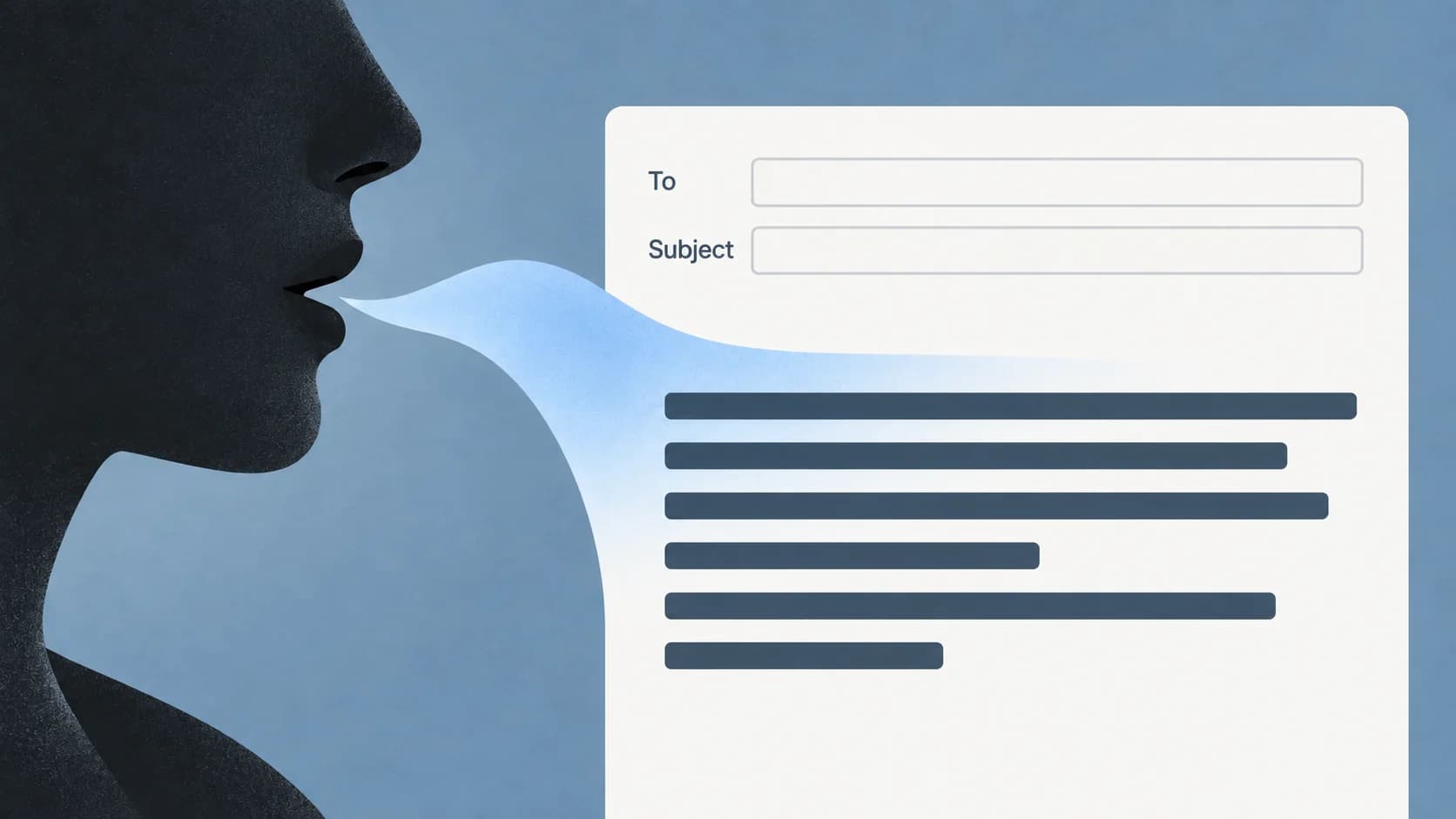
Which Outlook are you using: new or classic Outlook for Windows, the Mac app, a browser, or Outlook Mobile? On the desktop and web surfaces, start a new email, click in its message body, then use Message > Dictate. Wait until it is listening before speaking. Microsoft's Outlook instructions cover these routes separately.
On a phone, pause before following an older tutorial: Microsoft announced the retirement of Outlook Mobile's native Dictate feature starting in September 2024. A microphone on the phone's keyboard belongs to a different input route.
Last checked: September 28, 2026. This guide follows official documentation; it does not report a hands-on Outlook compatibility test.
Find Dictate in your Outlook version
Use this route table to match the instructions to the app you have open. Microsoft documents a microphone and reliable internet connection as prerequisites.
| Outlook surface | Where to begin | Detail to check |
|---|---|---|
| New Outlook for Windows | New email or reply, message body, then Message > Dictate | Open the draft before looking for the message controls. |
| Classic Outlook for Windows | Message body, then Message > Dictate | Microsoft's instructions specify signing into Microsoft 365. |
| Outlook for Mac | Message > Dictate; Option + F1 is also documented | Microsoft identifies Dictate as a Microsoft 365 subscriber feature. |
| Outlook on the web | New email or reply, message body, then Message > Dictate | You are using the browser's microphone-access context. |
Source: Microsoft's platform-by-platform Outlook guide. Its Mac subscription note is not a complete eligibility table for every account, plan, or organization. Before buying or changing a plan because a button is missing, identify the account signed into the affected Outlook client and confirm its access with Microsoft or your administrator.
Dictate into the body, then review the draft
Begin with a new message and leave To, Cc, and Bcc empty. That keeps finding the input field separate from addressing a real email.
- Type a subject such as “Schedule question.” Click in the large message area below it. Type a short marker, check where it appears, then remove it.
- Start Dictate using the route above. Once it is listening, speak one sentence and stop dictation before moving to another field.
- Confirm that the words landed in the body. If they are in the subject, correct the destination before adding more text.
Here is a synthetic sentence for that exercise, not a recorded test result:
Please do not schedule the review before October 8.
The important checks are not and October 8. Losing the negation reverses the request; changing the date creates a different deadline. Correct either with the keyboard before trying a longer message. For an actual email, verify the date against the arrangement you mean to describe.
Once the body says what you intend, stop recording, add the recipients, and review the subject. Use Outlook's visible Send control deliberately. Speaking a draft is not a reason to skip that final decision.
For a longer reply with a conditional promise, the email drafting guide shows how to edit without losing the condition. Its setup steps are for Gmail; the Outlook controls above are the ones relevant here.
If Dictate is missing or does not produce text
Start with the symptom. A missing button needs an availability check; a sentence containing the wrong words needs a recognition check.
The button is absent
First rule out Outlook Mobile, discussed below. On desktop or web, open an editable draft and compare your surface with the route table. Then check the signed-in account. For a work or school account, report the client, account, and absent control to your administrator rather than assuming that changing the microphone will restore it.
A useful report is: “In Outlook for Mac, signed into my work account, I have opened a new email and cannot find Message > Dictate.” This gives support a feature-access question they can investigate. It does not presume which subscription or organization setting is responsible.
Dictate reports microphone access trouble
Check access for the app you are actually using: Outlook on desktop, or the browser for webmail. If the error says another app is using the microphone, stop that recording and retry. Microsoft's Outlook troubleshooting section separates access errors from undetected or muted microphones.
Do not treat permission in one app as proof that another app can record. Likewise, a working headset in a meeting does not establish access in the Outlook browser tab.
It listens, but no words arrive—or words are wrong
Check mute and the selected microphone, then the connection. Outlook Dictate needs internet. If text appears in the wrong field, move the cursor; if it appears in the right field but is misrecognized, check the spoken language and reduce background noise. Microsoft documents these controls and audio checks in the same Outlook guide.
Use the same short sentence after each change. That lets you distinguish a restored input path from an unrelated edit. A successful sentence establishes that this attempt worked; it is not an accuracy benchmark.
Outlook Mobile: the old Dictate instructions are retired
The Microsoft Outlook Mobile help page places its retirement notice above legacy iOS and Android instructions. Follow the notice: retirement began in September 2024. The old steps remaining lower down are not evidence that the feature is currently available.
Reinstalling Outlook to recover that retired control is therefore the wrong troubleshooting path. If you want to speak into a message on your phone, look for your device keyboard's dictation feature and follow that keyboard's current guidance. Keep the two features separate when asking for help: “keyboard dictation in an Outlook text field” describes a different problem from “Outlook's Dictate button is missing.”
A separate dictation route on Mac
If native Outlook Dictate is available and handles your draft, start there. You do not need an additional app just to use it. The broader Mac speech-to-text guide covers system input choices if you want a route beyond Outlook's own control.
Paraspeech is a separate Mac speech-to-text option. With Accessibility permission, it can insert text into many editable fields; an unsupported field may need manual copy and paste. It is not an official Outlook integration and does not restore Microsoft's Dictate button or account access.
Follow the Paraspeech setup documentation for Microphone and Accessibility permissions. Keep Auto-Send off for this workflow: that option presses Return after insertion, so it is not a substitute for reviewing and deliberately sending an email. Focus the recipient-free message body, record a short sentence with your configured shortcut, then inspect the destination. If insertion fails, copy the transcript and paste it into the body. Check for partial or duplicate text before continuing.
This is an independent guide. Apple and Microsoft are named only to identify the products discussed. Paraspeech is not affiliated with, sponsored by, or endorsed by either company. Details can change; check the linked official documentation.