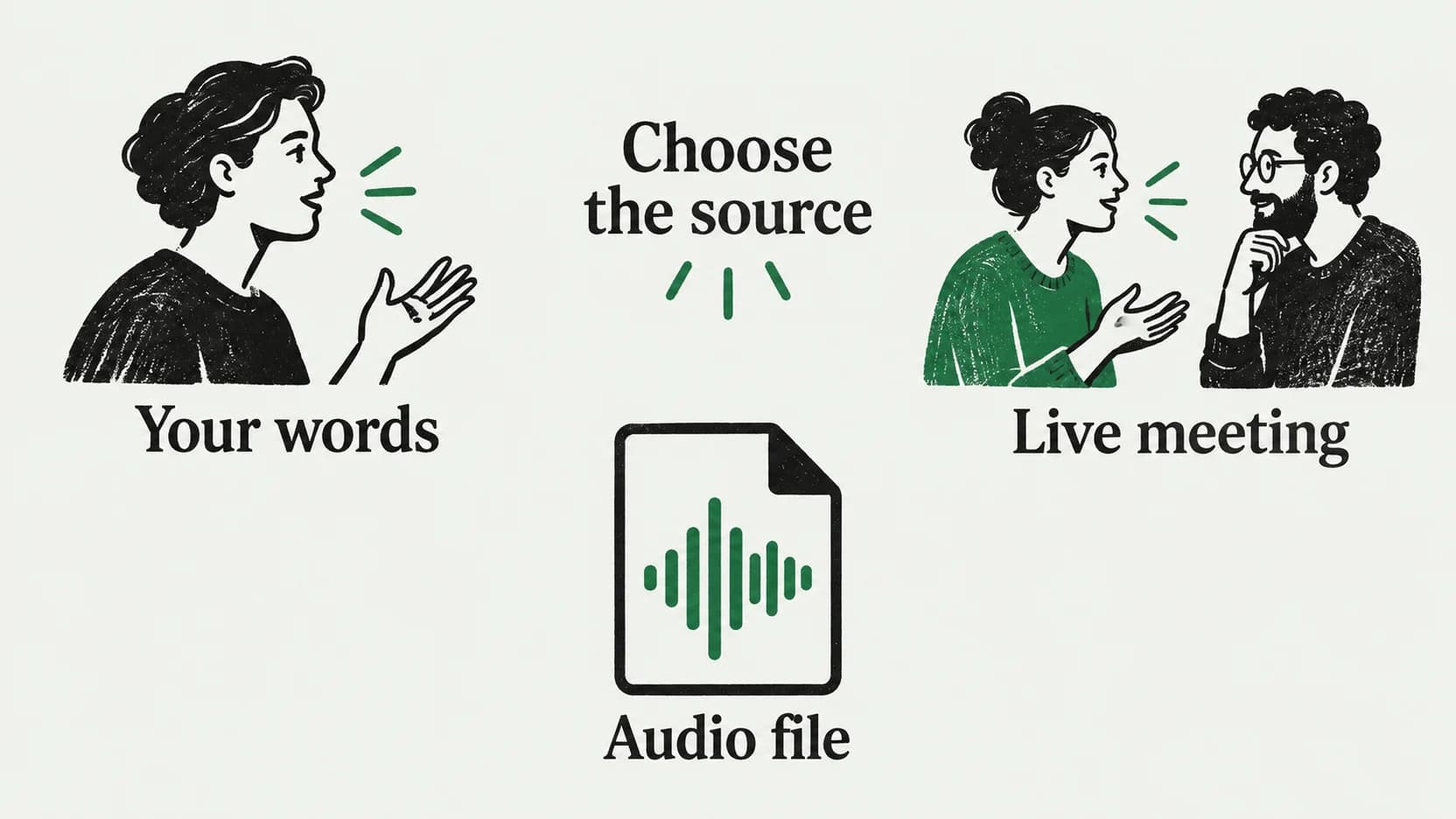
Notion speech to text has three useful routes: dictate your own words into a page, use Notion's native AI Meeting Notes for a conversation, or upload an existing audio recording to a Meeting Notes block. Choose by what you want to capture, because each route produces a different starting point for your page.
| You want to capture | Start here | Where the result belongs |
|---|---|---|
| Your own project update or idea | A dictation tool and an editable Text block | Ordinary page text you can organize yourself |
| A live conversation | Notion AI Meeting Notes | A meeting block containing the transcript and generated summary |
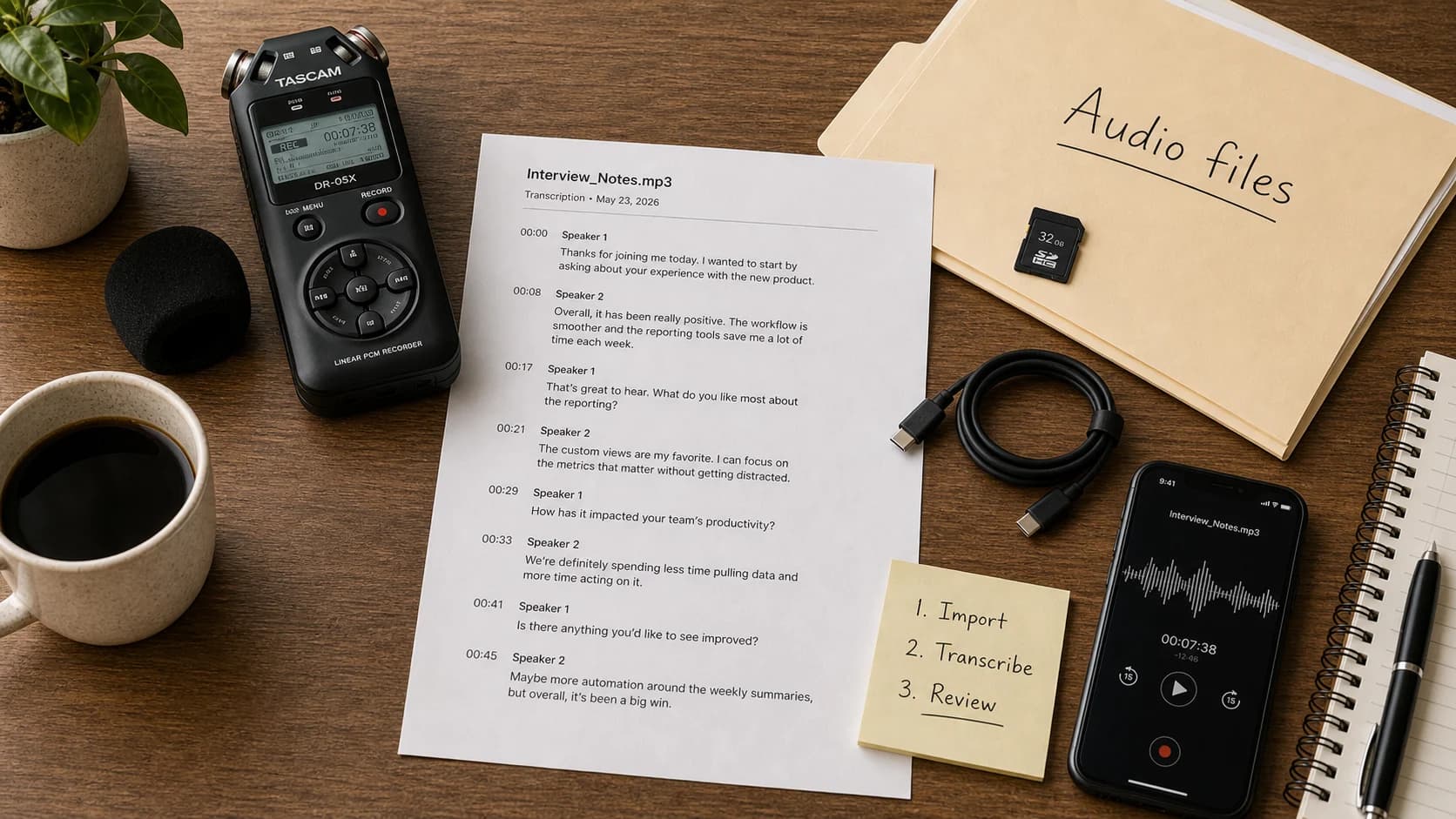
| An existing recording you have permission to transcribe | Upload audio in a Meeting Notes block | A transcript and summary from the recording |
Notion documents both live transcription and audio upload in its AI Meeting Notes guide. You do not need to play a saved recording aloud into a dictation tool to get it into a page.
Last checked: September 21, 2026. This guide uses official documentation and released-product source inspection, not a hands-on Notion compatibility test. The project update below is synthetic.
Use AI Meeting Notes for a live conversation
For a remote call, start with the Notion desktop app. Its microphone and system-audio capture can include both your voice and the people speaking through your computer. Grant the audio permissions Notion requests before the meeting starts.
The browser and mobile routes capture microphone input. That matters when you wear headphones: the other participants' voices are playing in your ears, outside the microphone's reach. A transcript of only your side is then a capture-route problem, not something a better summary prompt will repair. Browser or phone-microphone capture suits an in-person conversation more naturally. These distinctions come from Notion's capture documentation.
In the desktop app, open the destination page and type /meet. Add an agenda or context under Notes if it will help interpret the discussion. Obtain every participant's consent before selecting Start transcribing. At the end, select Stop; Notion then begins generating the summary.
For consent on a remote call, say the request or put it in the meeting chat. Do not assume a consent message played through your computer speakers reaches people listening through your conferencing app.
If /meet is unavailable, check the current eligibility and workspace settings. Plan access, app requirements, and the workspace's AI Meeting Notes setting can affect availability.
Treat the summary as a draft of the decisions. For an action such as “Maya will send the revised scope,” follow its transcript citation and check who agreed to do what before making a task. A speaker label alone is not confirmation of responsibility.
Upload an existing audio recording
If the meeting already happened, open a page containing a Meeting Notes block. Use the settings icon at the top of that block, choose Upload audio, and select the permitted recording from your device. Notion documents this as a way to generate a transcript and summary from an existing file. Use the file choices supported by the current upload interface. Notion's upload instructions
Uploading a recording for transcription is a different task from adding an audio attachment for someone to play. Use the Meeting Notes upload control when your goal is editable words and a summary.
After processing, keep the full transcript in its meeting context. Copy a reviewed decision or short passage into the project page that needs it, rather than giving a long transcript the job of a concise update. If you only need a separate text transcript before adding anything to Notion, the audio-file transcription guide covers that workflow.
Dictate your own words into a Notion page on Mac
For a paragraph you are composing yourself, open a page you can edit and place the cursor in a plain Text block. Avoid starting in a database property or the page title when the intended destination is the page body.
Paraspeech is one optional Mac text-input tool for this step. With Accessibility permission it attempts insertion into editable fields; support for every Notion field is not established. Use its hold or toggle recording control to speak one paragraph, then stop. If the text does not land in the intended block, copy the recognized text and paste it there yourself. The setup documentation explains the controls and permissions.
This is an independent workflow guide. Paraspeech is not affiliated with, sponsored by, or endorsed by Notion; this text-input route is not an official Notion integration.
Worked example: a project update with one real action
The following is a synthetic page specimen, not a captured app result. Suppose you want to record this update:
The draft landing page is ready for review. We are waiting for two screenshots before the copy can be finalized. Maya agreed to send the screenshots by Thursday.
Dictate that prose into a Text block. Then separate the status from the agreed action. The finished page could contain:
Launch update
The draft landing page is ready for review. Copy can be finalized once the two screenshots arrive.
- Maya: send the two screenshots by Thursday.
You create that structure. Put the action on its own block, open the block menu, and choose Turn into → To-do list. Keep the status paragraph as text. Notion documents these block transformations in its writing and editing guide.
Writing “Maya” and “Thursday” in a checkbox does not set an assignee or date property. If your team tracks work in a database, create or update the task there and select its owner and date explicitly. Likewise, leave an unresolved suggestion such as “maybe ask Maya” in the notes until someone agrees to it.
For repeated drafting, the voice-input workflow covers capture and correction in more detail. To try this specific page workflow, download Paraspeech and dictate a short project update into an editable Text block, using copy and paste if needed.
Check the destination before sharing
Speech processing and page access are separate decisions. Even if your chosen dictation tool processes speech locally, that does not make the resulting cloud-synced Notion page offline or visible only to you. Choose a suitable destination before inserting sensitive text.
Check who can access the page containing your update or transcript. For meeting notes created from calendar events, also inspect the Auto-share with internal calendar event participants setting: Notion documents an option that gives those workspace participants access to view and edit the notes. Notion's meeting-note sharing controls
When colleagues need only an approved decision, put that decision and its confirmed action in the project page. Share the full conversation only with the people who need its context.