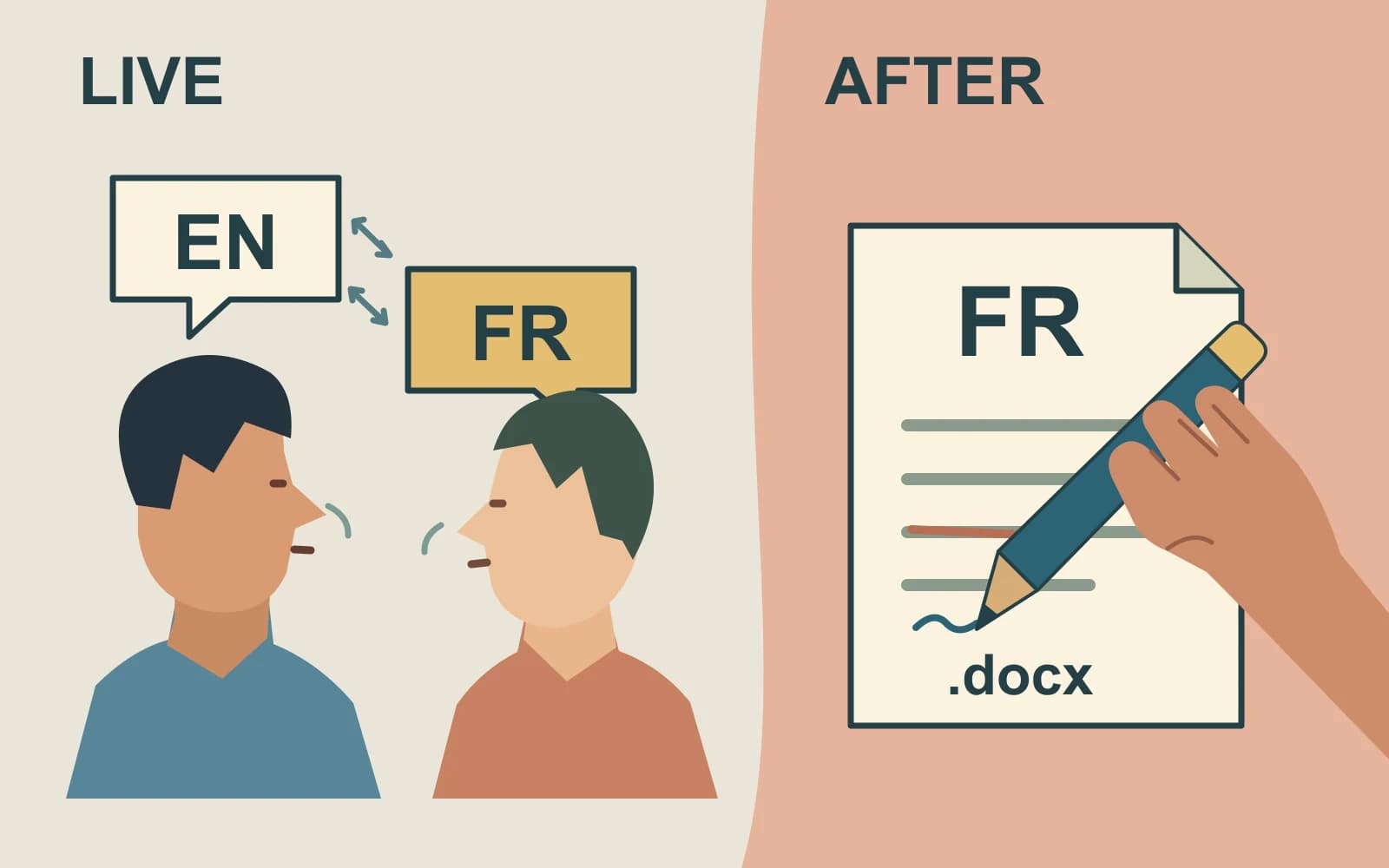
Keep Notta if participants need translated text during a call. Consider MacWhisper if you start with a saved recording and want to edit and translate it afterward. If you only need an original-language meeting record on Mac, Paraspeech is another option. The right choice depends on when you need the translation and what the recipient needs to do with it.
A participant who needs to understand the conversation now cannot wait for tomorrow’s translated document. A recipient who must revise that document needs more than a readable record link. Notta already offers live and later translation operations, so identify the missing control before switching. Notta’s translation-feature comparison
About this comparison: We make and sell the Mac meeting app discussed in the final section. We are not affiliated with or endorsed by Notta or MacWhisper.
Last checked: November 3, 2026, using official documentation and released-product sources.
Keep Notta for live bilingual understanding
On Notta Web, choose Instant record → Bilingual transcription, select two supported languages, and enable Bilingual Translation when translated text is needed. Then choose Record and transcribe. The recording screen lets you change the translation toggle while recording. See Notta’s Web instructions.
The live bilingual feature is available across plans, with use quotas. Notta separates it from monolingual real-time translation, which serves one spoken language, and from Generate translations from transcripts, which runs afterward. Their add-ons and usage are counted separately, and an add-on does not grant unlimited use. Operation and quota differences
Choose how participants will read the translated text during the call. Enabling a translation control is not a plan for distributing that view to everyone. Confirm the actual languages, capture route, access, and remaining allowance needed for your meeting.
Keep Web and Mobile file routes separate
The Web guide’s bilingual file-upload route explicitly excludes bilingual translation, even though its live recording route has the translation toggle. Do not transfer that live control to an uploaded file. Web file boundary
The newer Mobile App guide describes bilingual file results and gives Import files → Bilingual → Upload & transcribe as its file route. It separately documents the live translation toggle. Use the instructions for the platform and operation you will actually use; the two pages do not support one universal bilingual-upload promise. Mobile controls
Check the translated deliverable before switching
Notta’s later transcript-translation feature may already meet the after-call need. It is documented for Web and Mobile, on Pro, Business, or Enterprise, with Can edit permission or higher. Open the record, choose Translate, and select the target language. In this operation, the generated translation cannot be edited directly. Translating, and translating again after changing the source, uses transcription minutes. Transcript-translation controls and limits
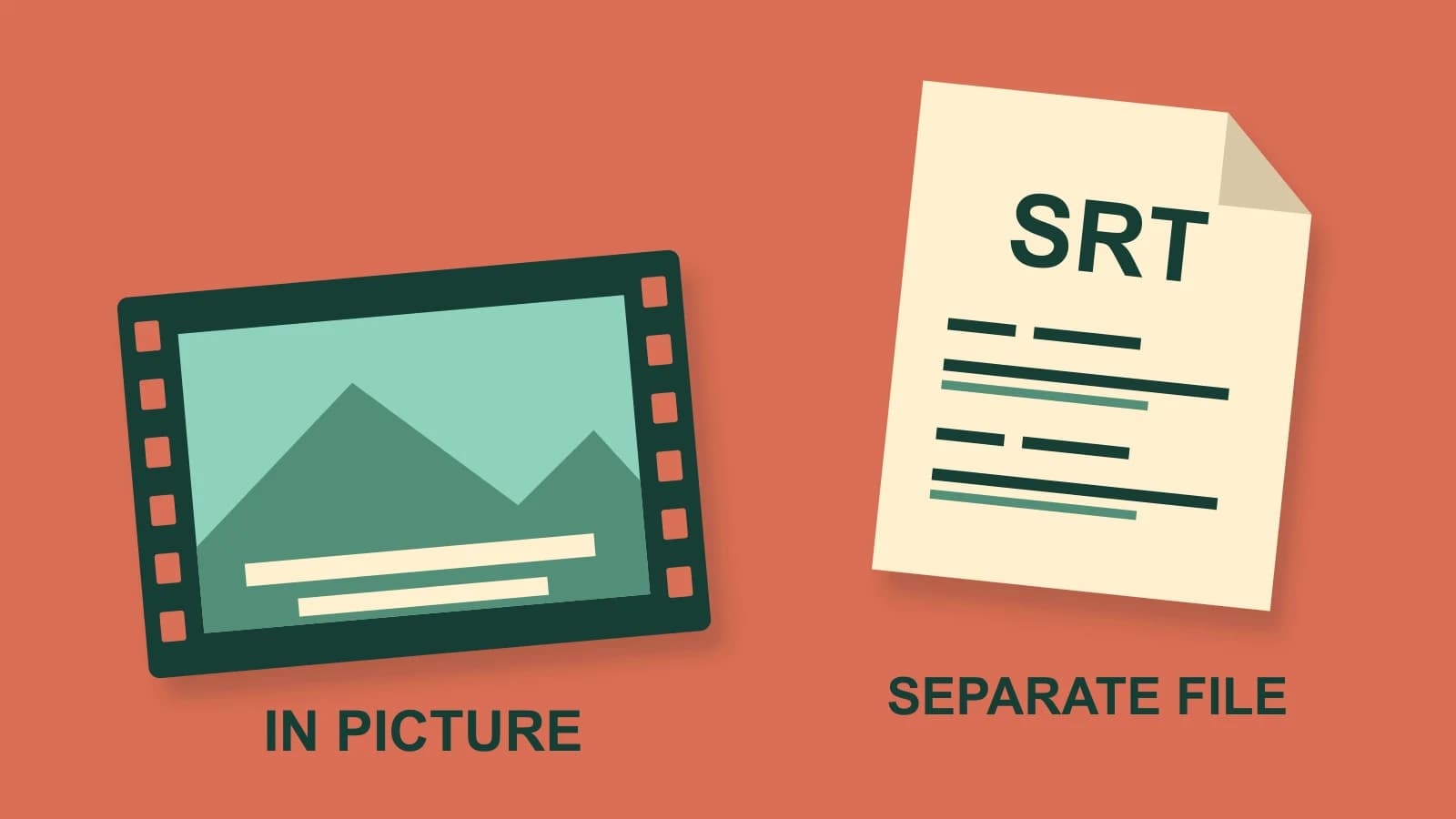
That is different from editing a downloaded document. Notta’s download route requires Pro or above and Edit and Download permission or higher. On Web, open the record’s Download control, choose the format and text type, and download it. The documented choices include Word (.docx) and original text, translation text, or both when a translation exists. Mobile uses Share&Export → Export, with some features restricted. Download permissions and options
If the recipient needs to revise French wording independently, an appropriate editable file may solve the problem without replacing Notta. A viewable record and permission to create that file are separate requirements. A PDF can be useful for reading, but specify the editable document when revisions are the task.
Example: live translation and an editable French document
Consider this fictional English–French meeting:
During the call: English–French participants need translated text while they speak.
After the call: Léa needs a French Word document she can revise outside the meeting workspace.
Access: The organizer must be able to correct the source, regenerate its translation, and download the required text.
Revision: The project name is “Harbour,” not “Harbor”; Léa may also need to change the French phrasing.
This brief exposes two separate decisions. For the live requirement, start with Notta’s supported two-language route and decide who can see its translated view. For the handoff, establish translation and download rights before promising Léa a file.
The project-name correction illustrates Notta’s specific revision boundary: correct the source and translate again inside the documented transcript-translation workflow. If the source is already right and Léa only wants different French wording, the independently editable document is the handoff to request.
Keep Notta if those controls complete the job. Consider a separate file workflow when the missing requirement is control over editing, the translation provider, or the final document. For the general source-review and translation process, use the existing audio-to-text translation guide.
MacWhisper for a file-based editing and translation route
MacWhisper is an option to evaluate when the work starts from a saved recording on a Mac. Its current product page documents local file transcription, a built-in transcript editor, and text/document exports. Its macOS Assistant documentation separately describes transcript translation. Check the app version, license, chosen translation route, and required export format together. MacWhisper’s file and editing features · Assistant translation
The Assistant subscription is an optional App Store-version route; using your own supported AI provider is a separate choice. The current AI-provider guide also describes compatible local AI services. Those choices are separate from the transcription model, so selecting local speech recognition does not settle where a later language operation runs. Current AI-provider setup
For example, MacWhisper documents sending the transcript to DeepL when using that translation feature. Remote AI prompts send the transcript to the selected provider. Check that exact path rather than calling the entire app local because its file recognition is local. Operation-specific processing
Choose the file format the recipient can open and revise. A later file workflow will not supply translated text during the live meeting.
When an original-language Mac meeting record is enough
Paraspeech is relevant when you need the saved meeting in its original language and can arrange any later translation separately. Its released Mac 1.7.3, build 372, Meeting Mode captures microphone and system audio on supported Apple Silicon, with eligible access, ready local speech and speaker models, and microphone and Screen Recording permissions. The meeting limit is four hours. Setup and processing documentation
Reveal meeting files provides access to the saved meeting directory. Released-source inspection establishes a combined audio/playback.m4a and transcript/transcript.md for manual copying. This is file access, not a format-selecting export or a Notta workspace import.
Meeting Mode automatically attempts a cloud summary after Stop, sending transcript text and requiring internet. Dictation Privacy Mode does not govern that separate meeting archive or summary path. Local recognition therefore does not make the entire meeting workflow local-only.
Choose this narrower route for the original-language record. Keep Notta’s documented bilingual workflow when live language understanding is the requirement, or choose a separate translation route for a translated handoff. The multilingual transcription guide covers the different question of selecting a model for the languages spoken in a recording.