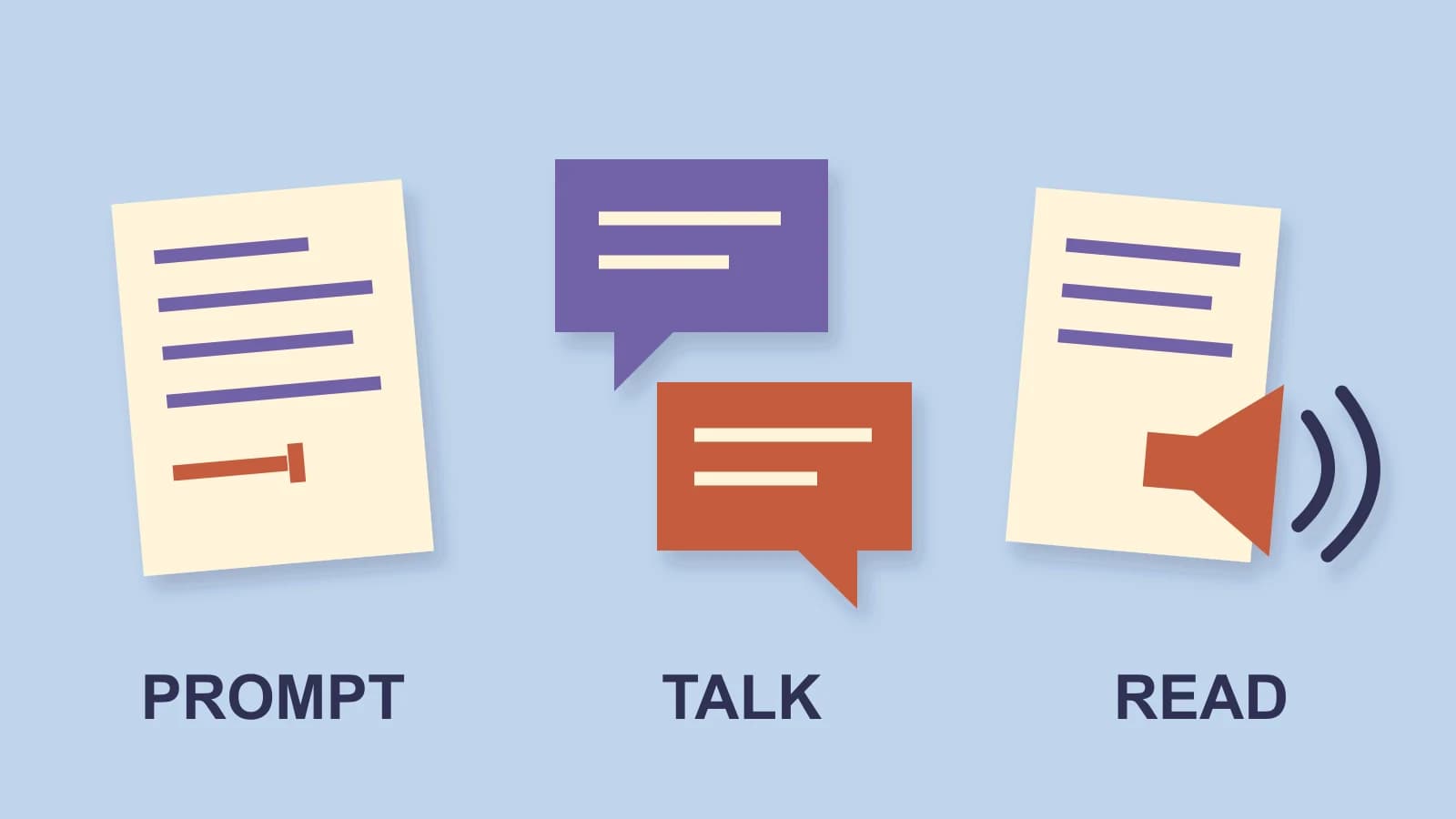
For Microsoft Copilot dictation, sign in with your eligible work or school account, select Start dictation in the prompt box, speak, then select Stop dictation and review the text. That writes prompt text; Voice starts a two-way conversation, while Read aloud plays an existing response.
Microsoft’s dictation instructions document that work/school route. Access depends on your account, subscription, region and rollout; a missing control does not automatically identify a broken microphone. Its voice overview distinguishes the three features and their account scope.
Documentation checked October 27, 2026. These are source-based procedures, and the scenario below is illustrative. We sell the optional Mac dictation app discussed in the final section and are not affiliated with Microsoft or Apple.
Choose the output before choosing a voice control
| You want | Choose | What to stop |
|---|---|---|
| Spoken words written into the prompt box | Start dictation | Stop dictation stops listening. |
| A live spoken exchange with Copilot | Start a new voice chat or the Voice control | Mute/pause listening, or end the voice session. |
| To hear a response Copilot has already written | Response More options → Read aloud | Pause or stop playback. |
The controls can sit close together, but their results differ. A transcript of a voice conversation is a record of that exchange, including Copilot’s replies. It is not the same object as the prompt text produced by dictation. Read-aloud begins with a response that already exists.
This is more specific than the general speech-to-text versus text-to-speech distinction. In Copilot, you must also identify whether an active conversation is listening and which account supplied the feature.
Dictate a prompt through the documented native route
Open Copilot in the browser or desktop app and check that the signed-in account is the work or school account you intend to use. In the prompt box, choose Start dictation. Allow microphone access if prompted, then speak your message.
Microsoft documents real-time transcription and punctuation commands such as “period,” “comma” and “new line.” Select Stop dictation when finished. Check the resulting words, especially names, dates and quantities, before using the prompt. The native guide identifies stopping and review as separate actions.
If you cannot find the control, establish the account and feature access first. Microsoft’s voice FAQ says voice features are being released gradually and describes licensing restrictions. Changing a Mac input device cannot make an account feature available.
Personal accounts need their own feature check. The overview labels dictation for work/school accounts, while it includes personal accounts for Voice. Its read-aloud table says work/school, but the dedicated read-aloud guide also names personal accounts. Follow the current guide and controls for the account you actually use; do not treat one missing icon as proof that every voice feature is unavailable.
End a Voice session deliberately
Use Voice when you want Copilot to answer aloud and continue a conversation. Microsoft’s Voice instructions describe starting a new voice chat, speaking, interrupting and asking follow-up questions. They provide Mute/pause and End voice chat controls. The overview describes the corresponding microphone control and X for ending the session.
Muting pauses listening; ending closes the voice session. Changing to another app is not the documented way to do either: the FAQ says a voice conversation can continue in the background. Use the visible session control when you want it to stop listening.
The CC control changes whether the live transcript is displayed. Hiding that text is a display choice, not a mute command. Likewise, stopping a response’s read-aloud playback is not a command to end a separate Voice conversation.
On Mac, start from the available Voice control rather than looking for a Windows shortcut. Microsoft’s current FAQ documents “Hey Copilot” on Windows desktop and describes Mac support as forthcoming. Its statement that Voice chat is available on Mac does not establish that the Mac has the wake-word feature.
One announcement, three different jobs
This is an authored scenario, not captured recognition output or a performed Copilot session. Suppose you are preparing an announcement for a community workshop.
| Stage | Your immediate job | Control |
|---|---|---|
| Prepare the request | Put “Draft a short workshop announcement” into the prompt box, then check the exact date and details you add. | Dictation for written prompt text, followed by Stop dictation and review. |
| Rehearse the delivery | Discuss how to explain the workshop and hear follow-up questions. | Voice for an active exchange; mute or end it when the rehearsal stops. |
| Listen to a draft | Hear the announcement Copilot has already returned. | Read aloud on that response; pause or stop the playback. |
The desired output changes at each stage. Hearing Copilot answer does not prove that you used prompt dictation. Seeing conversation text does not prove that listening has stopped. The date still needs checking whether you read it or hear it.
If the real task is writing a better technical prompt, the developer dictation guide covers context and exact syntax. Here, the decision is which Copilot service is operating.
Keep speech conversion separate from chat history
Microsoft’s current voice overview says that, for work/school dictation, speech goes to Microsoft for conversion and the dictation service does not store the audio or dictated text. That statement concerns the conversion service. It does not say that a later submitted Copilot conversation disappears.
Voice has separate audio-handling rules, including feedback-related temporary audio described in the work/school documentation. Personal Voice and conversation history have their own context. Apply a statement to the account and operation it describes; a dictation-service statement is not a general retention promise for every Copilot mode.
Microsoft’s chat-history guide documents revisiting conversations in Chats. It separately explains personalization based on previous chats. Stopping speech input, ending a voice session and managing stored conversation history are different actions.
When a separate Mac text-input route helps
If your goal is only to enter prompt text, the Mac’s own Dictation is another input route. Apple documents using it where the cursor accepts text; the Mac setup guide covers that setup. Keep Copilot’s native dictation when it supplies the text you need.
We develop and sell Paraspeech. Its released Mac 1.7.3, build 372 can supply new recognized text for a manual handoff. If you use enabled dictation history, copy the text from the menu-bar history and paste it into the intended editable prompt box. Inspect the destination and words yourself; this is a documented manual text handoff, not a performed Copilot insertion test.
History needs to be enabled for that Copy route; Privacy Mode clears and disables dictation history. Supported local speech needs an eligible Apple silicon Mac and a ready downloaded model. Intel uses eligible cloud-backed subscription models. Speech recognition, optional rewriting and any allowed cloud fallback are separate choices. See the current setup documentation for those controls.
A separate input app changes how the words are prepared. Once you submit text to Copilot, Microsoft’s account and chat processing still apply. This route supplies prompt text, not Copilot’s voice replies, response playback or account access.
Try a separate Mac text-input route if you want that dedicated input workflow across editable fields. It is optional when your existing native route already works.