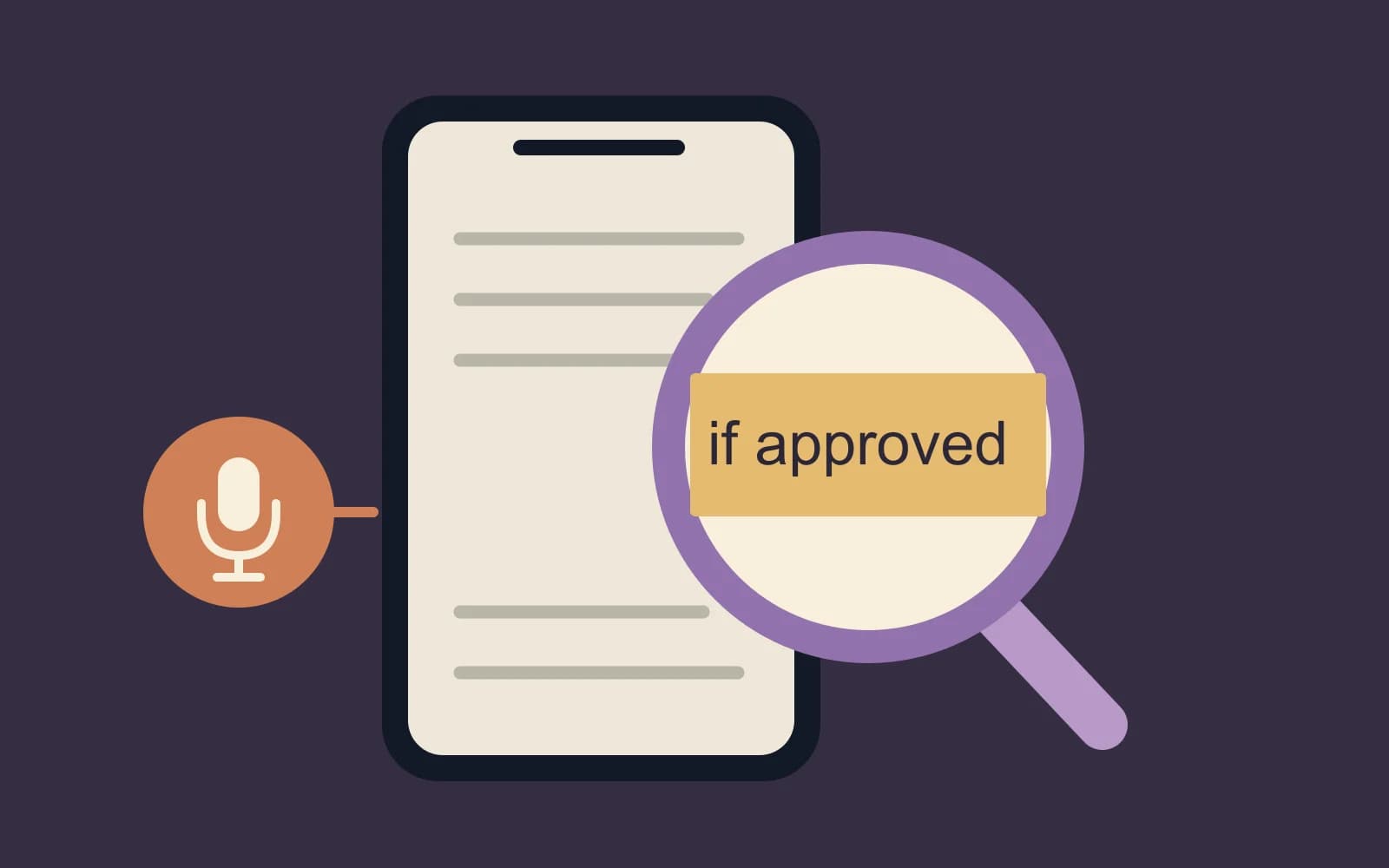
For Google Docs voice typing on iPhone, open the document in the Docs app, tap Edit and place the cursor where the words belong. Use the iPhone keyboard's Dictation button to enter text; turn on Suggest changes first if the revision should await review instead of directly changing the document.
Google documents the mobile editing controls and suggestion controls separately. The speech input comes from the keyboard. For the computer's Tools → Voice typing workflow, use the desktop Google Docs guide.
About this guide: We sell the voice keyboard discussed in the final section. We are not affiliated with or endorsed by Google or Apple. Documentation checked: November 11, 2026. The proposal below is a fictional editing exercise, not captured app output.
Choose a direct edit or a suggestion
Decide how the change should enter the shared document before you dictate it:
| Your task | Mode to use | What the revision means |
|---|---|---|
| Update wording you are authorized to change directly | Edit the document with editing access. | The replacement changes the document text. |
| Propose wording for someone to review | Open More and turn on Suggest changes. | The original remains until the suggestion is accepted. |
Google allows people with comment or edit permission to suggest changes. If your task is to propose a change, suggestion access may be enough; a different keyboard does not grant document permissions.
This choice matters even for a perfectly transcribed sentence. Directly replacing an agreed statement and proposing its replacement are different collaboration actions.
Select one sentence without replacing the paragraph
Suppose a shared proposal contains this paragraph:
The proposal is awaiting Maya's approval. We will send it on Friday. The budget remains unchanged.
You want to soften the unconditional commitment in the middle sentence. The replacement you intend to enter is:
If approved, we can send it on Friday.
The surrounding sentences explain what needs approval and preserve the budget statement. Replacing the whole paragraph would create extra work and could remove that context.
In the iPhone Docs app:
- Open the intended document and tap Edit.
- If the change needs review, turn on More → Suggest changes.
- Double-tap a word in the middle sentence, then move the blue selection markers to cover only that sentence. Google describes these selection controls in its iPhone editing guide.
- Check both ends of the selection before entering the replacement. Leave the preceding approval sentence and following budget sentence outside it.
For an addition rather than a replacement, place the insertion point at the intended boundary instead of selecting existing text. A document being open does not establish where new words will appear.
Enter the replacement with keyboard dictation
Apple's iPhone Dictation guide describes tapping the onscreen keyboard's Dictation button, speaking and tapping the button again to stop. You can also say “Stop dictation.” Typing remains available alongside Dictation, and features vary by language and region.
With the intended passage selected and keyboard Dictation available, speak the replacement sentence. Stop dictation before discussing the edit with someone nearby, then inspect the text that appeared.
Use the keyboard to correct names or punctuation as needed. This task does not require importing desktop Docs voice commands into the phone workflow: selection, document mode and review can stay under touch control.
If the Dictation button is missing, Apple documents Settings → General → Keyboard → Enable Dictation. Return to the intended passage after changing the setting. If text was added beside the old sentence rather than replacing it, use Undo, reselect the passage and correct it with the available keyboard input.
Review the change before you finish
The intended revised paragraph would read:
The proposal is awaiting Maya's approval. If approved, we can send it on Friday. The budget remains unchanged.
Check the meaning as well as the spelling:
- The approval is still pending. “If approved” does not say that Maya has already approved anything.
- Friday is conditional. “We can send” has replaced the unconditional “We will send.”
- The adjacent text survived. The approval context and unchanged budget remain in the paragraph, with no duplicated middle sentence.
For a direct edit, review the changed document text. Google provides Undo and Redo in its mobile editing controls if the most recent action needs reversing.
For a suggestion, finish the reviewed proposal with Done, as Google's iPhone suggestion instructions describe. Done is not acceptance. To review a suggestion, Google documents tapping its highlighted text, opening View comment, then choosing Accept or Reject. Keep that review decision separate from entering the words.
When a compatible voice keyboard fits
Start with Apple Dictation if it supplies the wording you need. Consider a dedicated keyboard when a specific recurring problem remains, such as correcting the same project names in shared documents.
Paraspeech Voice Keyboard is available for iPhone and iPad. Its current App Store listing requires iOS or iPadOS 17.0 or later and describes a Custom Dictionary for names and technical terms, plus Word Replacements for expanding recurring phrases during dictation. Those are vocabulary and wording controls to compare when the same corrections recur; they do not decide whether your Docs change should be an edit or a suggestion.
The iPhone product page limits the keyboard route to apps that support custom keyboards. Apple's platform documentation also allows apps to exclude them and requires system keyboards in certain fields. Check that the keyboard is offered in the actual Docs text field you need. Public iPhone availability does not establish a tested Google Docs integration.
View the iPhone voice keyboard if its documented dictionary or phrase controls address your recurring revisions. Keep the selection, suggestion mode and final review in Docs. For a broader comparison of field eligibility across apps, use the iPhone dictation app guide.