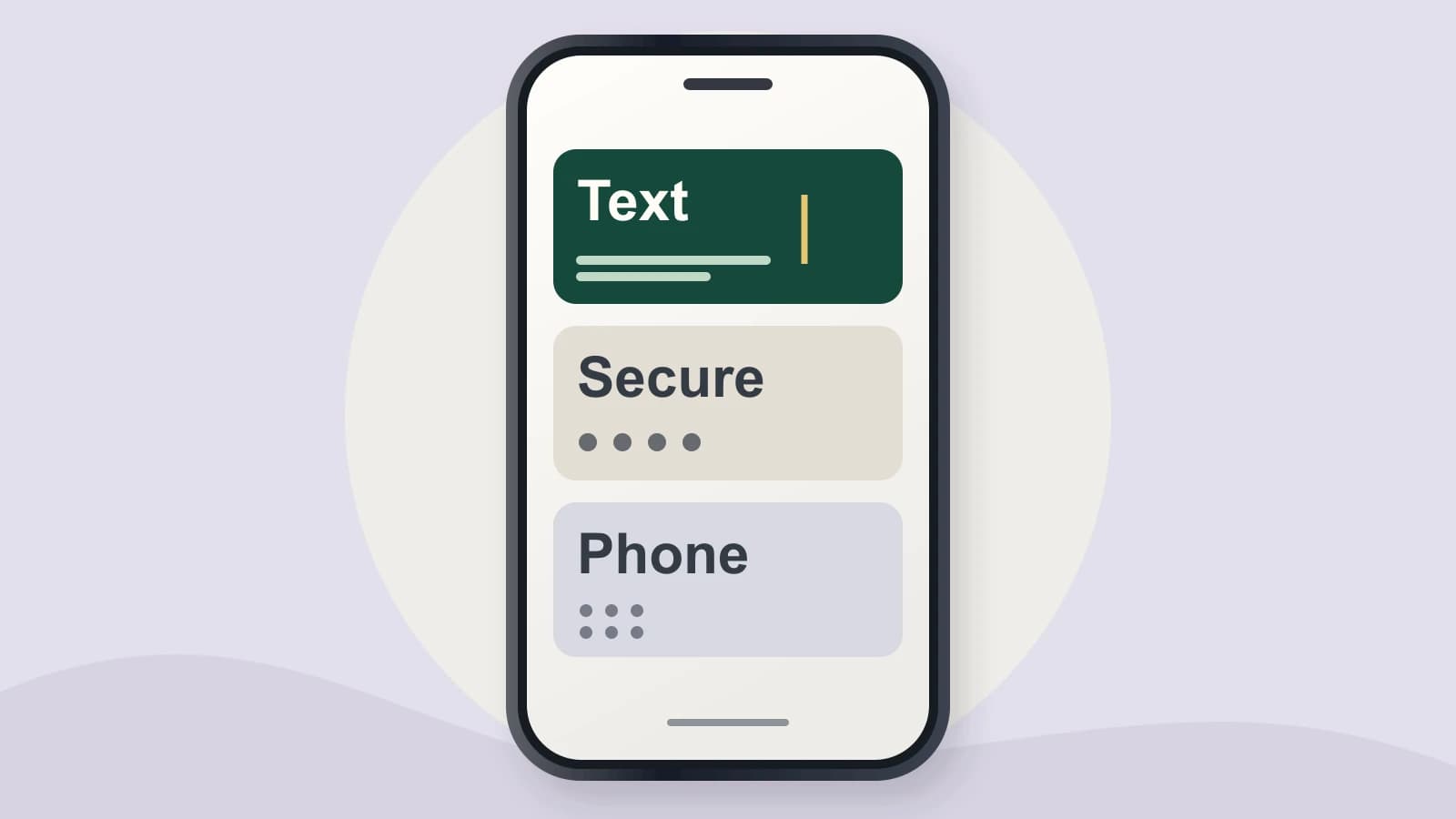
Choose an iPhone dictation app by the writing need it solves and where the words must appear. Start with Apple’s built-in Dictation. Compare a dedicated keyboard for a specific documented feature, such as a dictionary for recurring names or phrase expansion during dictation, after checking that your required fields permit custom keyboards.
About this comparison: We sell Paraspeech, a voice keyboard discussed below. This guide compares linked documentation and published app information. Paraspeech is not affiliated with or endorsed by Apple.
Last checked: October 27, 2026. The field example is illustrative; this article does not report hands-on app tests or an accuracy ranking.
Start with the writing you already need to do
For a message, a note or a paragraph in an editable field, try Apple Dictation first. Apple documents placing the insertion point, tapping the onscreen keyboard’s Dictation button and speaking. You can combine typing and Dictation while the keyboard remains open. Availability and features vary by language and region. See Apple’s iPhone Dictation guide.
If that route handles your actual writing, keep it. For frequently reused wording, Apple also provides Text Replacement: save a phrase and enter it with a typed shortcut. Apple’s shorthand guide describes that native option. If tapping a few keys serves the task, a new dictation app is unnecessary.
Decide whether the result you need is editable text or a recording you can revisit. A spoken paragraph intended for a draft is still a text-entry job. If you need to retain the sound and return to particular passages, choose a recording-and-transcript workflow with those capabilities. The Apple Notes transcription guide covers that separate job and its device and language requirements.
Three fields in one app can allow different keyboards
Imagine a form with Trip notes, Account password and Contact number. This is an authored example applying Apple’s documented rules, not a capture of a real app. Assume the app permits third-party keyboards and configures the fields as shown:
| Field in the example | Field configuration | What that means for a custom voice keyboard |
|---|---|---|
| Trip notes | Ordinary editable text | The app can offer the custom keyboard for entering the note. |
| Account password | Secure text entry | iOS temporarily shows the system keyboard instead. |
| Contact number | A phonePad or namePhonePad field | iOS shows the system keyboard. |
Apple’s custom-keyboard documentation specifies these exclusions. It also says the custom keyboard returns when the user moves from secure entry to a non-secure field.
That changes the buying decision. If you want to dictate trip notes, a compatible custom keyboard remains a candidate. If your essential requirement is to use that keyboard inside the secure field, buying a different custom keyboard will not change the field’s rule. Use the input that field provides.
A number in a field does not automatically make it a phone-pad field. The rule concerns how the app configures the input, not the label printed above it. A quantity, price or reference-number box is not established as excluded merely because you type digits there. Check the actual field you need rather than treating every numeric entry as the same case.
These are rules for third-party keyboards. They do not establish whether Apple Dictation is offered in every system-keyboard field; use the controls available in the particular field.
Check the required app as well as the field
Apple also lets an app reject third-party keyboards throughout the app. In that case, the custom keyboard will not appear there, including in otherwise ordinary text fields. That is a different boundary from one secure field temporarily using the system keyboard. Both come from Apple’s platform documentation.
For an app you must use, make this distinction before comparing recognition features:
- Only some fields use the system keyboard: Decide whether the custom keyboard covers the writing you actually want to dictate. You can use the field’s system input for the remaining entries.
- The app excludes third-party keyboards entirely: A custom-keyboard product cannot be your direct text-entry route in that app. Keep the system or app-provided input that serves the task.
An attractive transcript shown inside a vendor’s own app does not answer this compatibility question. It shows a text result in that app; it does not establish that its keyboard can be selected in your required destination. A generic “iPhone compatible” label is therefore too broad for this decision.
If you already use a custom keyboard, Apple documents switching keyboards by touching and holding the Emoji or Switch Keyboard key, then selecting a keyboard. See Add or change keyboards on iPhone. Selection in one field establishes only that context, not coverage of the whole app.
When a dedicated voice keyboard fits
Paraspeech Voice Keyboard is one dedicated option for writing by voice on iPhone and iPad. Its iPhone page describes using the keyboard in apps that support custom keyboards, then reviewing the text before sending. The published App Store listing requires iOS or iPadOS 17.0 or later.
After field eligibility, choose by the recurring writing problem. That same iPhone listing describes two specific features to compare:
- A name or technical term needs repeated correction: Compare the documented Custom Dictionary for adding names, technical terms and jargon. Consider that vocabulary control when the same terms keep needing correction in your drafts.
- You repeat the same full sentence: Compare Word Replacements, described as expanding shortcuts into full phrases during dictation. This addresses a saved-wording need when you want a spoken cue to supply the longer phrase.
For example, a desired replacement could associate the cue “delivery update” with “Please send the revised delivery window.” The cue supplies recurring wording while the surrounding draft can vary. This is an invented requirement example, not captured app output or a verified replacement rule.
If Apple Dictation or Apple’s typed shortcuts already meets the way you reuse wording, keep that route. Compare a dedicated keyboard when its documented dictionary or dictation replacement feature addresses the specific repeated work you want to change.
Apply the field and app rules above to Paraspeech as you would to another custom keyboard. Those features do not make an excluded field compatible. If a required destination rejects custom keyboards, choose an input route supported by that destination.