Google Meet transcription saves the meeting’s spoken words as a Google Docs file. On a computer, an eligible participant starts it from Meeting tools → Transcribe → Start transcription, then confirms Start. The document is saved to the meeting organizer’s Drive; the transcript email and Calendar event can also lead you to it. A missing button, a file still being processed and a link you cannot open are three different problems. Google’s transcript instructions
Last checked: September 21, 2026. Instructions are based on Google’s documentation; this is not a report of a tested meeting.
Check the account and meeting role first
Google’s administrator guide lists transcription for Business Standard, Business Plus, Enterprise Standard, Enterprise Plus and Education Plus. Check the edition attached to the account hosting the meeting before troubleshooting your browser. Joining a Meet call does not, by itself, establish that the call has native transcription. Google’s availability and administrator settings
The organization also needs Drive and Docs enabled, permission to create Drive files and sufficient storage. Both organizational storage and the meeting host’s Drive capacity matter. If an administrator changes a setting, Google says propagation can take up to 24 hours, though it is usually quicker. Rejoining immediately may not settle whether the change worked. Google’s administrator requirements
Then check who is allowed to start the transcript:
- Host management on: the host or a co-host must start it.
- Host management off: someone in the host’s domain can start it. This does not grant an external guest the same control.
Enabling the feature for an organization does not start a transcript in every call. Look for the active transcript indicator. Google also documents automatic-start settings; do not assume either that every meeting records a transcript or that nobody has started one yet. Google’s host-control guidance
Start and stop the native transcript
On a computer, join the meeting and open Meeting tools at the bottom right. Choose Transcribe, select Start transcription, then confirm Start. Everyone sees a transcript icon at the top right when transcription is active. Google’s start instructions
Your organization may require participants to respond to a consent prompt when capture begins or when they join an already captured meeting. Follow that prompt and the meeting’s recording policy; availability of a control is not a substitute for permission to use it. Google’s consent controls
To finish, open Meeting tools → Transcribing → Stop transcription and confirm Stop. Transcription also stops when everyone leaves. There is no pause-and-resume control: stopping and starting again creates a separate transcript file. If you expected one document for the entire call, look for multiple files before concluding that part of the conversation is missing. Google’s stop and restart behavior
The transcript covers spoken words, not the meeting chat. Google directs users who need a record of chat messages to its meeting-recording instructions. Captions are a separate feature; seeing captions during a call is not evidence that a saved transcript was started. A generated summary is another distinct output, so do not substitute one for the original wording you need to check.
Find the document in Drive, email or Calendar
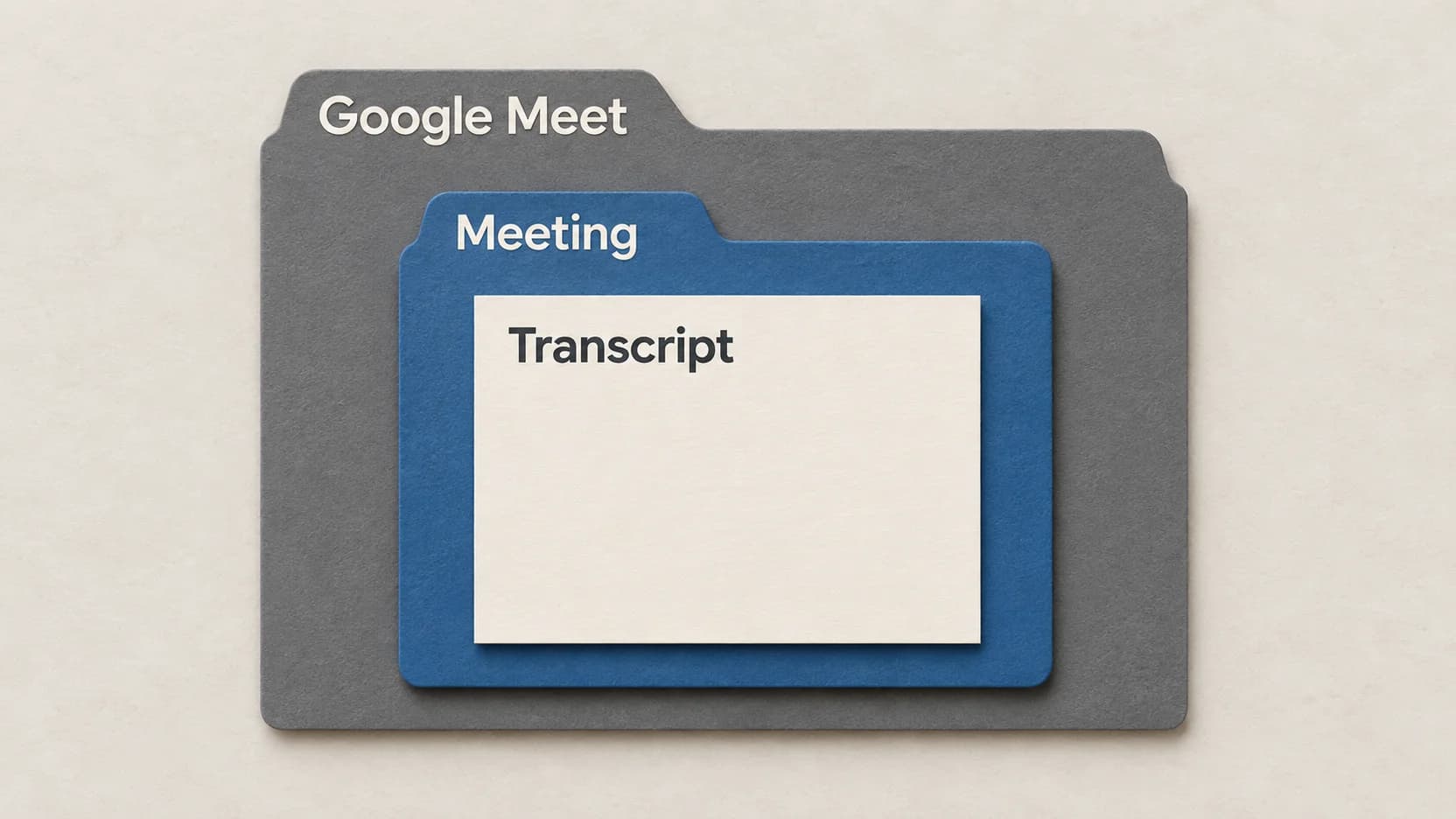
For current transcripts, Google’s user help names this location in the meeting organizer’s Drive:
Google Meet → the meeting’s subfolder → transcript document
Google documents a migration starting in July 2026: the old Meet Recordings folder becomes Legacy Meet Recordings inside Google Meet. Previous transcripts remain there; new ones go into meeting-specific subfolders. Some administrator help still refers to the older folder name, so use the dated user guidance when the two instructions differ. Google’s current folder and migration guidance
If you did not organize the meeting, start with a link rather than searching your own Drive for the organizer’s folder:
- The transcript email goes to the host, co-hosts and the person who started transcription after the meeting ends. Longer meetings take more time to process.
- The transcript is linked from the meeting’s Google Calendar event. Google’s admin guidance qualifies this for a meeting associated with an event that takes place during its scheduled time.
- The organizer can search Drive for transcript, which appears in the file name, and match the result to the meeting title and time.
Google says availability can take up to 24 hours. A missing email immediately after the call does not establish that transcription failed. Transcript delivery and search
An invitation is not universal document access
Google’s user help says invitees in the host’s organization can open the Calendar attachment, with a tighter rule when there are more than 200 internal invitees: access is limited to the host, co-hosts and the person who started transcription. Do not assume that external guests have access merely because they received the meeting invitation. Google’s attachment-access rules
If a link says access denied, first check which Google account is open. If it is the intended account, ask the organizer to check the document’s actual sharing permissions. Viewing, editing and downloading are different permissions; the link’s existence proves none of them for your account.
Match the symptom to the right check
| What you see | What to check next |
|---|---|
| No Transcribe control | Confirm the host’s supported edition, organizational setting and your meeting role. Ask the host or administrator to check those before changing browser settings. |
| The feature was enabled, but no transcript is active | Ask an authorized participant to start it and confirm the transcript icon appears. An enabled organization setting does not prove capture began. |
| No document shortly after the meeting | Allow processing time, then use the transcript email, Calendar event or organizer’s Drive search. Check meeting-specific folders and legacy storage separately. |
| A link exists but will not open | Check the signed-in account and ask the organizer about that document’s sharing. Re-recording the call cannot repair its permissions. |
| Only part of the meeting appears | Check whether transcription was stopped and restarted, which creates separate files. Do not assume the missing words can be recovered from captions. |
When you have the transcript, review the passages you intend to quote. If speaker labels affect your interpretation, this guide to speaker diarization explains why separating speakers and identifying people are different tasks.
A separate Mac recording when the native route does not fit
If the native feature is available and its Google document meets your needs, use that route first. It keeps the transcript connected to the meeting’s existing Google workflow. If an authorized recording already exists, use a saved-file transcription workflow instead of making another recording.
A separately authorized Mac capture is another option when you need to create your own transcript. On supported Apple Silicon Macs with capture permissions and ready local speech and speaker-label models, Paraspeech Meeting Mode records microphone and system audio into a meeting workspace with playback and a speaker-aware transcript. It does not enable Google’s native transcription or change access to a Google document. This is a documented capability, not a compatibility test of your Meet, browser or headset setup. Paraspeech documentation
Before relying on that route, agree on the capture with participants and follow the organization’s policy. Run a short permitted sample in the actual setup: speak through your microphone, have a remote participant speak, then check that playback contains both sides. This is a proposed verification step, not a test performed for this article. If organizational policy or a participant’s refusal prevents recording, choose an agreed alternative such as written notes.
Meeting Mode automatically attempts a cloud-generated summary after you stop; it requires internet. Review the transcript and speaker labels before relying on a summary; do not treat this workflow as a promise of fully offline meeting notes. This guide is published by Paraspeech and is not affiliated with Google.