Japanese speech to text can give you a draft transcript of a saved recording. To make that draft useful for an interview, lecture or project note, confirm proper-name spellings from written context and replay the complete passages you plan to quote.
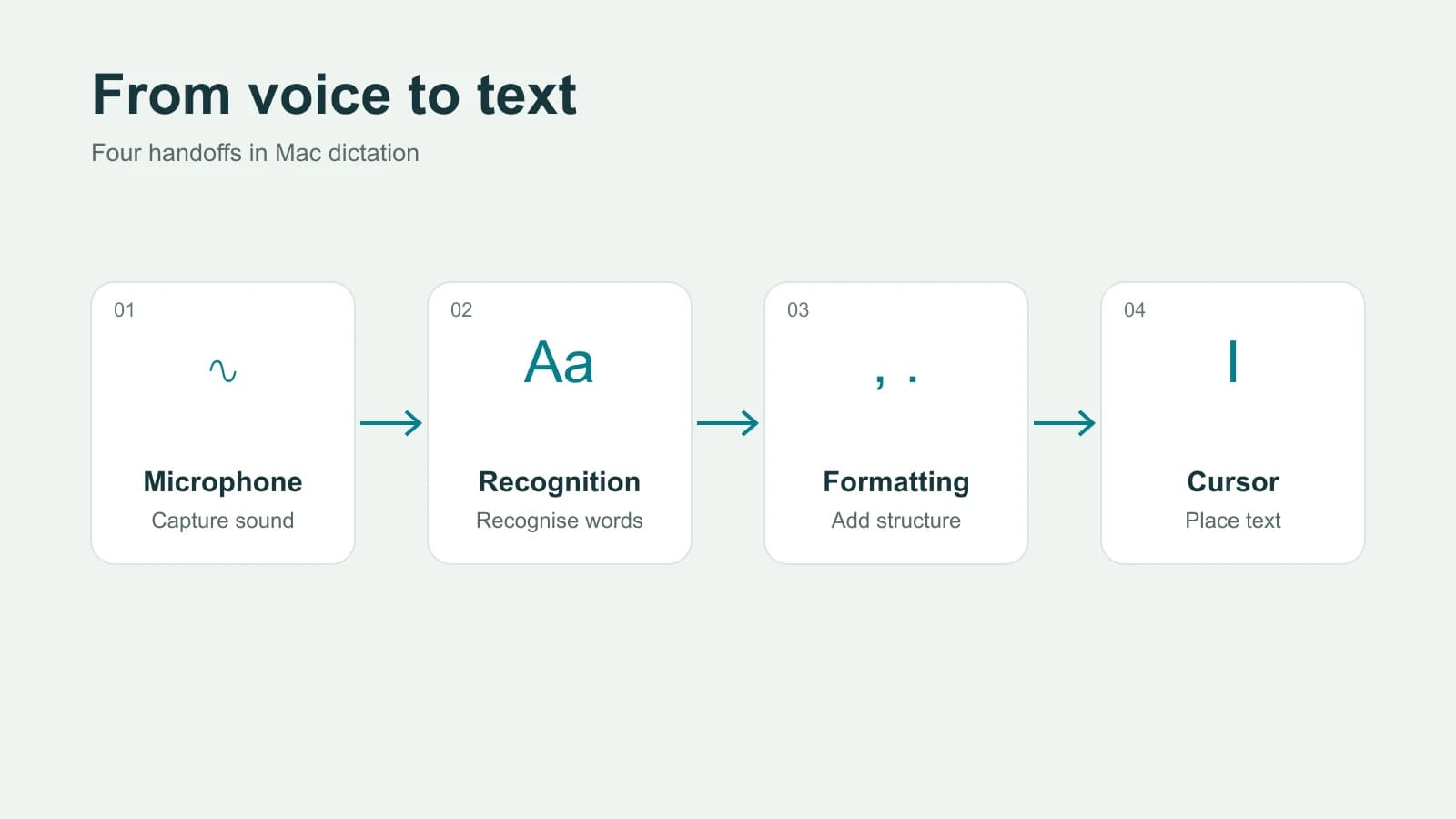
On a supported Apple Silicon Mac, Paraspeech's prepared local file route can transcribe Japanese recordings. The useful output is a source-language transcript you can check, rather than an English rewrite that hides an uncertain name. The example below shows exactly how to record those checks.
Transcribe a Japanese recording
Use a Mac with macOS 14 or later, eligible Paraspeech access and a downloaded, ready model compatible with the file route. Local models require setup before offline use; Intel cloud-backed dictation is a different route. The setup documentation covers the general requirements.
The model visible in Settings depends on how the app was configured. Use this map before importing a Japanese recording:
| Your starting state | What it means for this file |
|---|---|
| Fresh language-first setup with Japanese only | Select Japanese under Set your language, without adding a second language. If Use online processing is shown, leave it off for the local route. The released app's default speed-oriented selection can choose the dedicated Japanese model; complete its download before use. |
| Dedicated Japanese model already active or installed | Check that it is ready. The released Settings list includes the Japanese model when active or already installed; it is not a guaranteed choice in every fresh model list. |
| Japanese plus another language in the recording | Choose broader transcription with coverage for the actual languages. Adding a language changes the onboarding route; the Japanese-only path does not establish reliable switching within mixed speech. |
The released Japanese file backend accepts audio files. The dedicated Japanese recognizer does not apply dictionary boosting. Adding a name to a dictionary is therefore not a substitute for verifying its written form after transcription. These are released-source capability checks, not a Japanese recognition benchmark.
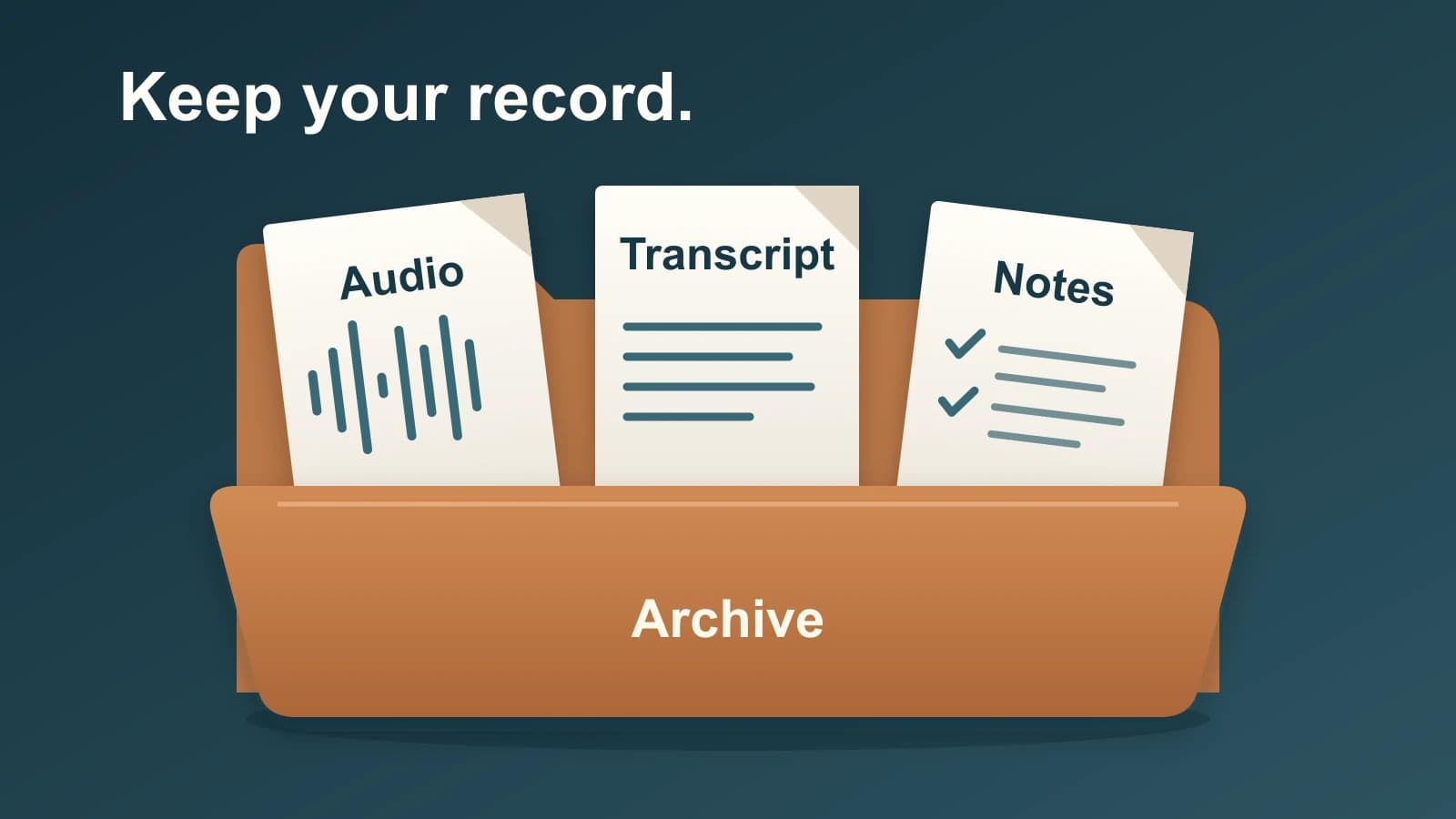
Open Transcribe File, choose Choose Files…, then Add Files, or use the file drop area. After processing, use Copy to place the transcript in a working document. Keep the original audio with that document. Save VTT is available when you need the per-file caption output; check its words and timing before use.
For the broader import and output choices, use the Mac audio-file guide. For a collection containing several languages, use the multilingual transcription guide.
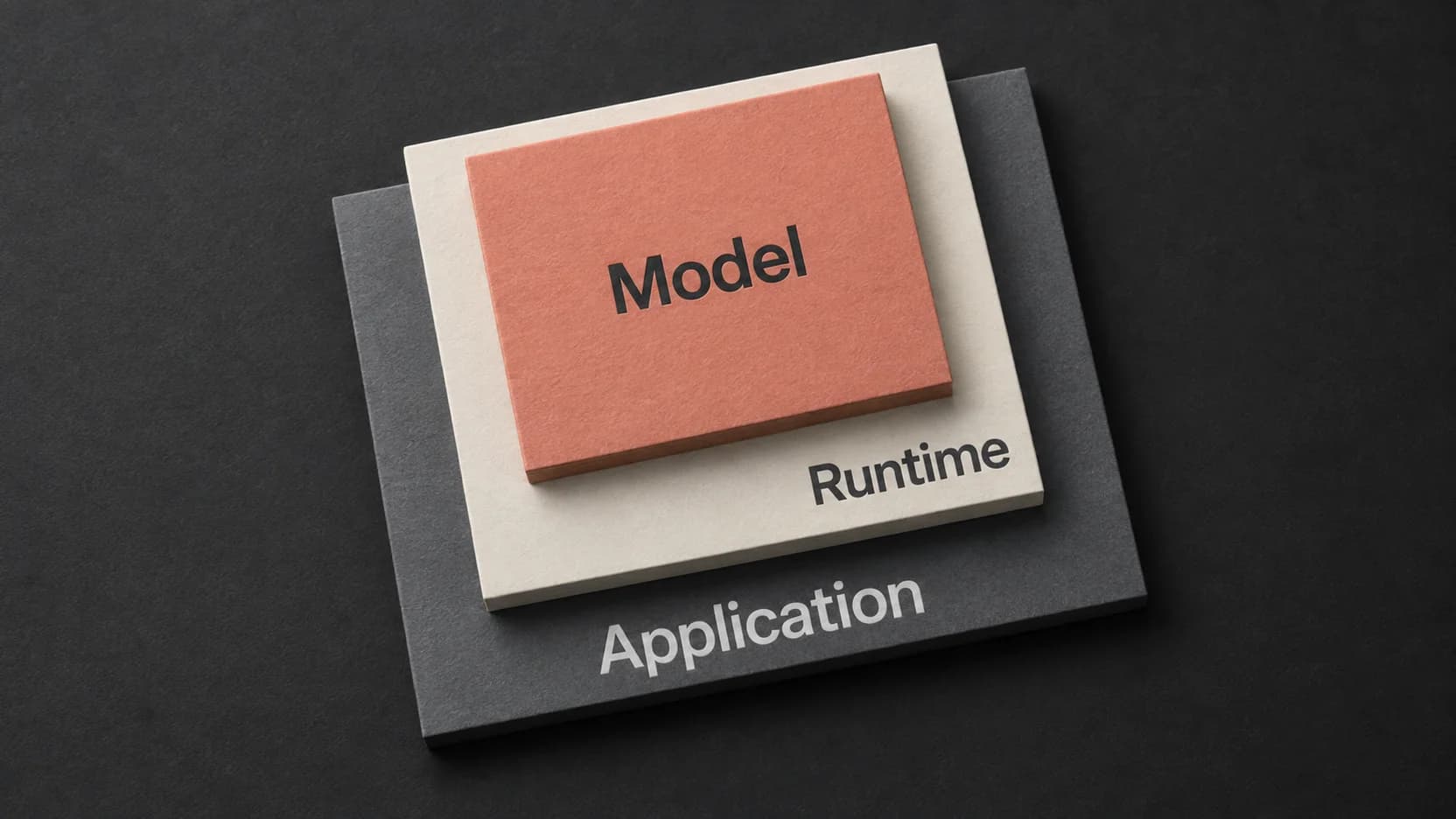
Download Paraspeech to prepare this Japanese file workflow if its supported Mac route fits your recording. Finish model setup and confirm eligible access before relying on it for a longer file. Speech recognition and optional rewriting have separate processing choices; a local speech model does not establish that every subsequent operation is local.
Review the source transcript and confirm names
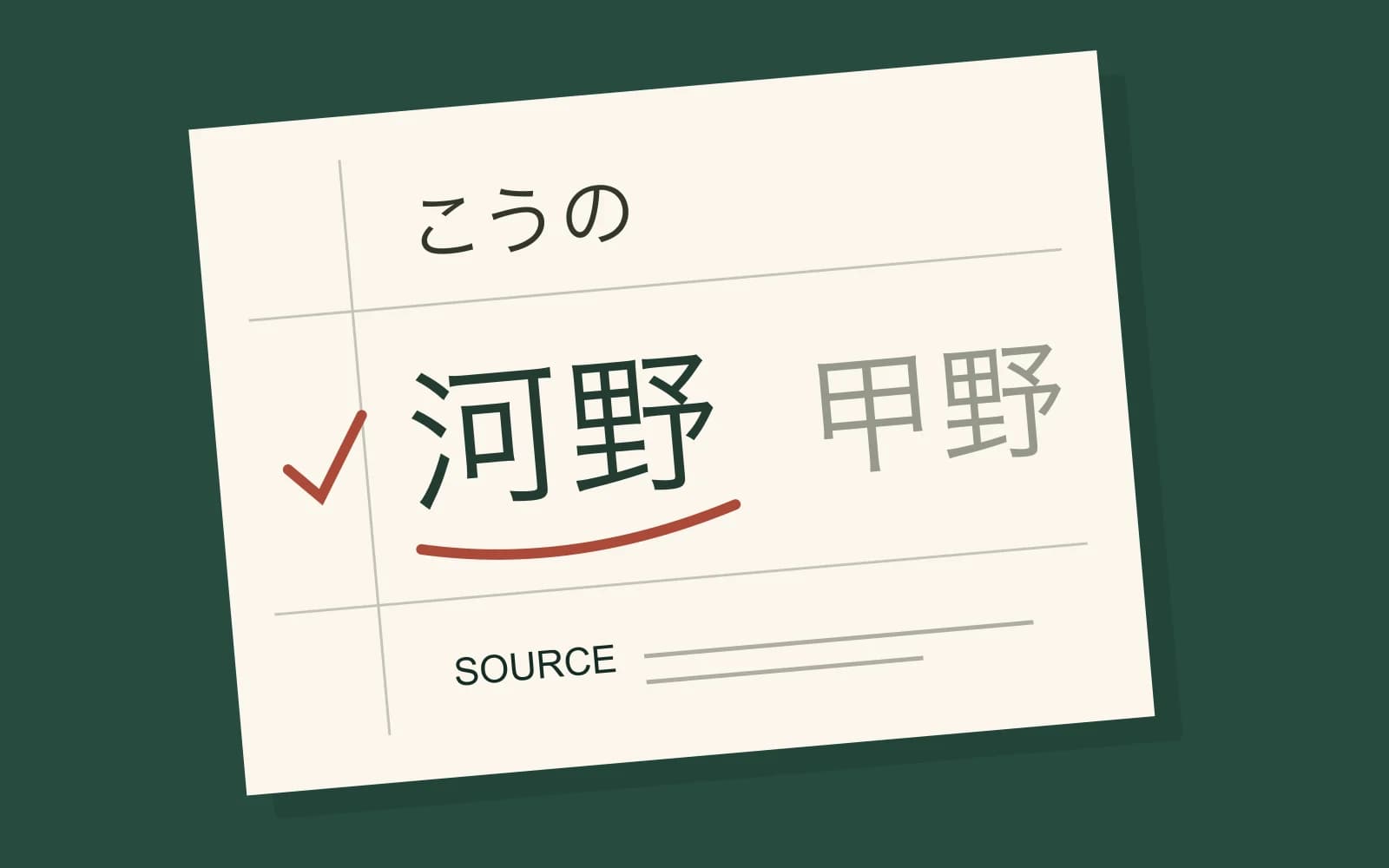
Keep an unchanged transcript copy beside your corrected version. In your review notes, record the spoken reading, the spelling you can confirm and the material that confirms it. If the evidence is missing, retain the reading or mark the uncertainty instead of choosing an attractive-looking kanji form.
Here is a fictional source passage and its supplied context. Everything in this example, including the confirmation notes, is authored to demonstrate review. It is not a recording, recognized output or a report of an actual person's confirmation.
Working transcript, with an unresolved name:
こうのさんが回帰分析の結果を説明しました。
「追加データを確認してから、来週までに結果を共有します。」

Supplied context for this fictional example:
Agenda: 河野美咲 — analysis lead
Slide heading: 回帰分析
Speaker confirmation: surname written 河野; reading こうの
The first line says that Kōno explained the regression-analysis results. The quoted sentence says the results will be shared by next week after checking the additional data. That condition changes the commitment you should record.
| Entry | Spoken reading and unresolved form | Supplied confirmation in this example | Reviewed wording and quote context |
|---|---|---|---|
| Proper name | こうの; 河野 and 甲野 are possible written candidates in the working notes | The fictional agenda and speaker confirmation identify 河野, read こうの | Write 河野さん. The introduction identifies the speaker, so keep it beside the quoted statement. |
| Domain term | かいきぶんせき; a phonetic note alone leaves the intended term unresolved | The slide heading supplies 回帰分析, consistent with the surrounding discussion of results | Keep 回帰分析. Confirm the term rather than replacing it with a general phrase such as “data work.” |
| Exact quotation | ついかデータをかくにんしてから、らいしゅうまでにけっかをきょうゆうします | The fictional source passage includes both the condition and the planned timing | Retain 「追加データを確認してから、来週までに結果を共有します。」 with the preceding speaker identification. |
In a real transcript, use the person's supplied signature, participant list or direct confirmation for the name, and the actual presentation or project material for a technical term. A participant list can suggest a candidate; if it does not establish who spoke or how the name is written, the entry remains unresolved.
The corrected example becomes:
河野さんが回帰分析の結果を説明しました。
「追加データを確認してから、来週までに結果を共有します。」
The name correction changes the written identity without rewriting the quoted promise. Keep your correction note so another reader can see why that spelling was chosen.
Carry the quote's condition into the final note
A note saying “Kōno will share the results by next week” drops the condition about checking additional data. If the task is an exact quotation, preserve the speaker's words and the surrounding context needed to interpret them. If you are writing a summary, include the condition explicitly and keep it distinguishable from quoted text.
For example, this is an authored summary, not a quotation: “Kōno plans to share the results by next week after checking the additional data.” The original Japanese sentence remains the reference for checking that summary or making a later translation.
When a name or passage cannot be resolved, leave that specific uncertainty in the working transcript. You can still use confirmed parts of the recording while withholding an uncertain attribution or quotation. The finished record should make three things recoverable: the original audio, the reviewed source words and the reason for each material correction.