Speech-to-text in Chrome on a Mac can come from Chrome’s own Talk to Type, an extension such as Voice In, or Mac dictation. Start with Talk to Type if its text refinement and data handling suit your task. Choose an extension for browser-specific controls you need. Choose Mac dictation when the same writing session moves between web fields and other apps.
The useful question is whether your chosen route puts the right words into the field you actually use. A working microphone, a recognized sentence and text inserted into a web editor are three separate results.
Last checked: October 20, 2026. This guide uses official documentation and an invented form example. It does not report installed-extension or native dictation tests.
About this guide: Prepared by the Paraspeech team. We sell one of the products discussed. We are not affiliated with or endorsed by Google or Dictanote, the maker of Voice In. Product details come from the linked sources.
Check Chrome’s own Talk to Type first
Google now documents Gemini-powered Talk to Type in desktop Chrome, including macOS. It requires Chrome sign-in, microphone access and a regular window rather than Incognito. For the first use, click in a text field, right-click and choose Talk to Type; later, the Mac shortcut is Option + Space. Finish with Done. Google’s Talk to Type guide
This route cleans up and formats speech. Google also documents changing highlighted text through spoken instructions, although those text changes are not yet available in Google Workspace apps. First-use activation requires opting in; Google says the feature collects voice recordings, typed words and page details. Read that disclosure before choosing it for the material you write.
If your entire task is writing a Google document, start with the separate Google Docs Voice Typing guide. That document’s Tools → Voice typing feature and Chrome’s Talk to Type are different controls.
Choose an extension for its specific controls
Voice In is worth testing when you want spoken page commands alongside dictation. Its guide documents “scroll down” to move the page and “full stop” to insert a period. In a long web form, those controls let you combine writing with a specific navigation command. Voice In’s setup and command guide
To dictate, place the cursor in a text box, click Voice In’s toolbar button, speak, then click again to stop. Check its command list for your language and use the actual form before committing to the extension.
Use its official setup link to reach the Chrome Web Store listing. Review the publisher and requested access before installation. Avoid choosing from the name alone: an extension that transcribes a recording into its own document may not insert live words into your current form.
Voice In says it works inside the browser and requires an internet connection. Its statement that dictated audio and text do not reach its own servers does not establish offline operation. Do not treat “Chrome extension” as a processing-location guarantee. Voice In’s scope and internet requirement, its data-handling statement
| Your need | First route to consider | Check before choosing |
|---|---|---|
| Refine text in Chrome | Chrome Talk to Type | Cleanup and disclosed data handling |
| Dictate with spoken page commands | Voice In | Your command, language and web editor |
| Use Chrome and other Mac apps | Mac dictation | Field support and processing mode |
Give the chosen route the access it needs
For an extension, site access controls where it can read or change a page. In Chrome, open Extensions → Manage extensions → Details for that extension and inspect its site access. Google documents selected-site and broader access choices. If you have limited access to particular sites, confirm that the form’s domain is included before diagnosing recognition. Chrome extension access controls
Microphone access is a different boundary. Chrome’s Settings → Privacy and security → Site settings → Microphone lets you inspect allowed or blocked sites and choose the input device. macOS can separately ask whether Chrome may use the microphone. Follow the actual permission prompt; a work or school administrator may control these settings. Chrome’s microphone instructions
Use the controls for the route you chose. A Mac dictation app has its own capture and insertion permissions; granting a website microphone access does not configure that app. Start one dictation route at a time so its listening state and output remain identifiable.
Separate recognition from insertion in your real form
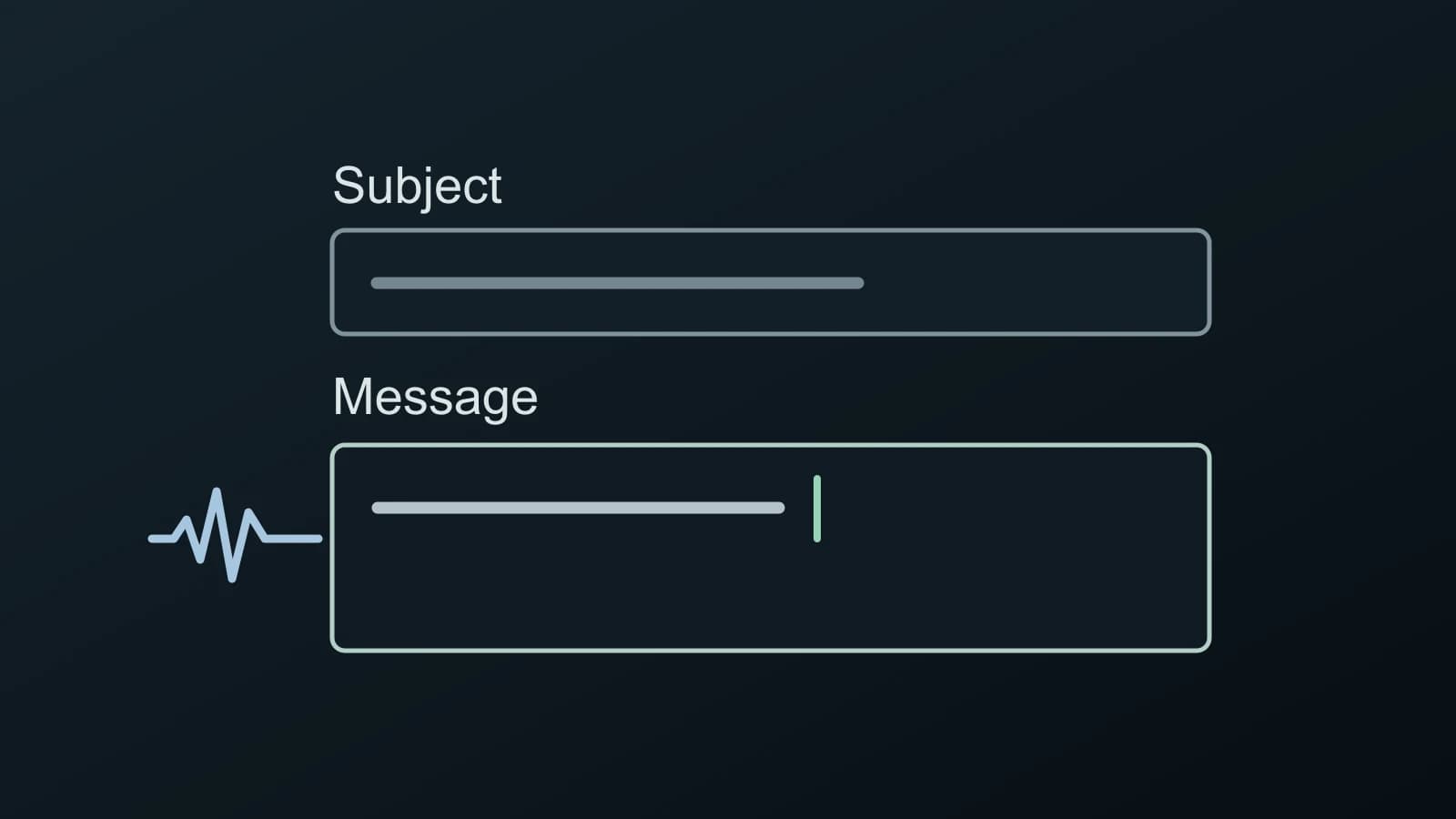
Here is an invented example, not an observed product result. A web form has a short Subject field and a richer Message editor. Use harmless draft content:
Please reserve 18 seats for Nia Chen on 6 November. Do not send the invitation yet.
Speak the same content into the Subject field and the Message editor separately, stopping capture before moving between them. Keep the draft unsent. Check the name, number, date and negative instruction, then make one small correction in the destination.
Suppose the simple field receives words, while the Message editor stays empty. That result would show that speech can become text in this setup. It would direct the next investigation toward the richer editor, its active cursor and the extension’s access or supported-site instructions. Repeatedly changing microphone settings would not test that boundary.
If neither field receives words, check the chosen route’s listening state, microphone, language and permissions first. If text appears in the wrong field, stop capture and put the cursor in the intended destination before restarting.
Then test an edit separately. Highlight 18 and replace it with 20 using the chosen tool’s documented control. Speaking “change 18 to 20” while nothing is selected could simply add those words to a dictation field. Decide whether you need transcription, spoken editing, or both; do not infer one from the other.
Keep the route that completes both fields and the correction with acceptable effort. If a particular editor remains unsupported, a deliberate copy-and-paste step may fit occasional use. For a form you fill repeatedly, that extra step is a concrete reason to try a different route.
Use Mac dictation across Chrome and other apps
For Mac input without a browser extension, Apple Dictation is the built-in starting point. Keep it if it handles your fields and chosen language. A dedicated Mac app becomes relevant when you need its specific output or processing controls across those writing destinations.
Paraspeech supports macOS 14 or later. Its released Mac workflow can insert text into many editable fields with Accessibility permission. Unsupported fields may require a clipboard handoff. Paraspeech is a Mac app used alongside Chrome; this guide does not establish compatibility with your particular web editor. Its documentation describes Transcription Only, which skips the AI rewrite, and App Exceptions, which can select a different output for Chrome. Other normalization can still occur.
Local speech needs a supported Apple Silicon Mac and a ready downloaded model. Local rewriting has separate model and access requirements in the direct-download app. Intel uses eligible cloud-backed subscription models. Cloud speech sends audio, and cloud rewriting sends text; eligible online dictation can temporarily use cloud processing if local speech is unavailable. Privacy Mode blocks cloud transcription and rewriting for dictation. The local and offline guide explains the scope.
To compare this route, download Paraspeech, choose Transcription Only, inspect Chrome’s App Exception, and use the two-field draft above. Review the inserted text before submitting the form. Choose the route that handles your actual fields and the processing you intend to use.