About this article: Prepared by the Paraspeech team. We sell one of the products discussed. Product information comes from the linked sources; any hands-on findings are identified separately.
Slack huddle transcription starts with native AI notes. On desktop, open the huddle, click AI notes: Off, choose Start AI notes & transcription, then confirm Start notes. After the huddle, open the notes canvas in its thread: the transcript is embedded there. It does not appear in Slack search results, so an empty search is not evidence that no transcript exists. Source: Slack's huddle notes guide.
Last checked: September 28, 2026. Controls and availability below come from Slack's official documentation; this guide does not report a hands-on huddle test.
Check whether this huddle can use AI notes
Slack lists AI huddle notes as available to members on paid plans, excluding guests. It also says AI notes cannot be used in a huddle that includes external people or guests. A member's own eligibility therefore does not settle whether a particular conversation qualifies. Check who is participating before depending on an automatic transcript. Slack availability and participant restrictions.
For an eligible huddle, Slack is the first place to start when the team wants its record in the existing conversation. If the discussion includes an external collaborator, agree on an allowed way to document it before proceeding. Do not assume another participant can enable AI notes simply because they have a different role.
Start notes deliberately, or check the channel setting
On desktop, use AI notes: Off → Start AI notes & transcription → Start notes inside the huddle. On mobile, open the three-dot menu at the bottom of the huddle, tap Start AI Notes, then Start Notes. Slack documents a confirmation banner on mobile. Desktop and mobile controls.
Someone normally needs to start notes. A channel can also be configured to start them automatically for every huddle: on desktop, open the channel name, choose Settings, then Edit next to Always start AI notes. Select the automatic-start option and save. This changes the channel's future huddles, so use it only when that is the intended team policy. If the option is missing, ask an owner or administrator; Slack says administrators can restrict access to this automatic-start feature. Automatic channel notes.
Slack notifies everyone in the huddle when notes start, stop, or are canceled. Treat that as a visible status notice. Arrange any required permission to record before starting; the notification alone does not establish everyone's consent.
Pause transcription without canceling the record
On desktop, open AI notes: On and select Stop AI notes to pause. Use Resume AI notes & transcription to restart. On mobile, the corresponding controls in the AI notes banner's three-dot menu are Stop Transcription and Resume Transcription. Slack says anyone in the huddle can stop, resume, or cancel notes. Pause and resume controls.
Delete AI notes & transcription is a separate desktop action, followed by Delete and cancel. On mobile it is Delete Transcript, followed by Delete and Cancel. Use cancellation only when that is the intended outcome; it is not a troubleshooting reset for notes you want to keep. Slack describes pause and cancellation as controls over what is transcribed and included in the canvas. Do not expect a paused interval to supply source text later. Cancellation controls.
Find the transcript in the huddle thread
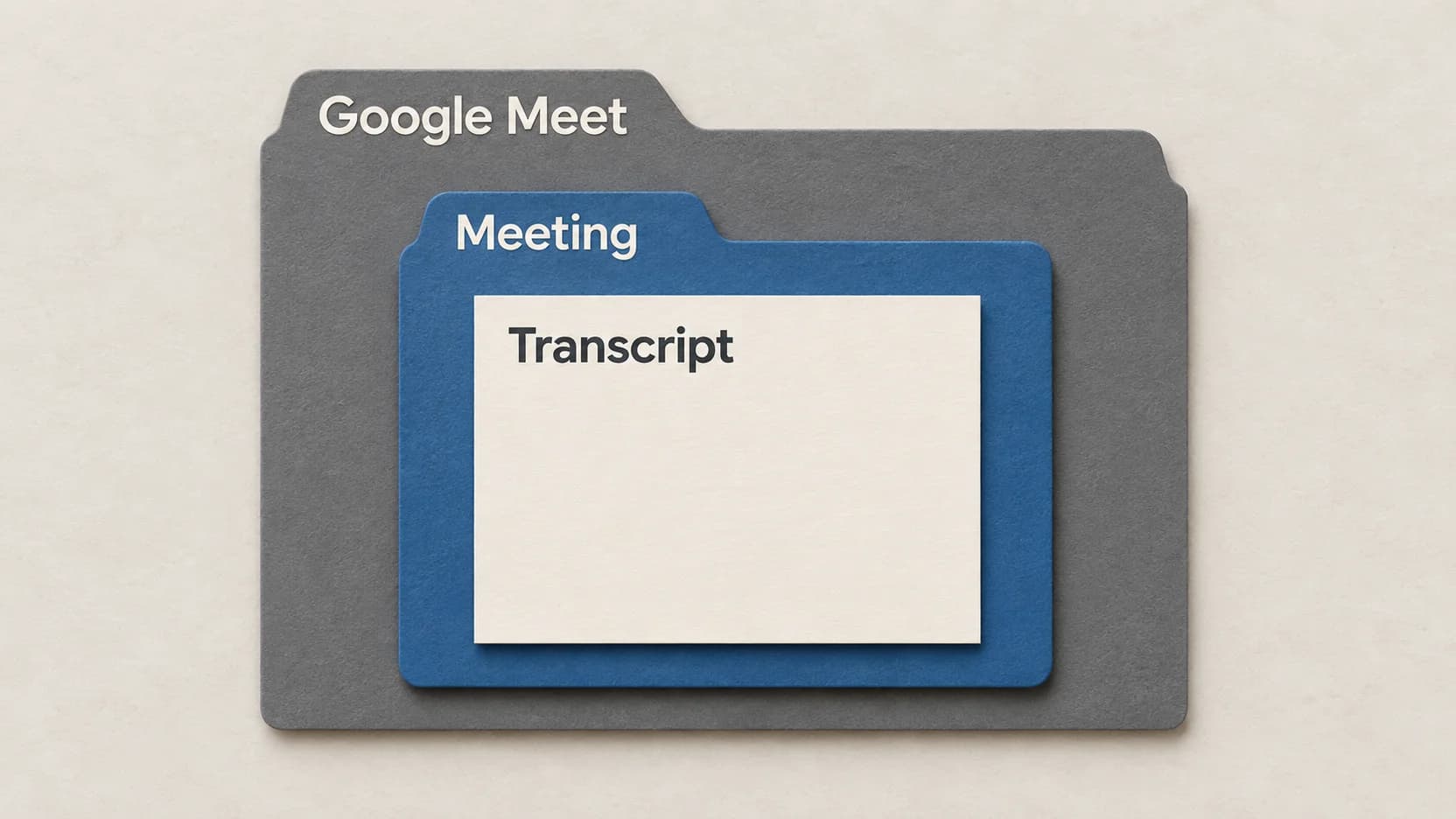
After the huddle, return to the channel or DM where it happened, locate its huddle thread, and open the notes canvas shared there. Slack says the canvas contains the notes and embedded transcript. Its AI notes draw on both the conversation and messages in the huddle thread; the summary is not simply a copy of spoken words. Notes contents and location.
If you searched a phrase and found nothing, go to that canvas before diagnosing missing capture. Slack explicitly excludes transcripts from search results. If the canvas does not contain the passage you need, establish whether notes were started and whether the relevant discussion occurred while transcription was paused. Searching again cannot resolve either question.
A missing search result, then a corrected action item
This is a synthetic scenario, not an observed Slack output or customer conversation.
A teammate searches Slack for “warehouse labels” after a huddle and gets no result. They open the huddle's thread instead, then its notes canvas, and find the phrase in the embedded transcript. The failed search had not established that the discussion was lost.
Suppose the summary says, “Ravi will approve the warehouse labels on Friday,” but the surrounding transcript reads, “I can review the warehouse labels on Friday if the supplier sends the dimensions. Approval still belongs to Elena.” Before forwarding that action, the teammate separates three facts: Ravi offered a conditional review, the supplier's dimensions are a dependency, and Elena retains approval responsibility. They correct the handoff rather than forwarding the summary's stronger claim.
For the fuller method of checking decisions, assignments, and missing deadlines, use the meeting-summary guide. If speaker labels are part of the record you are reviewing, speaker diarization and identity explains why attribution needs its own check.
Check the canvas audience before sharing
Slack says anyone in the channel or DM where the huddle took place can view the notes. The audience is therefore not limited to the people who attended. The canvas can also be shared like other canvases. Inspect its actual destination and sharing access before adding sensitive detail or forwarding it elsewhere. Slack's notes visibility rules.
For example, a three-person huddle inside a larger channel should not be treated as a private three-person written record. When a colleague needs only a decision, share the reviewed decision with enough context to understand it, rather than automatically redistributing the full transcript.
Dictating an outgoing Slack message is a different task: it produces text you intend to send. Huddle transcription records a conversation for later review. A message composer is not where you retrieve the huddle's transcript.
A separately authorized Mac record
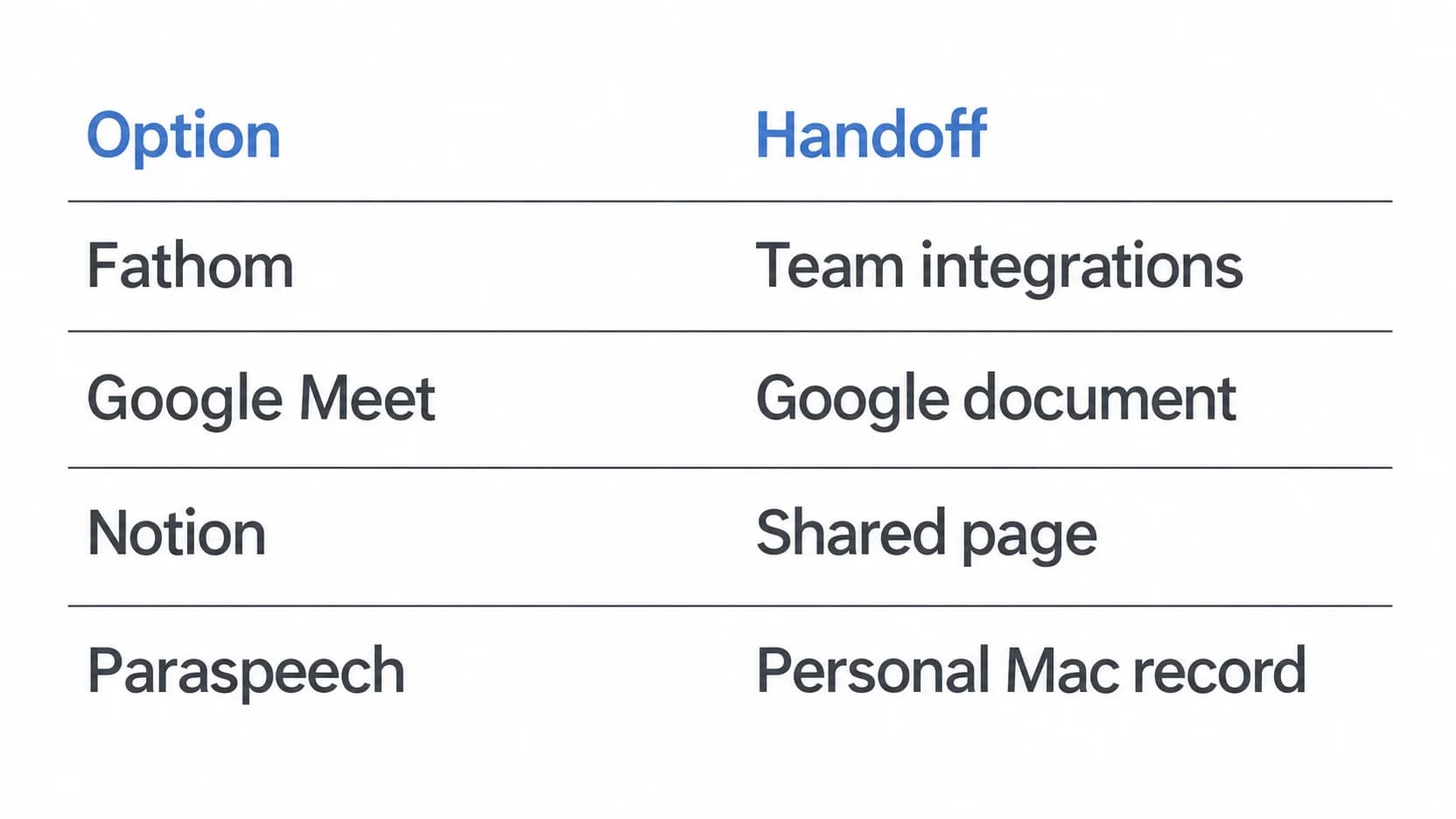
If your team has agreed to keep a separate record outside Slack, on supported Apple Silicon Macs with capture permissions and ready local speech and speaker-label models, Paraspeech's documented Meeting Mode records microphone and system audio into a Mac meeting workspace with playback and a speaker-aware transcript. The setup documentation covers capture permissions and the Start Meeting and Stop Meeting controls. Meeting Mode automatically attempts a cloud-generated summary after you stop; it requires internet. A transcript's speaker labels still need review before you attach names or commitments.
Choose this route only when a separate Mac record is the intended result and recording is authorized. It does not unlock Slack AI notes or put the record into Slack's canvas automatically. If the team needs its notes in the huddle thread, start with Slack's native feature. If someone has refused recording, a separate recorder does not resolve that refusal.
Named third-party products identify the workflows discussed. Paraspeech is not affiliated with, sponsored by, or endorsed by their publishers. Details can change; verify the linked official documentation.